Openrice Booking Webhook Integrations
This document explains Openrice Booking Webhook Integrations with the HungryHub system
Accept Status Values from OpenRice Webhook
- UPDATE · Booking information was updated by the restaurant or admin, support booking date/booking time/ seat update
- CONFIRM · Given that the restaurant or admin confirmed Customer attendance
- NOSHOW · Given that the customer did not attend the reservation, the booking was marked as a no-show by the restaurant or admin
- CANCEL · Booking was canceled by the restaurant or admin
HungryHub reservation status matching (suggestion)
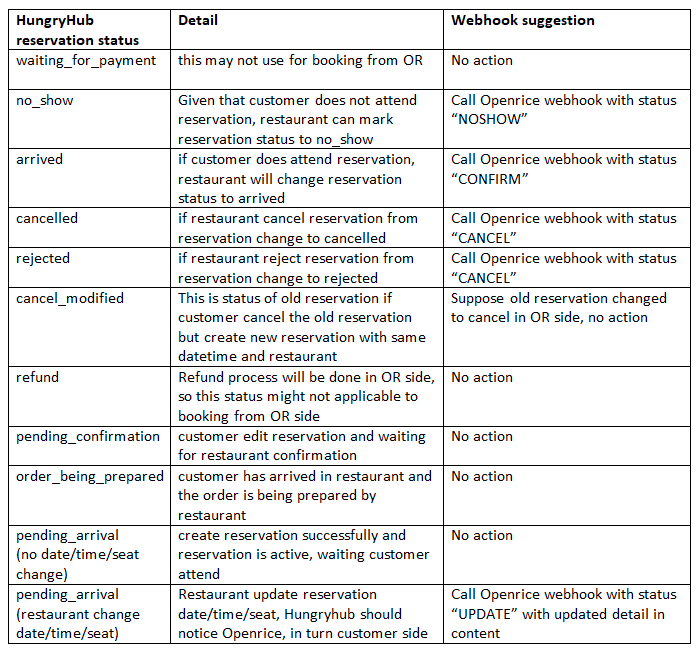
Here is an important remark from Openrice about the general rules of reservation status change for partners which will implement webhook on the partner side. 1. If the partner side already calls the webhook API with either NOSHOW / CONFIRM / CANCEL status for a particular booking to Openrice and returns success = true, the reservation status will stay permanent based on the request status. No further status change afterward even partner calls more webhook requests on the same booking. 2. There is a general rule of “Auto-confirm” in Openrice, i.e. if the booking time passed 48 hours but the Openrice system did not receive any CONFIRM/NOSHOW webhook request from the HungryHub side, the booking status will automatically become “CONFIRM”. The booking status will not be further updated even after calling NOSHOW webhook requests. Please contact and discuss with Openrice business/product staff if the partner wants to implement different practices.
Openrice Booking Webhook API (Partner HungryHub) v1.1.docx
How to Test the Integrations?
- OR create a new reservation via Vendor API (ref. https://documenter.getpostman.com/view/27128735/2s93eU2ZKm)
- OR login into the restaurant (owner) dashboard using the given account
- OR update, cancel, or mark arrived the reservation in the restaurant dashboard then the HH system will send the changes of reservation status to OR webhook
- OR system receives the request and returns the response
- OR check the reservation status on their system and the status should be changed as expected
Restaurant Account and Packages for Testing
List of restaurants, packages, and owner accounts that can be used to test the integrations of Openrice webhook with the HungryHub system.
- Restaurant ID: 997 - Cafe Claire by Oriental Residence
- Package ID: 3787 - ayce - requires pre-payment
- Package ID: 1302 - ayce - not requires pre-payment
- Package ID: 18736 - pp - requires pre-payment
- Package ID: 1507 - pp - not requires pre-payment
- Package ID: 19719 - xp - requires pre-payment
- Package ID: 22793 - xp - not requires pre-payment
- Package ID: 25077 - bfp - requires pre-payment
- Package ID: 25076 - bfp - not requires pre-payment
Owner Account for Testing:
- Login URL: https://hhstaging.dev/dashboard/v2/owners/sign_in?locale=en
- Email: cafeclaire@hungryhub.com
- Password: openricetesting
- Restaurant ID: 34 - Rang Mahal Rooftop
- Package ID: 1619 - ayce - requires pre-payment
- Package ID: 4043 - ayce - not requires pre-payment
- Package ID: 12667 - pp - requires pre-payment
- Package ID: 12724 - pp - not requires pre-payment
- Package ID: 19737 - xp - requires pre-payment
- Package ID: 22327 - xp - not requires pre-payment
- Package ID: 25078 - bfp - requires pre-payment
- Package ID: 18858 - bfp - not requires pre-payment
Owner Account for Testing:
- Login URL: https://hhstaging.dev/dashboard/v2/owners/sign_in?locale=en
- Email: rangmahal@hungryhub.com
- Password: openricetesting
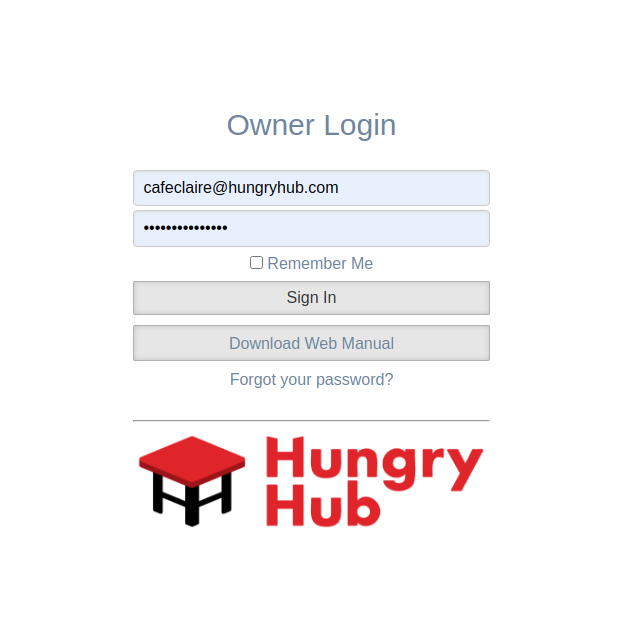
You can log in to the restaurant dashboard using the Login URL and fill out the email and password.
Example:
Once you already logged in then you can go to the Bookings menu and see the list of the reservations
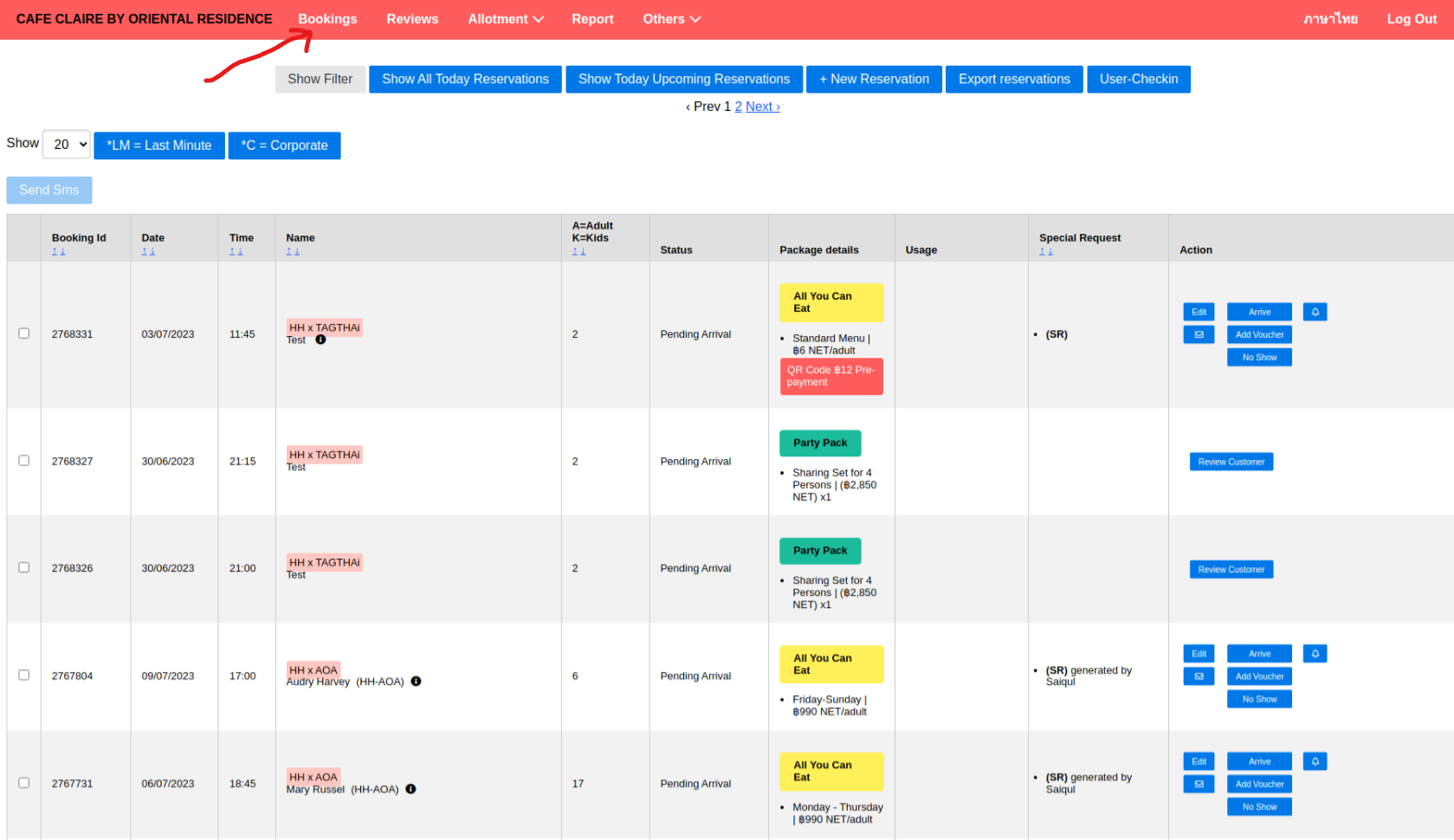
You can see OR bookings in the Name column are marked with the name HH x OR like this

Now you can edit, cancel, confirm, reject, mark no show, and mark as arrived the reservations (ref. see the reservation status matching suggestion section)
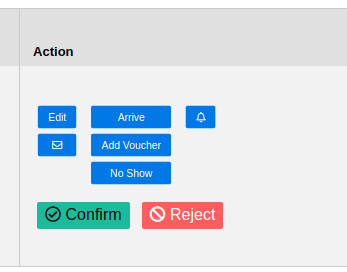
Notes that we send the request to Openrice Webhook using Worker (running in the background) so there would be a delay. During normal operation, it takes max 3 seconds to process, but if there is a peak time, it takes max 10 seconds to process.