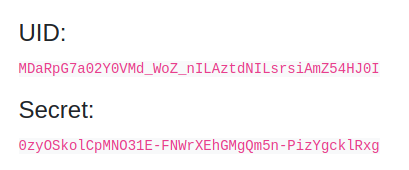
Deployment Plan for Release to Production
This document explains the deployment plan of the OpenRice x HungryHub integrations project to the production environment.
Pre-Deployment Steps
- Create Pull Request (PR) from feat/vendor-api-integrations to main branch [Done]
- Synchronize feat/vendor-api-integrations with main [Done]
- Get reviews from other team members [Done]
- Ask webhook configuration for production environment to OpenRice team and TagThai team [No need for now because OpenRice and TagThai webhook is not deployed yet]
Deployment Steps
- Update the config for these keys in the production environment
OPENRICE_WEBHOOK_CLIENT_TOKEN=access-token

TAGTHAI_API_URL='https://backend-api-dev.tagthai.com/api'
TAGTHAI_SSO_USER_URL='https://backend-api-dev.tagthai.com/api/service-public/auth-sso-service/user-info'
TAGTHAI_API_KEY='$2a$10$xdHq25exEevdBCW1EQQvx.r/Ms03./HzcQW40H1XnqJluVZoDGWWi'

TAGTHAI_WEBHOOK_URL='https://backend-api-dev.tagthai.com/api/backend/hungryhub-booking-service/booking/callback'
Notes: We need to update the above environment keys after the OpenRice and TagThai webhook are released. For now, no need to fill in with the actual values but the keys must be exist before we merge the PR.
- Merge and squash the PR into the main branch
- Announce to the teams that the OpenRice integrations project is deploying to production
Post-Deployment Steps
1. Create a new application for the OpenRice and TagThai vendor on https://hungryhub.com/oauth/applications
- Click the New Application button and fill out the form for the OpenRice and TAGTHAi vendor. Here is an example of the staging form
Form:
-
1. For OpenRice- Name: HH x OpenRice
- Redirect URI: use OpenRice webhook production URL [for now can use the staging: https://staging-api.openrice.com/biz/api/v1/booking/hungryhub/webhook]
- Confidential: checklisted
- Scopes: default
- For TagThai
- Name: HH x TAGTHAi
- Redirect URI: use TAGTHAi webhook production URL [for now can use the staging: https://backend-api-dev.tagthai.com/api/backend/ota-service/hungryhub/booking/callback]
- Confidential: checklisted
- Scopes: default
2. Fill out the Openrice Webhook Url field in the admin setting (https://hungryhub.com/admin/settings?locale=en) with OpenRice production webhook URL [For now no need to change]
example:

3. Create a new account for the Partner report
- Go to https://hungryhub.com/admin/bloggers?locale=th then click add new button
- Fill out the form
- Name: OpenRice
- Website: www.openrice.com
- Instagram: openrice.instagram
- Facebook: openrice.facebook
- Twitter: openrice.twitter
- Avatar:

- Email: openrice@hungryhub.com
- Password: openricexhungryhub
- Password confirmation: openricexhungryhub
- Channel: pick "HH x OpenRice"
4. Give the API_KEY and API_SECRET_KEY to the OpenRice team to access the Hungry Hub systems.
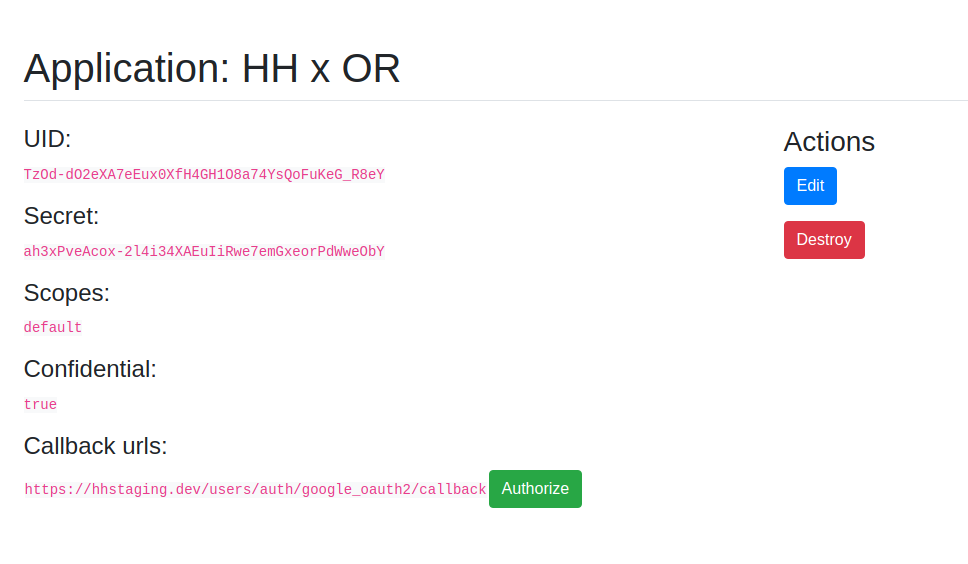
- Go to https://hungryhub.com/oauth/applications and click the HH x OR app
- Then use the UID => API_KEY and Secret => API_SECRET_KEY
example: