Store Page Desktop
Design
PRD
https://docs.google.com/document/d/1HarEloxni8Y9srRAuCoxuooMB5dNXIP9fom3AbU8i2U/edit
Quick Tab Bar
It will display at the top of the store page. If the user clicks one of these tabs, it will navigate to that section.
Store Overview
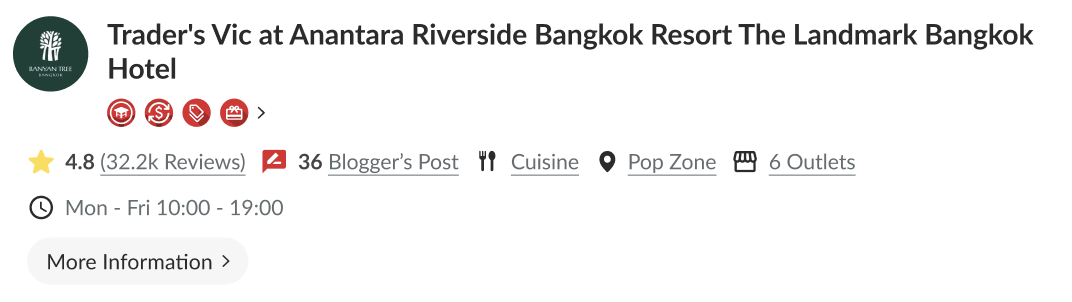
Same as restaurant info in mobile version. Parameter that we use from restaurant object:
- logo_url
- name
- reviews_score
- reviews_count
- location/primary_location.name
- cuisine/primary_cuisine.name
- weekday_opening_hours
- branch_id (optional) Others:
- Blogger count from: API {{ base_api }}/restaurants/{id}/blogger_reviews.json
- Outlet count from: API {{ base_api }}/branch/{branch id}/restaurants.json
Offers Information
This will show if we click the offers icon for the explanation of each offer. Learn more; will navigate to the FAQ page. Learn more link:
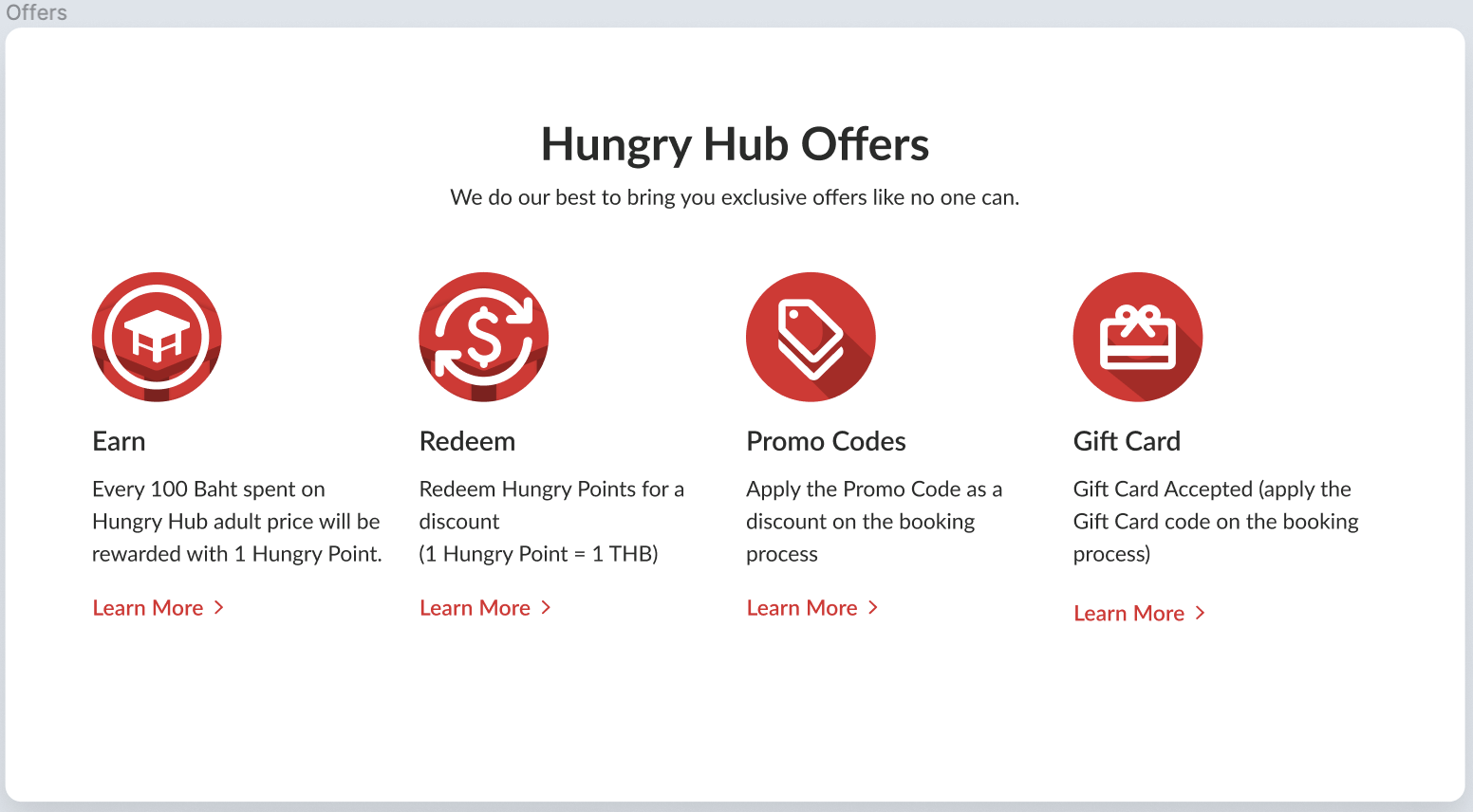
Information Page
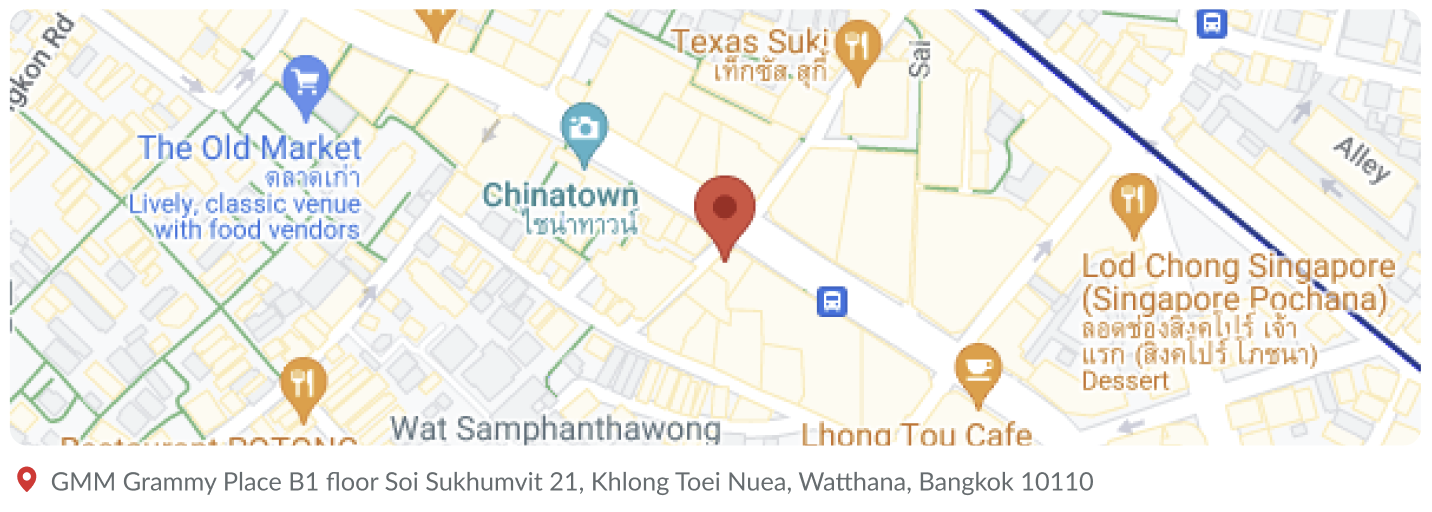
Location Section In the address section we can use “restaurants” object params:
- address
- lat
- lng
- map_location (for open in google maps link)
For Map UI we can use static mapbox.
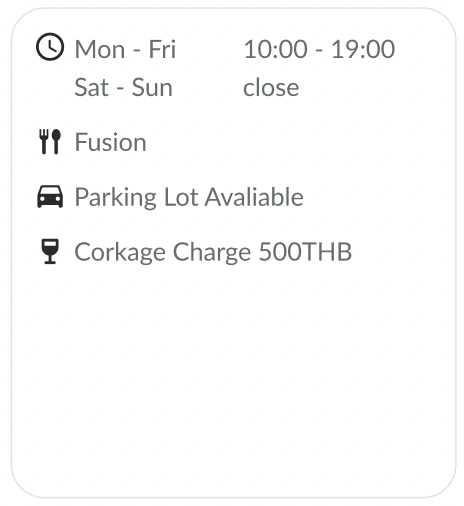
 Opening Hours and Primary Info
This logic same as above we can use param:
Opening Hours and Primary Info
This logic same as above we can use param: - weekday_opening_hours
- cuisine
- parking
- corkage_charge
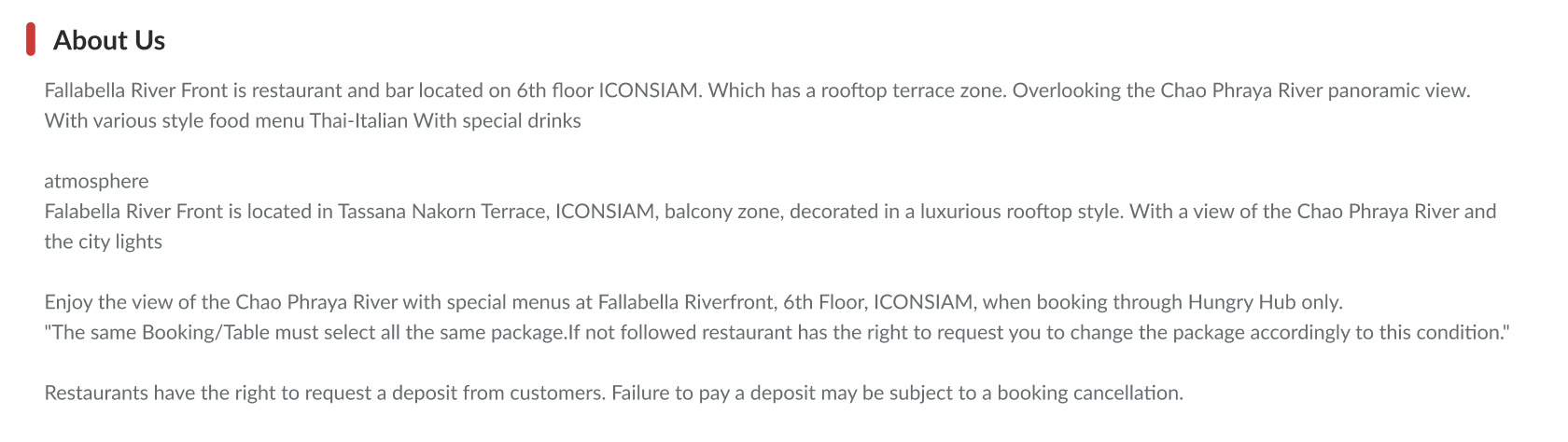
About Us On this section we’ll use param:
- description
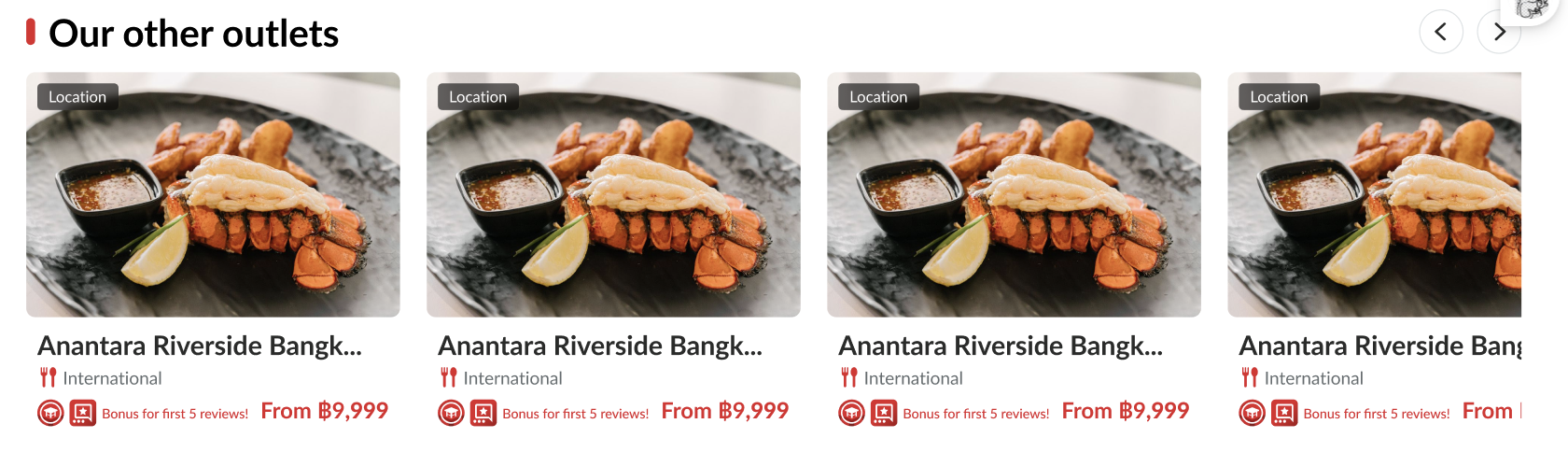
Our other outlets For restaurant that has branch_id, we can use this API:
- API {{ base_api }}/branch/{branch id}/restaurants.json
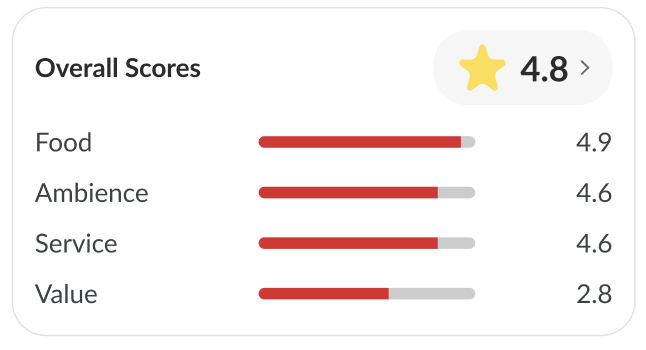
Overall Score
It will navigate to the customers review section. Overall score will use the new API.
URL: {base_url}/api/v6/restaurants/{id}/reviews.json
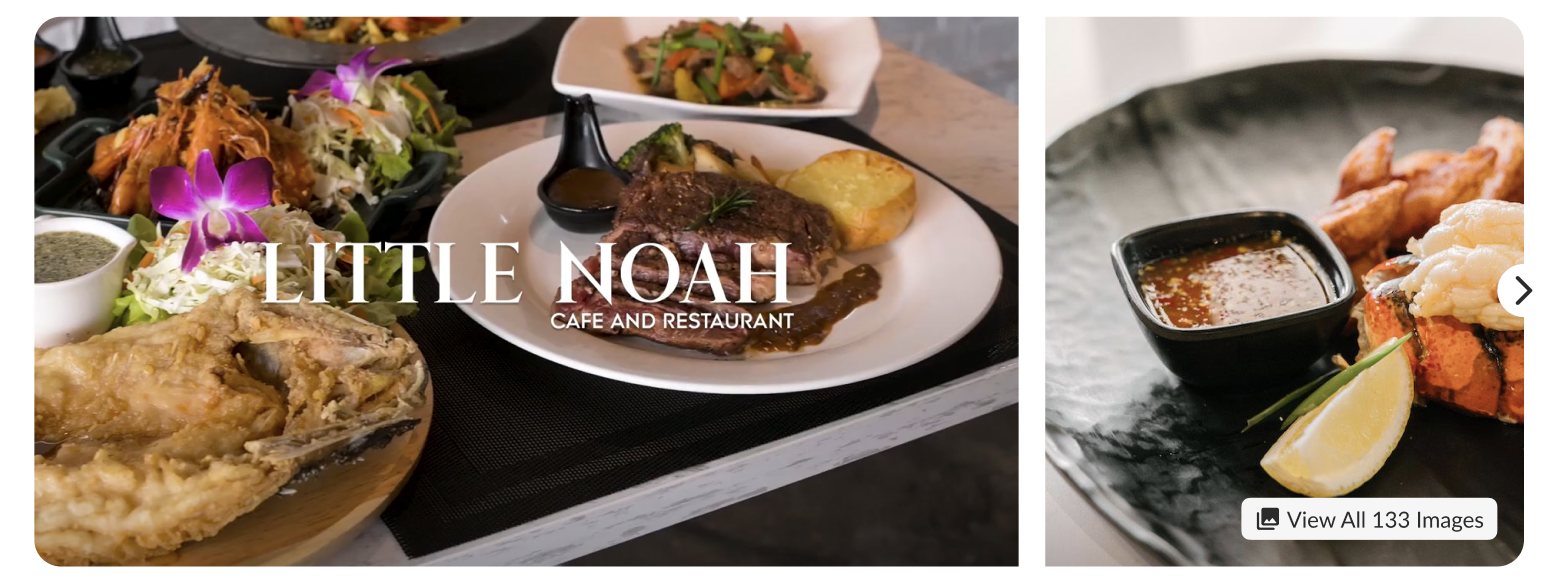
Store’s Picture
- Will display 1 and a half of the next picture, with auto change within 8 seconds.
- Arrow button; click to see the next picture.
Gallery Page
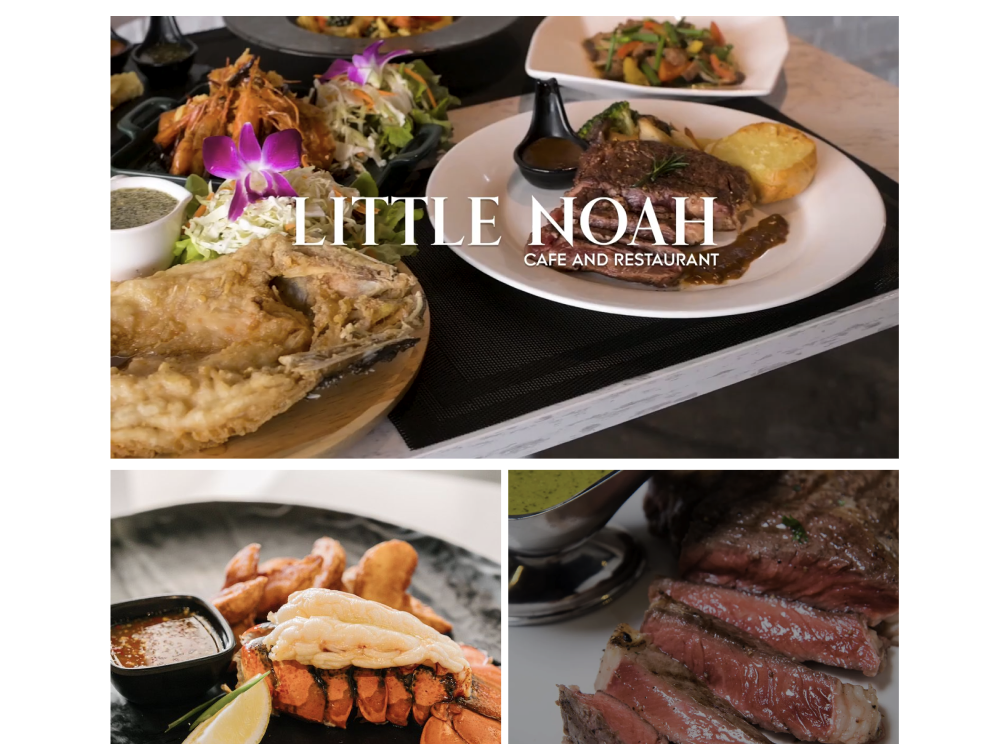
View all button can view all photos of that store.
- Overlay gallery page will show after clicking.
- Quick tab bar at the top of the overlay page; if the user clicks one of these tabs, it will navigate to that section.
- There are 3 types of gallery;
- All
- Store
- Review

Gallery View
Blogger’s Post
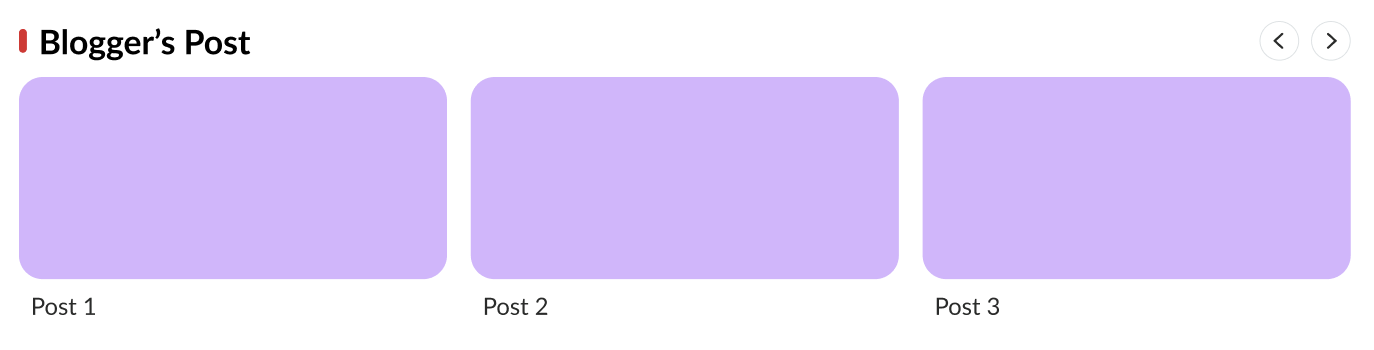
For blogger’s post now will more simple with showing cover and when we click that will open the URL. No need to create native component inside the app.
API: {{ base_api }}/restaurants/{id}/blogger_reviews.json
Review Count
Reviews count will use the new API. We can sort by clicking star rating. URL: {base_url}/api/v6/restaurants/{id}/reviews.json
		"stars_count": {
			"one": 5,
			"two": 6,
			"three": 12,
			"four": 44,
			"five": 240
		}

Customer’s Review
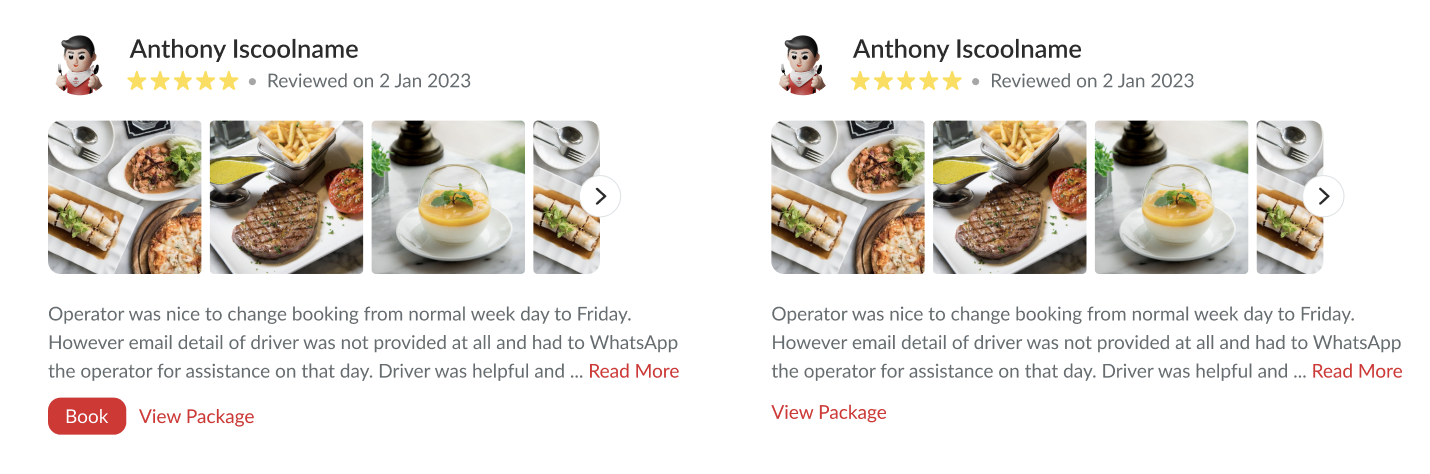
What we’ll show:
- Reviewer’s profile picture
- Reviewer’s name
- Star rating that reviewer gave.
- Reviewed date
- Review picture
- Review content
- Read more button
- Read more for review content View package button
- In case No.1, if the booking was created with only one package, the booking process section (11) will show up and the page will scroll up to the booking process section.
- In case No.2, if the booking was created with multiple packages, it will have an overlay pop-up that shows the reviewer’s booked packages.
- Package card pop-up; if clicking the book button, the booking process section will show up and the page will scroll up to the booking process section. Book button
- If clicking the book button, the booking process section will show up and the page will scroll up to the booking process section. API: {{ base_api }}/reviews.json Payload:
{
	"restaurant_id": 3127,
	"minor_version": "{{ minor_version  }}",
	"page": {
		"number": 1,
		"size": 10
	}
}
Search Tags
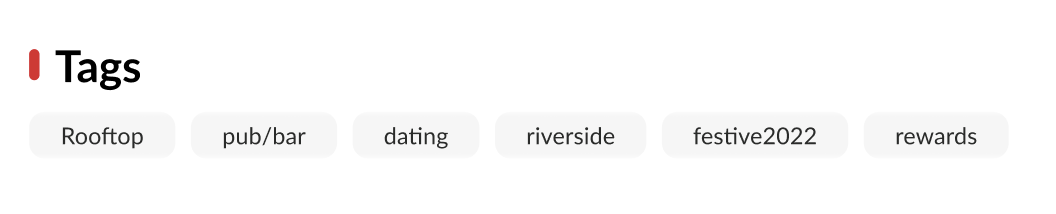
For this section we will use a new API to get tags based on restaurant id. When clicking any of the tags, it will redirect the user to the search page displaying the outlets tagged to the selected tag URL: {base_url}/api/v6/restaurants/{id}/hashtags.json when we click will trigger web-event onTagsClicked with payload:
{
	"id": 268,
	"title": "Outdoor"
}
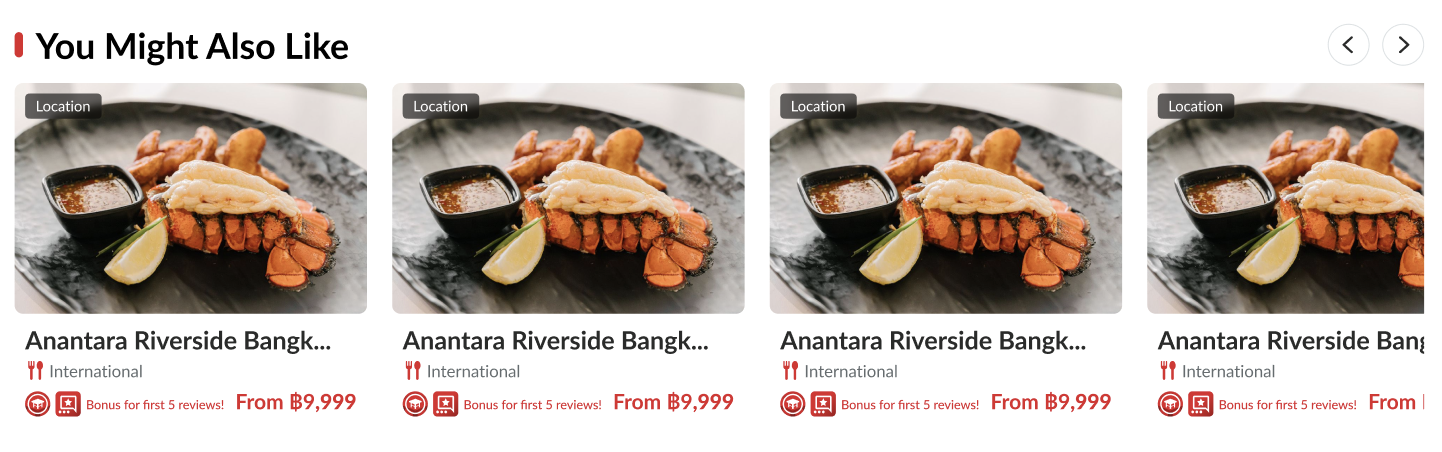
You Might Also Like
This one is section that we have on the bottom restaurant page.
- It should be the same logic filtered by primary cuisine. Every time that user refreshes, data will be changed.
- Maximum 8 slots of the carousel format.
- Arrow button; click to see the next picture.
- All slots that show on are sorted by nearest location first.
- If the location service is off, the cards are sorted by the number of bookings in the past 24 hours from highest to lowest
API: {{ base_api }}/restaurants/{id}/similar.json