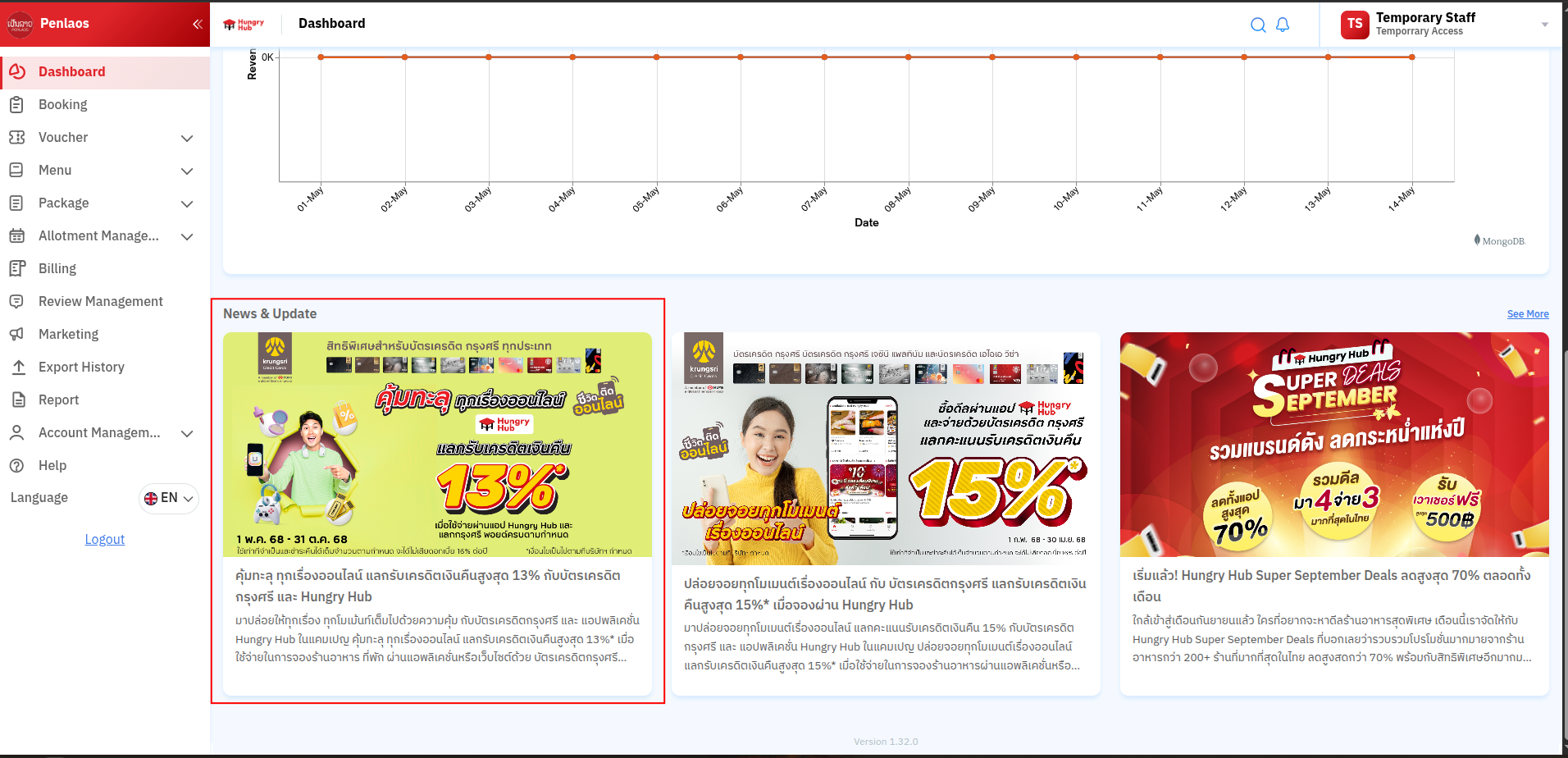
Dashboard Page
Glossary
https://app.clickup.com/9003122396/docs/8ca1fpw-35796/8ca1fpw-41516
Features
Branch Section
At the top-right of the page, you will see the branch list if you are logged in as a group administrator.

Date and Time Section
At the top-left of the page, you will see date and time. It shows the last refresh time.
Today’s Booking Section
- Shows total Bookings today.
- Shows total Covers today.
- Includes a See More button that redirects to Booking page filtered for today.
Upcoming Bookings & Allotments (Next 7 Days) Section
- Displays Bookings for the next 7 days.
- Displays Covers for the next 7 days.
- Displays Seats Available percentage for the next 7 days.
If it shows 40%, this means 40% of seats are still available for booking in the next 7 days.
- Includes Manage Allotment button that redirects to Allotment Management page.
This Month Bookings Section
- Displays Bookings for this month.
- Displays Covers for this month.
- Includes See More button that redirects to Booking page filtered for this month.
This Month Voucher Sales Section
- Displays Revenue from VIM sales this month.
- Displays total Redeemed VIM this month.
Pending Bookings Section
- Displays Pending Bookings (pending status, excluding temporary bookings).
- Displays Covers for current pending bookings.
- Includes See More button that redirects to Booking page filtered for pending bookings.
Package Summary (Past 30 Days) Section
- Displays number of online packages.
- Shows best-selling package.
Rating Summary (Past 30 Days) Section
This section is currently under bug fixes and will be available in the next release.
Revenue From Bookings Section
This section displays a revenue chart summarizing booking sales for the past 30 days.
News & Update Section
- Shows active promotions from Blog Hungryhub.
- Includes See More button that redirects to Marketing page.
- This section gets data from https://blog.hungryhub.com using tag
partnernews. - https://blog.hungryhub.com/tag/partnernews/
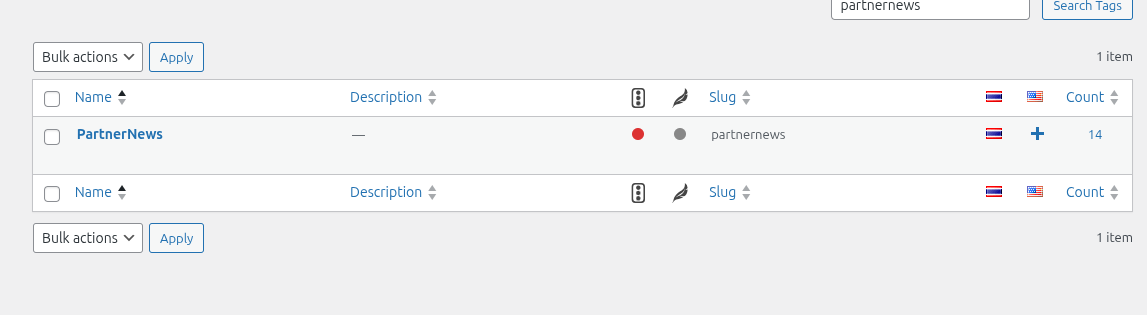
- Add tags to the post you want to display on Partner Portal.
How to add the blog post to Partner Portal news and update
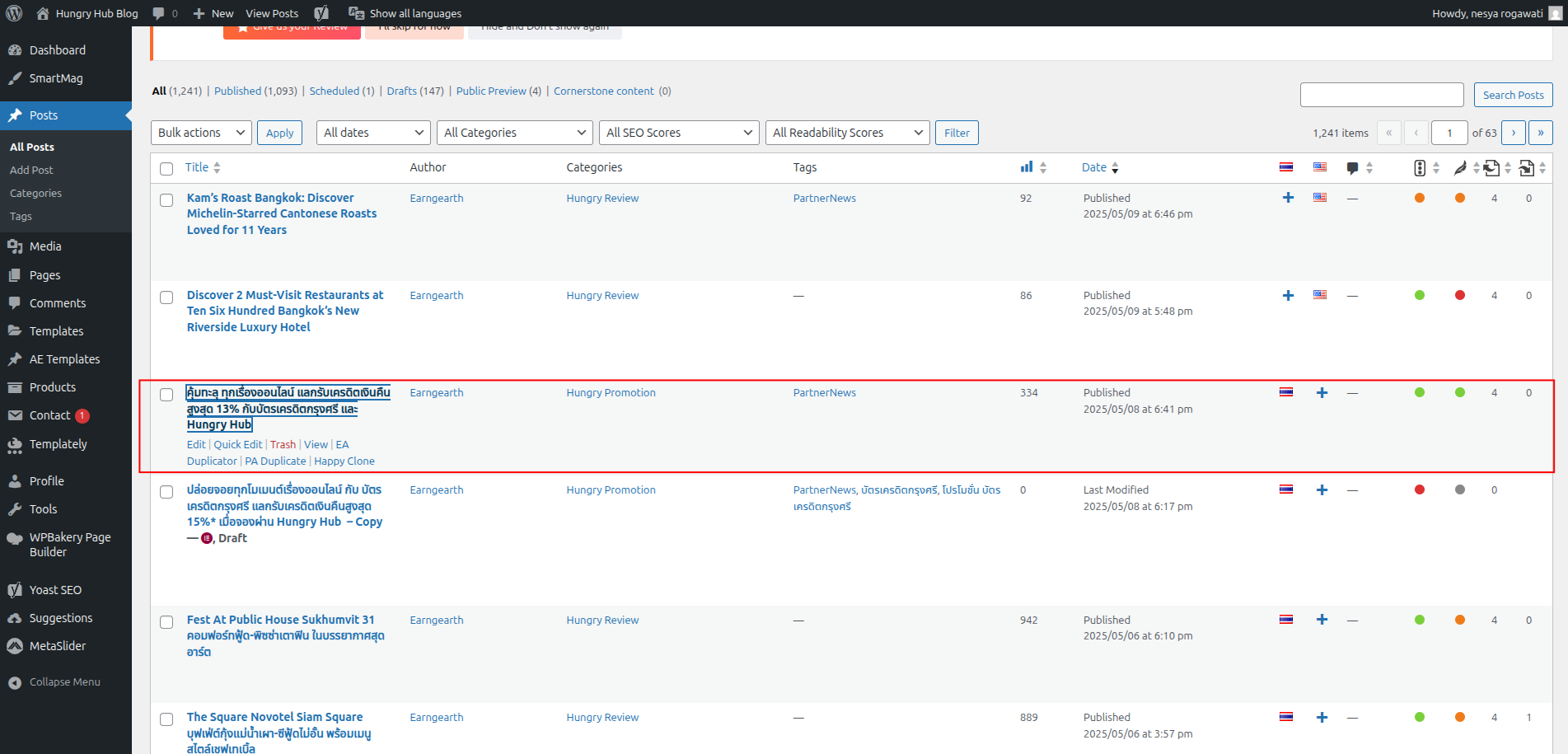
- Open Blog Hungryhub admin page.
- Open All Posts and pick the target post.
- Edit the post and add
partnernewsto tags.
The
partnernewstag is only displayed for Thai language posts.

- The post result should look like this:
- The post will be displayed on Partner Portal like this: