Booking Page
How to create booking
- Log into the dashboard.
- Go to the Booking menu.
- Click + Create Booking.
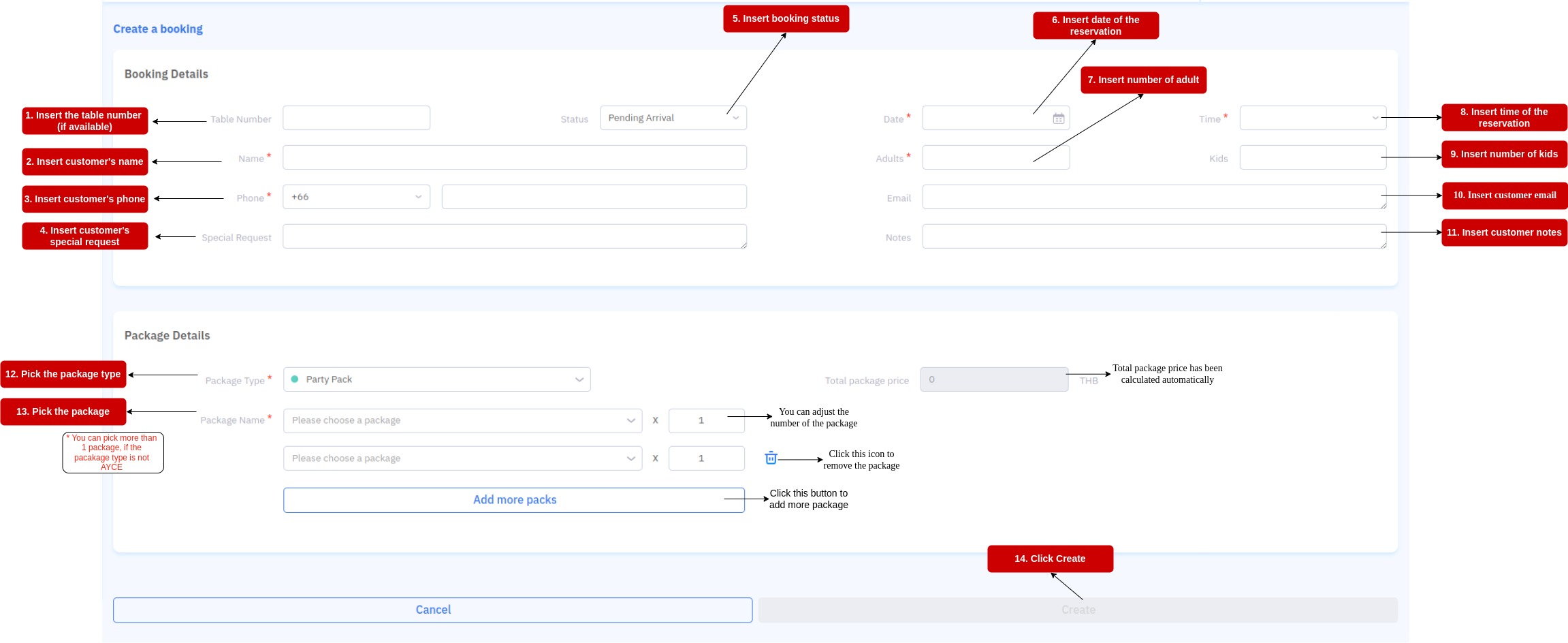
Status:
- Pending Arrival -> when customer successfully makes a booking.
- Arrived -> when customer has arrived and is dining in the restaurant.
- Cancel -> when the booking is canceled.
- No Show -> when customer did not show up within 30 minutes after booking time.
How to export booking list
- Log into Partner Portal.
- Go to Booking.
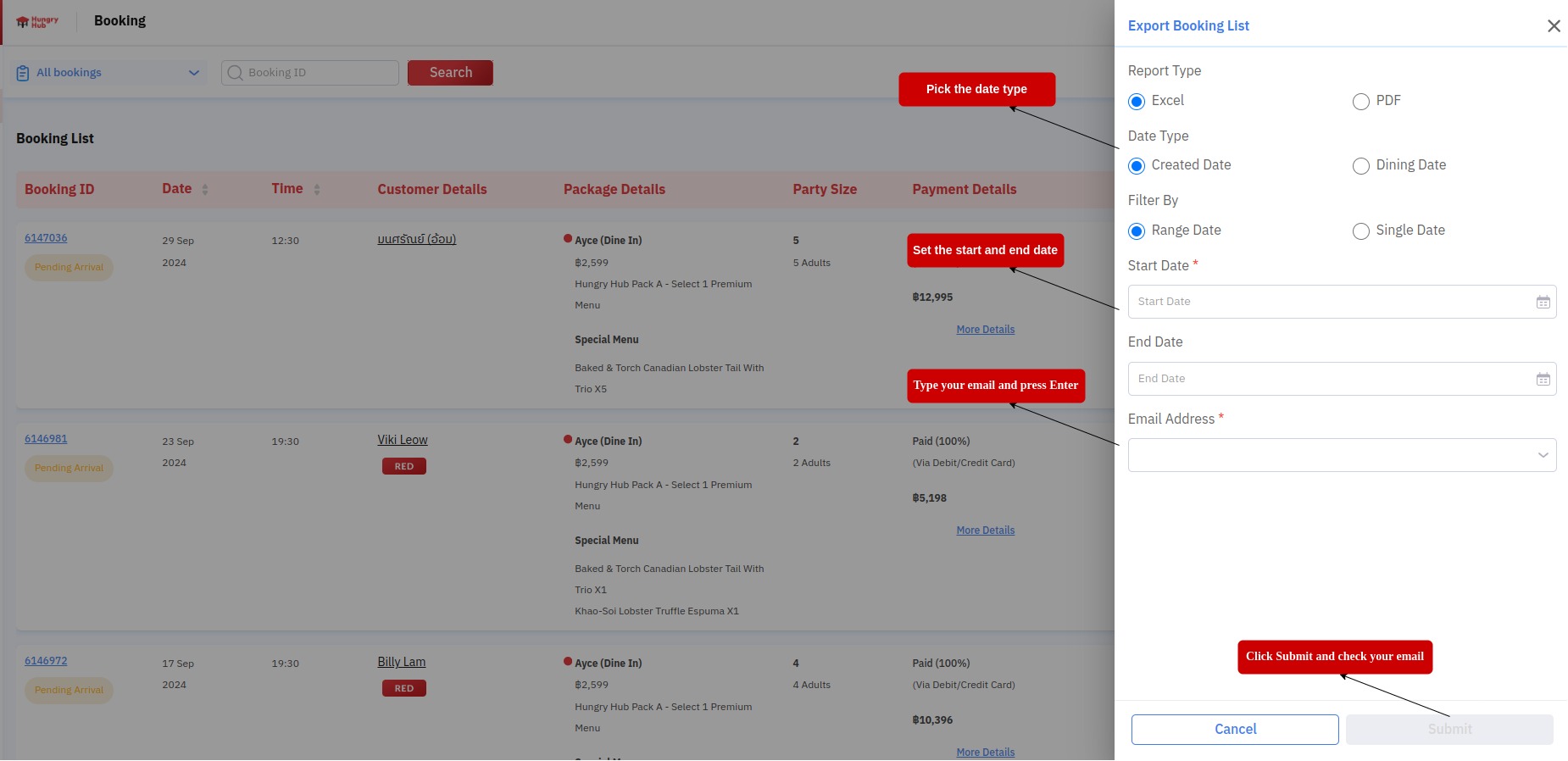
- Press Export.
- Pick date type.
- Set start date and end date.
- Type your email.
- Press Submit and check your email.
Note: Submission is triggered by the Submit button. The report may take up to 20 minutes to generate.
How to use booking filter
- Log into the dashboard.
- Go to Booking menu.
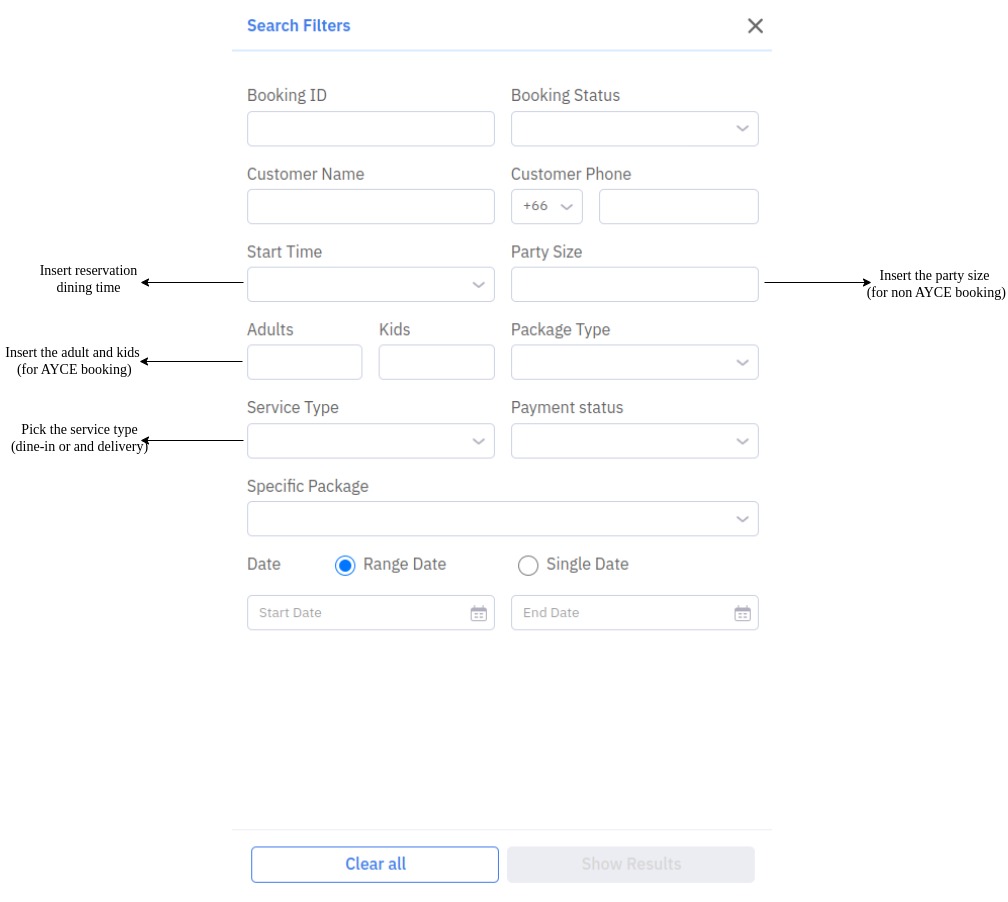
- Click the filter button.
- Filter bookings by:
- Booking ID
- Booking Status
- Customer Name
- Customer Phone
- Start Time
- Party Size
- Adults & Kids
- Package Type
- Service Type
- Payment Status
- Specific Package
- Date
- Click Show Result to apply filters.
- The Filters button icon shows active filter count.
- To clear filters, click Filters -> Clear All.
Booking List
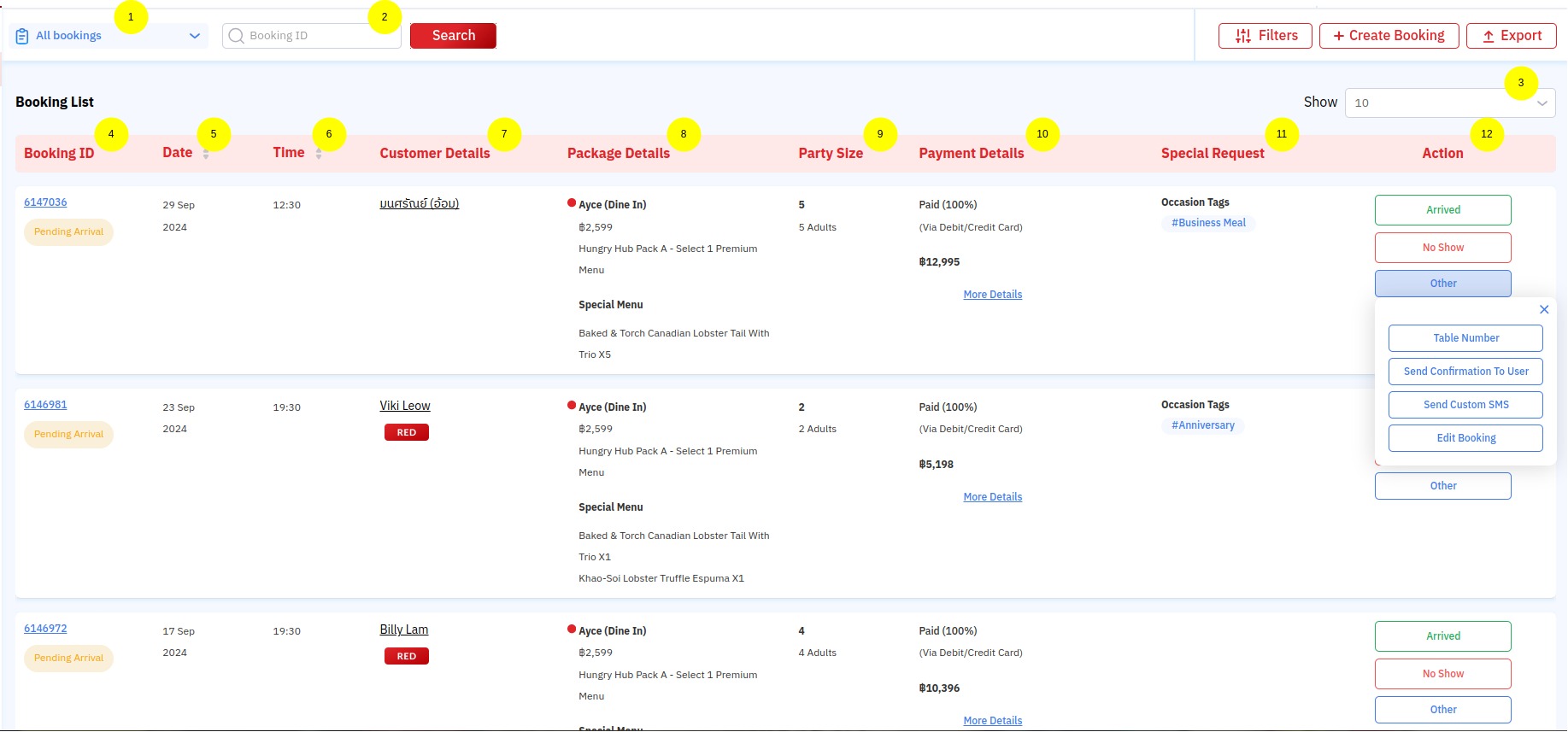
After clicking Booking, the system shows upcoming reservations.
- All Bookings filter shows all bookings. Change filter to see specific status.
- Booking ID search searches specific booking.
- Show sets number of rows per page.
- Booking ID opens booking details.
- Status can be Pending Arrival, Canceled, No Show, or Arrived.
- Date is reservation date.
- Time is reservation time.
- Customer Details opens customer detail and booking history.
- Package Details shows package name and price per pax.
- Party Size shows number of guests.
- Payment Details shows payment summary. Click More details for full breakdown.
- Special Request shows additional customer requests.
- Actions:
- Arrived -> mark customer as arrived.
- No Show -> mark customer as no-show when uncontactable after 30 minutes.
- Table Number -> assign table number.
- Send Confirmation To User -> send manual confirmation (one time).
- Send Custom SMS -> send custom SMS manually.
- Edit Booking -> edit reservation.