QR Code for Menu
🧾 History
| Date | Changes | Link | By |
|---|---|---|---|
| 15 Oct 2024 | Add View Menu on Booking & Voucher Page Access to View Your Menu Page View Menu page for HH Menu Display Restaurant Name (Update) View Menu Link (Update) | This PRD | Umam |
📕 About
| Context | In a package, have menu that can be chosen by user |
|---|---|
| Problem | There is no shortcut to access the menu list. user need to see it when onsite. in current condition, user need to access the store page (too long process). |
| Solution | Need to provide shortcut access to make it easier. |
| Name of Feature | QR Code for Menu |
| Objective | Add View Menu on Booking & Voucher Page Access to View Your Menu Page View Menu page for HH Menu Display Restaurant Name (Update) View Menu Link (Update) |
| Gains | Similar UI with delivery, can reuse it |
| Pains | Need some adjustment with Comparing Packages table ticket |
| Figma Link | https://www.figma.com/design/06upxjt19EbVIFwnQGs162/QR-Code-for-Menu?node-id=22-2&t=rr2Opzspkbt0V3F4-1 |
| Available Platform | Web mobile view |
| Sprint | 45 |
| Related PRD | Private (https://app.clickup.com/9003122396/docs/8ca1fpw-7922/8ca1fpw-42456) |
| Out of Scope | Web desktop view Mobile app Group based (because HH menu v3 hasn't implemented yet) |
🎯 User Story & Requirement
Add View Menu on Booking & Voucher Page
| User Story | Requirement |
|---|---|
| Booking & Voucher Page Flow : Profile ➝ Booking & Voucher Page | Default Add View Menu button beside the Edit Booking button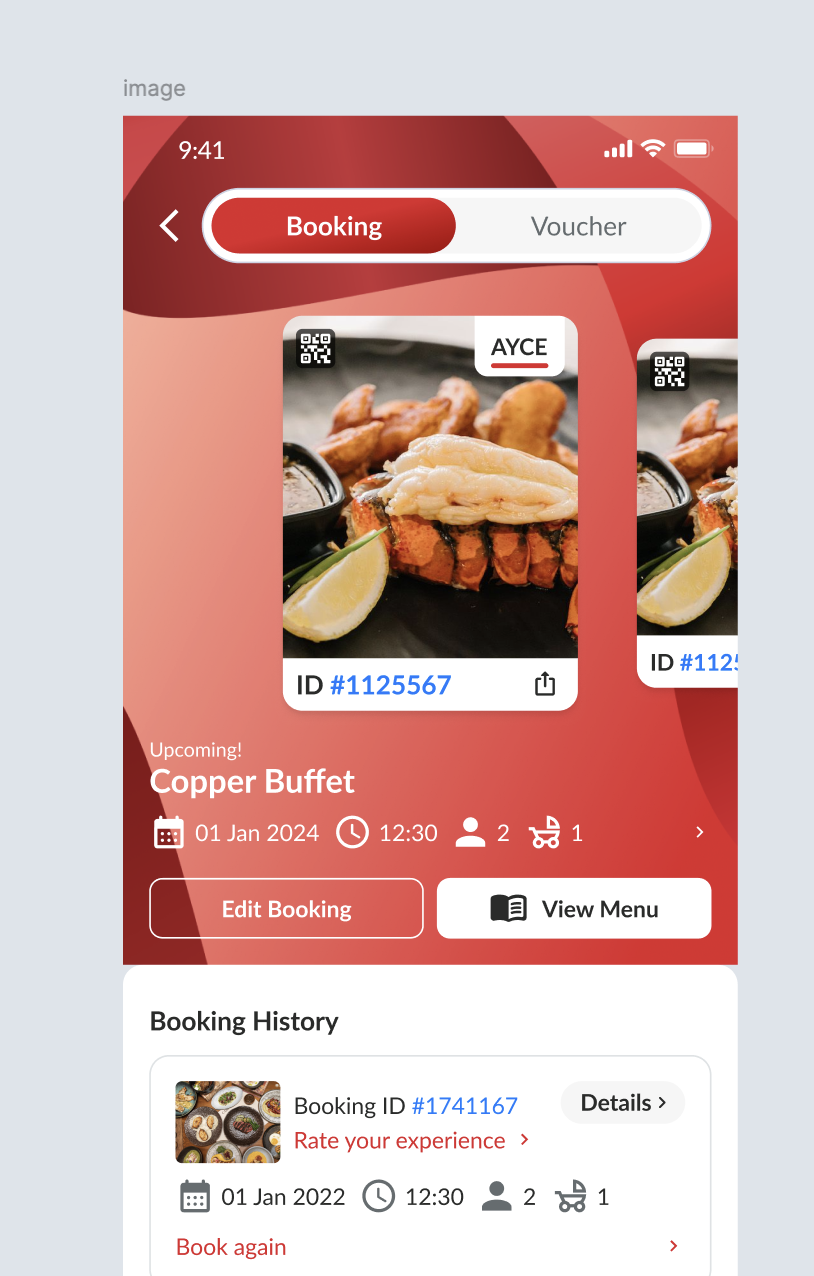 If there's Self Check in buttonAdd View Menu button but only the icon, without the View Menu text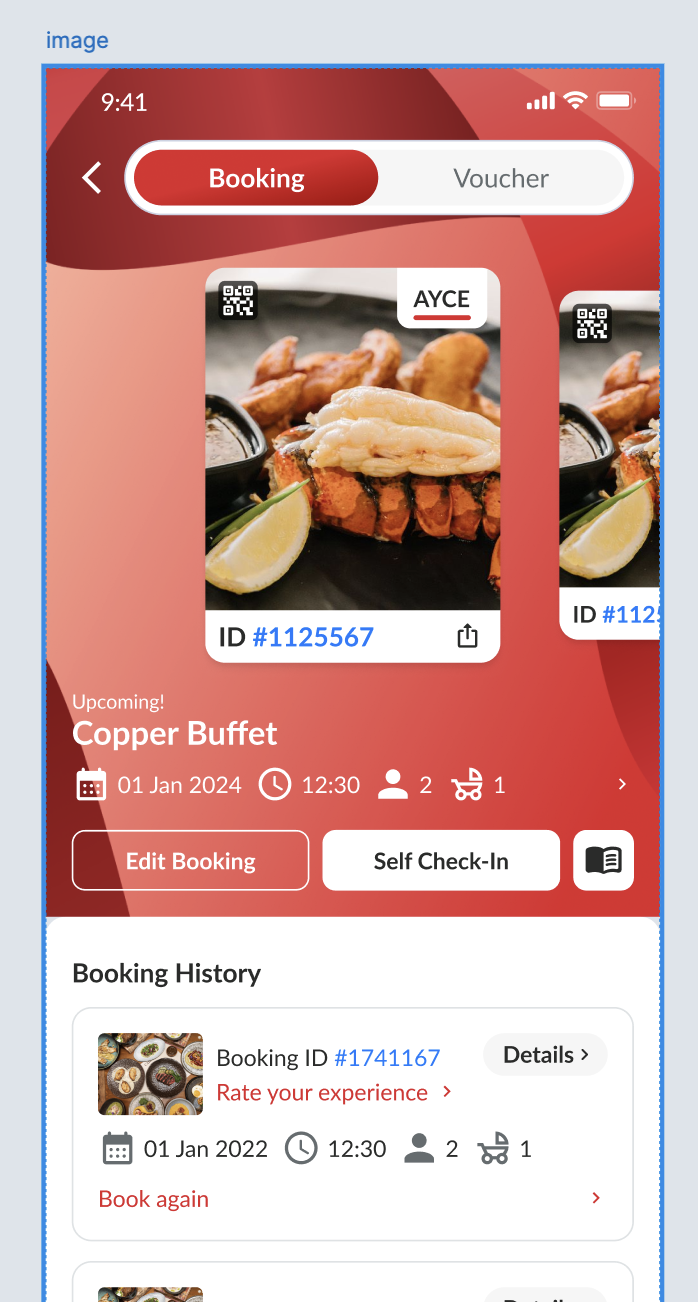 |
| Upcoming Booking Flow : Profile ➝ Booking & Voucher Page ➝ Click Upcoming Booking | Add View Menu button under the Booking List button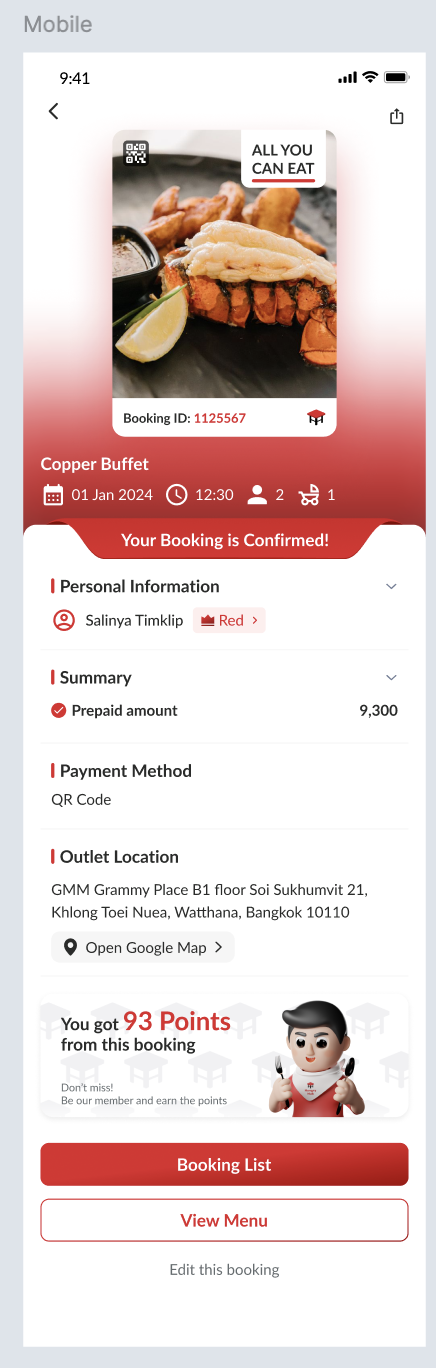 |
Access to View Your Menu Page
| User Story | Requirement |
|---|---|
Click View Menu button | After click View Menu button, redirect to Go to Package Page (without entering the booking ID form)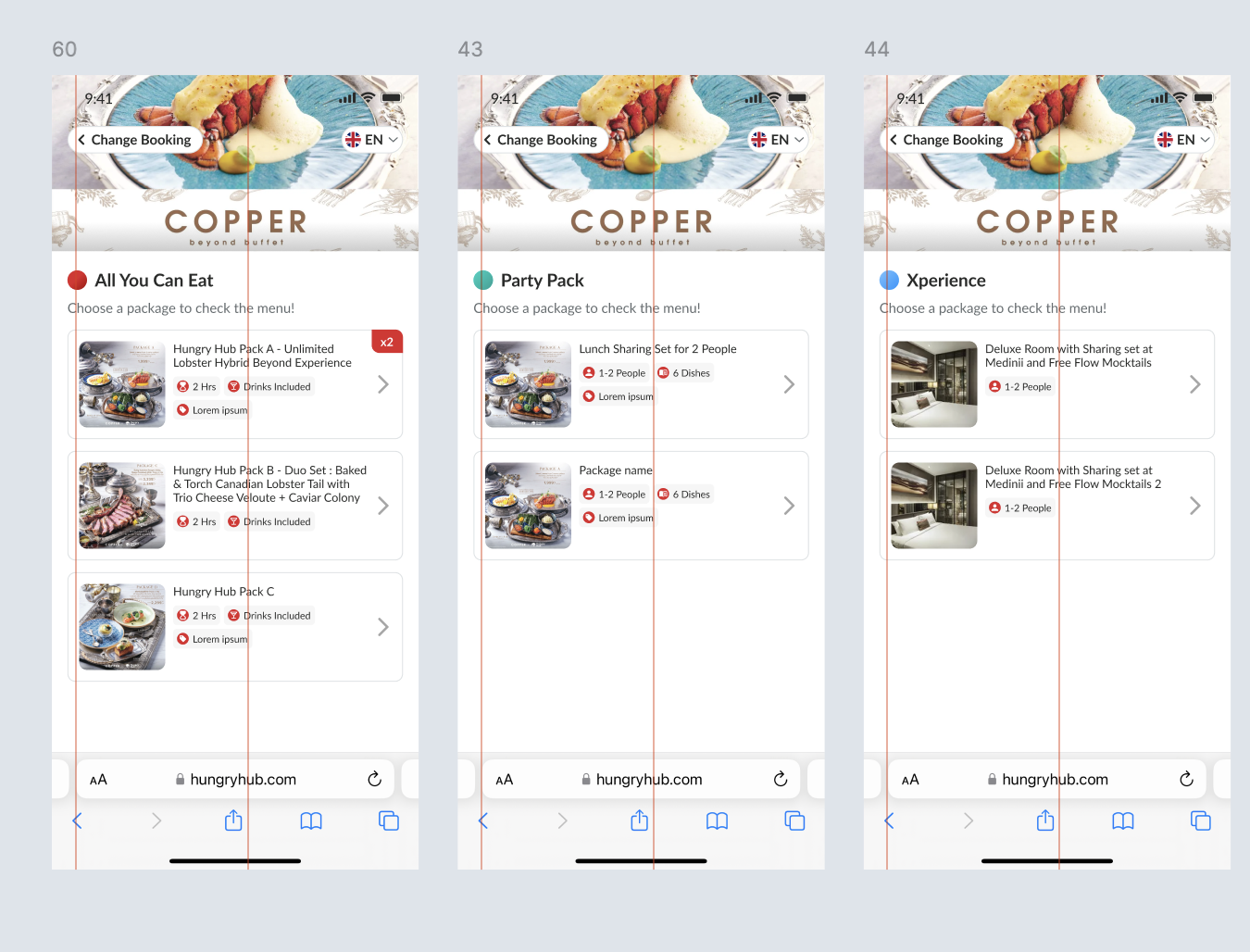 |
| Scan QR | There is a QR that will redirect to View Your Menu Page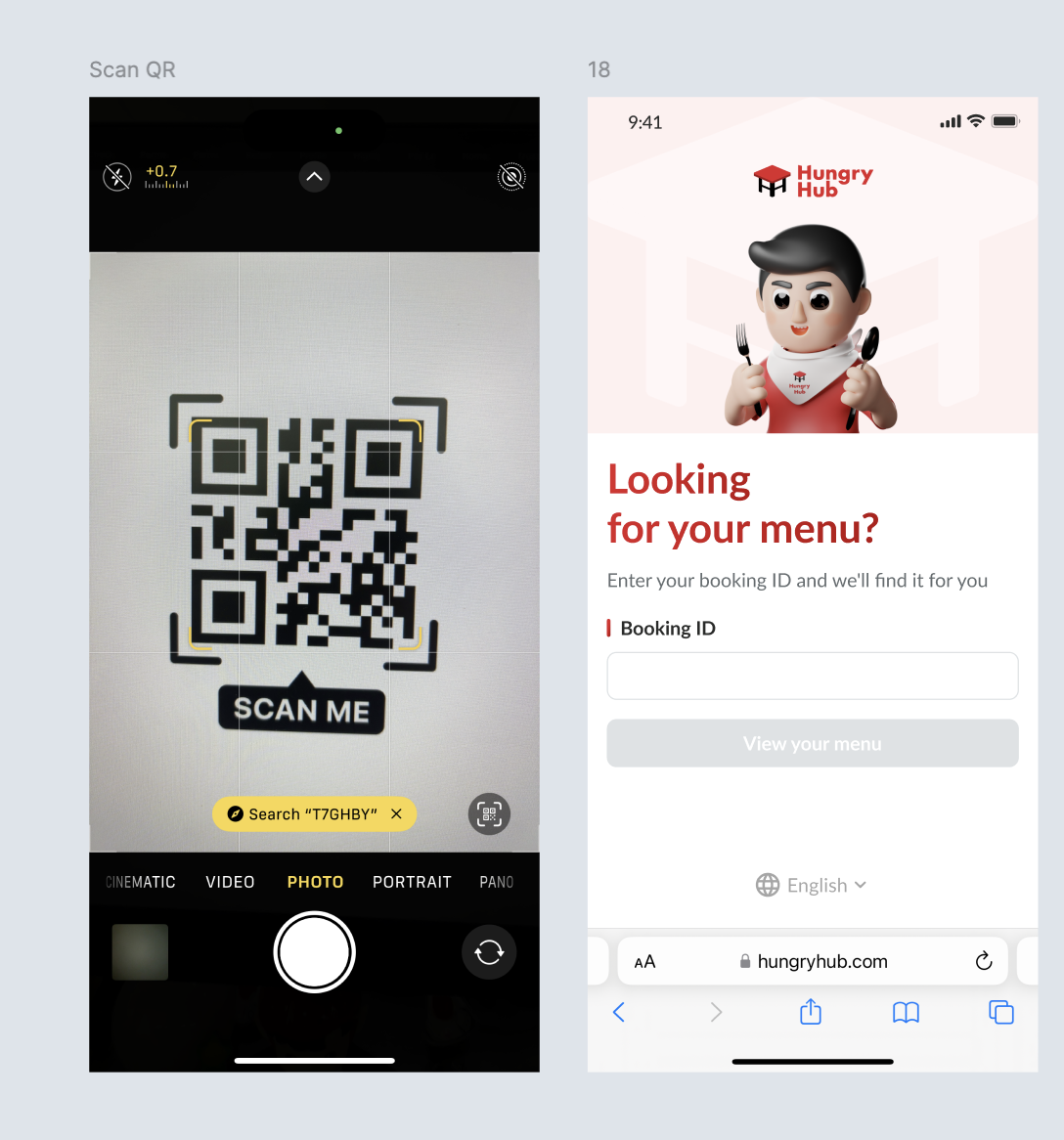 Can use the link as well |
| Booking ID form | There are some elemeents Image Title Lookingfor your menu?Description Enter your booking ID and we'll find it for youBooking ID FormBooking ID from hungry hub Booking ID from vendor / 3rd party View Your Menu buttonSwitch Language option 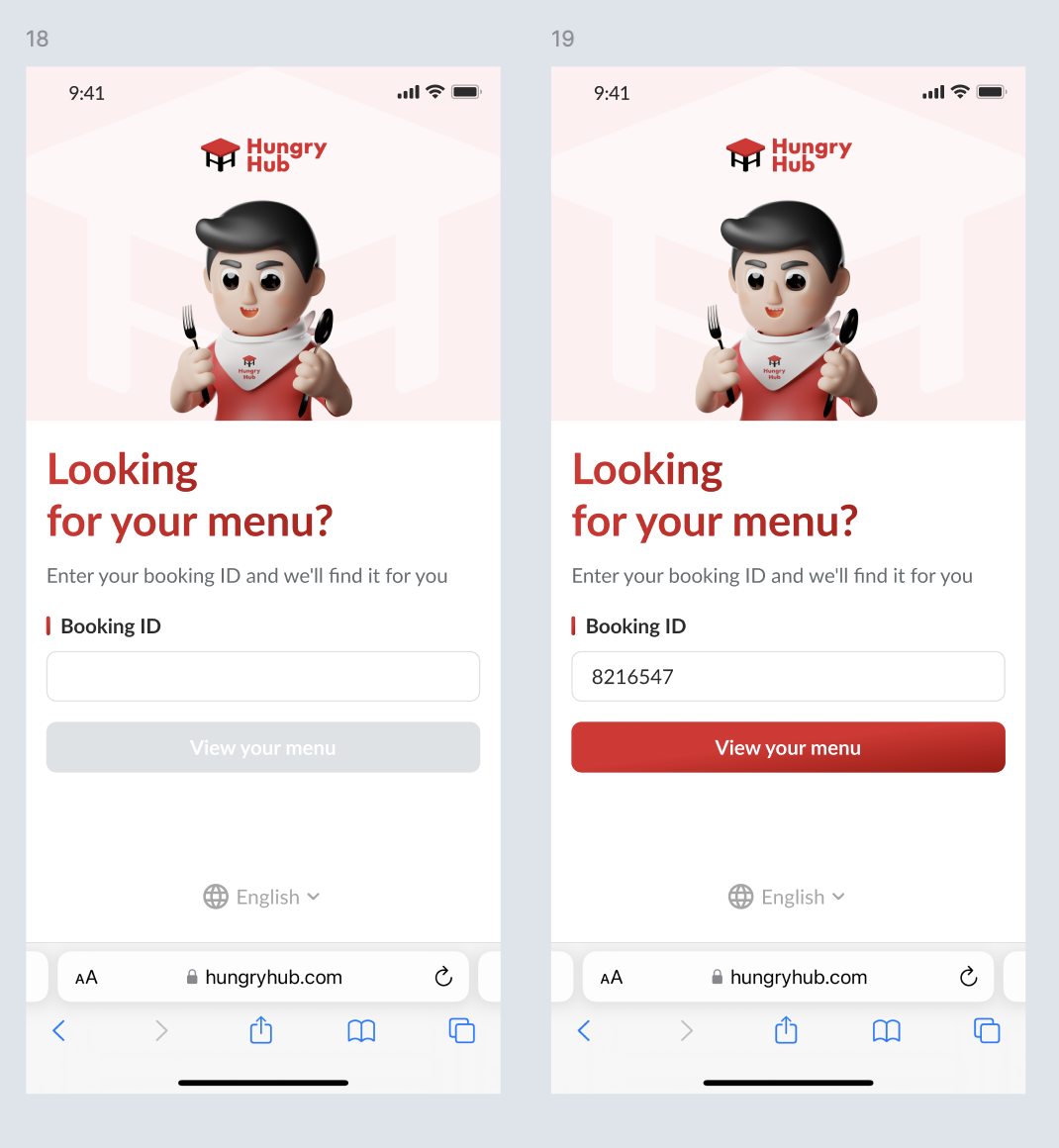 |
| Case | View your menu button will active once the form was filled outOnly valid for upcoming booking (not passed 24 hrs after dining time and pending arrival or arrived) Can't scan past booking (24 hours after dining time, whether arrived or not) If not valid or incorrect, display error state under the form Invalid booking ID or more than 24 hours after dining. Please check and try again. |
View Menu page for HH Menu
| User Story | Requirement |
|---|---|
List of Package (AYCE, Party Pack and Experience)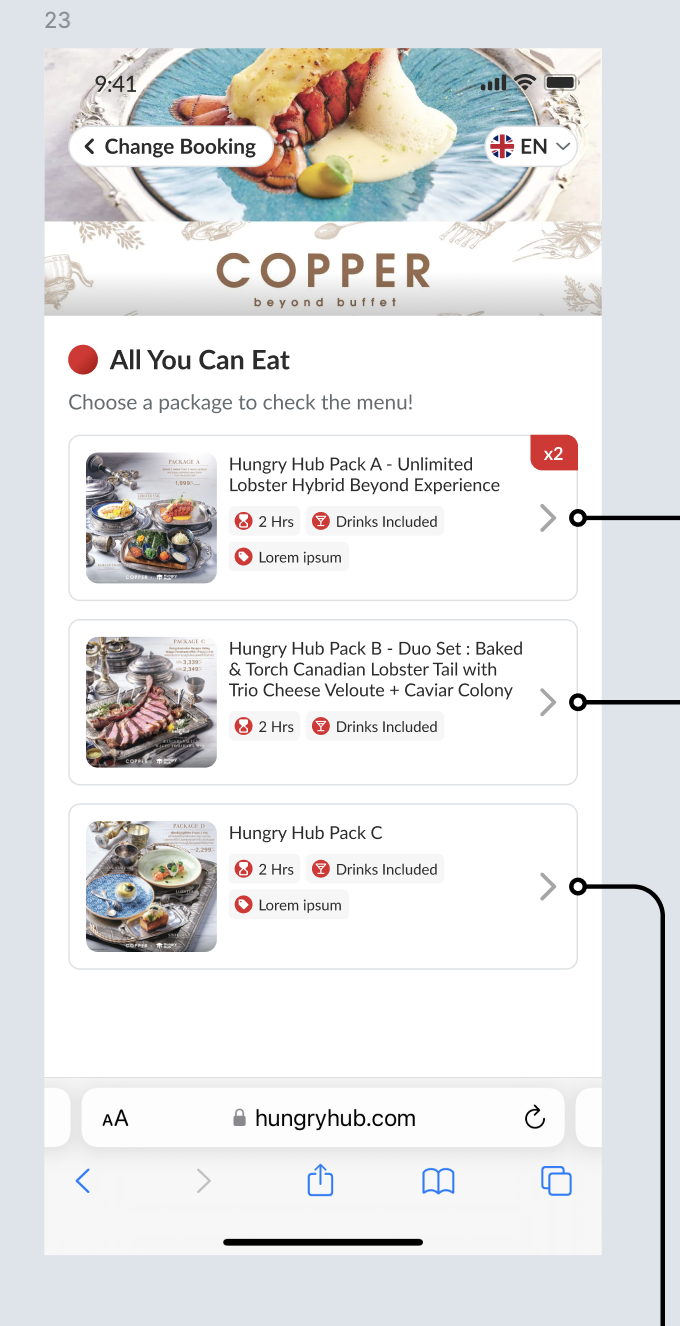 | There are some elementsChange Booking buttonGo Back to Booking ID form Switch language Name of restaurant when scroll down 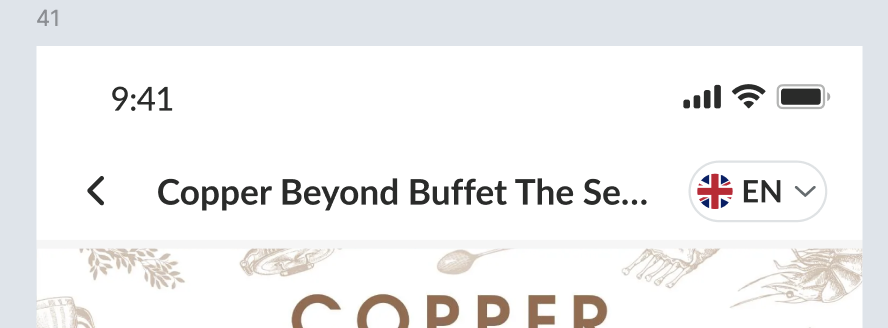 Image Cover (From Restaurant) Title (Type of package) Description Package Card Section Package Card Section Image (If any) Name of package Label (same on the store page) Quantity of package (if the quantity is more than 1) Example : x2 , x3 , x4 , x5 and so on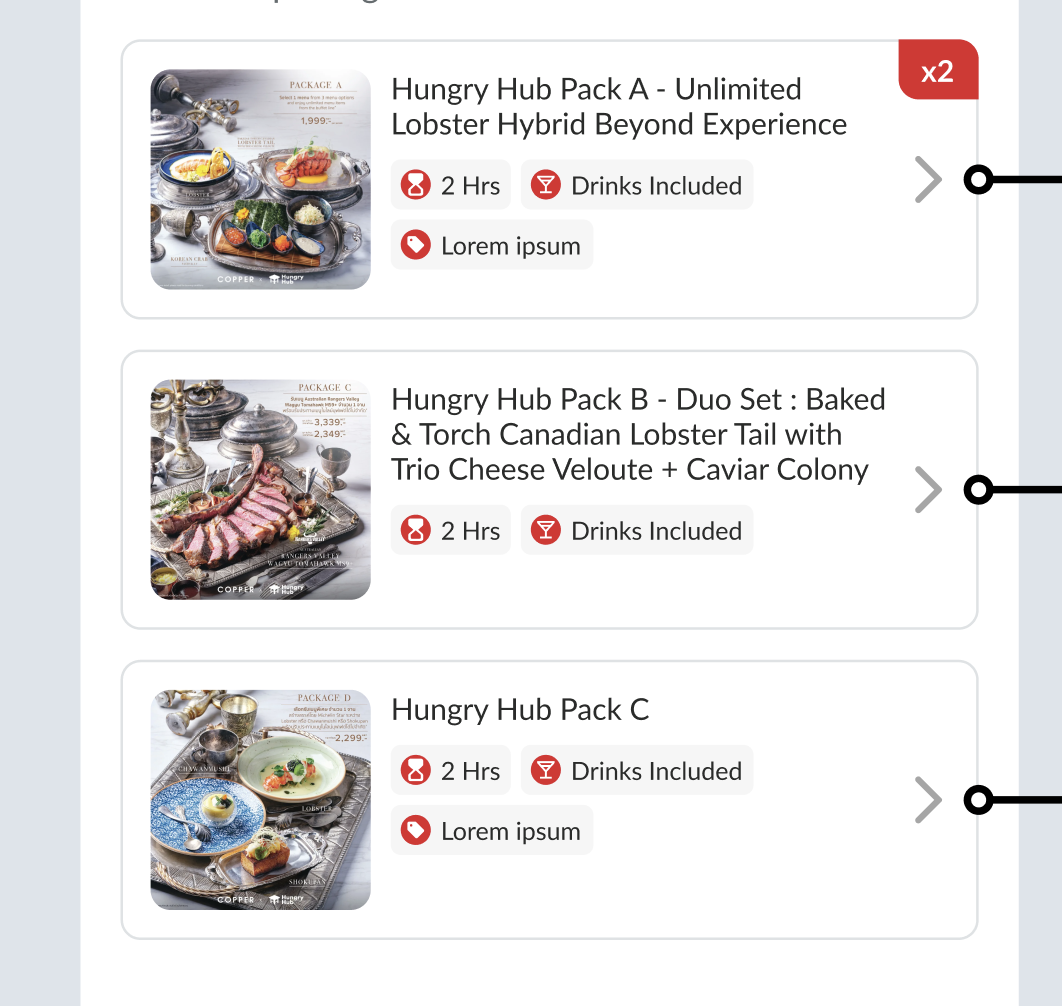 Preview for mix & match (some packages in a booking) |
Detail package (Package Based)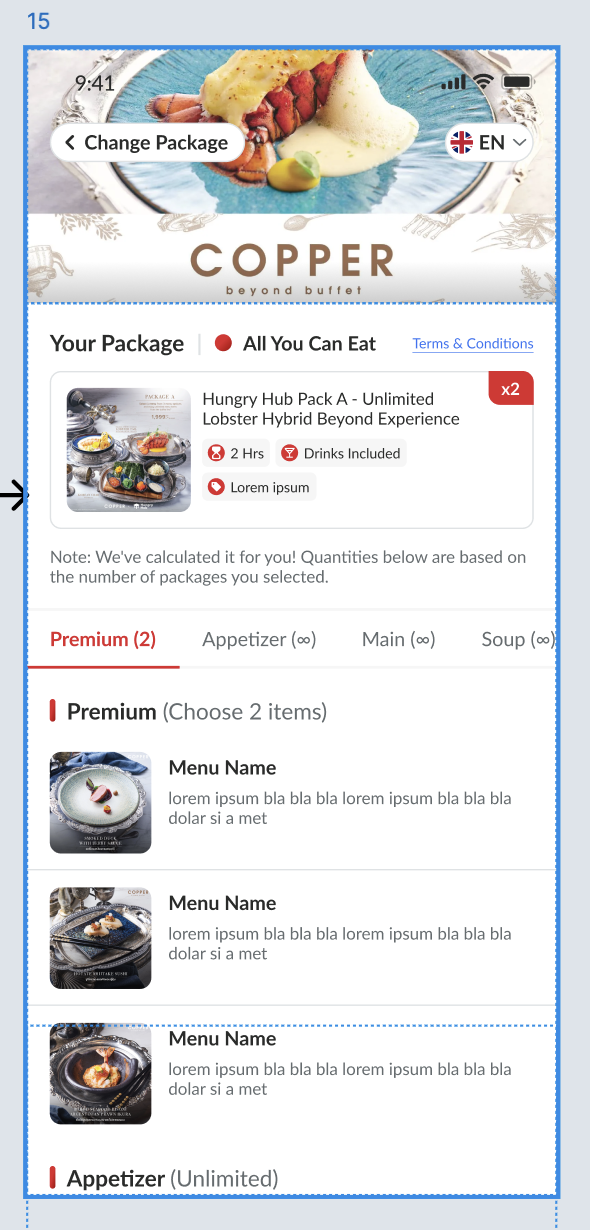 | There are some elements : Image Cover (From Restaurant) Change Package buttonGo back to package list Switch language Name of restaurant when scroll down 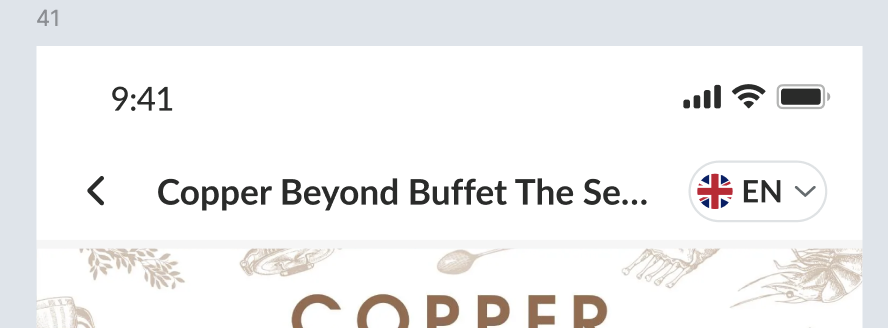 Your Package textTitle (Type of package) Description Package Card Section (Same with above) Note List of menu User can scroll down to view all of menu or can use tab bar to navigate directly. (No need tab bar if only 1 menu) Name of menu Quantity of menu that can be selected 2 ➝ Premium (2) 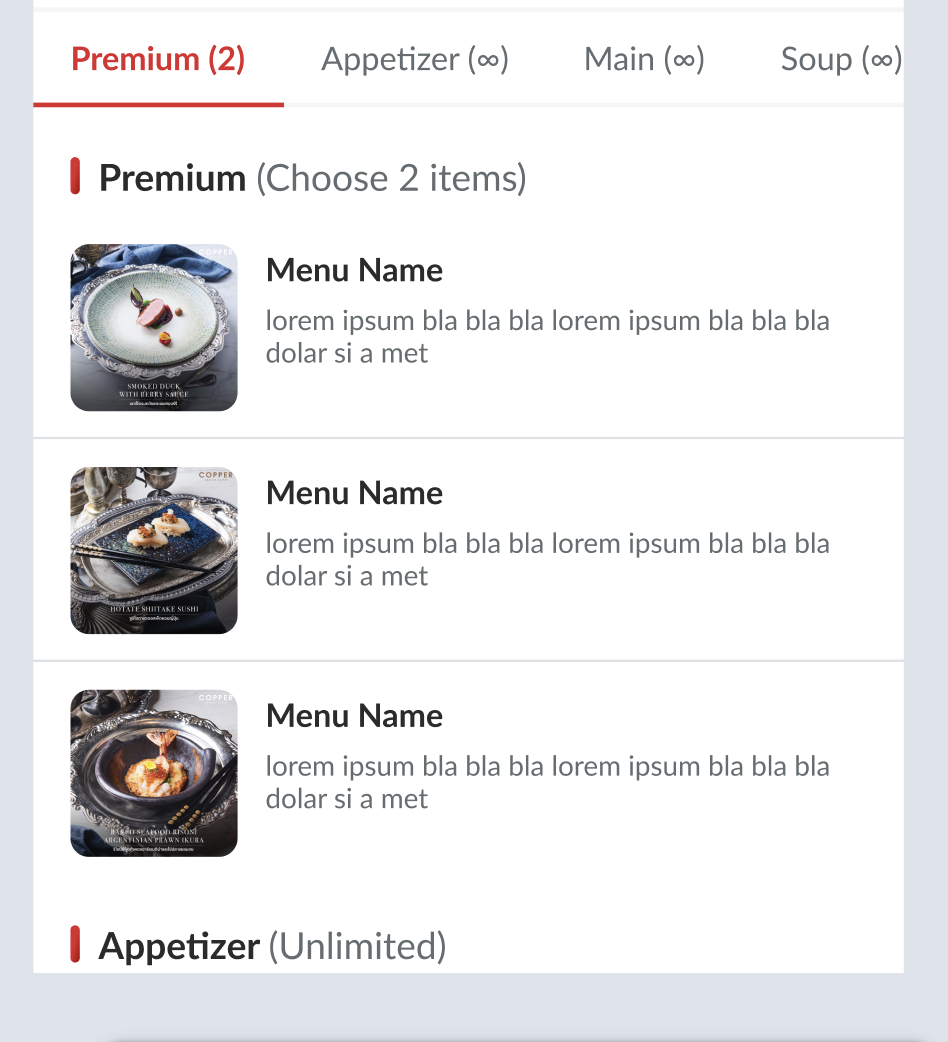 Unlimited ➝ Appetizer (∞) 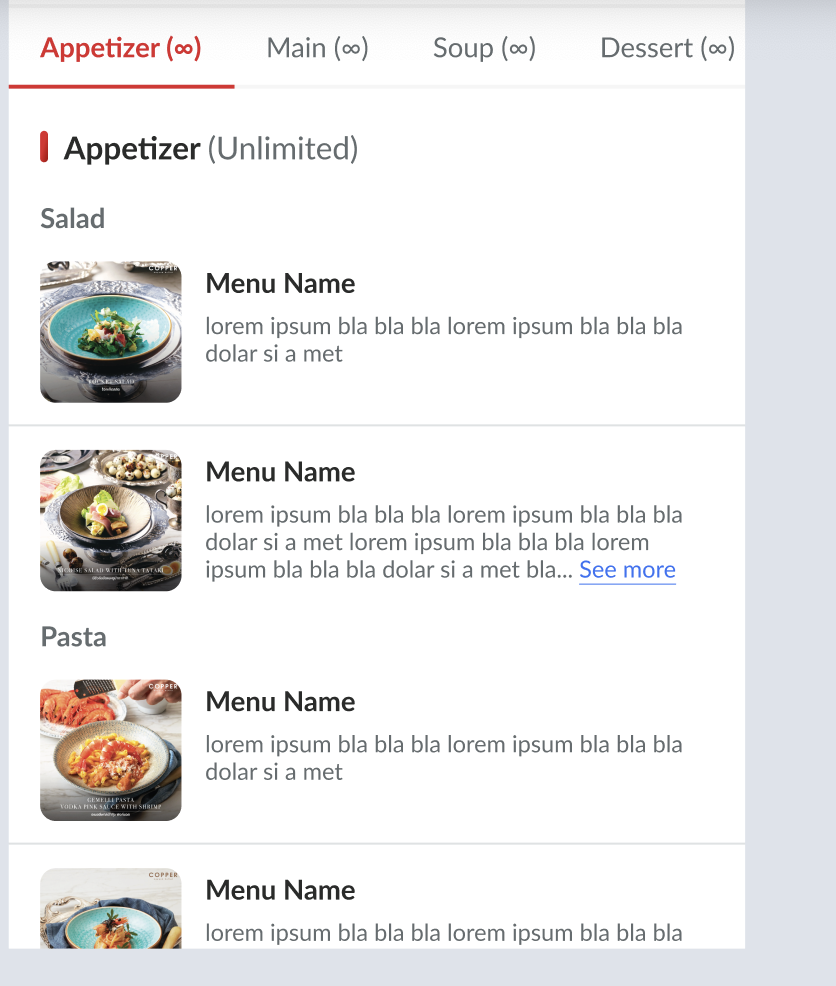 If there is no image menu, just display the text (without image) 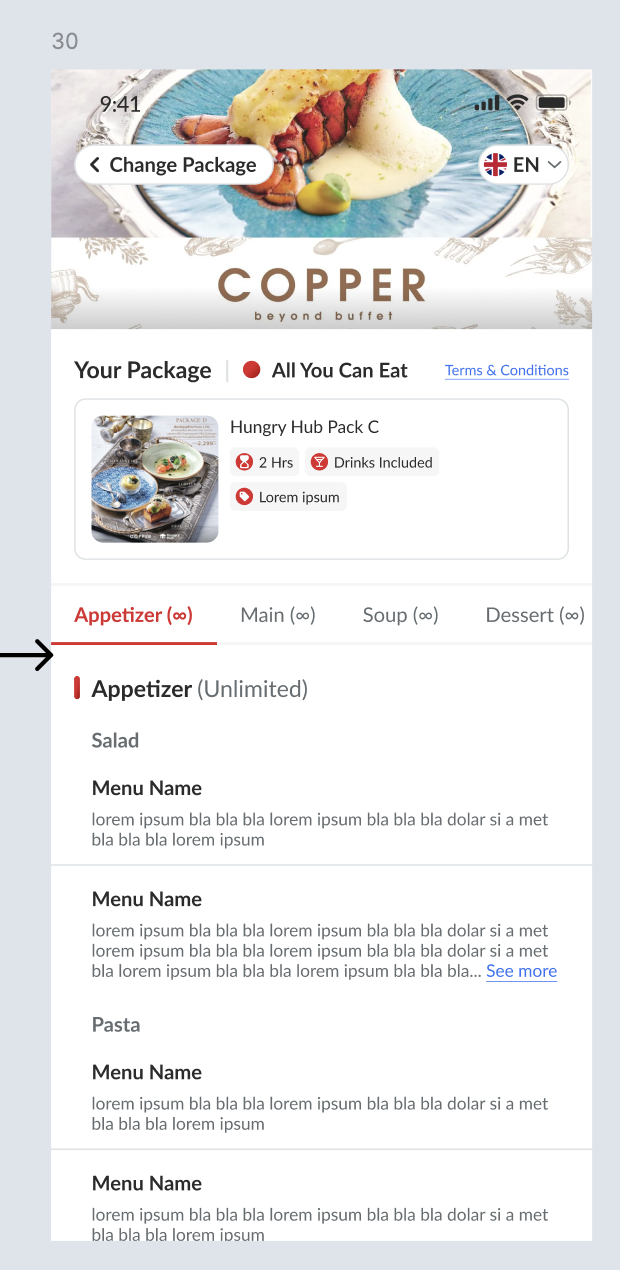 Terms and conditions (Package level) 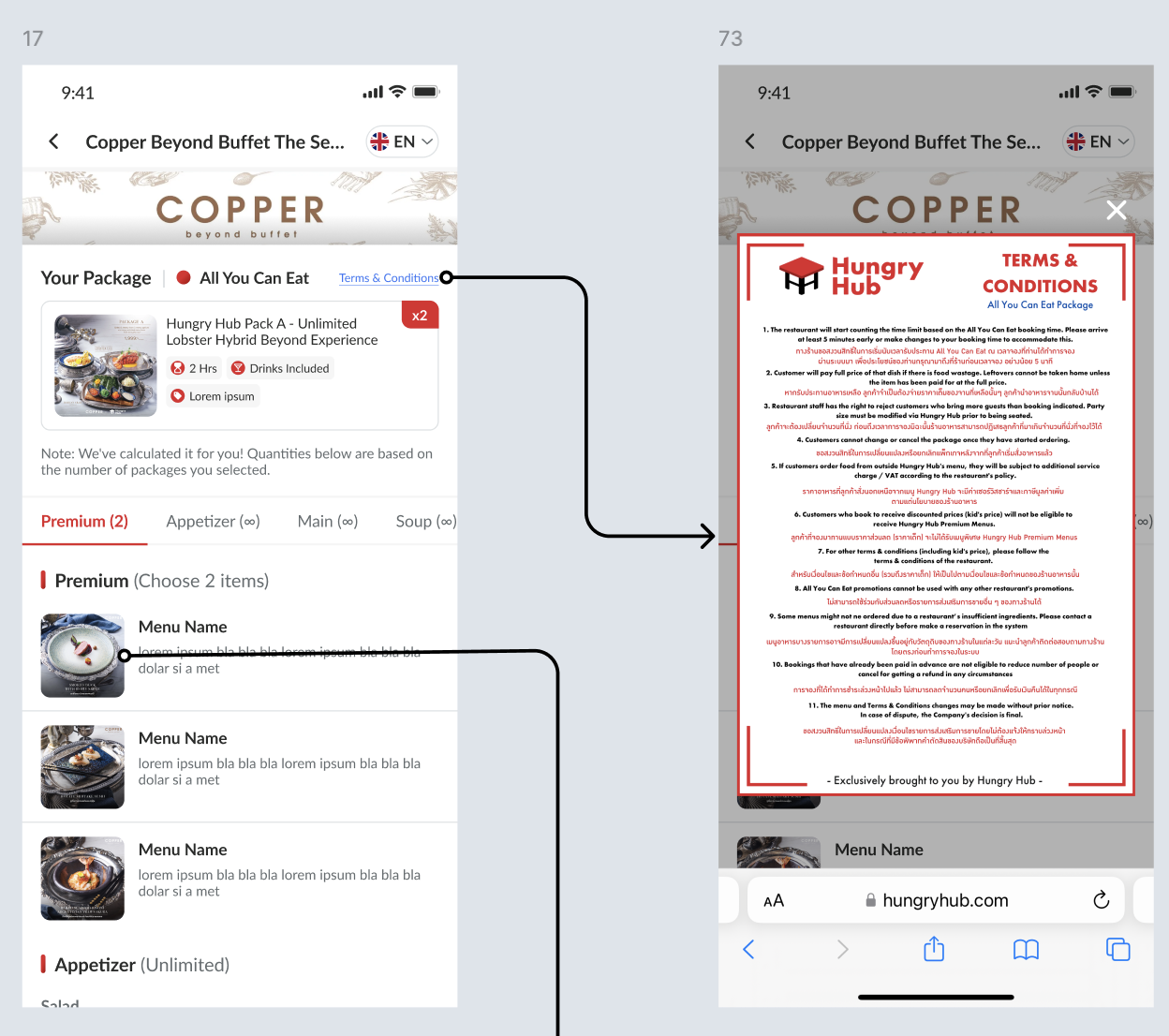 Click menu image (Provide close button too) 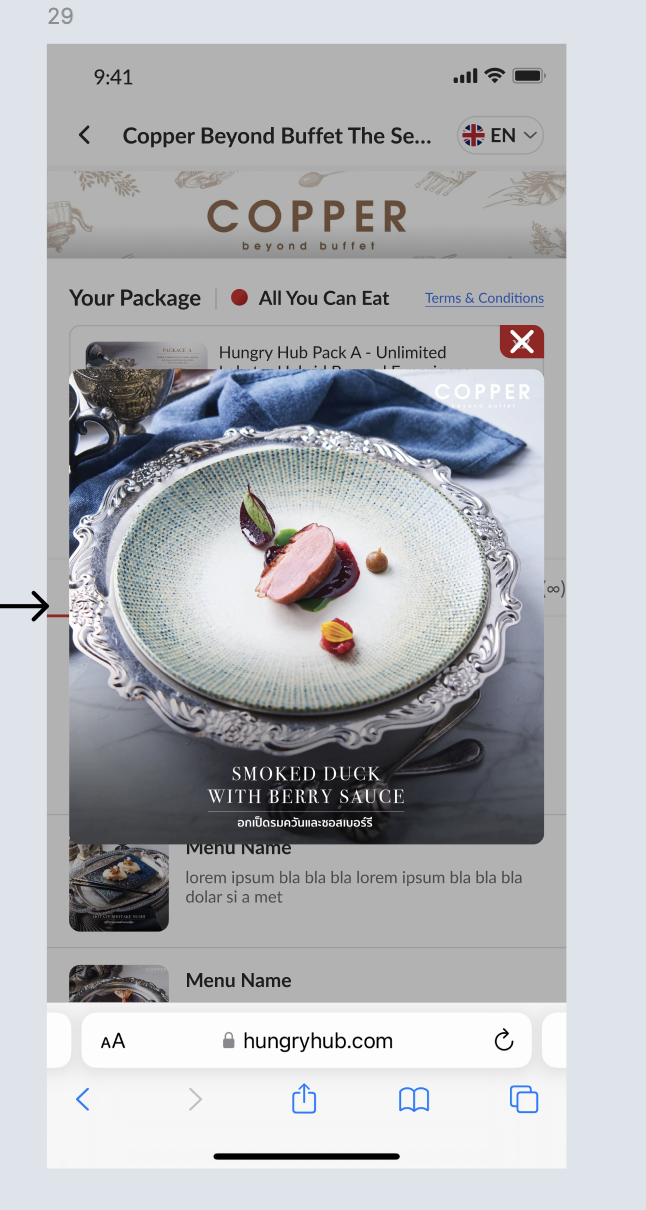 |
| Group Based | If 1 menu belongs to some packages) Package card is clickable (display pop up) Display the packages 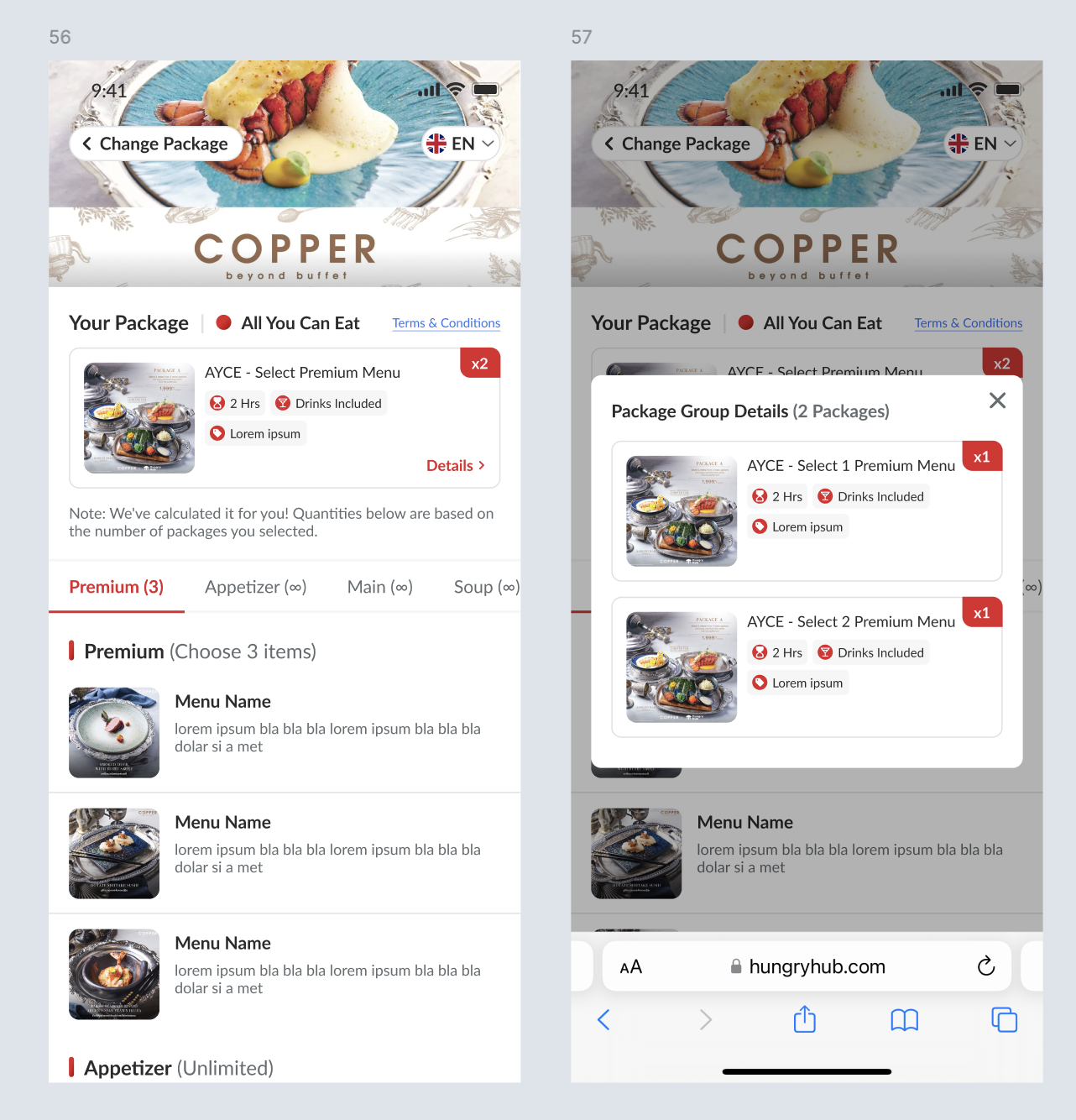 |
| Image Menu | List of menu will be displayed by image (Without tab bar and menu name)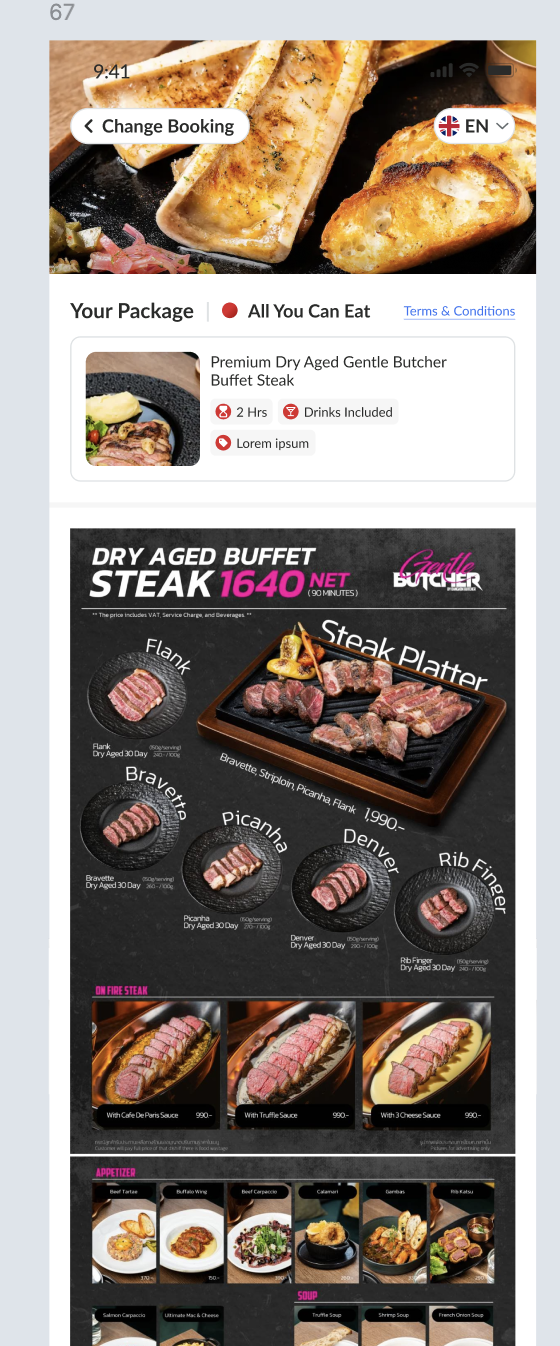 Make sure can zoom in / zoom out |
Display Restaurant Name (Update)
| User Story | Requirement |
|---|---|
| Users want to know which restaurant the user is opening, which menu it belongs to. | Always display restaurant name on each page (after submit booking id page). Display on the cover image We can name it Floating Restaurant NameRestaurant Logo Restaurant Name (display full name, without truncated) 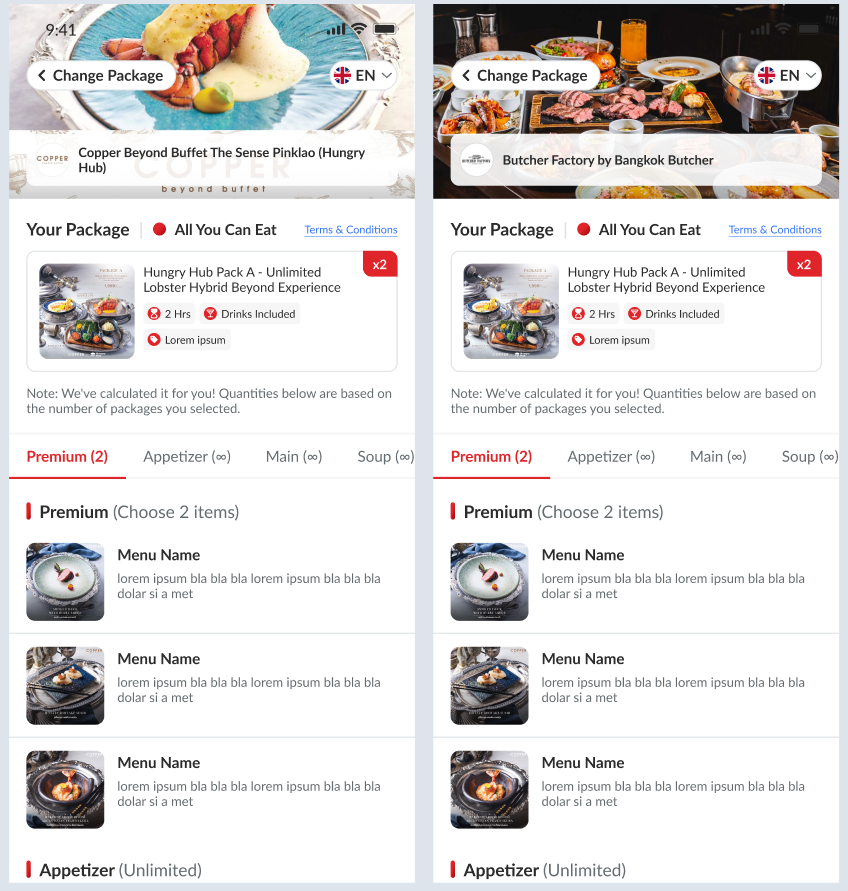 If scroll down, hide this Floating Restaurant Name , because there is header that indicates restaurant name as well. |
Display Restaurant Name (Update)
| User Story | Requirement |
|---|---|
| Users want to know which restaurant the user is opening, which menu it belongs to. | Always display restaurant name on each page (after submit booking id page). Display on the cover image We can name it Floating Restaurant NameRestaurant Logo Restaurant Name (display full name, without truncated) 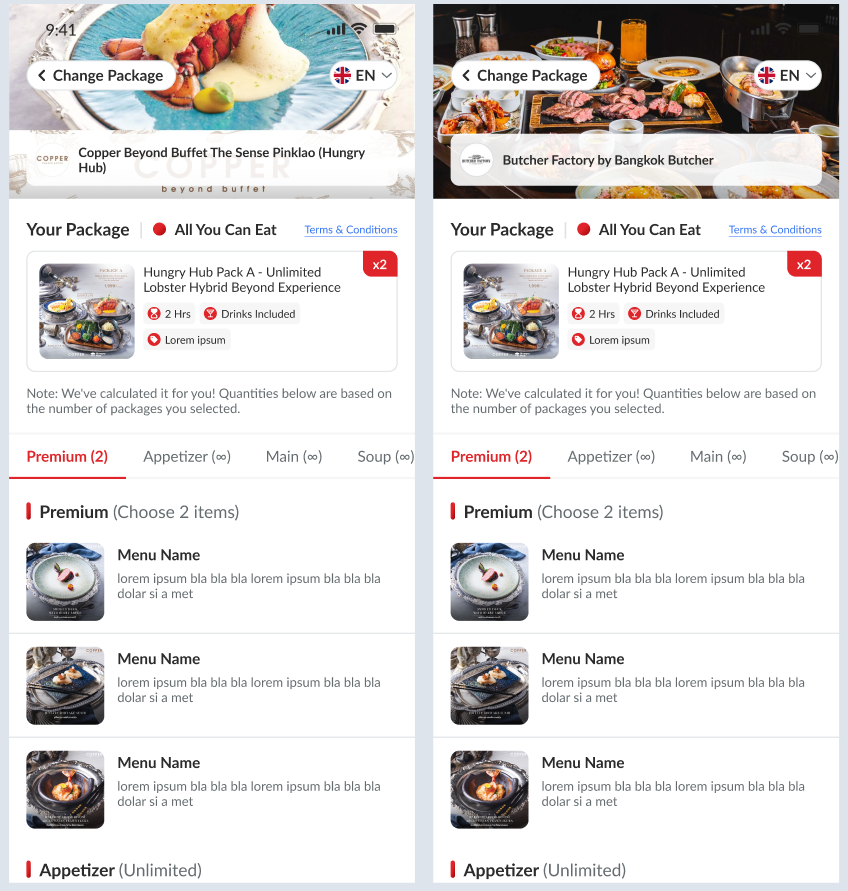 If scroll down, hide this Floating Restaurant Name , because there is header that indicates restaurant name as well. |
View Menu Link (Update)
| User Story | Requirement |
|---|---|
| Expectation (If can) | For the link should be like this : https://web.hungryhub.com/view-menu (without EN, TH or CN) but if user uses these links https://web.hungryhub.com/en/view-menu https://web.hungryhub.com/th/view-menu https://web.hungryhub.com/cn/view-menu then will redirect to : https://web.hungryhub.com/view-menu |
| Alternative | If hard, will redirect to https://web.hungryhub.com/en/view-menu for all the links that user typed. https://web.hungryhub.com/en/view-menu https://web.hungryhub.com/th/view-menu https://web.hungryhub.com/cn/view-menu https://web.hungryhub.com/view-menu |
❓ FAQ
| Question | Answer |
|---|---|
| Why only mobile website view? | Scanning QR code is more suitable for mobile user. it's kinda weird if using desktop (but still doable). If user keeps using desktop, keep displaying mobile view on his device. |