How to manage Booking
Glossary
- Booking Status is the current status of a booking. Namely:
- Pending Arrival is the status of waiting for the customer to show up at the restaurant.
- Pending Confirmation When a customer wants to book a party with more guests than the restaurant would accept for Hungry Hub’s reservation, the reservation will be marked as pending confirmation, and the restaurant will confirm the booking later.
- Arrived is when the customer shows up at the restaurant.
- Cancelled is when the reservation is cancelled by the customer.
- No Show is when the customer does not show up at the restaurant.
- Mark as Arrived is to change the current status as arrived in case of an error occurred or the restaurant or hotel did not change the status
- Send Notif Confirm is to send the customer a Pin Notification to reconfirm their reservation or modification.
- Send Notif Confirm to Restaurant is to send the restaurant a Pin Notification to reconfirm the customer’s reservation or modification.
- Corporate Event is a special category, when a company collaborates with restaurants or hotels to hold an event. For example, Shopee x Penguin Eat Shabu.
- User ID is the ID number of the customer.
- User Email is the customer’s email address.
- User Name is usually the customer’s full name.
- User Phone is the customer’s phone number.
- Date is the date of the booking.
- Ranged Date is the range of booking dates to be searched for.
- Party Size is the number of people coming on the booking.
- Group Booking When a customer wants to book a party with more guests than the restaurant would accept for Hungry Hub’s booking, the booking will be marked as pending confirmation, and the restaurant will confirm the booking later.
(eg. A 35-person party wants to book an All-You-Can-Eat package at Chowpati Restaurant but the restaurant limits the party size to 30, the restaurant will propose a date and time to the customer and later confirm the booking.)
- Medium is the Operating System customer used to make the booking such as, IOS, Android, Website etc.
- Channel is the source where customers got their link for booking. (eg. HH-... is a link posted by a blogger or social media page. / Hungry Hub is from the HH application.)
- Special Occasion is a category to list special events of the customer such as Birthday, Anniversary etc.)
- Package Type is a list of Hungry Hub’s packages, namely: -All You can Eat -Party Pack -Xperience -Hungry@Home
- Service Type is the type of service the customer is having whether it is; **-**Delivery : Hungry Hub@Home -Self Pick-up : Hungry Hub@Home -Dine in : All-You-can-Eat, Party Pack **-**Xperience will be included in the Bookings List.
Admin side
How to Edit Booking
- Open Admin Dashboard ➝ Bookings ➝ Booking List
- From there, pick the Booking ID you want to edit and click on the 'edit' action button.
- You can choose the 'Other' action button to edit the booking from a user's perspective. This will take you to the Edit Page for User.
- Or you can choose the 'Other' action button to edit the booking from a owner's perspective. This will take you to the Edit Page for Owner.
- But you must remember that we can't change the booking package and number of people if the booking was prepaid and edited from user perspective.
How to Search Booking
- On the top left corner, you’ll see a search bar for Booking ID. You can use the search bar to search for bookings made by customers. For example, put in “2015313”

- You’ll see a record of the booking, listing ID, Date, Restaurant, Customer name, Start time, and so on.
- We will only focus on ID, Date, Restaurant, Customer ID, Customer Name, Channel, Status and Package.
- ID is the ID for the booking made by customers.
*Not to be confused with Customer ID.
- Date is the date of booking.
- The restaurant is the restaurant's name and location.
- Customer ID is the ID of a registered Hungry Hub member.
- Channel indicates which platform customers make their booking. You can check each channel’s information here.
- Status is the status of the bookings such as, Arrived.
- Package is the package customer booked such as, Sharing Set for 3 People.
- Send SMS is to send an SMS message to the user to notify them with a generated message or custom message.
- Mark as Arrived is to change the current status as arrived in case of an error occurred or the restaurant or hotel did not change the status.
- Send Notif Confirm is to send the customer a Pin Notification to reconfirm their reservation or modification.`
- Send Notif Confirm to Restaurant is to send the restaurant a Pin Notification to reconfirm the customer’s reservation or modification.
How to Check Booking History
- Insert booking number that you want to search
- If the bookingID have history booking, it will shows like this
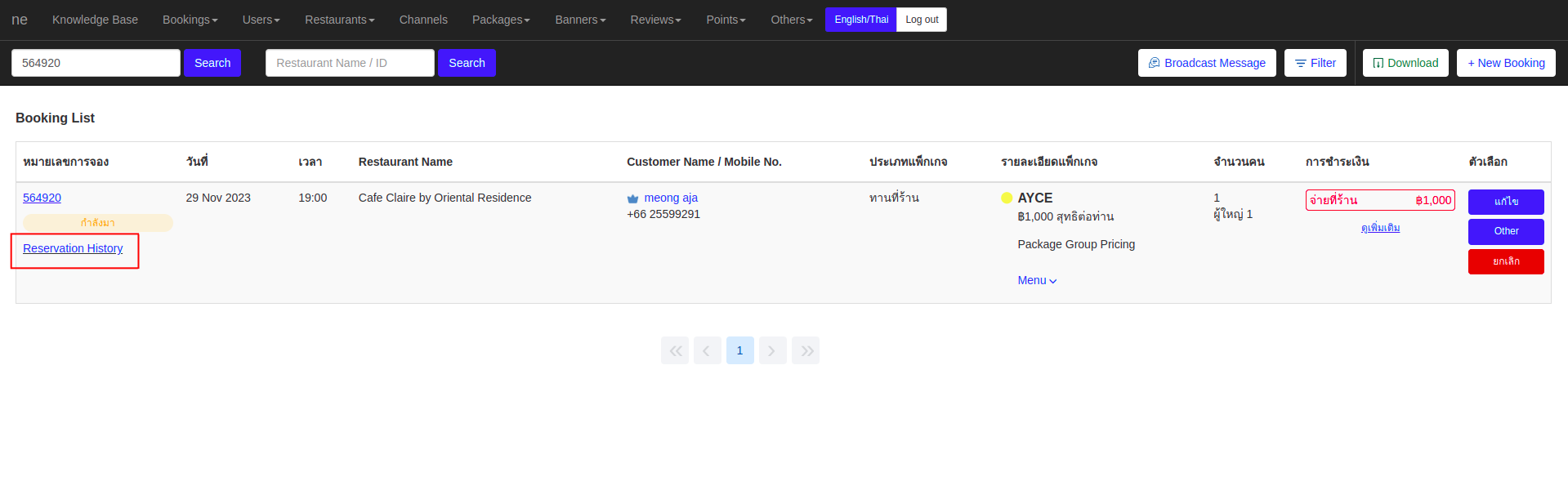
- When clicking on "Reservation History," you will be directed to a page displaying your past reservations. This includes any bookings that were cancelled due to current editing, in which case the old booking will be marked as cancelled and a new bookingID will be created.
- The previous reservation will not be displayed on the Booking List, but you may still search for it and review its history. On the new BookingID, the previous reservation will be shown as
Old-Reservation-ID:564843
User side
How to check Booking History
- To check upcoming booking you can open the profile menu
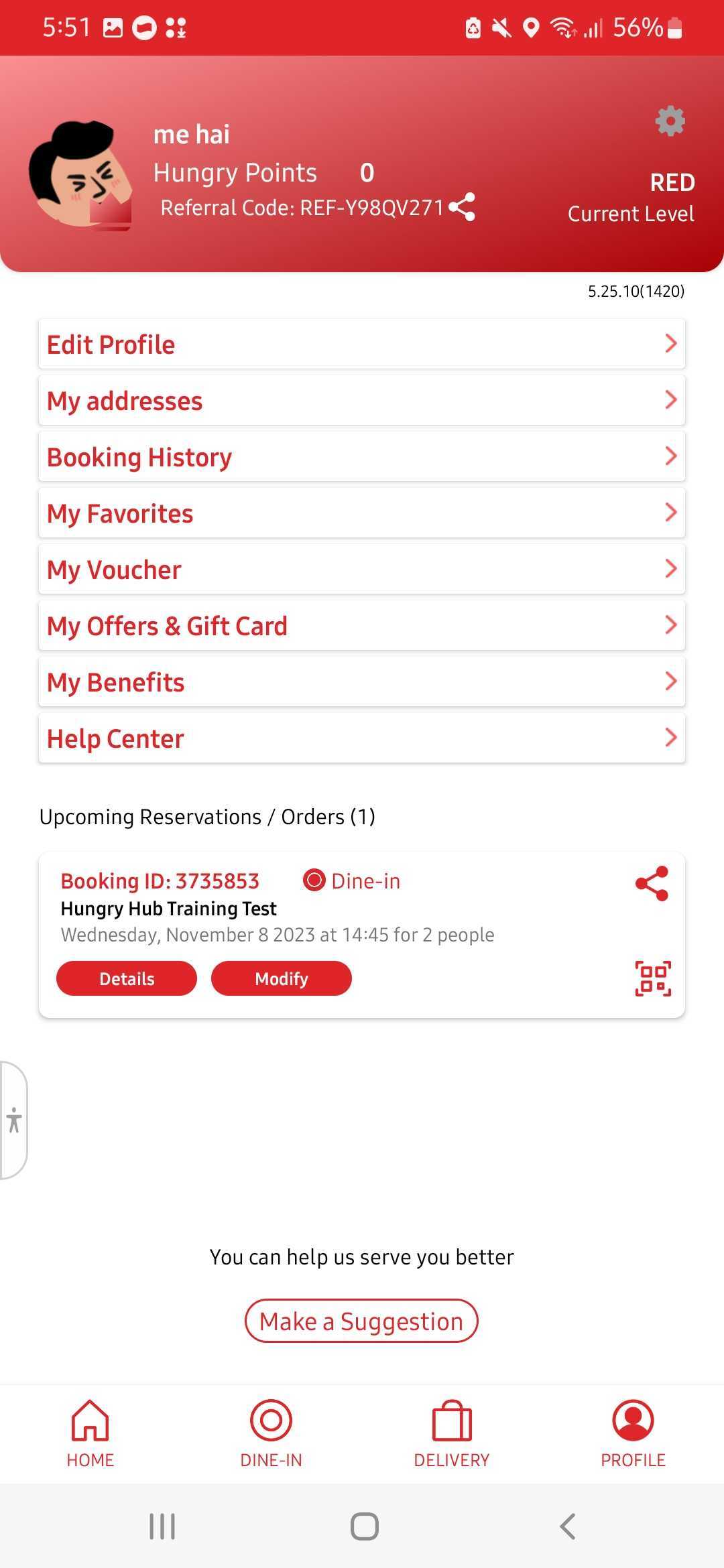
- And if you want to check the booking history, you can open Profile ➝ Booking History. On that menu you can check all the booking that you made.
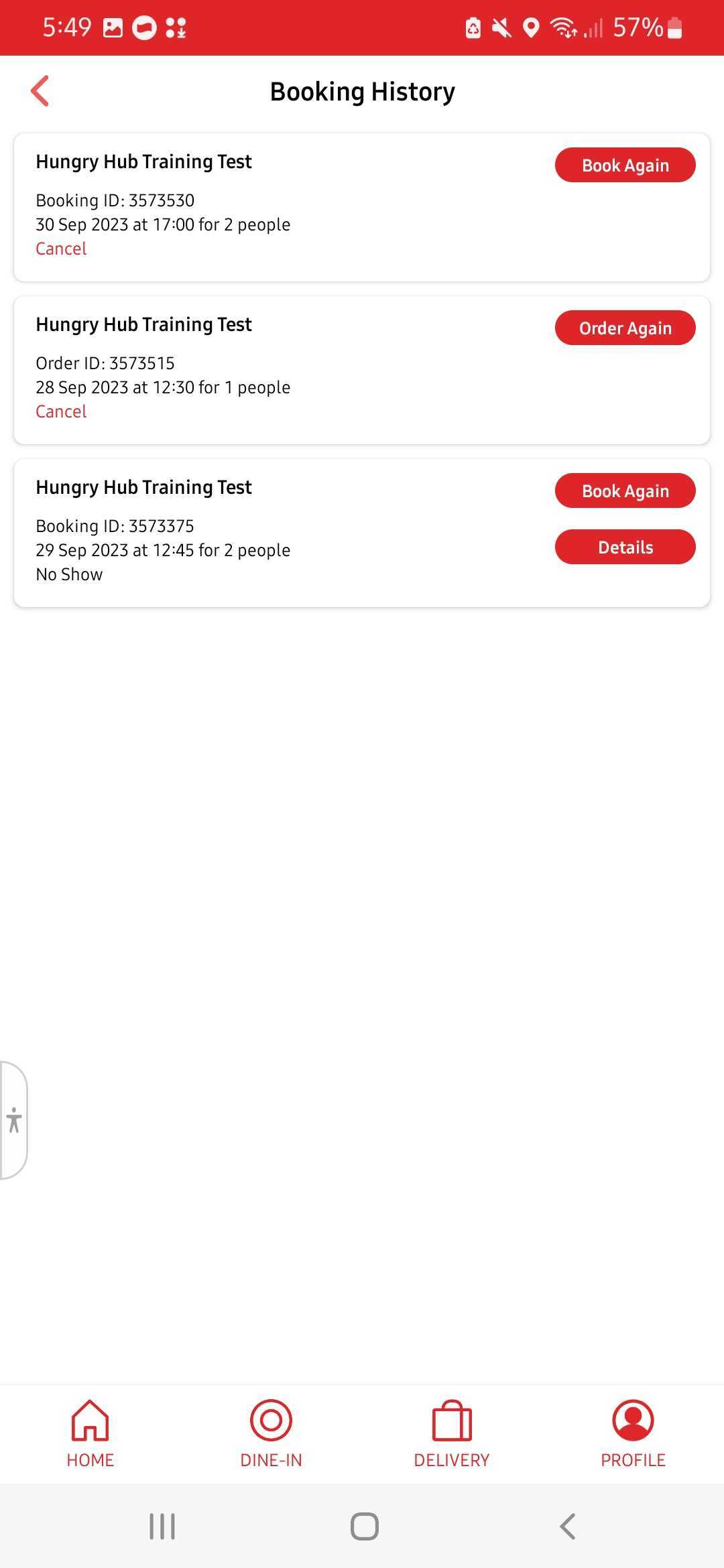
- You can open the booking details, book again that same booking(if the package is available)
How to edit Booking
- User can edit the upcoming booking
- Open Profile menu, and you can find the upcoming booking listed there
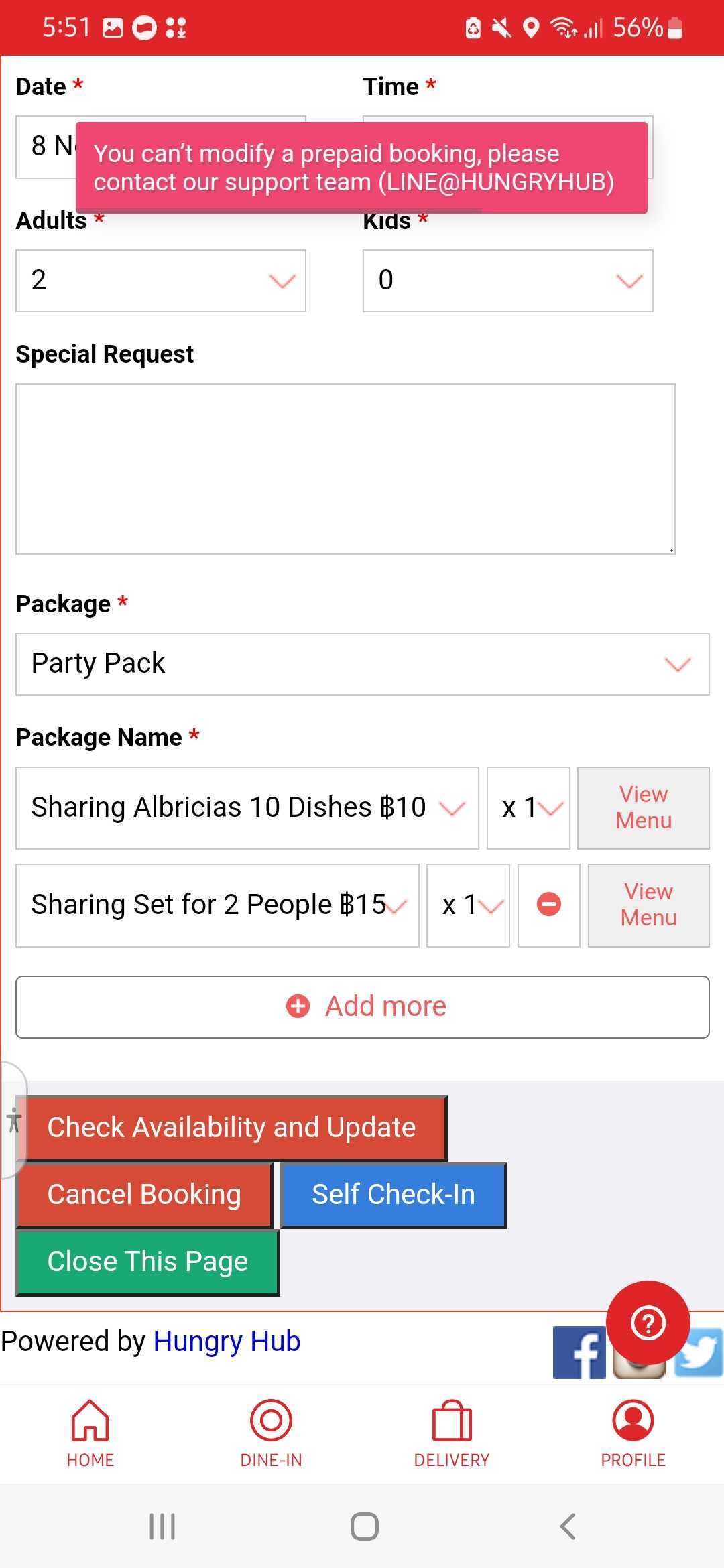
- Pick the booking and click modify
- You can edit the booking and click
Check Availability and Update - If your booking was prepaid, please note; can only change the booking date.
QnA
What is Group Booking?
When a customer wants to book a party with more guests than the restaurant would accept for Hungry Hub’s reservation, the reservation will be marked as pending confirmation, and the restaurant will confirm the reservation later.
What is Pending Confirmation? Who is supposed to confirm the booking?
Pending confirmation is when a customer wants to book a party with more guests than the restaurant would accept for Hungry Hub’s reservation, the reservation will be marked as pending confirmation, and the restaurant will discuss with the customer for a certain date and time, once both sides agree on the date and time, the restaurant will confirm the reservation.
What is Mark as Arrived action?
A: When the customer shows up for the reservation, the restaurant would change the status of the reservation to Arrived. However, if they fail to do so, we could manually change the status.