How to manage inventory
Admin Side
Create Inventory
Check Restaurant Inventory :
- Pick restaurant → Login v1 ➝ Inventory Template Group
- Create the inventory template group based on partner information
- Create inventory template, and update the schedule
- go to menu Inventory and click
remake inventoryto reload the inventory template
Edit Inventory
Edit Restaurant Inventory :
- Pick restaurant → Login v2 ➝ Allotment ➝ Edit Allotment
- or if you want to change the inventory for specific time you can open Allotment ➝ Avaliable Seats
- Pick the date, and time
- Change the inventory
Check Inventory is empty
Check Restaurant Inventory summary on :
- Pick restaurant → inventories (if the inventory exist it will show on seat left)
- if inventory was missing you can add by (Pick restaurant on admin→login → inventories template group(setup first))
- if you already setup the inventories template group but it still missing you can check clear cache on restaurant admin or go to login v1 → inventories → remake inventory
- if the inventory summary already correct but its still red on owner dashboard you can check agenda on edit package make sure its the same as on inventory summary page
Block Inventory
Block Inventory is a feature for restaurant owner if they want to close their restaurant in spesific day and time. How to block:
- Open
https://hungryhub.com/dashboard/v2?locale=th - Pick Block Restaurant
- Insert the detail
- You can check if it already blocked on
https://hungryhub.com/dashboard/v2/inventories/override_report?locale=en
Unblock Inventory
Unblock Inventory is a feature for restaurant to cancel their block. How to unblock:
- Open
https://hungryhub.com/dashboard/v2/inventories/override_report?locale=en - Click button
Unblockon the date that you want to unblock - You can check if its already unblocked on that page, the date that you picked will disappear
Owner Side Login V1
Create Inventory
Check Restaurant Inventory :
- Open
https://hh-engineering.my.id/owner_dashboards/inventories?locale=th➝ Inventory Template Group - Create the inventory template group based on partner information
- Create inventory template, and update the schedule
- go to menu Inventory and click
remake inventoryto reload the inventory template
Edit Inventory on Partner Portal
- Open
https://partners.hungryhub.com➝ Click Allotment Menu ➝ Click Edit Allotment Button
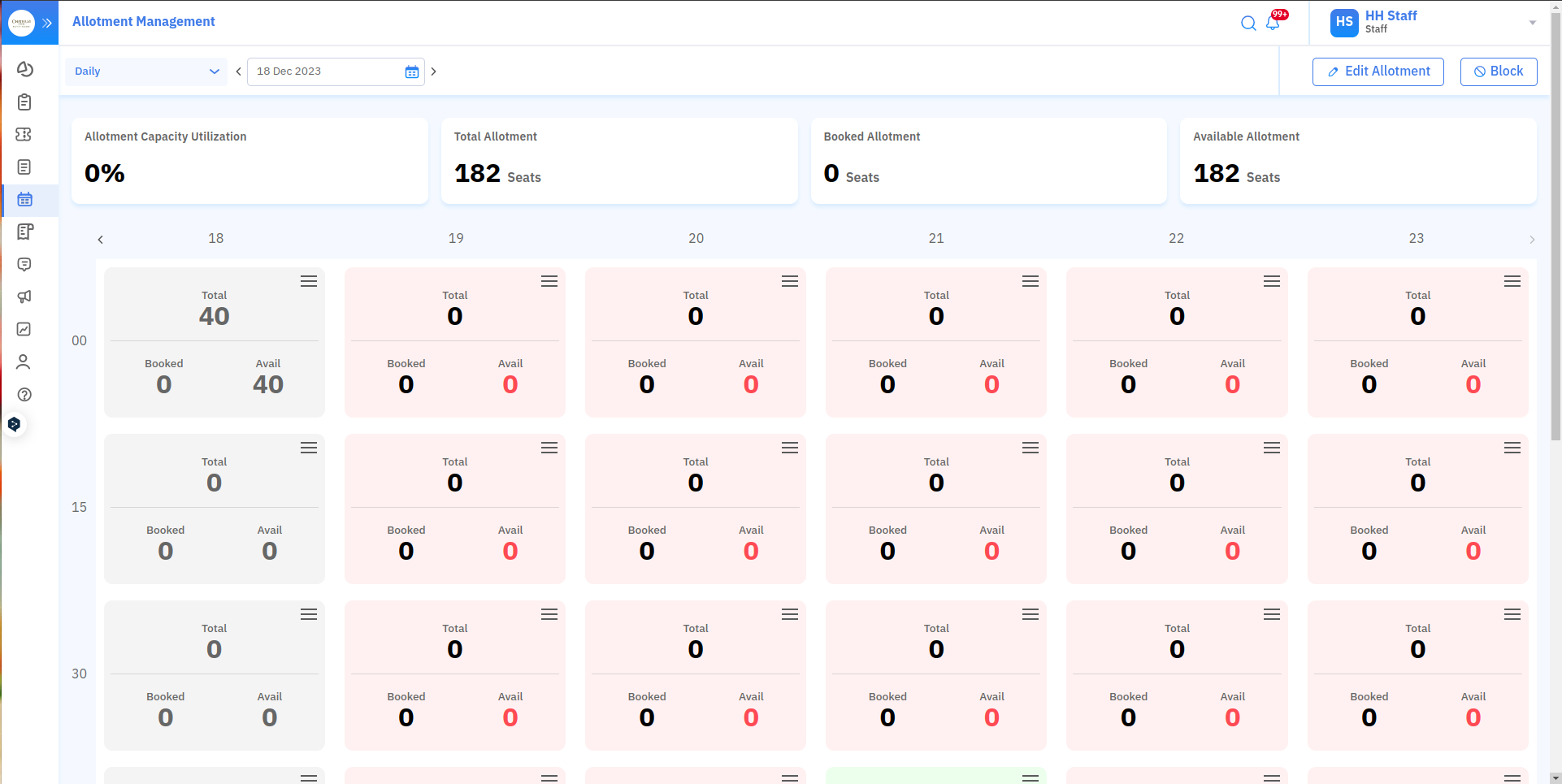
- It will redirect you to new page
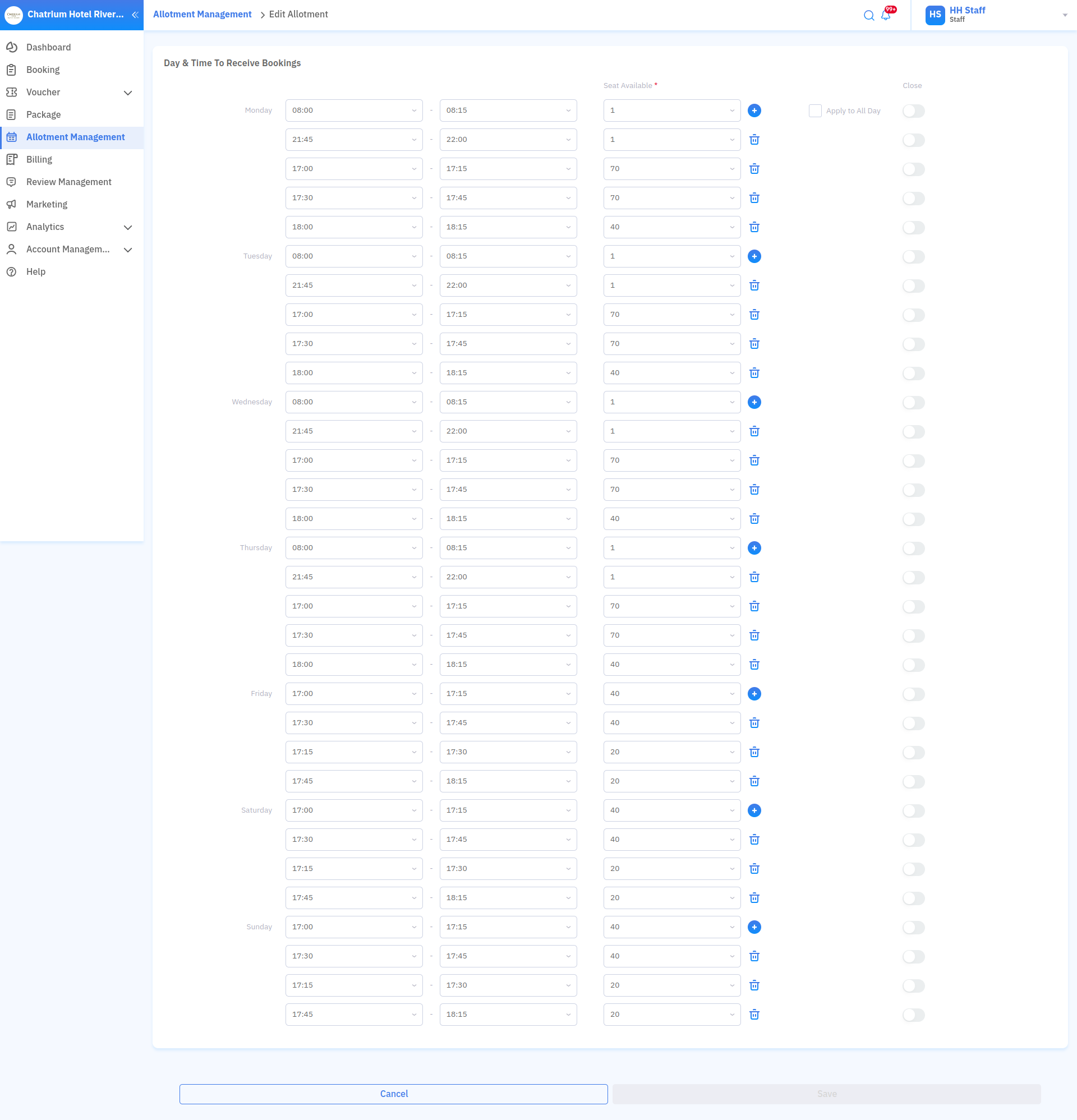
- You edit the existing allotment template

Click the "+" button to add a new time and seat (the time you enter here will determine the time of the restaurant open for reservation).
and if you skip the time in the middle, like this:

that means on 18.16 - 21.44 user can't book on your restaurant.
- If you want to add the setting on monday to all day, then click
 it will apply the allotment setting on monday to other day.
- if you would like to close the restaurant at a certain time of a day, click this button after you pick the time
 and it will block the inventory on that specific time.
 - Click Save when you are finished editing the inventory.
Edit Specific Inventory Time on Partner Portal
- Open
https://partners.hungryhub.com➝ Click Allotment Menu
- Pick the date and time
- Click

- It would show this popup
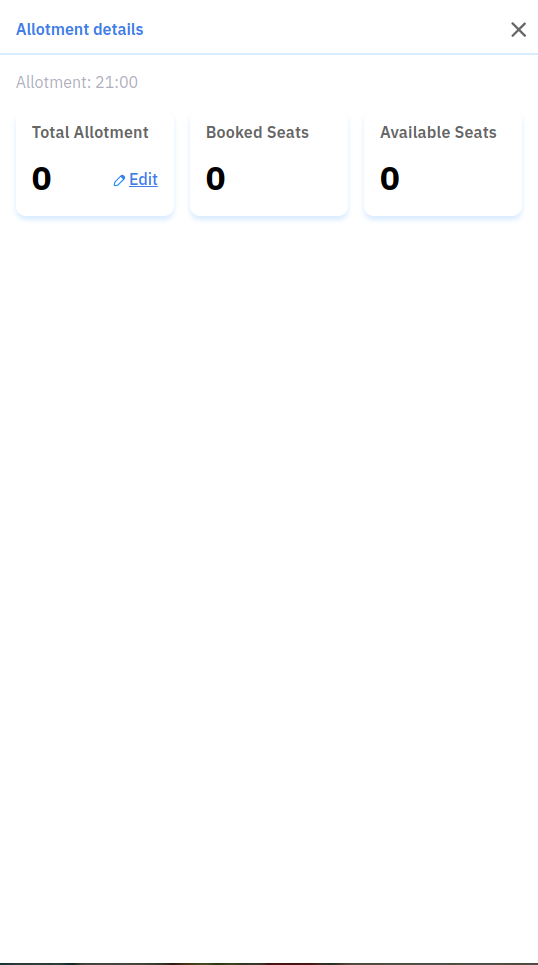
- Click Edit
- Insert the number of seat available
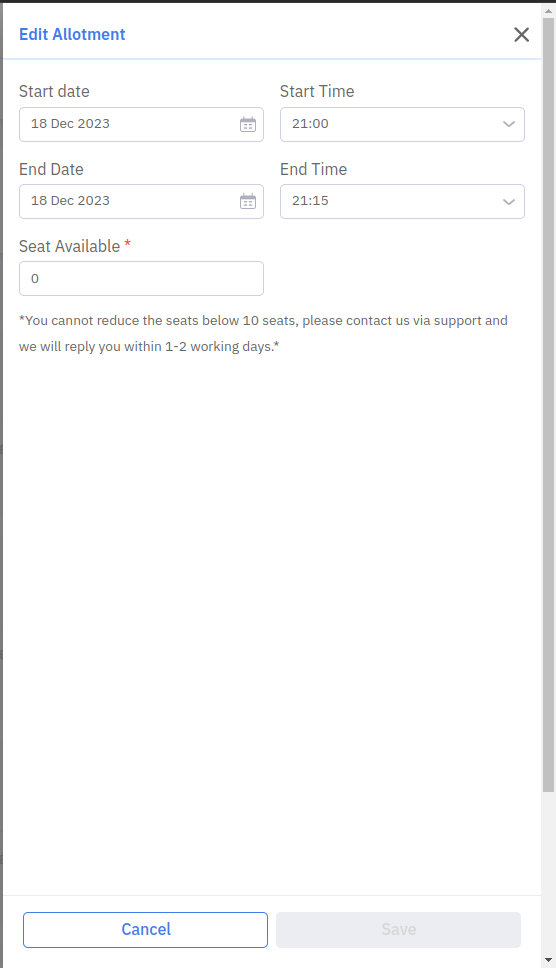
- Click Save
Edit Inventory Login V2
Edit Restaurant Inventory :
- Open
https://hungryhub.com/dashboard/v2?locale=th➝ Allotment ➝ Edit Allotment - or if you want to change the inventory for specific time you can open Allotment ➝ Avaliable Seats
- Pick the date, and time
- Change the inventory
Check Inventory why it's empty
Check Restaurant Inventory summary on :
- Open
https://hh-engineering.my.id/owner_dashboards/inventories?locale=th→ inventories → remake inventory - if the inventory summary already correct but its still red on owner dashboard you can check agenda on edit package make sure its the same as on inventory summary page
Block Inventory
Block Inventory is a feature for restaurant owner if they want to close their restaurant in spesific day and time. How to block:
- Open
https://hungryhub.com/dashboard/v2?locale=th - Pick Block Restaurant
- Insert the detail
- You can check if it already blocked on
https://hungryhub.com/dashboard/v2/inventories/override_report?locale=en
Block Inventory on Partner Portal
- Open
https://partners.hungryhub.com➝ Click Allotment Menu ➝ Click Block Button
- It will show popup like this
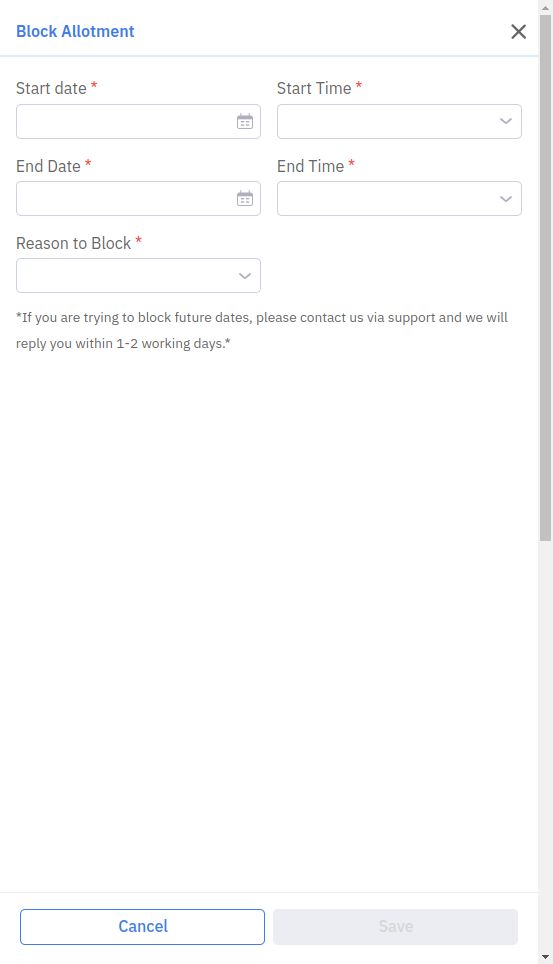
- Enter the date and time you would like to block the restaurant and the reason for the block.
- Click Save
Unblock Inventory
Unblock Inventory is a feature for restaurant to cancel their block. How to unblock:
- Open
https://hungryhub.com/dashboard/v2/inventories/override_report?locale=en - Click button
Unblockon the date that you want to unblock - You can check if its already unblocked on that page, the date that you picked will disappear
Inventory Management from BE
just need to update these files, because I already centralized the code:
- app/my_lib/inventory_updater.rb
- app/services/restaurant_service/update_inventory.rb
- app/workers/inventory/create_or_update_inventories_worker.rb
- app/workers/inventory/update_in_bg_worker.rb