How to add promotion on Home Page
Before you can add promotion you have to prepare this:
- Create List of restaurant that you want on that promotion
- If the restaurant is on same branch, you have to search the branch name here [
hungryhub.com/admin/branches?locale=en](<http://hungryhub.com/admin/branches?locale=en>)Or if the branch doesn’t exists you can create it. - If the restaurant on the same tag, you have to search the restaurant tag here
hungryhub.com/admin/restaurant_tags?locale=enOr if the tag doesn’t exists you can create it. - If the restaurant on the same tag group, you have to search the restaurant tag group here
hungryhub.com/admin/restaurant_tag_groups?locale=encurrently we didn’t use it any more. - If the restaurant list is from featured restaurant that means from restaurant rank, you can edit it here
hungryhub.com/admin/restaurants/featured_restaurants?locale=en - If the restaurant list is from “New, Top, and Budget” restaurant you don’t have to create another list, because it will sort by our system.
- If the restaurant is on same branch, you have to search the branch name here [
- Create Group Landing Page
hungryhub.com/admin/group_landing_pages/new?locale=en- • Pick your group type based on the restaurant list that you made above.
- • If you pick “Branch, Restaurant Tag, or Restaurant Tag Group,” you have to pick which one you want to use.
- • If you pick budget, you have to set the budget’s minimum and maximum.
- Write the title in TH and EN
- Write the Description and Footer Description, you can use html tag for this.
- Example: ยินดีต้อนรับกลับสู่ร้านอาหารและบาร์ของ Marriott International ในกรุงเทพ!
เพื่อเป็นการเฉลิมฉลองการกลับมาเปิดใหม่อีกครั้งของโรงแรมในเครือ Marriott International Hungry Hub เลยได้สร้างแคมเปญแสนพิเศษที่จะทำให้ทุกคนพร้อมน้ำลายไหลตลอดทุกช่วงเวลา ไม่ว่าจะเป็นมื้อสาย (Brunch), มื้ออาหารกลางวัน (Lunch) หรือมื้อดินเนอร์ (Dinner) - Welcome back to Marriott’s restaurants and bars in Bangkok! To celebrate the reopening of Marriott International’s hotels, we’ve created a series of mouth-watering offers for your next brunch, lunch or dinner in the Thai capital. Don’t miss these amazing deals at more than 20 of your favorite hotel restaurants in Bangkok!
- you can set image, image priority and on which language the image will show. it will show like this on website:
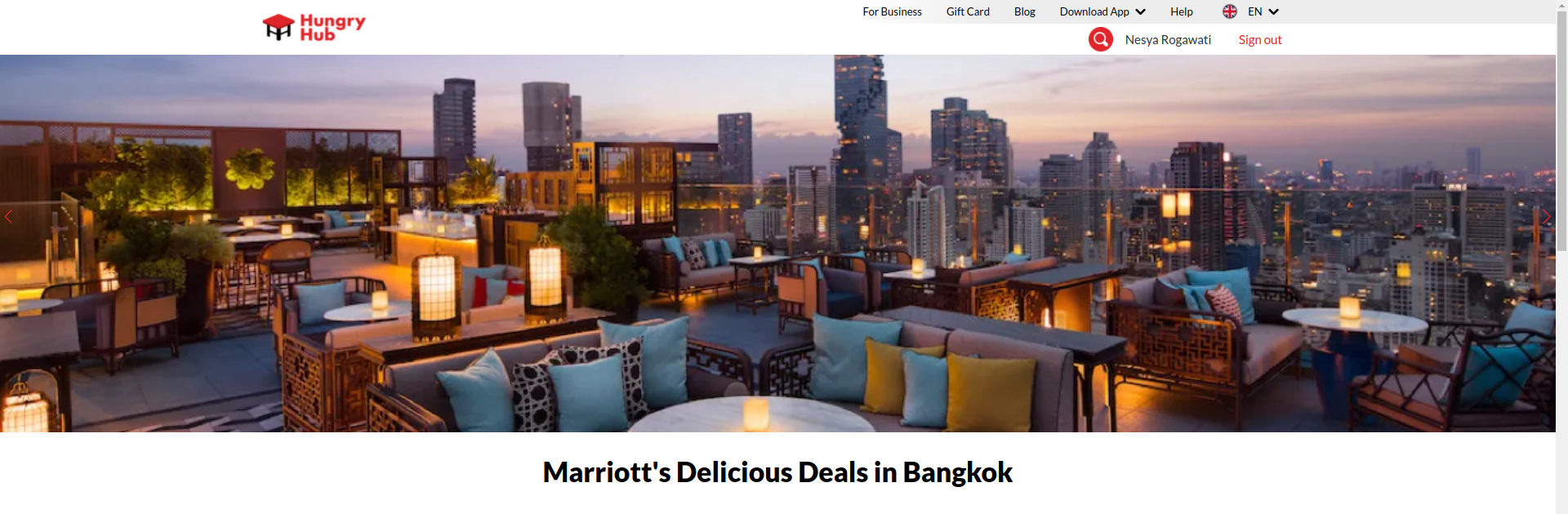 After you prepare all of that you can create banner for promotion section
- you can set image, image priority and on which language the image will show. it will show like this on website:
- Open
hungryhub.com/admin/banners?locale=en - Click Add new
- Insert your banner name
- Pick
Promotions page above restaurant tag group - check the active checkbox
- Pick which language that you want to show the promotion, you can pick both of them
- for Target URL copy your landingpage link,
- Open
hungryhub.com/admin/group_landing_pages?locale=en - Pick your landing page
- On action pick “link as user”
- Copy the link from link as user
- Paste to Target URL
- Open
- Insert the order number with the number that you want your banner to show. If you put 1, your banner will be the first banner that will show, but make sure that the active promotion banner doesn’t have order number 1 too. or make sure that the number you insert is unique (the other promotion banner doesn’t use it), or you can edit the old promotion order number first.
- Add image for desktop and mobile, it will shown here
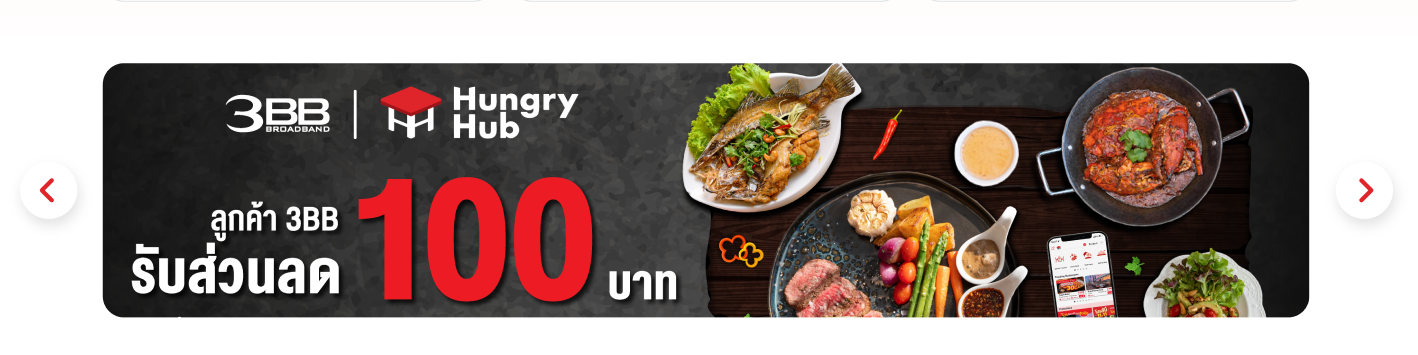
- And if the promotion is for specific city you can pick the city.
- Submit your banner, and check on client app.