Booking Page
Features
Booking Filter Dropdown Section
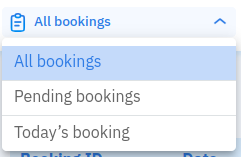 In this section, you can pick which type of booking you want to show.
Booking ID Search Section
 In this section, you can enter the Booking ID you want to search and click Search.
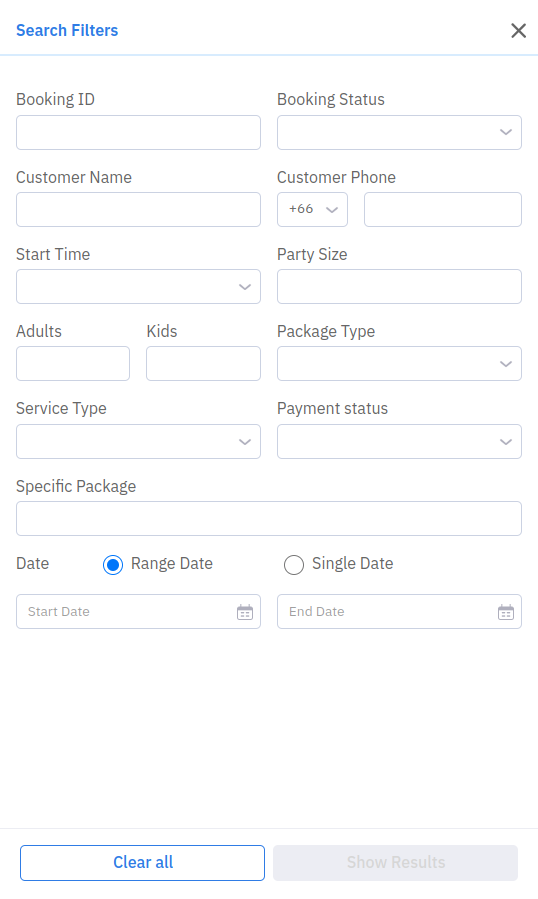
Filter Button
If you click the Filter button, additional filters are displayed.
Create Booking Button
 You can create a booking from Partner Portal by clicking this button. It will redirect to the Create Booking page.
Export Button
You can export the booking list by clicking Export. You can export to PDF or Excel. Pick the date type (range date or single date) and input the email address to send the export result.
Example report: Hungry-Hub-report-2024-03-10-3005-1698562984.xlsx
Booking List Section
- Booking ID: Shows the Booking ID and Booking History (if any).
- Date: Shows the reservation date.
- Time: Shows the reservation time.
- Customer Name: Shows the customer name.
- Package Type: Shows booking type (Dine-In or Take Away).
- Package Details: Shows package type (AYCE, PP, XP), package price, and package name.
- Party Size: Shows the number of adults and kids (if any).
- Paid Amount: Shows how much the user paid for this booking.
- Special Request: Shows user special requests and occasion tags.
- Action: Shows status, other, and edit actions.
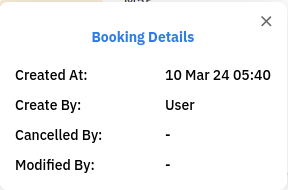
You can click Booking ID to view booking details:
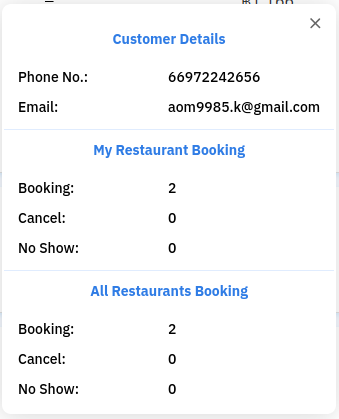
You can click Customer Name to view customer details:
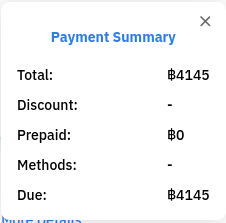
For payment details, click More Details: