Analytics
Glossary
- GMV = sales price of package x number of packages sold
- Existing customer = a user who has previously booked from your restaurant
Features
Performance Review page
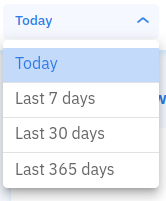
Performance review filter
You can choose date ranges such as today, last 7 days, last 30 days, and last 365 days.
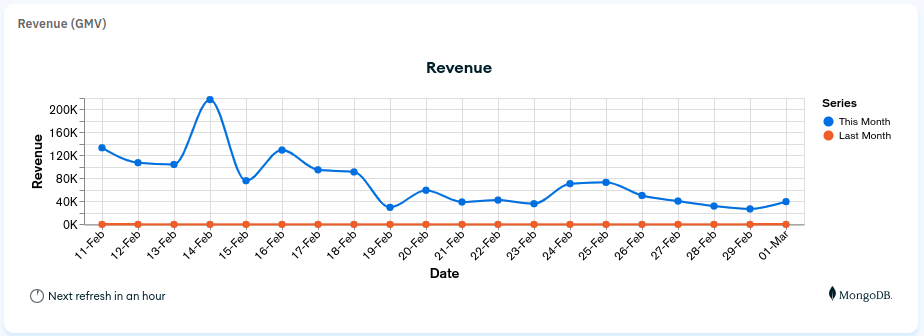
Revenue (GMV) section
It will show GMV growth for the selected time frame.
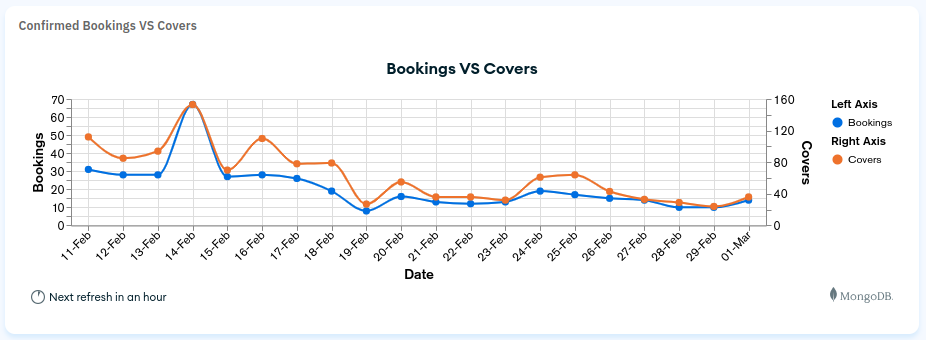
Confirmed Bookings vs Covers section
It will show booking and cover growth for the selected time frame.
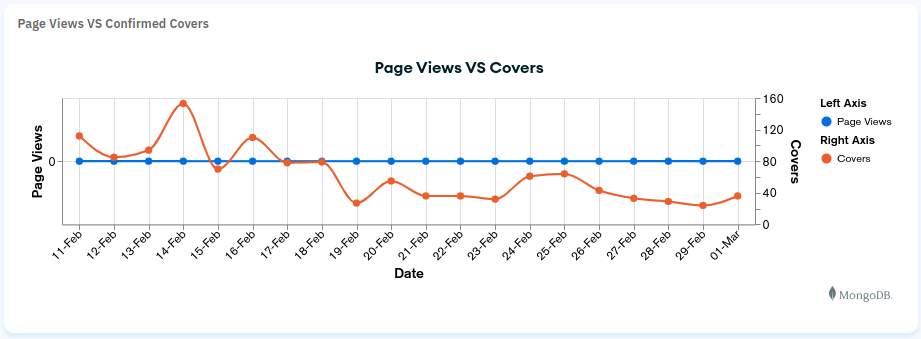
Page Views vs Confirmed Covers section
It will show page views and confirmed covers for the selected time frame.
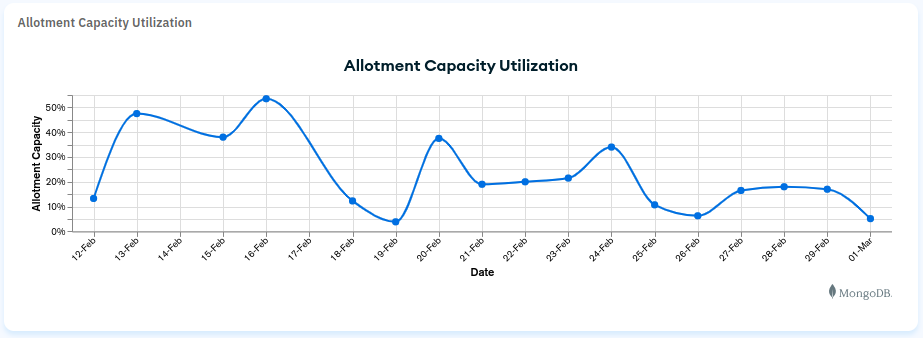
Allotment Capacity Utilization section
It will show the allotment capacity utilization percentage.
Rating, Review and Photos section
Shows review quality and media insights.
Package comparison section
Shows comparison across package performance.
Party Size comparison section
Shows booking distribution by party size.
Existing vs New customers section
Shows percentage split between existing and new customers.
Average Spending Per Cover section
Shows average spending metrics per cover.
Cancelled Bookings section
Shows cancellation percentage and totals.
Ranking page
- Shows today’s GMV.
- Shows restaurant ranking by location.
- Shows restaurant ranking by cuisine.
- Shows restaurant ranking by package type.
MongoDB chart guide
- Open MongoDB Charts dashboard.
- Select project
hungryhub-production. - Duplicate a chart from the main dashboard and edit fields.
- Add date ranges needed by product requirements.
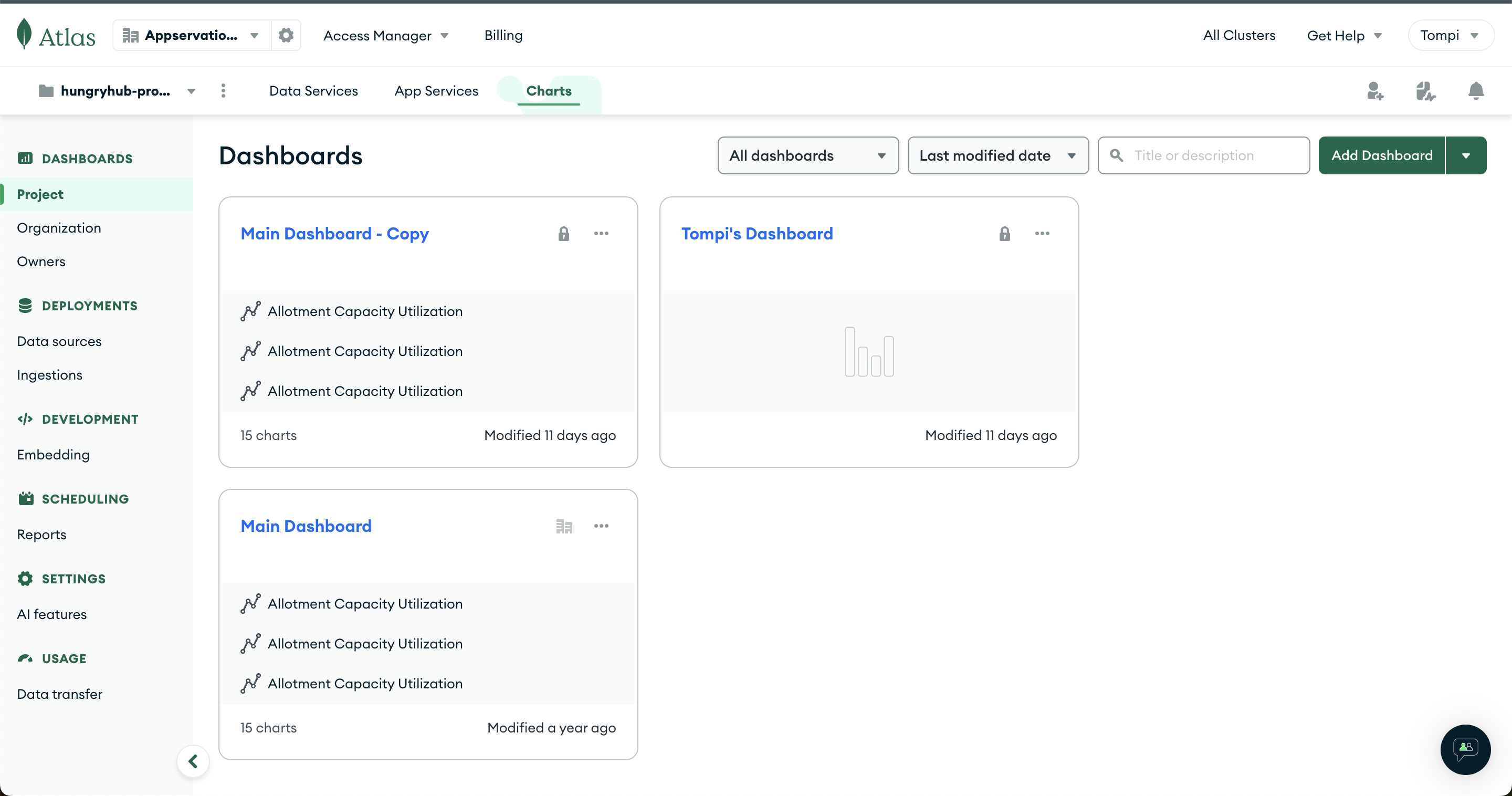
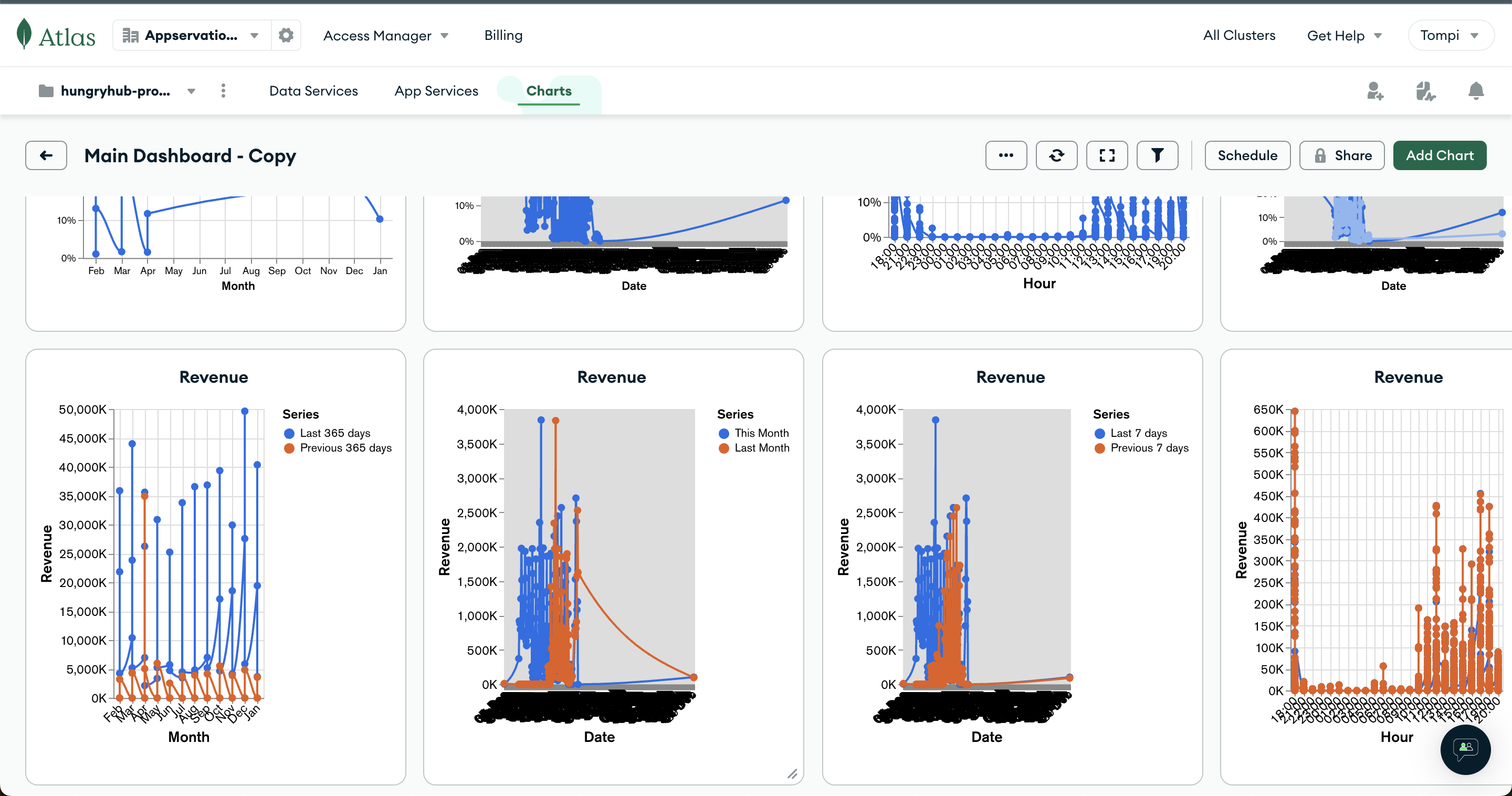
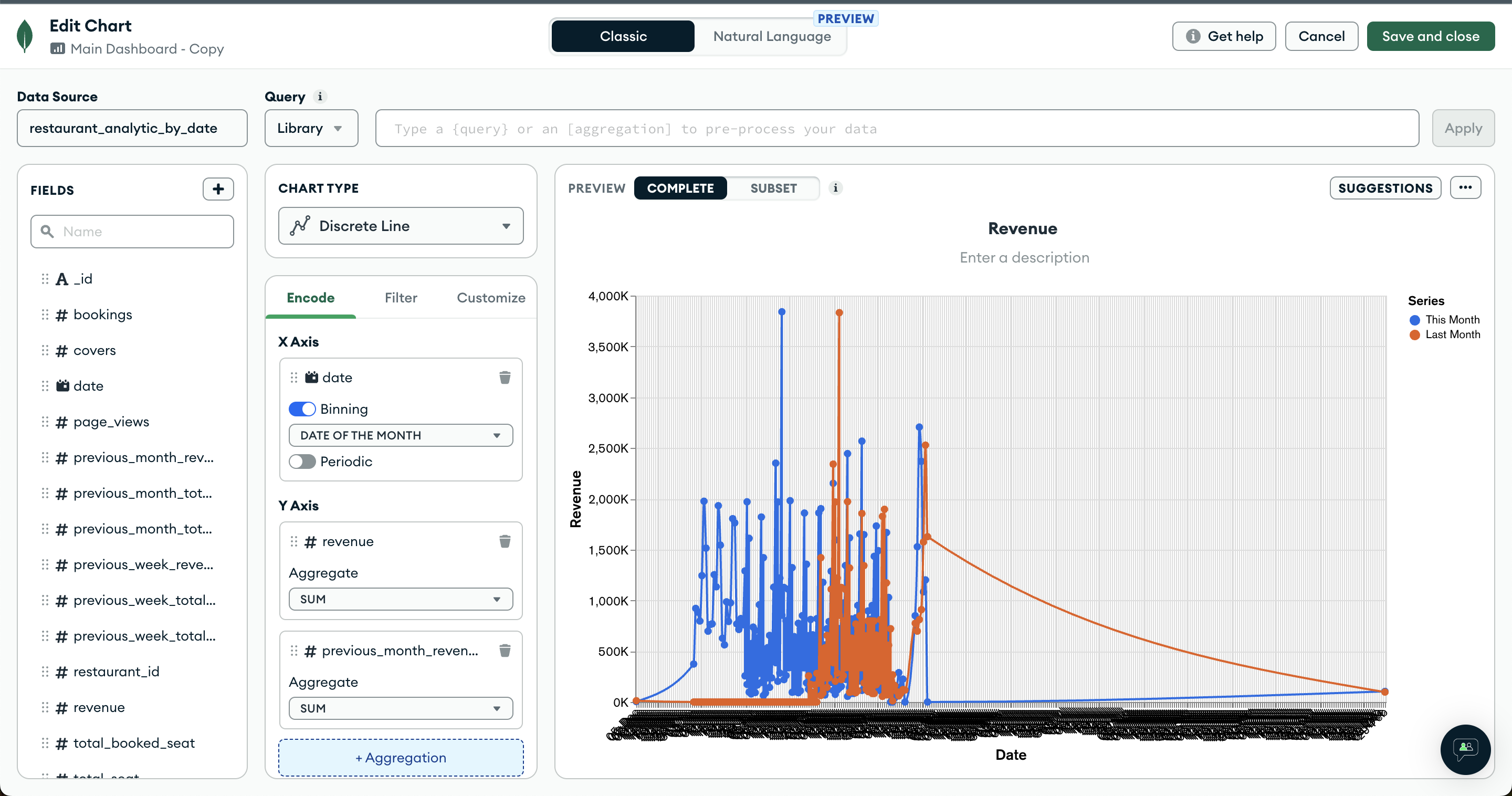
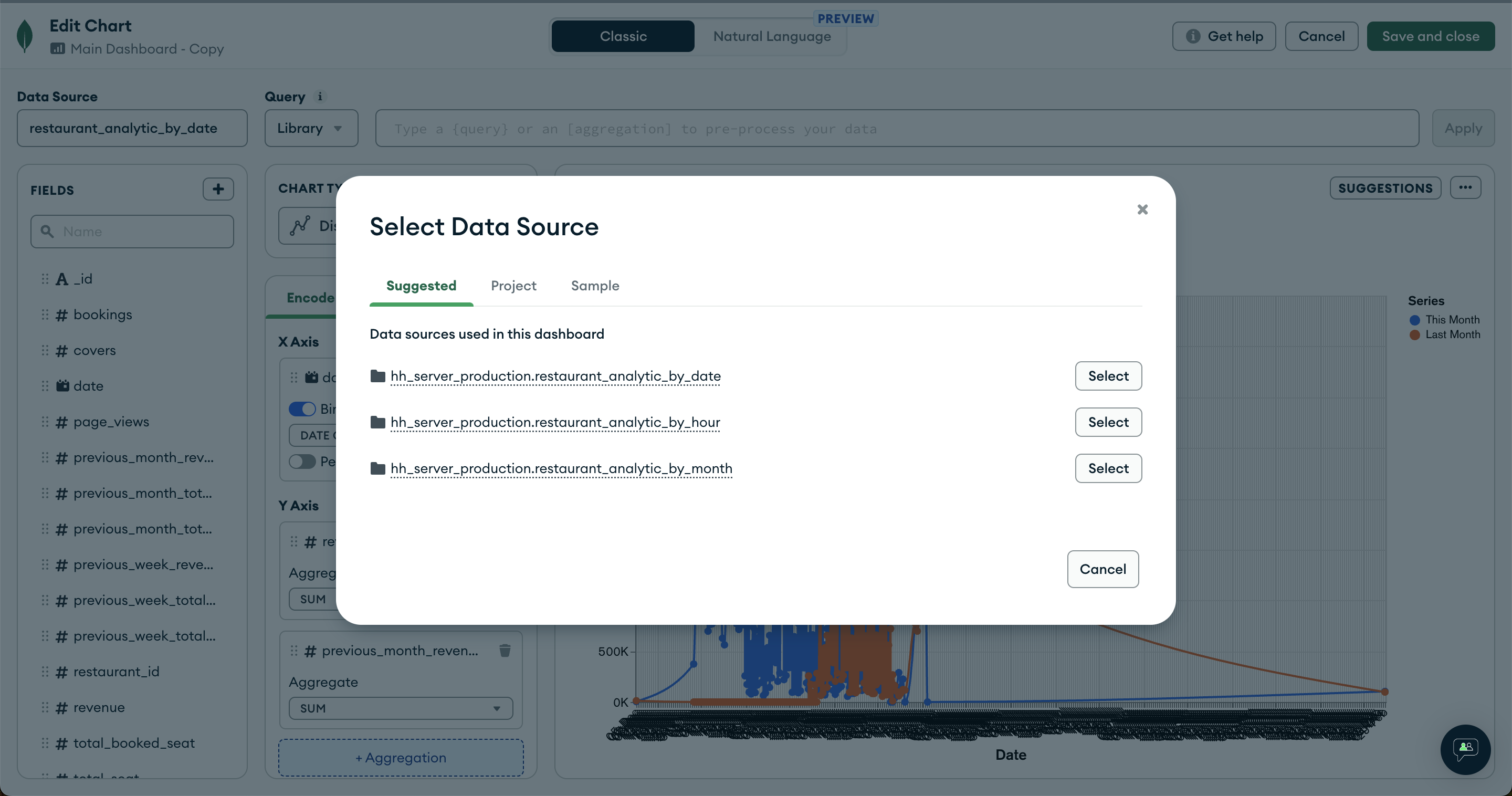
Our existing dashboard is read-only. Use duplicated charts for experimentation and migration.