[external] Owner Dashboard Documentation
Description
This document explains the HungryHub owner dashboard for managing the reservations of restaurants by the restaurant owner or staff
Credentials
Owner Dashboard Account
- Restaurant ID: 40
- Restaurant Page URL: https://hungryhub-build-staging.netlify.app/restaurants/maverick-restaurant-bar?locale=en&env=venus
- Restaurant Owner Dashboard Sign in URL: https://hh-venus.my.id/dashboard/v2/owners/sign_in?locale=en
- email: maaverick@hungryhub.com
- password: maaverickhungryhub
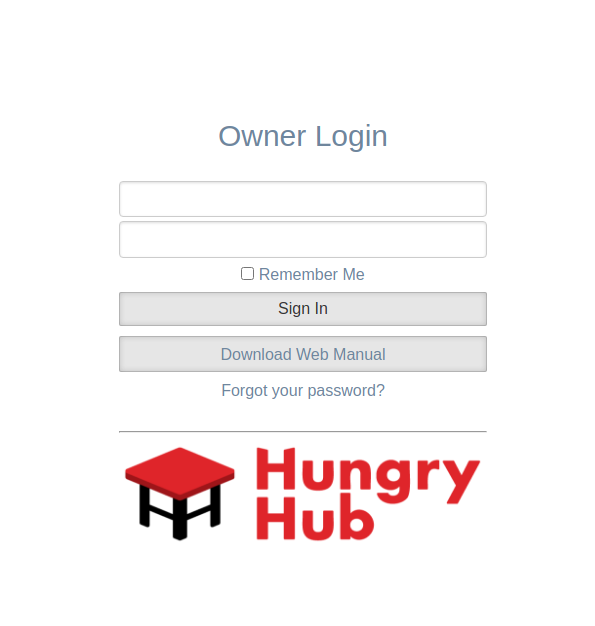
Manage Reservations (Bookings)
You can click the Bookings button in the menu bar to go to the manage reservations page
 https://hh-venus.my.id/dashboard/v2/reservations?locale=en
There are some actions that you can do from the manage reservations page
1. Create a New Reservation
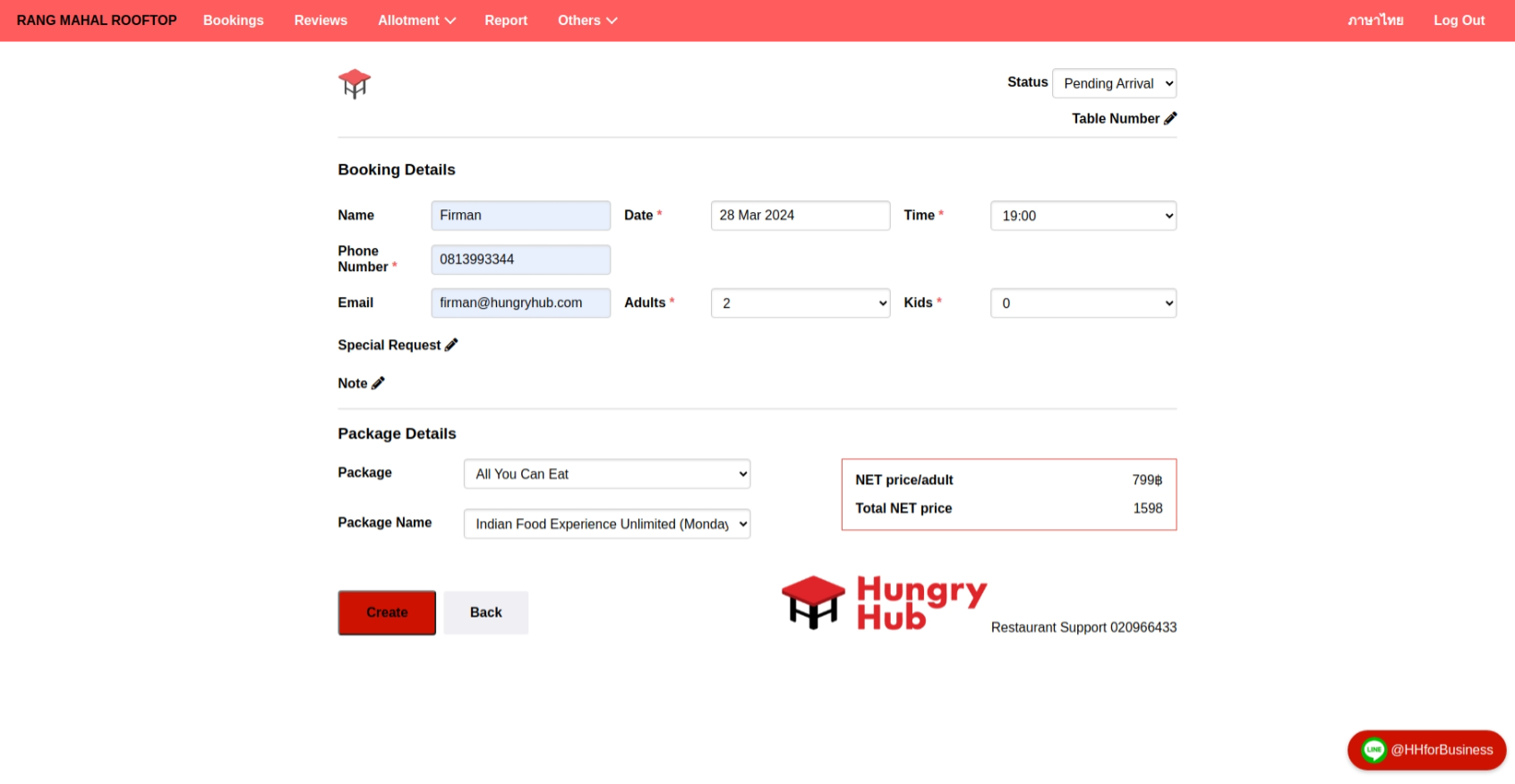
You can click + New Reservation button to create a new reservation
 Fill out the form with the data and package, then click the Create button to save the new reservation, or click the Back button to cancel the action and go to the manage reservations page.
 You will see the success message and reservation details page if the new reservation is successfully created.
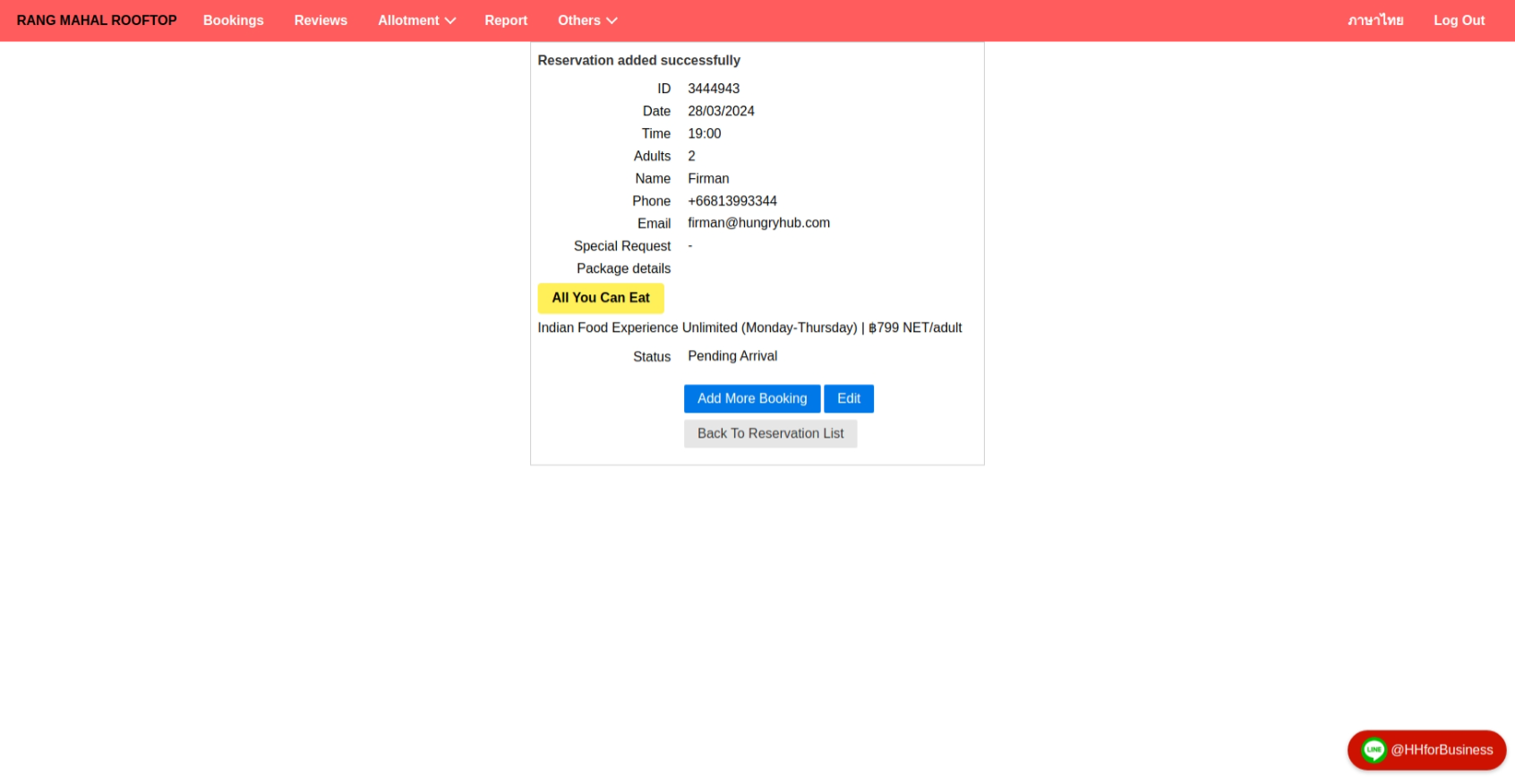 On this page, you can Add More Booking, Edit Booking, and go Back To Reservation List (manage reservations page).
2. Edit Reservation Data
Edit reservation can be accessed from the manage reservations page or the reservation details page as we mentioned before on create reservation step.
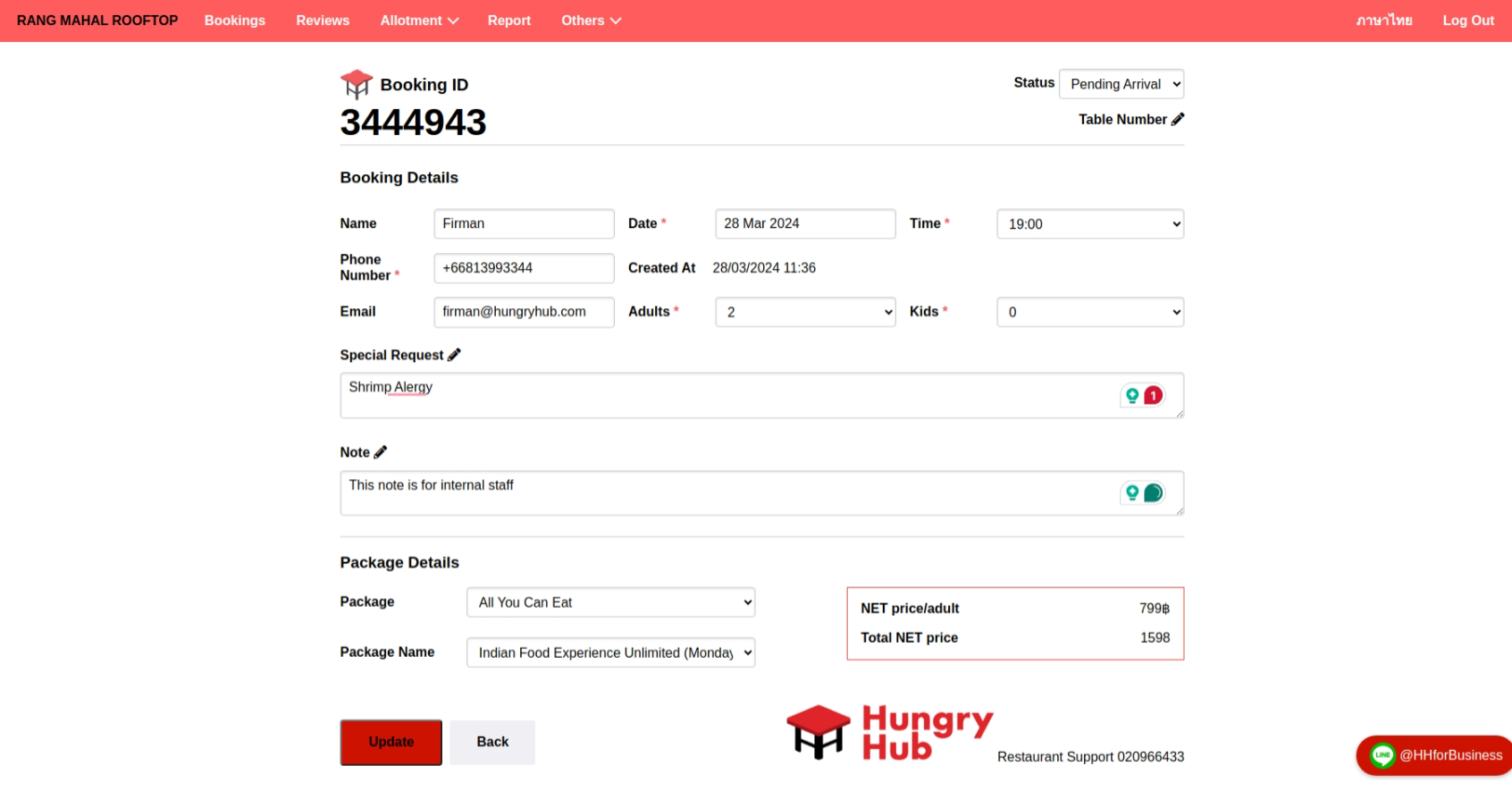
 You can edit the reservation data by clicking the Edit button and you will be redirected to the Edit Reservation page. Update the data and click the Update button to update the changes or click the Back button to cancel the action.
3. Edit Reservation Status
You can edit the reservation status through the manage reservations page or from the edit reservation page.
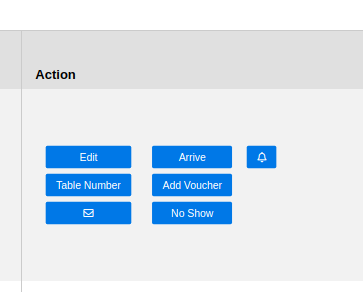
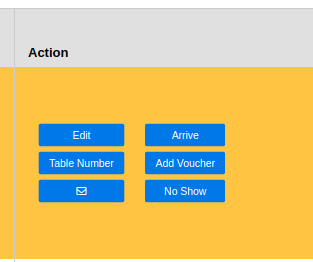
- Arrive ➝ Update reservation status to be arrived (if customer comes to the restaurant)
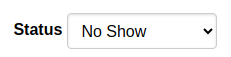
- No show ➝ Update reservation status to be no show (if the customer doesn't come to the restaurant)
- Table Number ➝ Edit the Table Number (Seating table)
- Add Voucher ➝ Add voucher, gift card, or promo codes to the reservation
- Edit ➝ Edit the reservation data
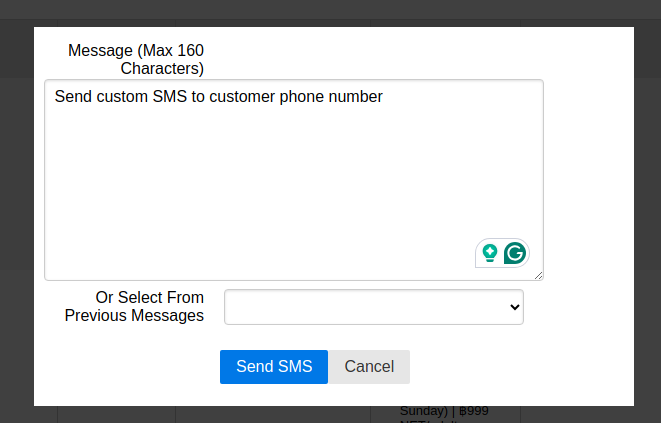
- Send Custom SMS ( envelop icon ) ➝ Send the custom SMS to the customer's phone number
- Send Custom Reminder (bell icon) ➝ Send custom reminder to customer
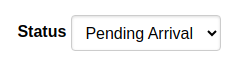
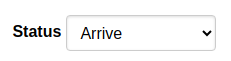
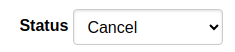
You also can update the reservation status from the edit reservation page and choose the status
4. Cancel a Reservation
You can cancel a reservation from the edit reservation page,
Update the reservation status to Cancel in the Status dropdown ➝ Click Update button ➝ Choose the reason for the cancellation ➝ click the Cancel Booking button.
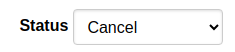
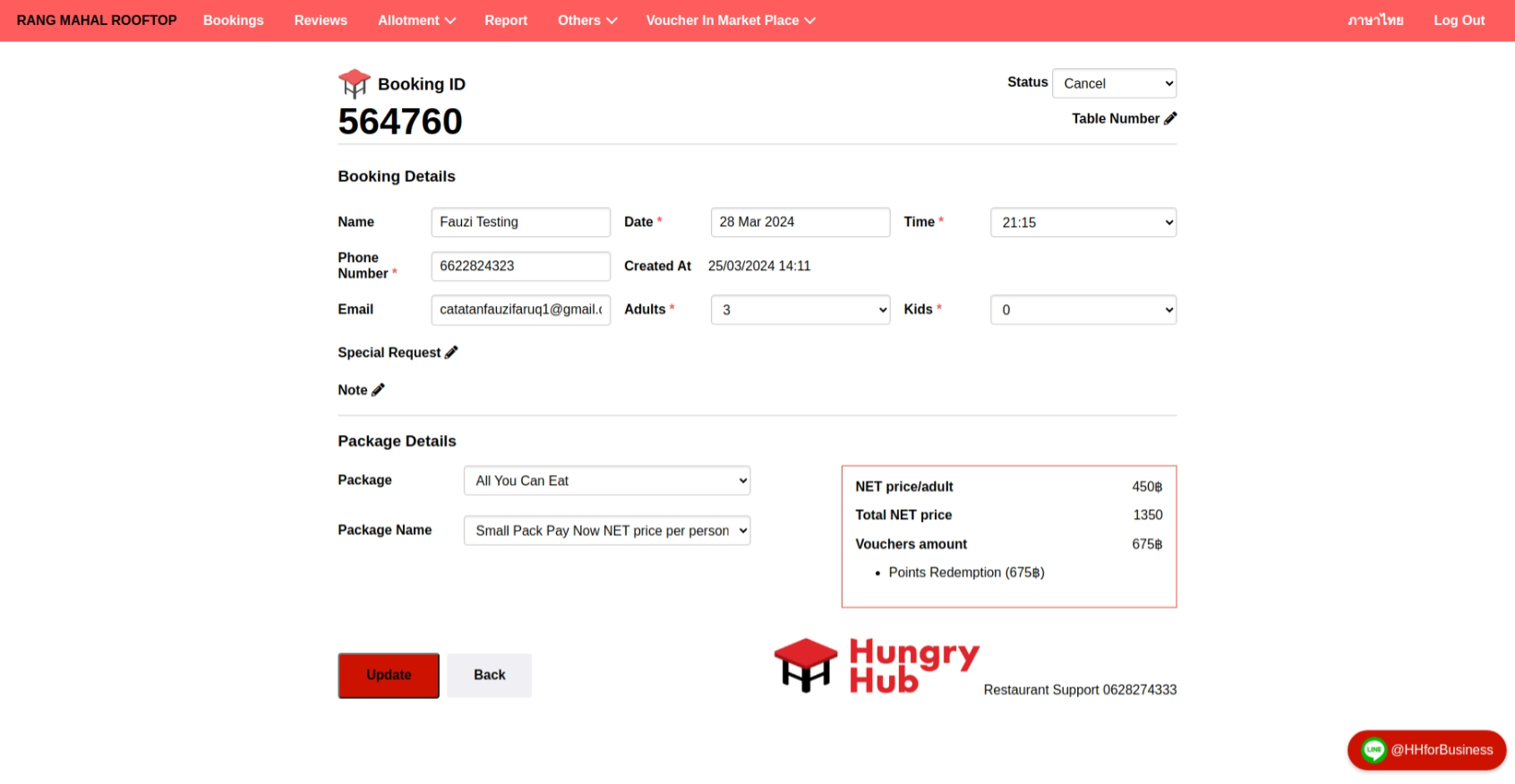
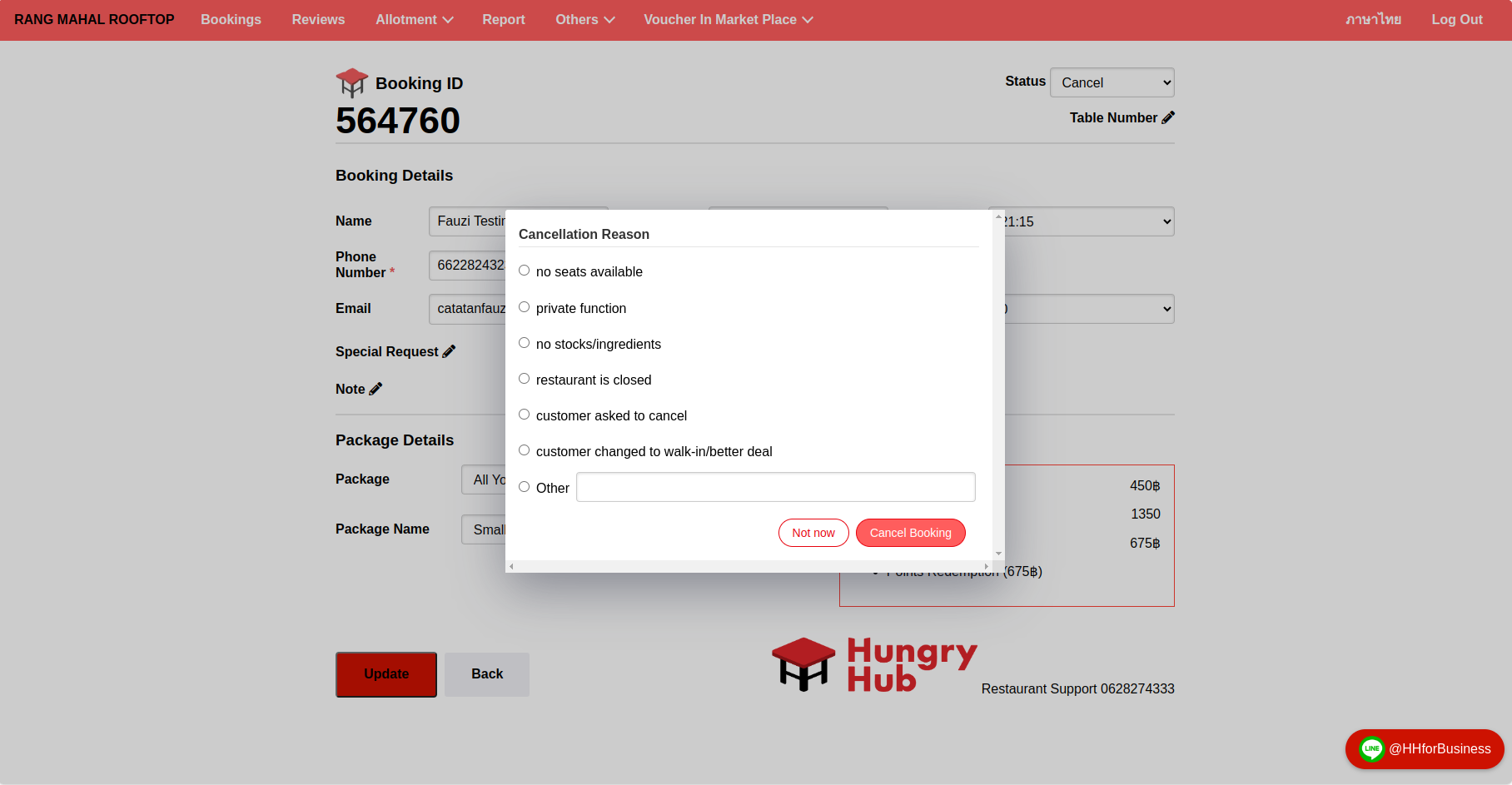 If successful the background of the reservation will be changed and the status of the reservation switched to Cancel
 If the auto-confirm feature of the restaurant is disabled then the restaurant staff or owner needs to decide to Accept or Reject the booking by clicking the Confirm or Reject button for each new coming reservation

Notes
- The actions button on the manage reservations page will be gone 24 hours after the dining time of the reservation
- You cannot cancel a reservation with pre-payment (has prepaid)
- You can filter the reservations list or export the reservations report from these buttons
