📊 Vendor Automation Dashboard
Home Section
The Home Section of the Vendor Integration Testing Dashboard is the central hub for managing, monitoring, and triggering automation tests across different environments. 📍 URL:
[
vendor-integration-tests.hh-ballbot.my.id
https://vendor-integration-tests.hh-ballbot.my.id/home
](https://vendor-integration-tests.hh-ballbot.my.id/home)
🏠 Overview
The Home page provides a quick snapshot of:
- ✅ Total & Successful Runs
- ❌ Failed Runs
- 🚀 Trigger buttons for automation
- 📈 Recent Run Stats & Artifacts
- 🕒 Recent Activity Log
🔁 Environments Supported
| Environment | Description |
|---|---|
| Ballbot | Development/Staging environment for internal QA |
| Venus | Pre-production/UAT environment |
| Production | Live production environment for real users |
📦 Sections Breakdown
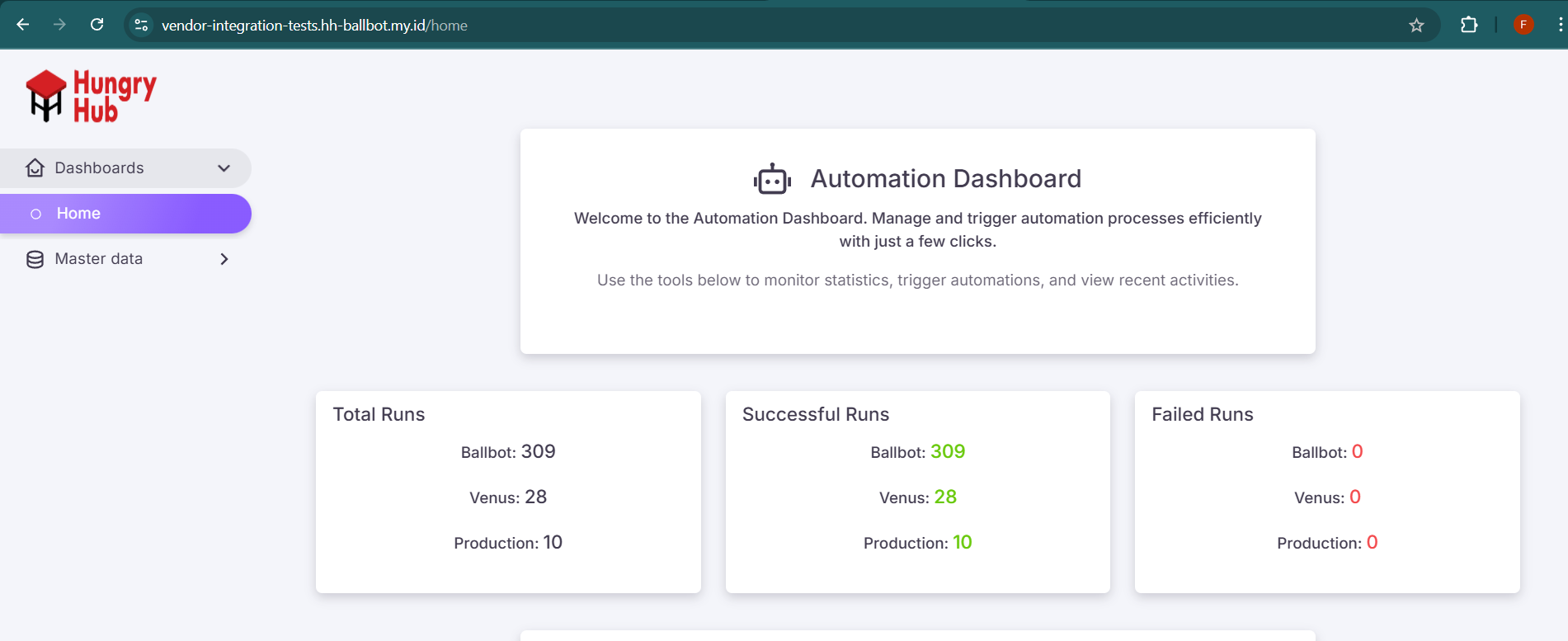
📌 1. Summary Statistics
Quick glance at the run stats per environment.
| Metric | Description |
|---|---|
| Total Runs | Number of test runs executed in each env |
| Successful Runs | Runs that completed without failure |
| Failed Runs | Runs that encountered one or more failures |
🚀 2. Trigger Automation
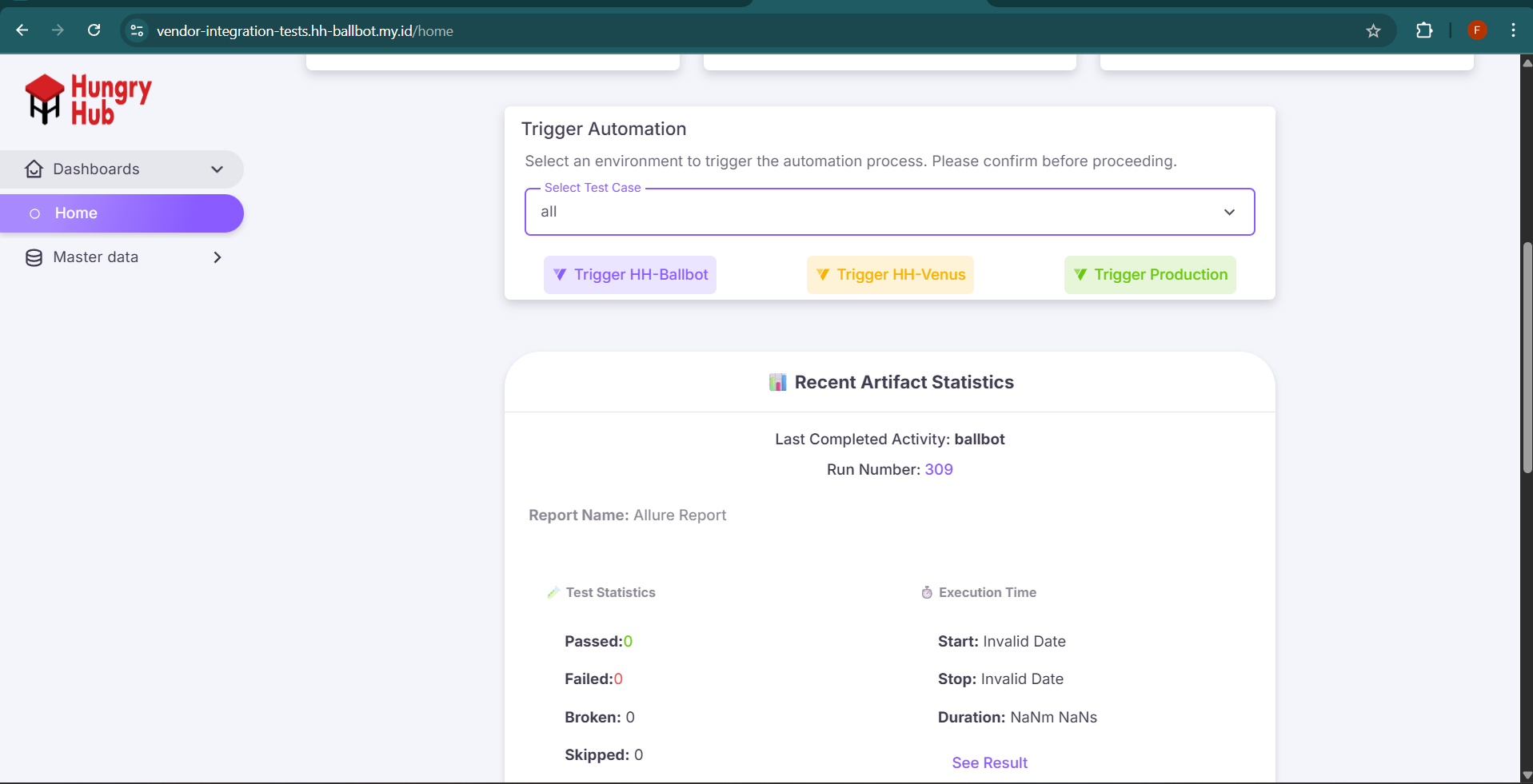
Use this section to manually trigger a test run in the selected environment.
🧩 Buttons:
- Trigger HH-ballbot
- Trigger HH-venus
- Trigger HH-production
🔐 What happens when clicked:
- Initiates GitHub Actions workflow using
workflow_dispatch - Selects the corresponding environment (
env) - Generates master data based on that environment’s configuration
- Runs tests using Playwright across shards
- Uploads Allure report
⚠️ Always confirm the selected environment before triggering, especially for Production.
📁 3. Recent Artifact Statistics
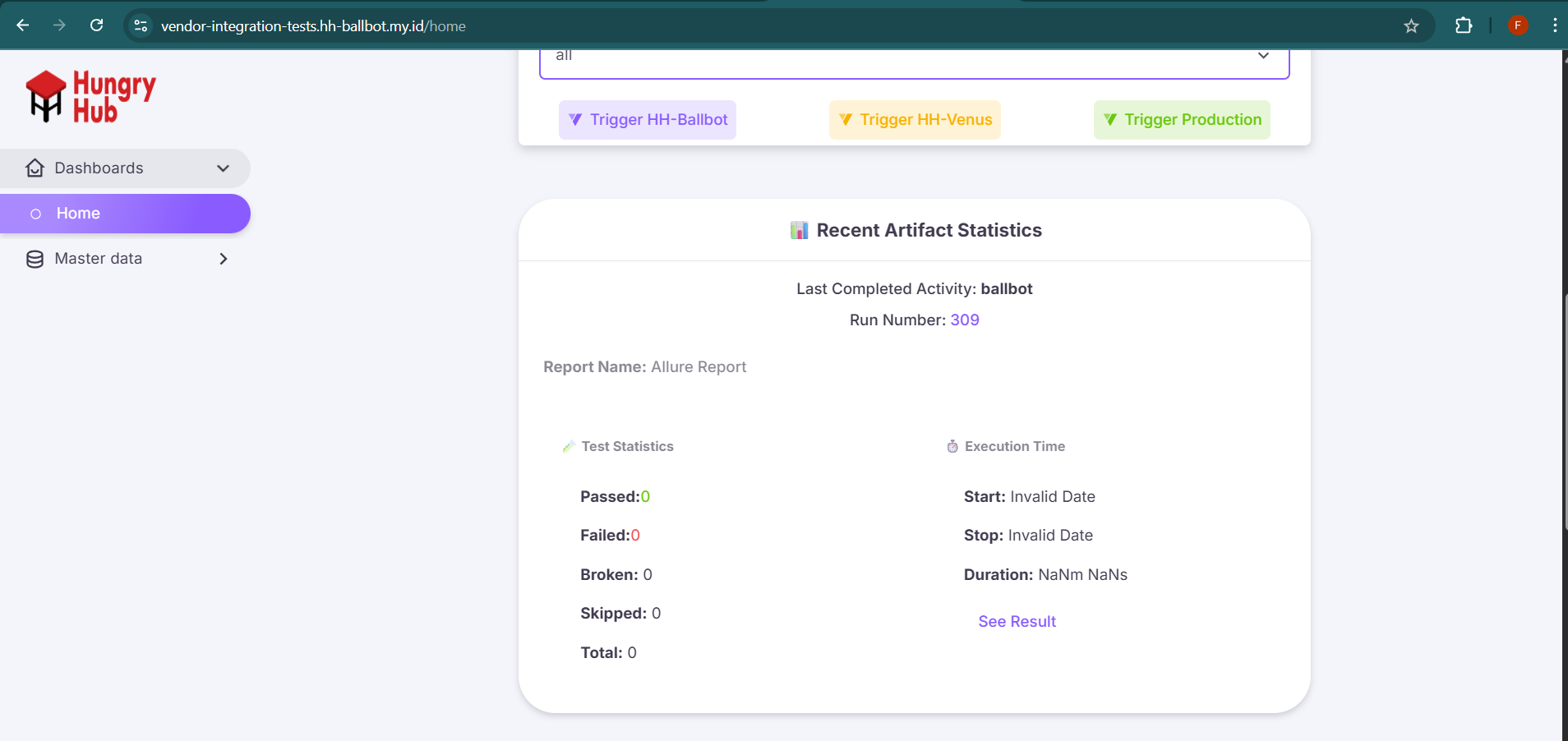
Displays information about the last completed test run, including:
| Field | Description |
|---|---|
| Last Activity | Name of the environment that was last run |
| Run Number | Corresponding GitHub Actions run_number |
| Report Name | Title of the report (e.g., Allure Report) |
| Test Stats | Breakdown of Passed, Failed, Broken, Skipped |
| Execution Time | Start time, stop time, and duration |
🗂 4. Recent Activities Table
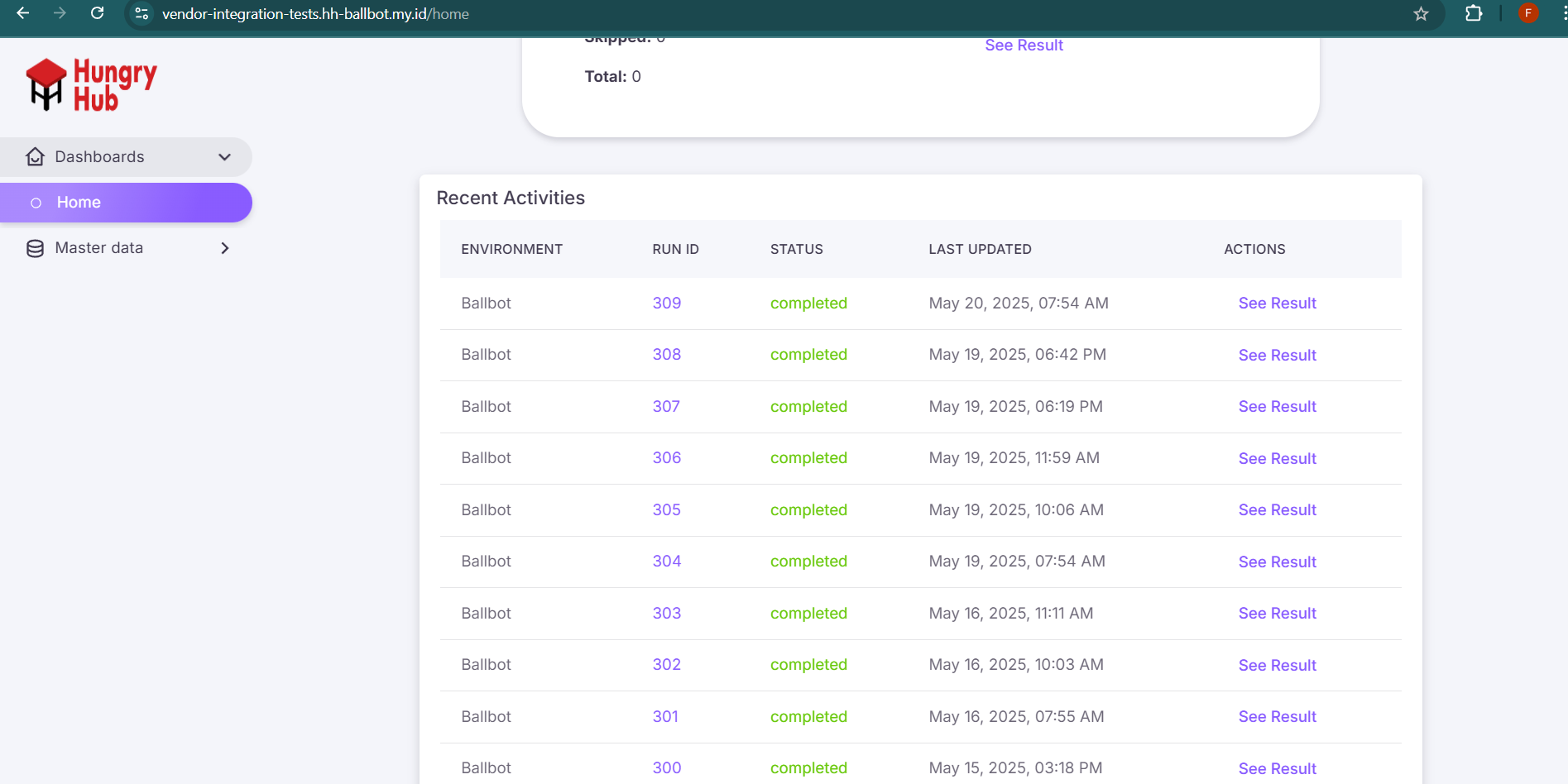
A log of recent test runs with status and quick access to the report.
| Column | Description |
|---|---|
| Environment | Where the test was run (Ballbot/Venus/Production) |
| Run ID | GitHub Actions run number |
| Status | Pass/Fail/Running/Pending |
| Last Updated | Timestamp of the last activity for that run |
| Action | Button to "See Result" — opens the Allure Report |
🧾 Master Data
📍 URL Examples:
- Ballbot:
[
vendor-integration-tests.hh-ballbot.my.id
https://vendor-integration-tests.hh-ballbot.my.id/master-data/restaurants/hh-ballbot
](https://vendor-integration-tests.hh-ballbot.my.id/master-data/restaurants/hh-ballbot)
- Venus:
[
vendor-integration-tests.hh-ballbot.my.id
https://vendor-integration-tests.hh-ballbot.my.id/master-data/restaurants/hh-venus
](https://vendor-integration-tests.hh-ballbot.my.id/master-data/restaurants/hh-venus)
- Production:
[
vendor-integration-tests.hh-ballbot.my.id
https://vendor-integration-tests.hh-ballbot.my.id/master-data/restaurants/hh-production
](https://vendor-integration-tests.hh-ballbot.my.id/master-data/restaurants/hh-production)
📚 Purpose of Master Data
Before running automation tests, the test system needs to know which restaurant IDs are mapped to which inventory sources. This data is used to:
- Dynamically load inventory setup
- Ensure accurate test payloads per vendor
- Scope tests to only available restaurants for each environment
🧩 Supported Inventory Sources
| Inventory Source | Description |
|---|---|
| HungryHub | Internal inventory platform |
| TableCheck | TableCheck partner integration |
| Weeloy | Weeloy integration |
| Sevenroom | Sevenroom partner integration |
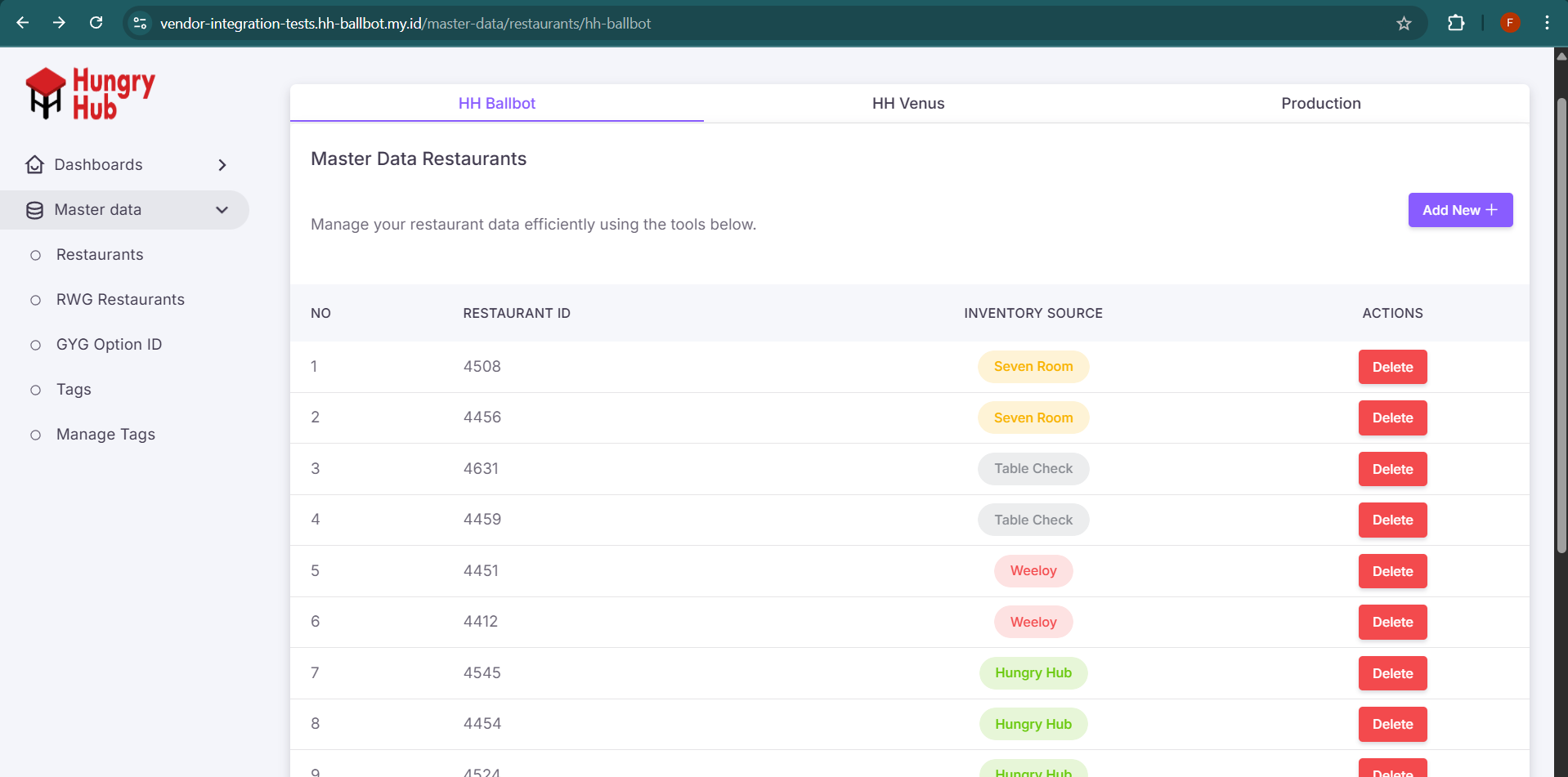
📋 How to Use the Master Data Page
1. 🔘 Select Environment
Each environment has its own data set:
- Ballbot →
/hh-ballbot - Venus →
/hh-venus - Production →
/hh-production
✅ Switching between environments will load only the data relevant for that environment.
2. ➕ Add New Restaurant
Click the "Add New" button at the top.
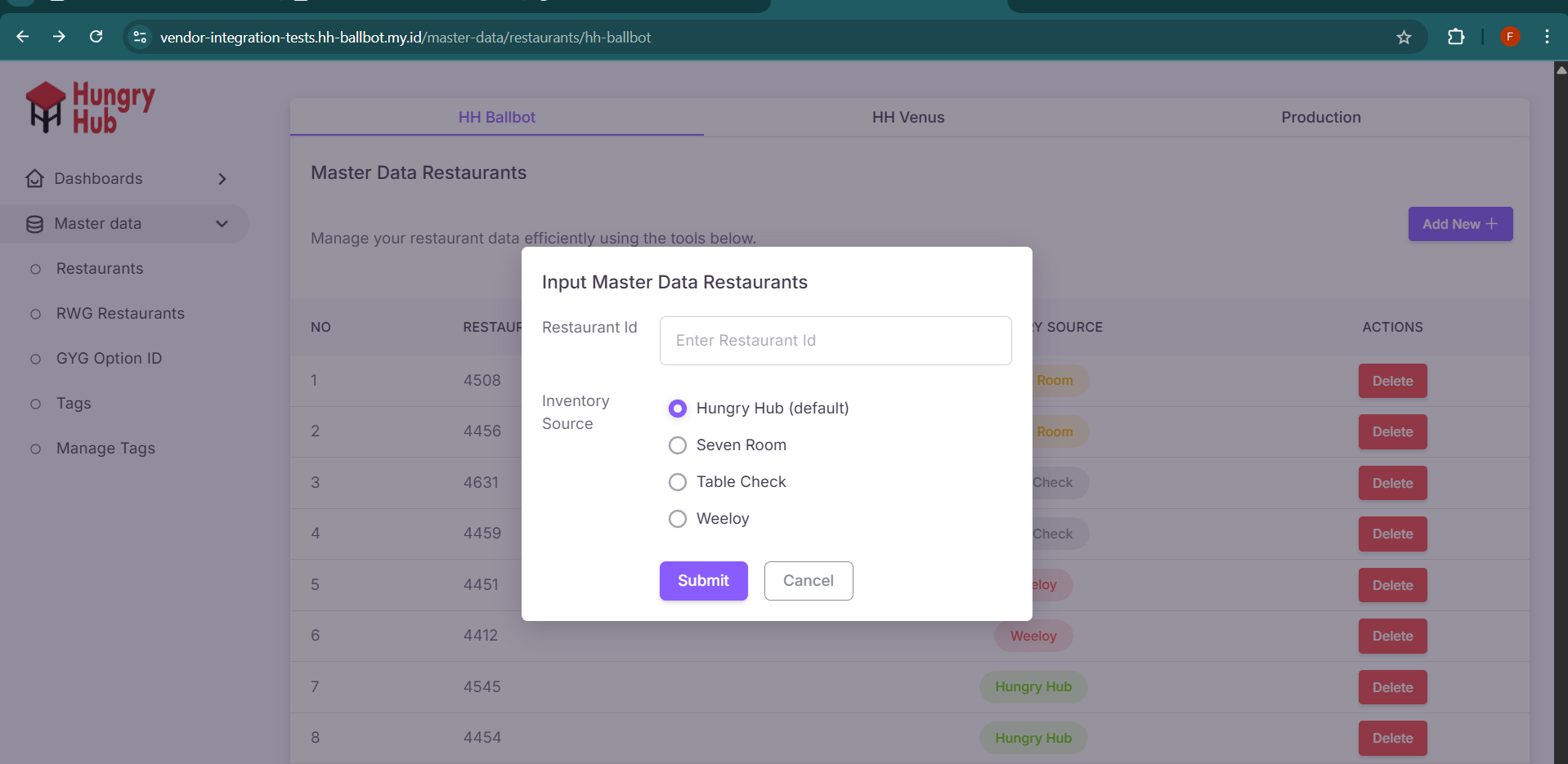
Required Fields:
| Field | Description |
|---|---|
Restaurant ID | Internal ID used in reservation API |
Inventory Source | Choose from HungryHub, TableCheck, etc. |
After submission:
- The restaurant will appear in the table.
- This entry is now usable in automated test cases.
3. 🗑️ Delete Restaurant Entry
Each row includes a Delete button.
- Deletes the restaurant from the environment-specific dataset.
- This will exclude the restaurant from the next automation run.
⚠️ Deleting an entry does not affect other environments.
📊 Table Columns
| Column | Description |
|---|---|
| No. | Serial number |
| Restaurant ID | Internal ID used in API and automation |
| Inventory Source | The vendor/source mapped to the restaurant |
| Action | Button to delete the entry |
🔁 Data Sync Behavior
Once updated:
- The entries are used during
npm run generate-master-data - Restaurant entries will be injected into:
restaurantData.json- Used by
runVendorTests()inside Playwright test files Each environment's dataset is isolated, ensuring:
- No accidental test pollution across environments
- Accurate targeting of test data based on deployment stage
✅ Best Practices
- Keep at least one testable restaurant per inventory source in each environment
- Match restaurant IDs with real/test data available in the corresponding system
- Clean up obsolete entries to prevent unnecessary test failures