HungryHub WebView Integration
Requirement for Partners:
We need every partner to provide 2 APIs:
- API to provide user information
- API to receive webhook from HungryHub whenever a booking has been created/modified
WebView Documentation
Base URL
Production: https://web.hungryhub.com UAT: https://web.hhstaging.dev Staging: https://hh-xxx.hhstaging.dev (vary for each partner)
For the staging environment, the link is dynamic for each partner. As an example, the link might look like hh-xxx.hhstaging.dev. To obtain the specific FE link for your partner, please request it from the HH team.
Embedded WebView Requirements
- To use our WebView, ensure the following screen size criteria:
- Mobile view: Screen size should be below 767px.
- Desktop view: Screen size should be 767px or above.
Note: currently we detect the device based on screen size
- If you wish to embed our WebView on your website, please provide the domain you use so we can grant access.
URL & Query Params
Example Full URL :
https://hh-xxx.hhstaging.dev/?locale=en&partner=xxx&token=xxx
Payment Methods
You can use the following payment methods for testing purposes:
Credit/Debit Card
Card Test UAT (Server Test)
| Card Number | MM/YY | CVV | Name |
|---|---|---|---|
| 4535 0177 1053 5741 | 05/28 | 184 | User Name |
Card Test UAT (Server Test)
| Card Number | MM/YY | CVV | Name |
|---|---|---|---|
| 5258 8606 8990 5862 | 02/25 | 950 | User Name |
True Wallet
True Wallet test number:
NO: 0830443596
OTP: 123456
QR Code
After making the payment with the QR Code, upload the QR Code to the link below:
http://qrtool.globalprimepay.com/qr
Video Demo
Note: The concept is basically the same for all partners, but the video demo specifically highlights TagThai's implementation.
Manage Reservations Data as Restaurant Staff
This functionality is exclusively available for testing purposes on the staging environment. For production access to booking data, partners should use another portal. Please refer to:
Restaurant Owner Dashboard
Use the following links and login details to access the Restaurant Owner Dashboard to manage reservations.
Login Page: https://hh-venus.my.id/dashboard/v2/owners/sign_in?locale=en
- Restaurant: Rang Mahal Rooftop
Email: rangmahal@hungryhub.com
Password: nasigorengspesial
- Restaurant: Tailor Asok
Email: tailor@hungryhub.com
Password: nasigorengspesial
How to Modify Booking
To modify your booking, you can use the Modify Booking WebView. Please follow these steps:
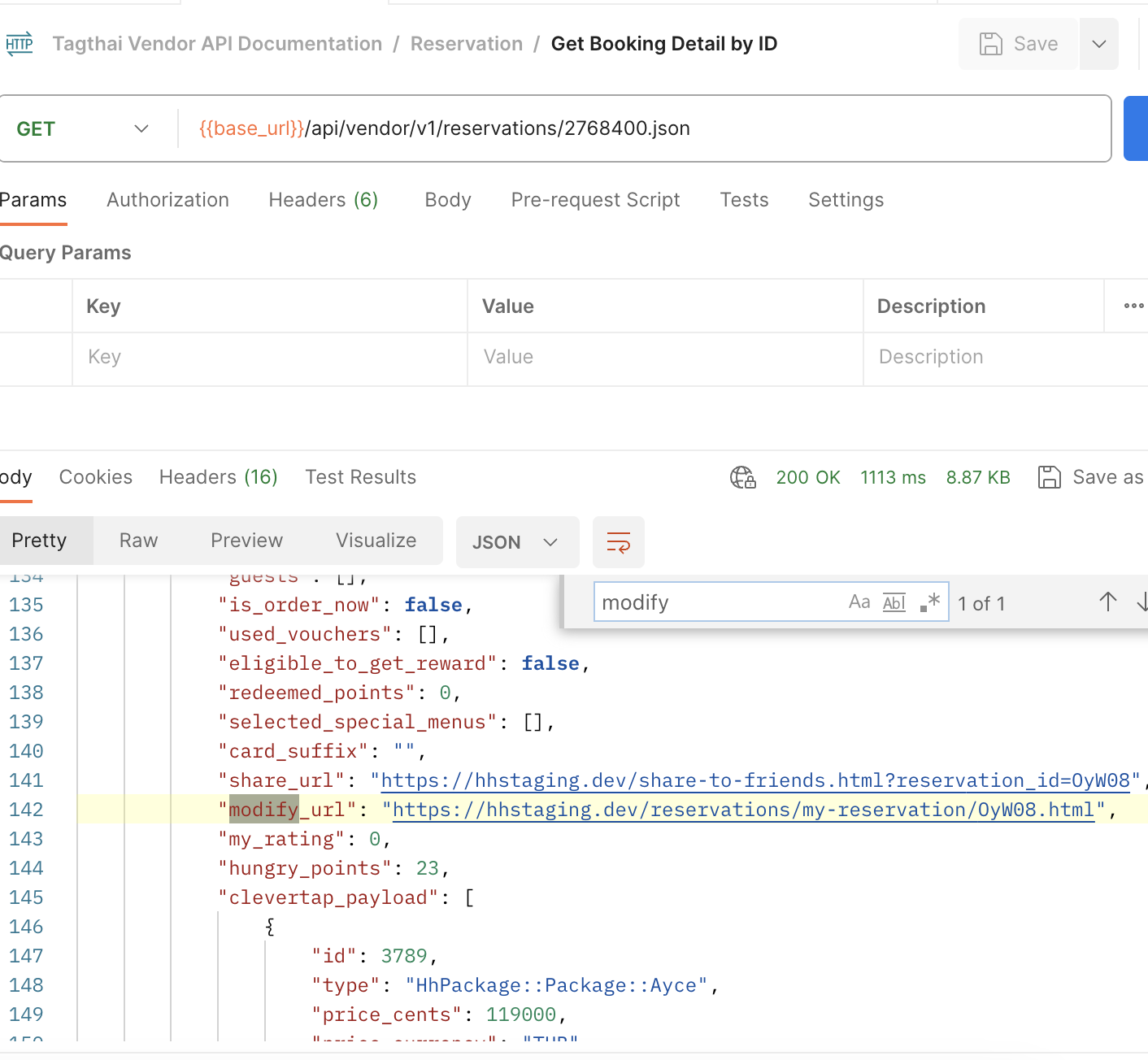
- Retrieve the modify_url from the response of the following API call:
{{base_url}}/api/vendor/v1/reservations/276400.json
- Add query params
partner=xxx&locale=en/th
Example:
https://hh-venus.my.id/reservations/my-reservation/OyW08.html?locale=en&partner=xxx
- Visit the
modify_url, and you will be directed to this WebView.
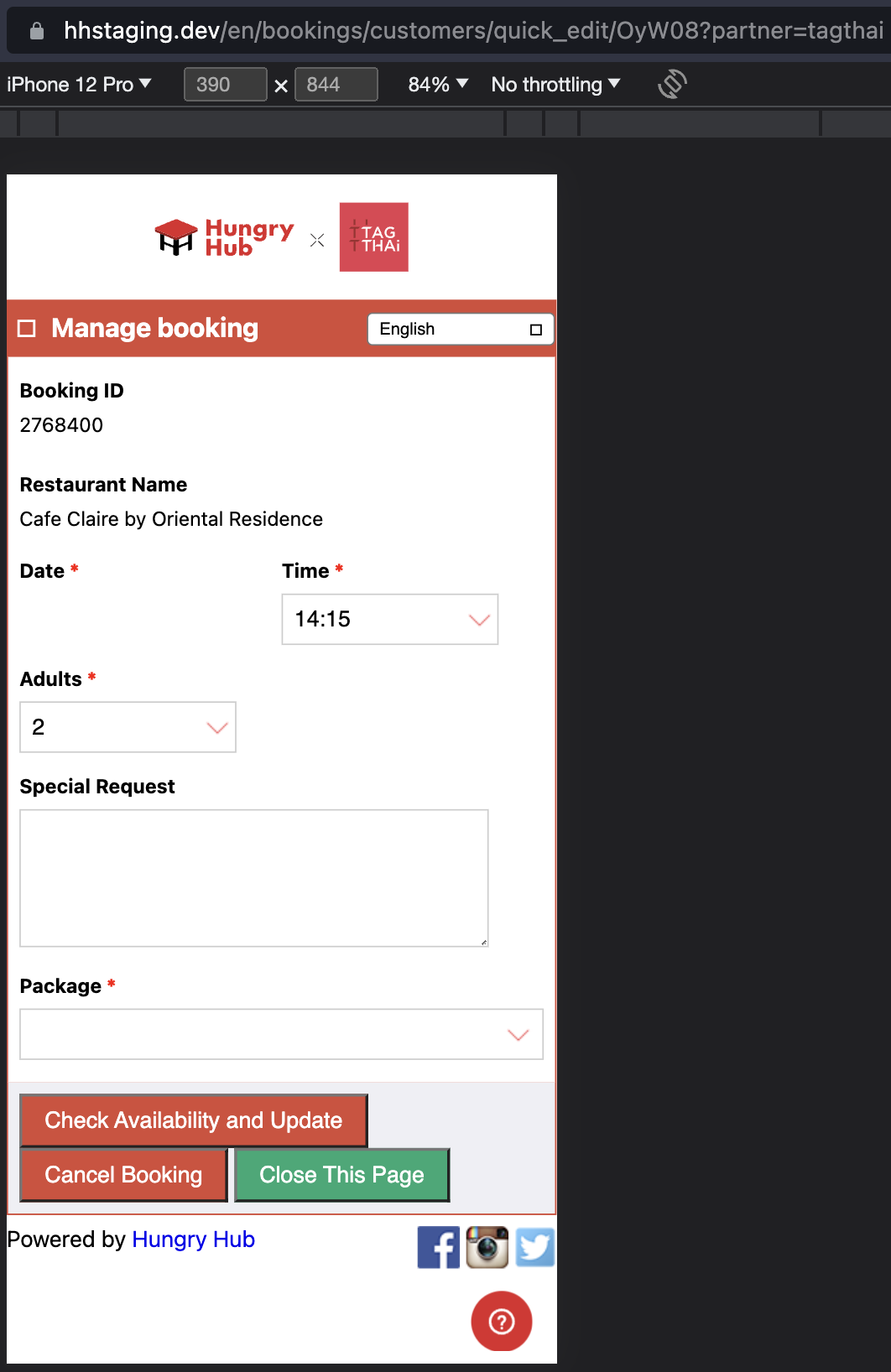
- You can make changes to your booking in the WebView.
How To Access Booking Report
To access the Booking Report, follow these steps:
- Visit the partner portal
Staging: https://hh-venus.my.id/partners/sign_in?locale=en.
Production: https://hungryhub.com/partners/sign_in?locale=en
- Please contact the HH team to obtain your partner account credentials.
- Once you receive your login credentials from the HH team, log in using them.
- Once logged in, you'll be directed to the Booking Report dashboard. Here, you can access and download your booking data.