Support Channel
Background
Currently, the Hungry Hub Partner Portal Help page displays support contact information (LINE, email, WhatsApp) that is hardcoded into the frontend. This makes it inflexible to:
- Update the order of display
- Change the button text, title, or navigation link
- Customize per region (Thailand vs. Singapore)
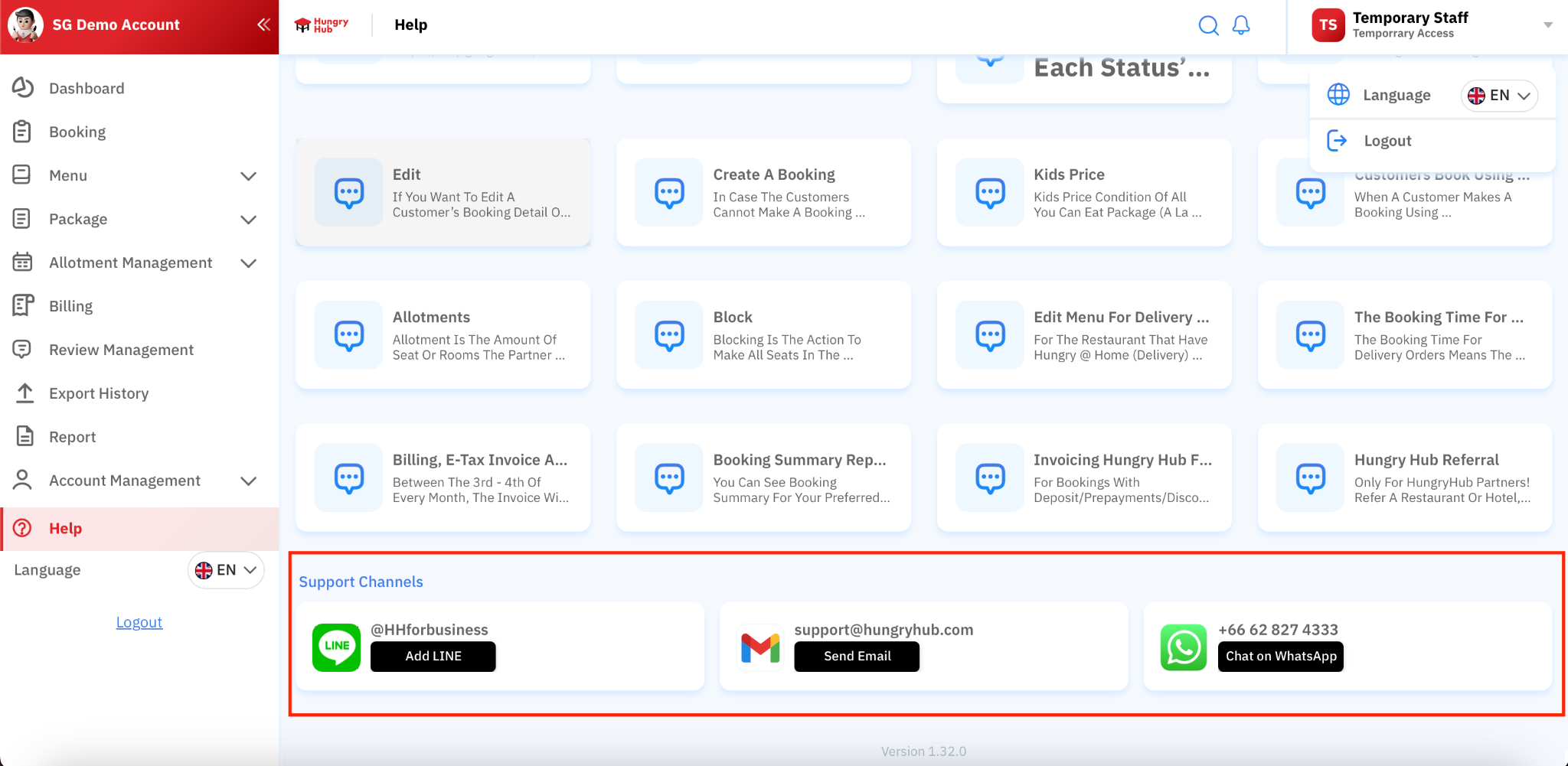
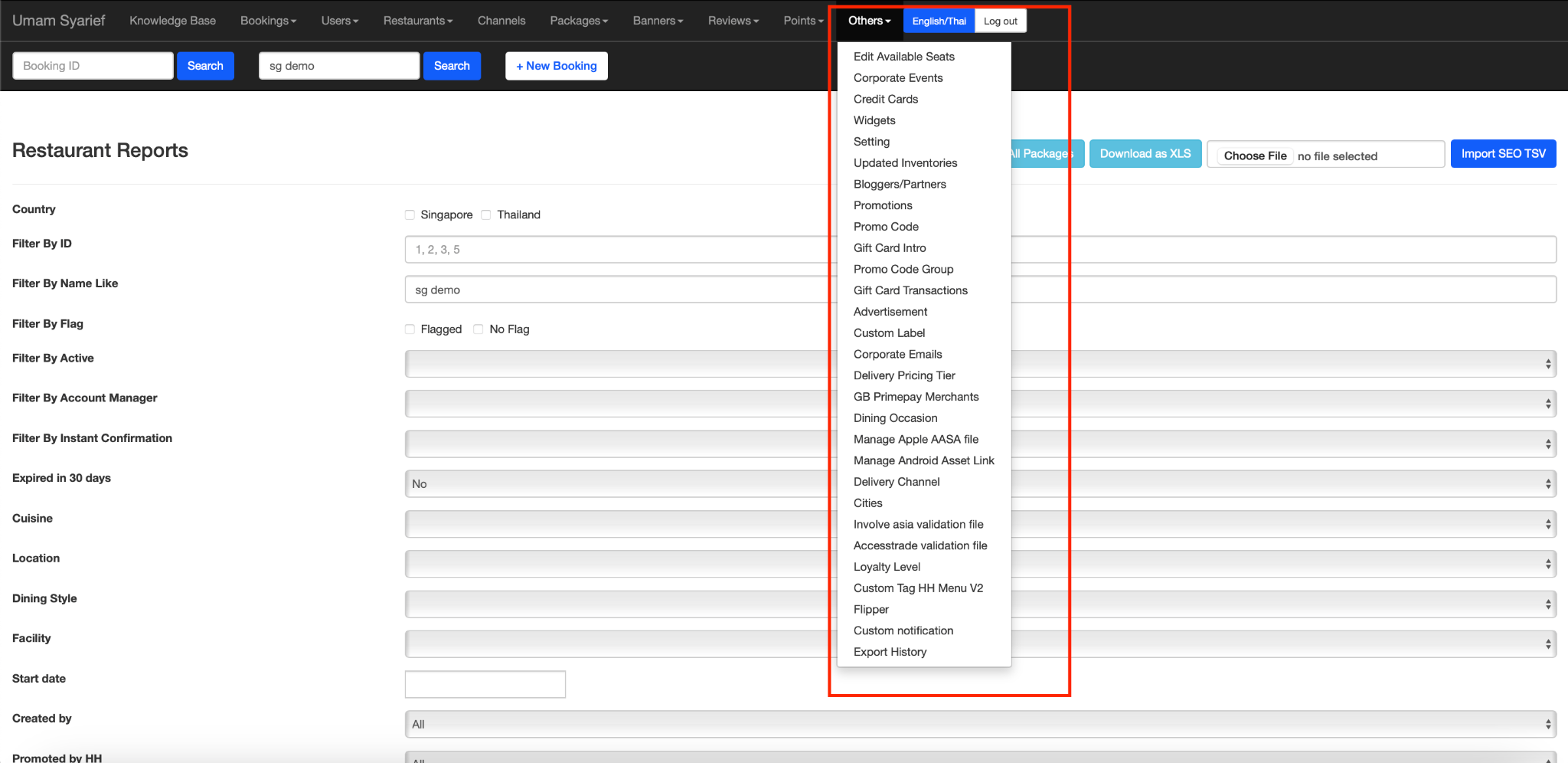
We want to make this configurable via the admin dashboard (shown in image below), so admin users can manage the contact channels dynamically without requiring developer changes.
Goals
- Allow admin users to manage support contact channels from the admin dashboard
- Support country-specific configurations (Thailand vs. Singapore)
- Allow full control over
- Display order (drag/drop or set order index)
- Channel title (e.g., “Support Channels”)
- Contact type (e.g., LINE, email, WhatsApp, or others)
- Displayed button text (e.g., “Add LINE”, “Send Email”, “Chat on WhatsApp”)
- Navigation link (URL or action)
- Displayed image or icon (icon file or predefined)
- Ensure changes reflect live on the Help page of the Partner Portal.
Admin Dashboard Updates
- Add a new management section under **Others → Support Contact Channels**.
- Fields for each support channel:
- `Country`: dropdown (Thailand, Singapore)
- `Order`: integer for sorting or drag/drop list
- `Channel Type`: dropdown (LINE, email, WhatsApp, others)
- `Title`: free text (e.g., “@HHforbusiness”)
- `Button Text`: free text (e.g., “Add LINE”)
- `Link`: URL or action (e.g., LINE deep link, mailto, WhatsApp API)
- `Icon/Image`: upload field or select from predefined icons
- Allow admins to:
- Add new channels
- Edit existing channels
- Delete (soft delete) channels
- Reorder channels (drag and drop or sort by
Orderfield)
- Don't forget to set multi languages as well
Partner Portal Help Page Changes
- Fetch support contact configuration dynamically based on the logged-in restaurant’s country (Thailand or Singapore).
- Render contacts:
- In the set order
- With the configured title, button text, icon/image, and link
Country Configuration Logic
- When the restaurant account is Thailand → use TH configuration.
- When the restaurant account is Singapore → use SG configuration.
User Stories
- As an admin, I want to configure support channels per country so each restaurant sees the right contacts
- As an admin, I want to set the order, title, button text, and icon for each contact channel so the Help page looks aligned and clear
- As a restaurant partner, I want to see the correct support contact options for my country on the Help page