Search Suggest
Introduction
Since the introduction of the Search Suggest feature, we have identified areas that require further refinement to enhance user experience.
Current Behavior
Currently, the Search Suggest feature allows users to input keywords. Following this, users are prompted to choose between two options: Tag Base or URL Base.
- Tag Base: This option filters the search results to display the Outlet that has been put in the selected tag.
- URL Base: This option directs the user to the Search page with results filtered based on the entered URL.
Key Challenges Identified (The Problems):
- Backend Complexity:
- The current setup poses unnecessary challenges for back-end integration.
- Tag Visibility and Control:
- Users struggle to monitor and control selected tags effectively.
- Marketing Form Setup Difficulty:
- Configuring the suggestion form from the marketing side is proving overly complex.
- Unclear Activation Flow:
- Users find it challenging to discern when and how search suggestions become active.
Areas of Focus (What's to Tackle?):
The focus will be on optimizing the Search Suggest feature, encompassing three main sections: Promotion on Search, Interesting on Search, and Outlet on Search.
Our attention will be directed towards two tasks, Refining Display Trigger Flow, Redefine Admin Setting:
- Refining Display Trigger Flow: Pinpointing the precise conditions for the appearance of search suggestions to enhance user engagement and relevance.
- Redefine Admin Setting: Redefining the interplay between admin settings and the client-side experience for Promotion and Interesting on Search, ensuring a seamless and intuitive interaction.
But first...Understanding Search Suggestion
Before we begin, let's talk about Search Suggestions. Until now, our team treated them separately from the Search Page (Search Results, Marketplace). However, we're changing that. We're now looking at them as part of a single, integrated function going forward.
Streamlined Search Journey:
- Green Line: Press the search bar; typically, it starts empty. Users are directed to the search page, showcasing suggestions for an empty search.
- Yellow Line: Users input preferences, e.g., typing "International." When they type "I"...
- (Pic 3) From this stage, the search bar is no longer empty. Suggestions shift from Empty Search to Suggesting Stage, respond to user input.
- Blue Line: Users can press a keyword from Empty Search or Suggesting Stage. Actual search results are displayed with the selected keyword in the search bar.
- Red Line: From this stage, three possible scenarios that can happen:
- Press the clear icon in the search bar:
- The search bar empties, returning to Suggestions for Empty Search (Back to No. 2).
- Press the search bar to change the keyword:
- The system responds to the user's input text (Back to No. 2a).
- Press an outlet card:
- Congratulations! The search journey is successfully completed.
Please try this prototype for your understanding
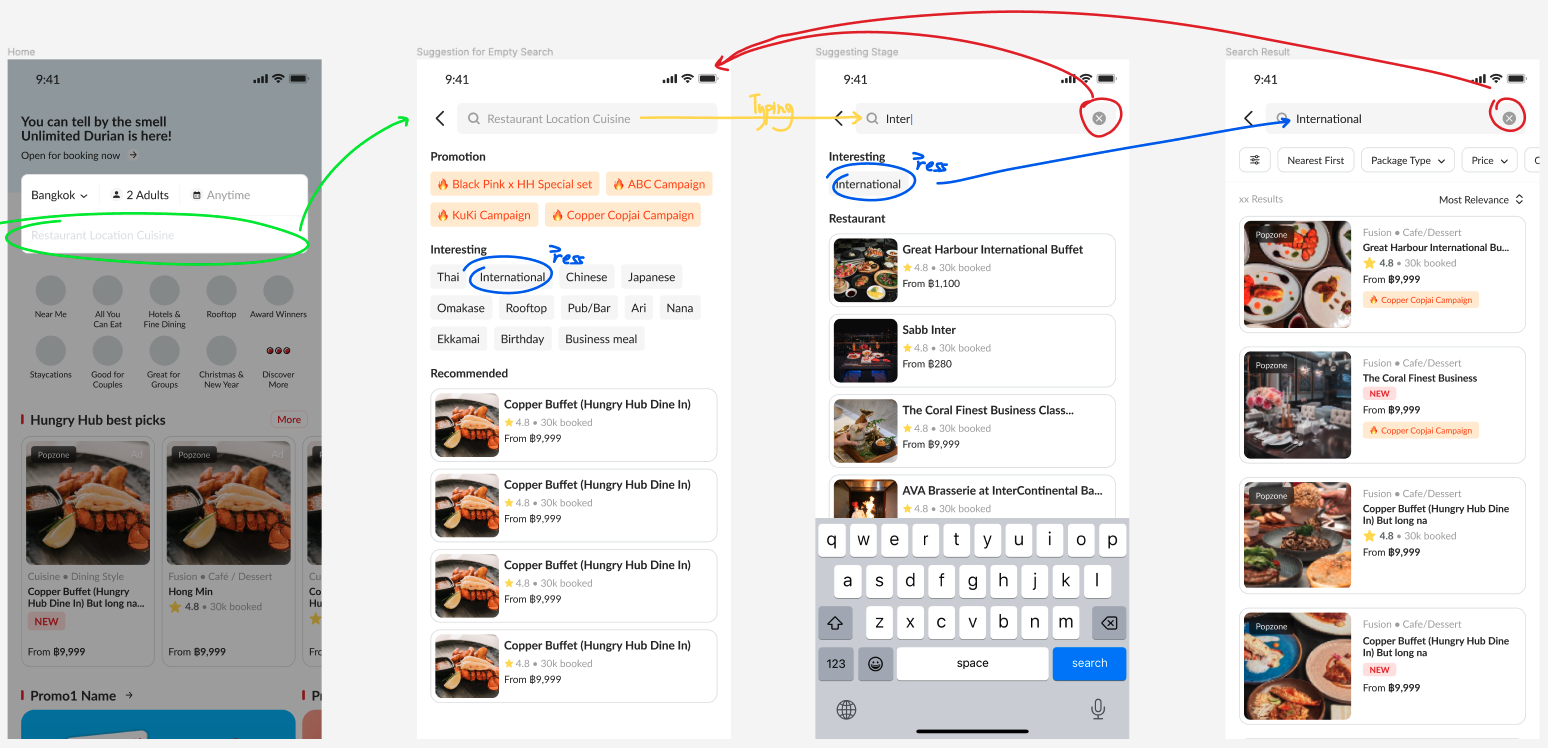 reference pic
Simplified Admin Setting Update:
We're making a change in admin settings. Instead of tags, we'll now use only text for auto-filled keywords. Admins can also conveniently sort keywords by dragging them for a better user experience.
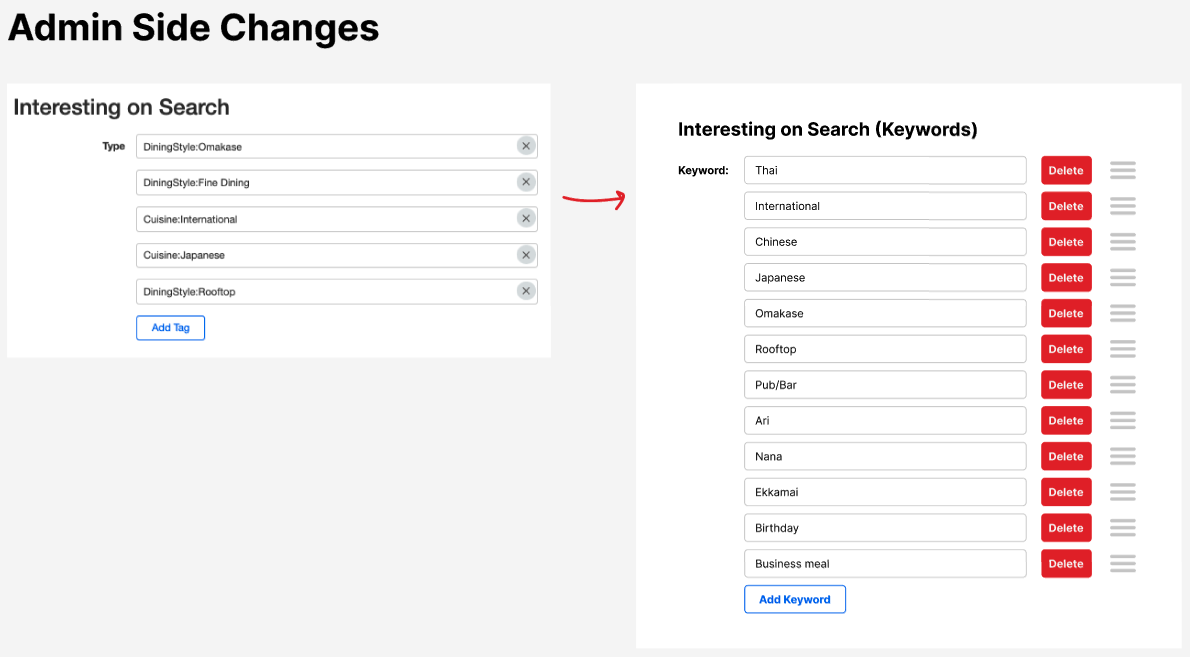
From client side, when press the Keyword. The system will shows Search Page > Search Results with that keyword filled (Blue Line)
