Package Tag Label
Following the makeover on our store page, it's time to give our packages a bit of a lift too. Introducing the 'Package Tag Label' – a neat addition to make your package details stand out. This label isn't just a pretty face; it's here to help you quickly get what each package is about. Whether it's highlighting a special feature or pointing out a killer deal, this label is all about making your package info pop. It's part of our mission to keep things user-friendly and visually appealing.
How it's look?
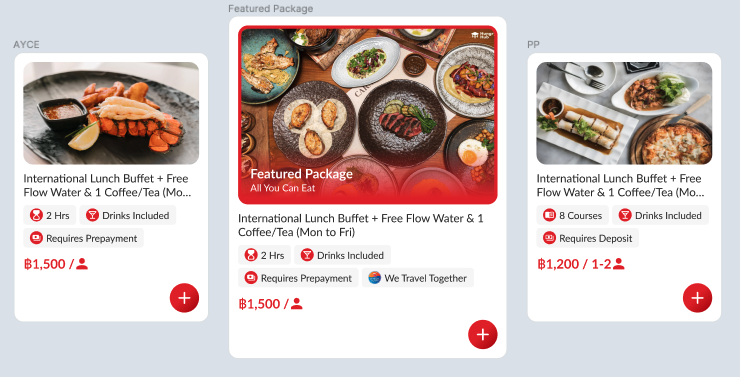 It will be right under package price
I want to see the design
It will be right under package price
I want to see the design
How to apply this Package Tag Label
So it's depend on that package information. There will be two ways of having this label on the package.
- Auto apply
- This one, the system will detect the package attribute (settings) and apply the label to itself (auto apply will be listed below)
- Manual apply
- This one is just manual in the package setting. Yes, that simple.

- This one is just manual in the package setting. Yes, that simple.
Where is the Package Tag Label located
It's in Others > Custom Label setting page or link
Tag Label List
| Name | Application | Package Type | Explanation |
|---|---|---|---|
| x Hrs x Mins | Auto | AYCE | x is from package setting: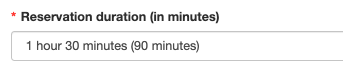 |
| Unlimited | Auto | AYCE | Unlimited time for reservation duration |
| x Persons | Auto | PP | x is from package setting: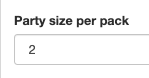 |
| x Km Free | Auto | H@H | x is from resto setting and Package price: 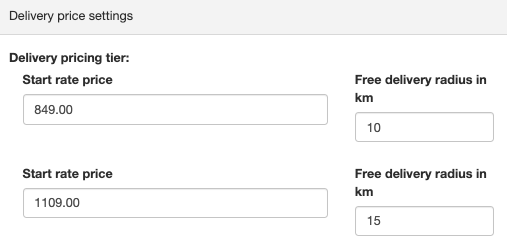 |
| x Course or x Dish | Manual select wording course or dish | PP & H@H | x is from package setting: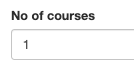 |
| Voucher | Auto | VIM | If it's a Voucher in Marketplace |
| Come More Pay Less | Auto | AYCE | Use package setting: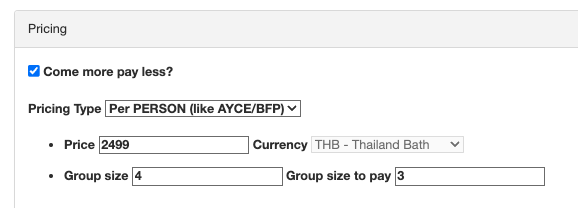 |
| Requires Deposit | Auto | ALL | Use package setting: AND relative charge amount is 'less than' 100% 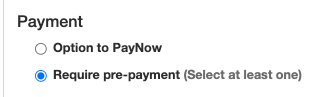 |
| Require Prepayment | Auto | ALL | Use package setting: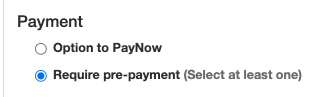 AND charge amount is 100% 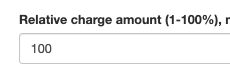 |
| Drinks Included | Manual | ALL | |
| Free Flow Alcohol | Manual | ALL | |