DIY Set
🧾 History
| Date | Changes | Link | By |
|---|---|---|---|
| July 16, 2025 | Display DIY on Admin Dashboard DIY on Menu Group Display DIY on Partner Portal (Web and App) Display DIY on Client Side Booking Summary Logic | This PRD | Umam |
📕 About
| Context | Current party pack offerings have predefined quantities, which may not align with every menu section's needs. The DIY Package introduces two options one with a minimum spend requirement and another without. This flexibility allows customers to tailor their dining experience more closely to their menu section's preferences. |
|---|---|
| Problem | Existing party pack offerings limit customer choice due to fixed quantities, leading to potential dissatisfaction among menu sections with varying preferences. |
| Solution | The DIY Package feature aims to provide customers with greater flexibility in selecting menu items for menu section bookings, addressing the limitations of fixed-quantity party packs. Customers can choose the number of dishes per menu section without pre-selecting specific items, enhancing the booking experience and catering to diverse group preferences. |
| Name of Feature | DIY Set |
| Objective | Display DIY on Admin Dashboard DIY on Menu Group Display DIY on Partner Portal (Web and App) Display DIY on Client Side Booking Summary Logic |
| Gains | The DIY Package addresses this by: Allowing customers to select the number of menu sections Offering options with and without minimum spend requirements |
| Pains | Need to integrate with the restaurant partner to provide this package Would get conflict with comparing packages table (hh menu v3) if doesn't sync properly |
| Figma Link | https://www.figma.com/design/OgKr4mU73xB8ZBOFv3vNy2/DIY-Set?node-id=56-13394&t=l3OFyJGFaVAtqho1-1 |
| Available Platform | Web and App |
| Sprint | 58 |
| Related PRD | - |
| Out of Scope | Implementing dynamic pricing based on day or party size in Phase 1. Offering loyalty tier discounts for DIY packages in Phase 1. Integrating with third-party platforms for DIY package bookings. Kid price Export on admin dashboard and partner portal |
🎯 User Story & Requirement
Display DIY on Admin Dashboard
| User Story | Requirement |
|---|---|
| User makes a booking and then displays on Booking List admin dashboard | Display D.I.Y set as a package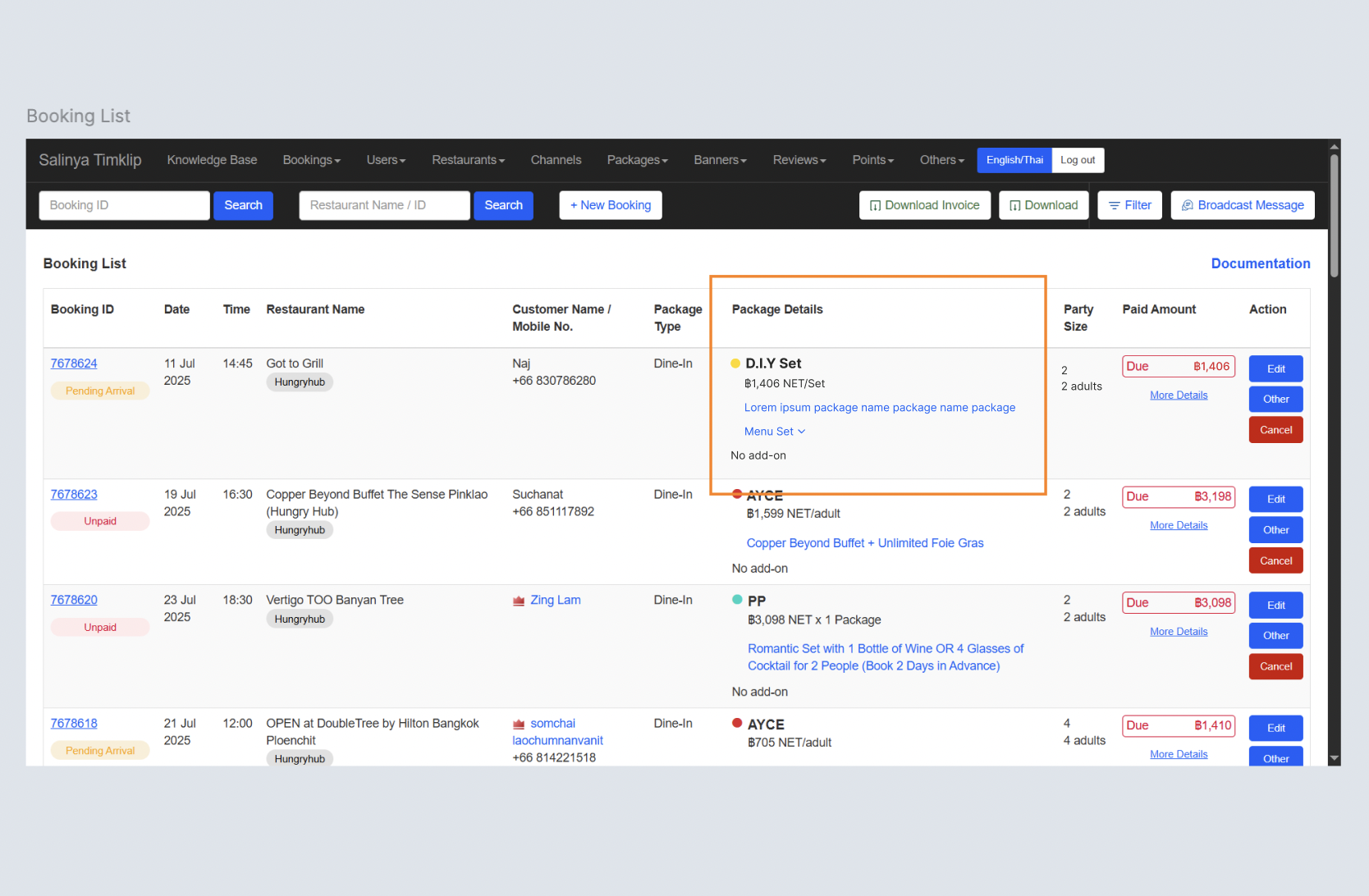 Use yellow symbol D.I.Y Set label{total price} NET/Set → use SetThere is expand item → Menu Set to display the list of menus selectedDisplay the name of menu section, price and the quantity 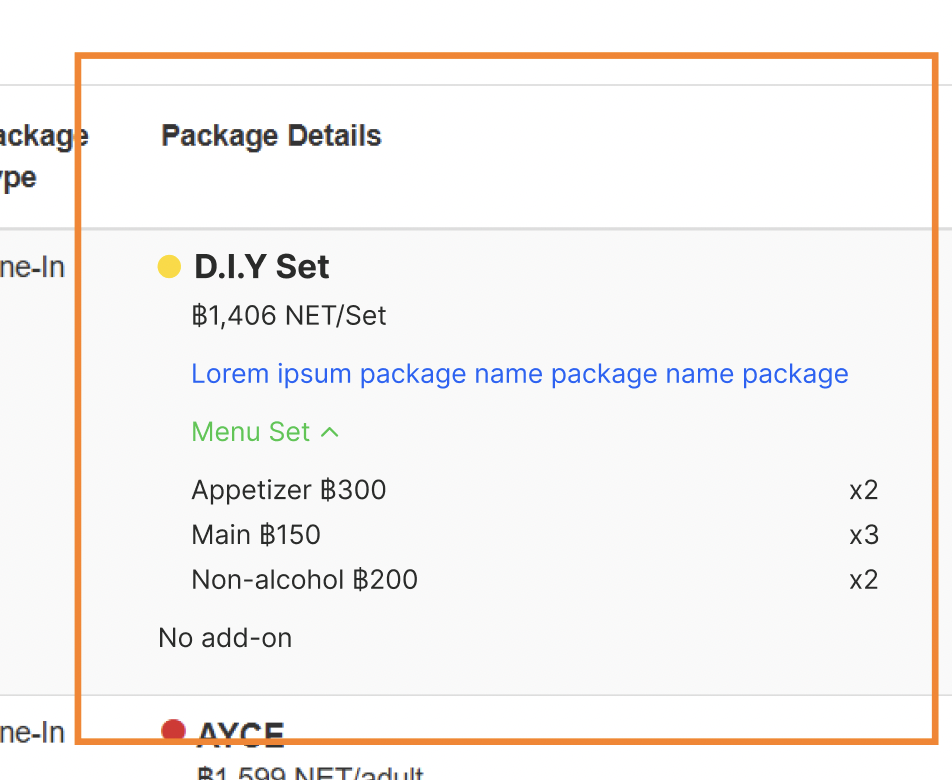 Display the booking summary when more details button clicked Booking summary include the list of packages, the menu inside the package (for D.I.Y), the discount (voucher, point and so on) Payment Summary include the payment method that user use This is the improvement for the other package types as well Check on figma for full context 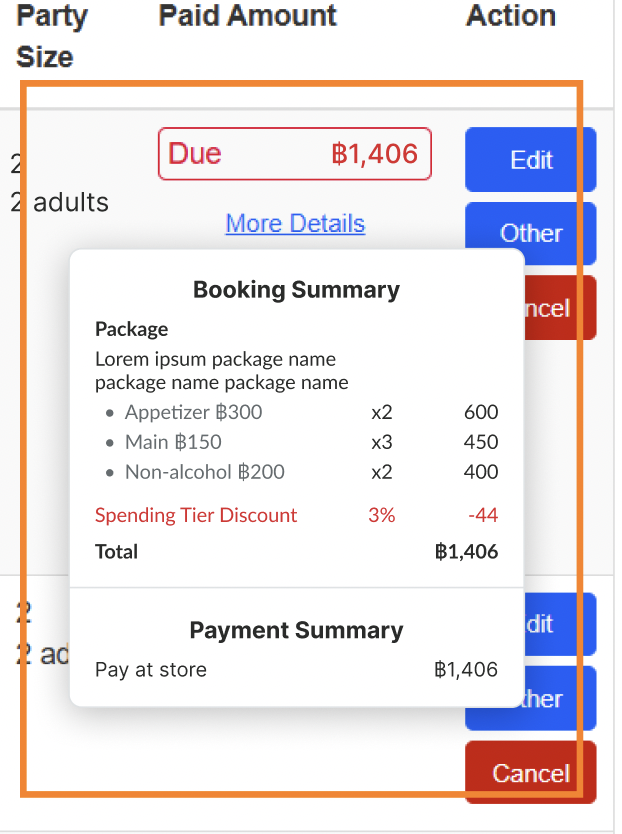 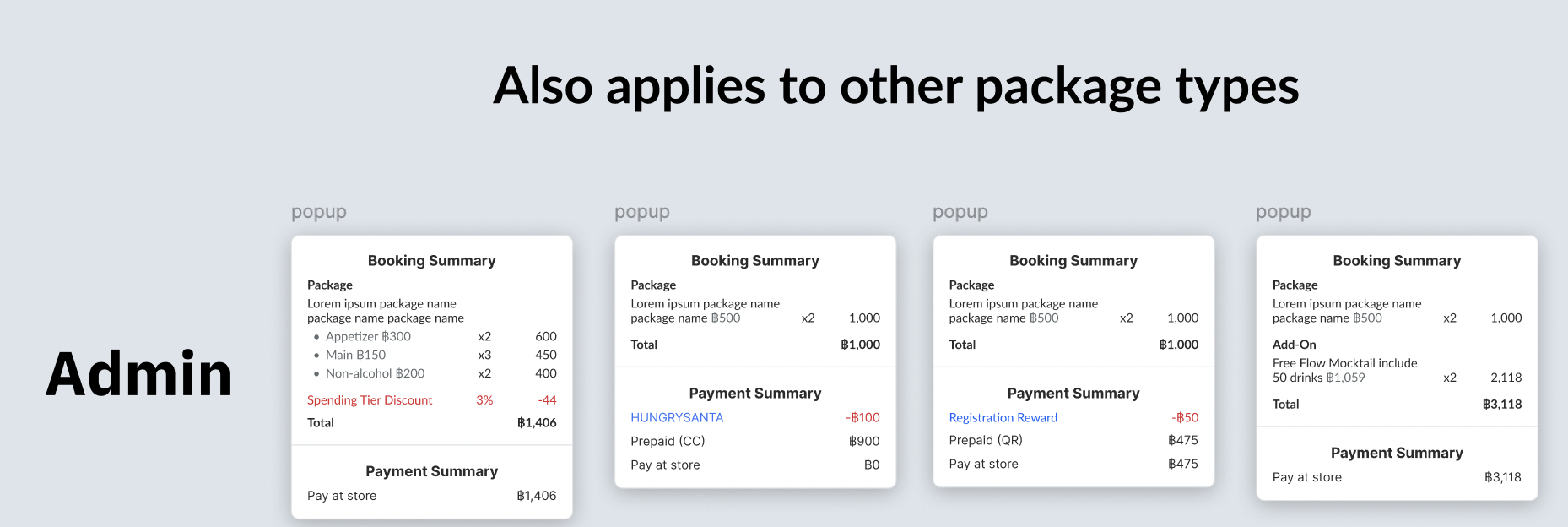 |
| Admin create/edit a booking with the D.I.Y set package | Add D.I.Y set on package type dropdown Once D.I.Y set is selected, display some fields Select package → to select which D.I.Y package on that restaurant Select the quantity of menu section → there is no validation on admin dashboard, since sometime admin might have the special case 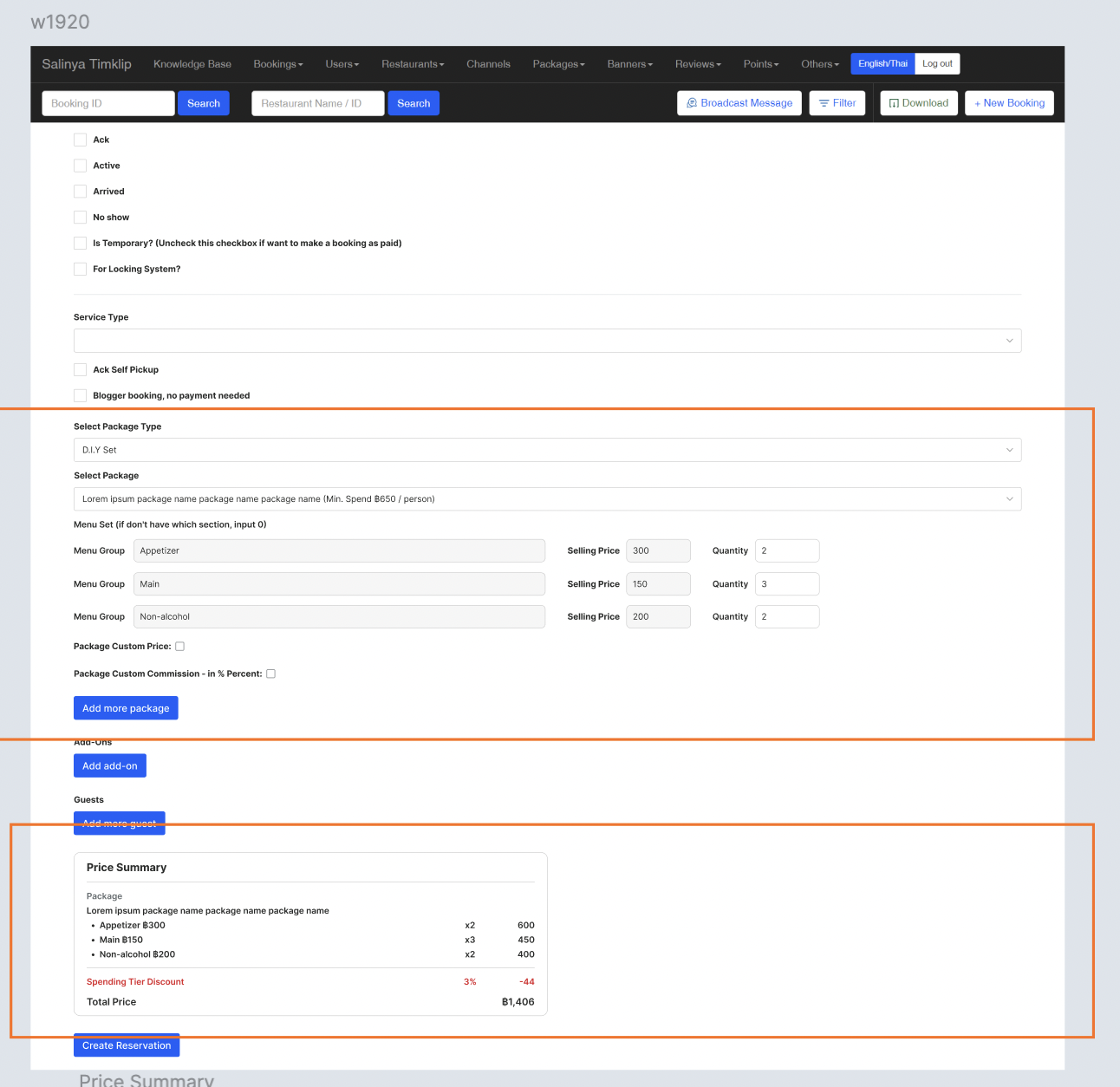 Display price summary after choosing the quantity of menu section Booking summary include the list of packages, the menu inside the package (for D.I.Y), the discount (voucher, point and so on) Payment Summary include the payment method that user use This is the improvement for the other package types as well Check on figma for full context 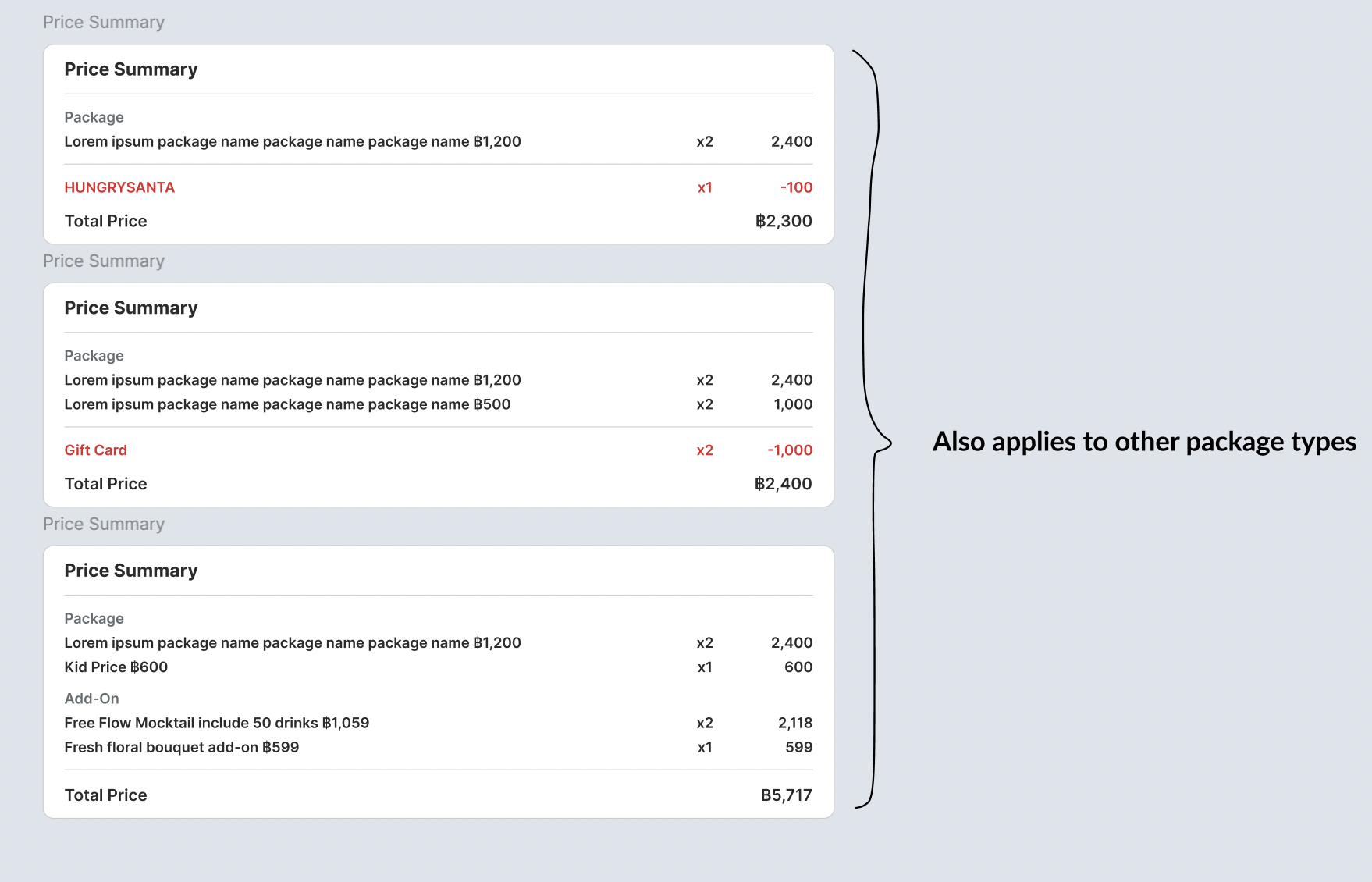 |
| Admin create new D.I.Y package on package setting | Add new D.I.Y option on package (navbar) D.I.Y set package page → same like other package (Create/Edit/Delete) Create New Package Filter Package Table There is dedicated setting for pricing menu 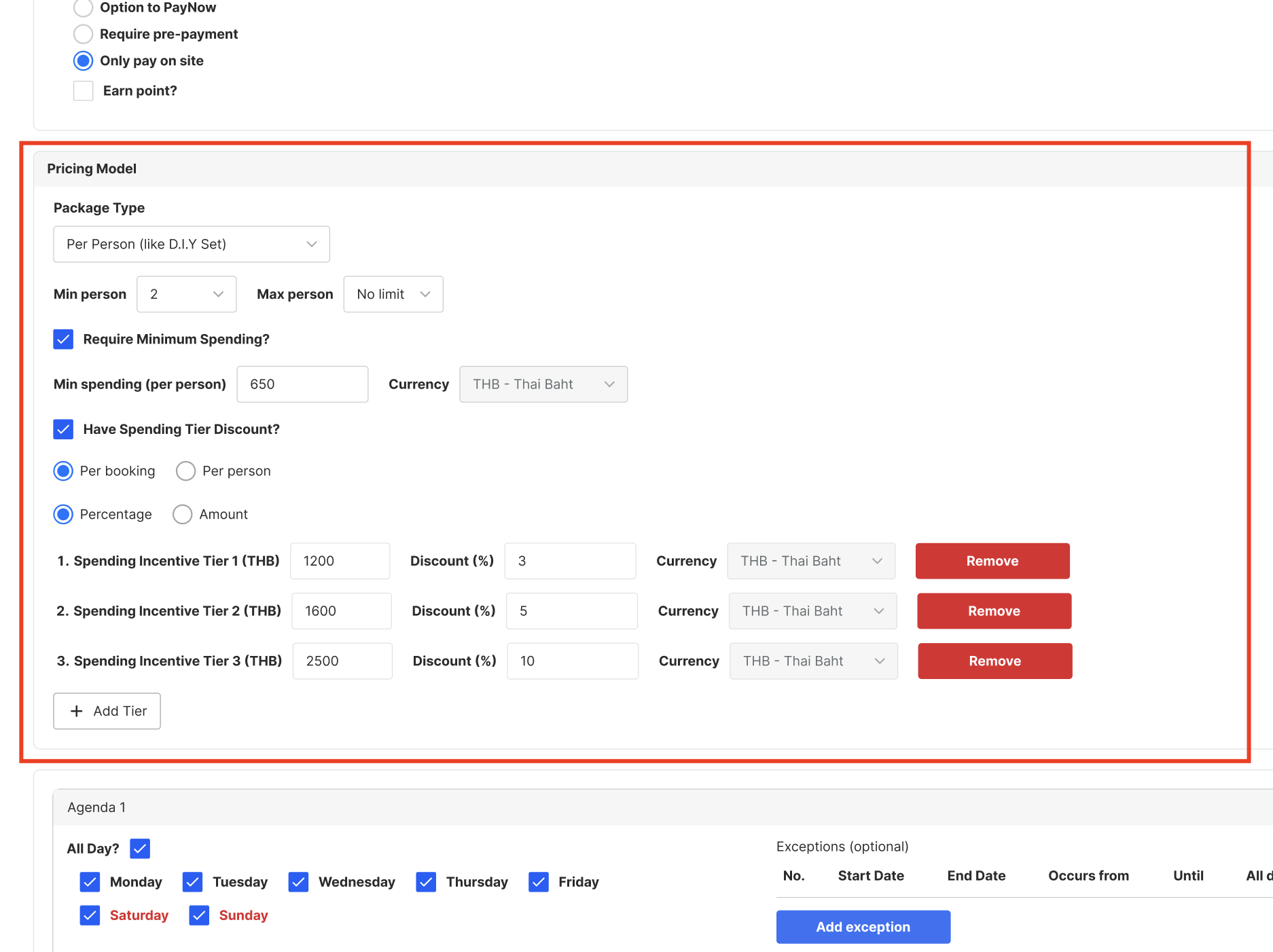 Only can choose per person Can choose minimum (1) and maximum persons  Can choose to have minimum spending or not  Can choose have spending tier or not Per booking / per person Use Percentage / Fixed Amount Can Add/Delete tier Validation spending tiers (price and discount) must be sequential, from smallest to largest, they cannot be reversed Currency should follow the restaurant's currency 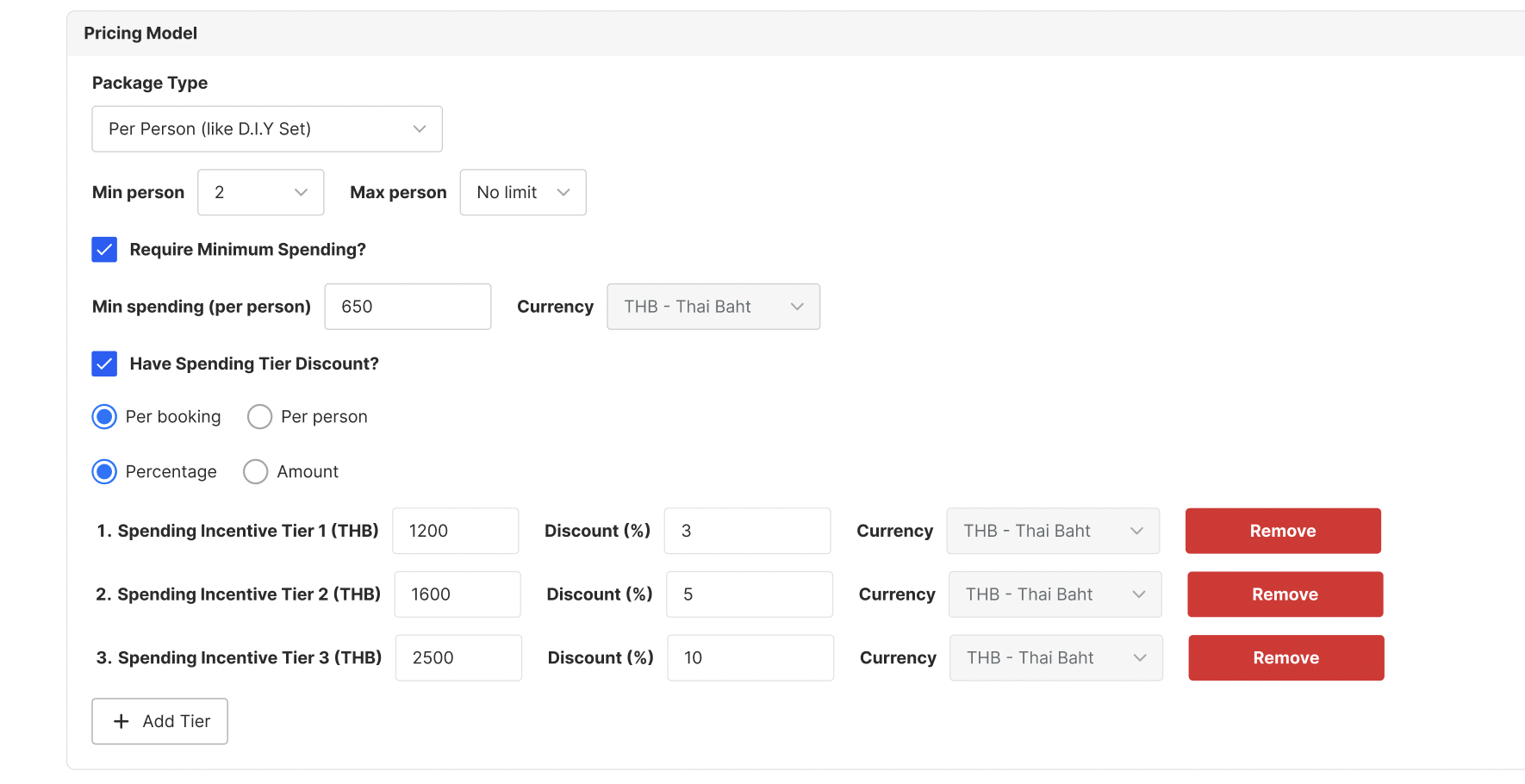 |
| Export | Add D.I.Y set package type and D.I.Y set package name on all reports exported Booking List Package |
DIY page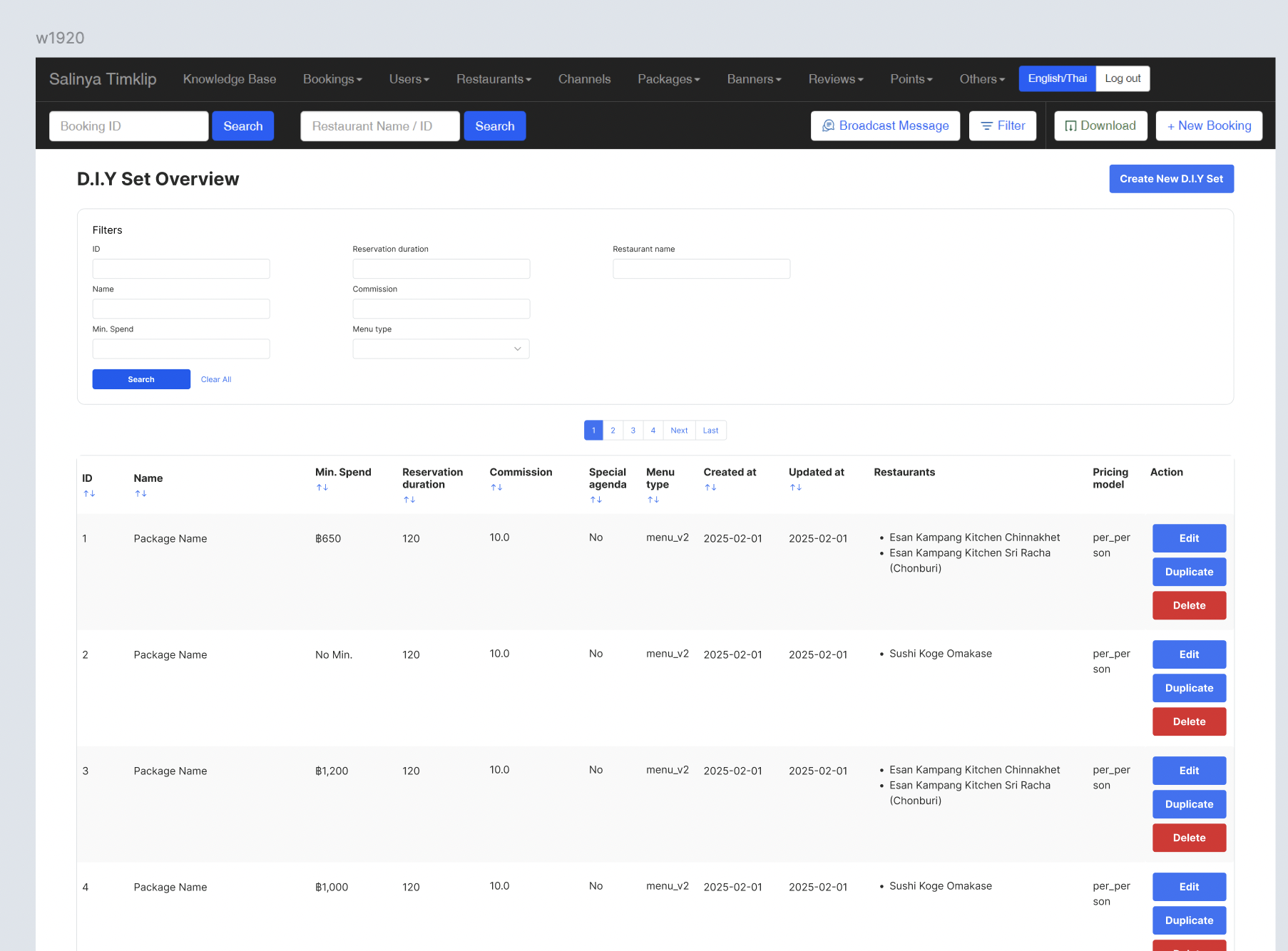 | Same behavior like the other package Filter Create New Table List There is min. spend No min. spend → if there is no min.spend Min. spend → if any 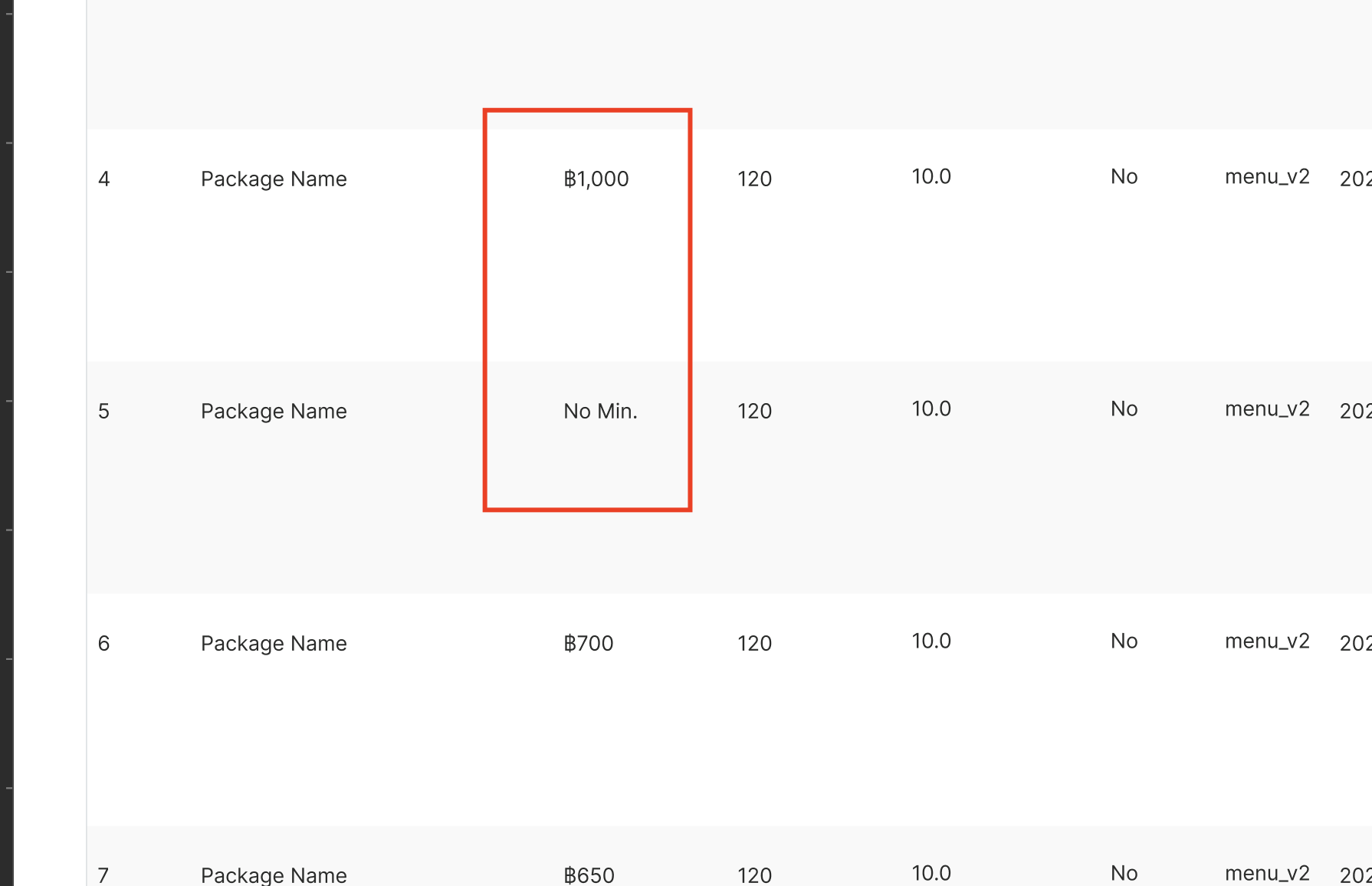 |
DIY on Menu Group
| User Story | Requirement |
|---|---|
| HH menu v2 (Ignore this) | Add option to choose quantity and price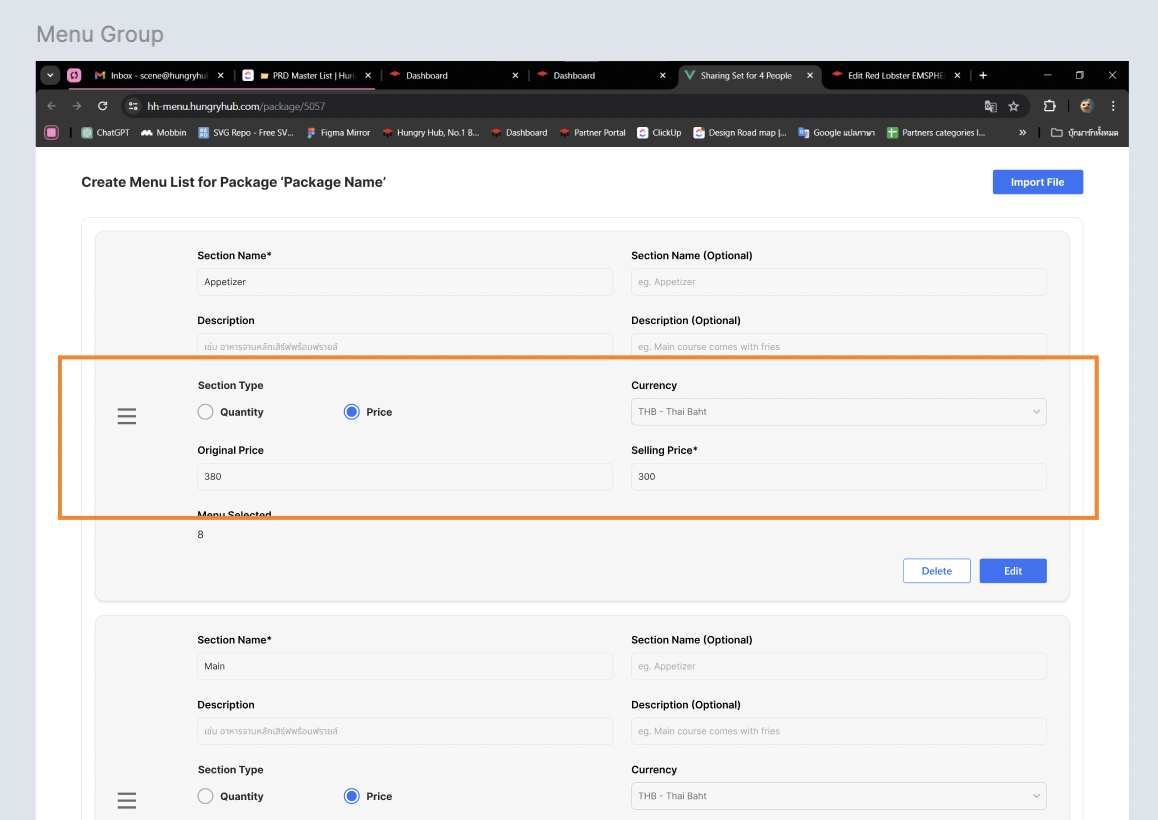 Quantity → Choose how many menu list that can choose (for AYCE/PP/XP/Add on package) 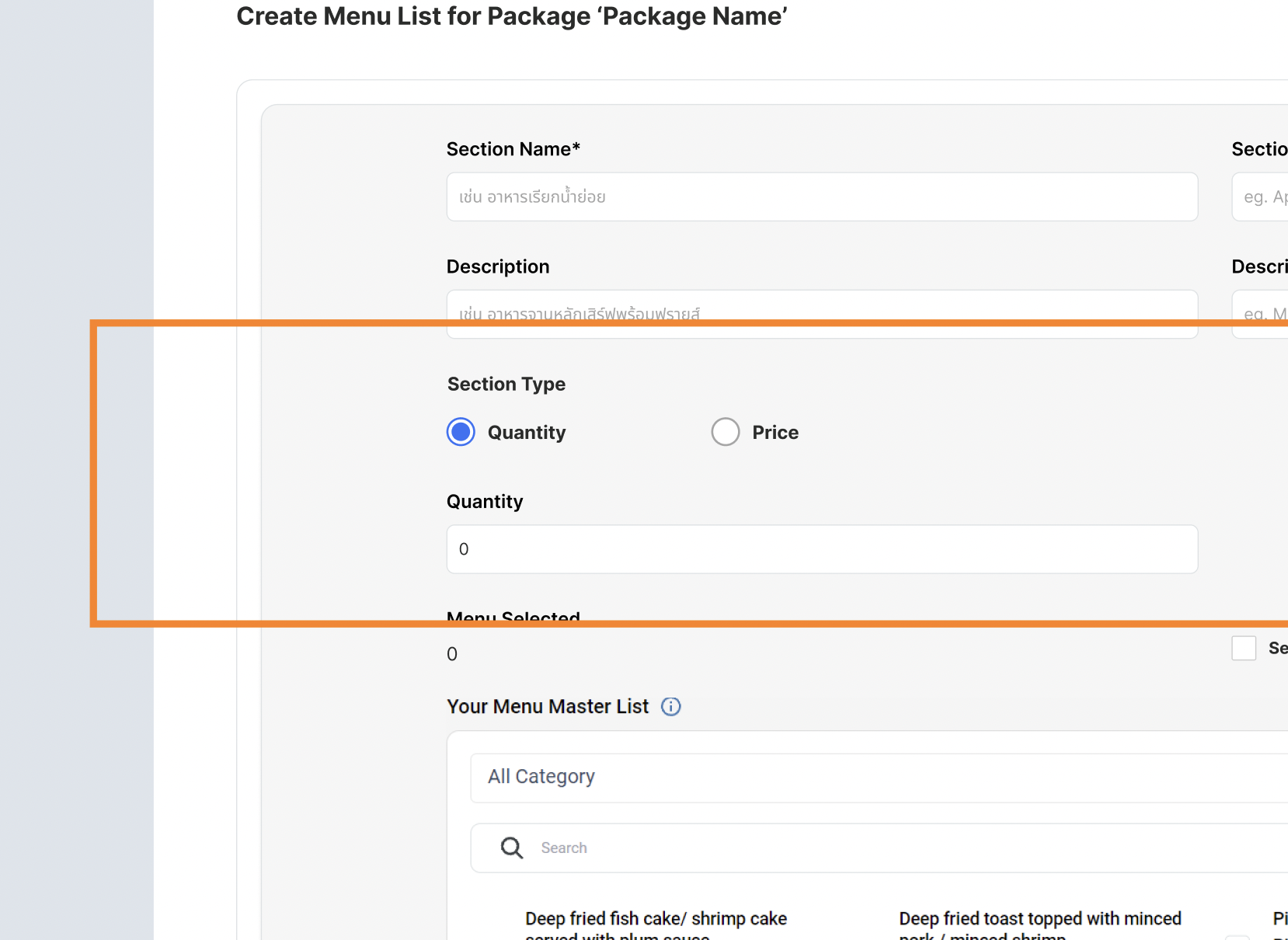 Price → Display the original price (can calculate automatically like existing and not mandatory) and selling price 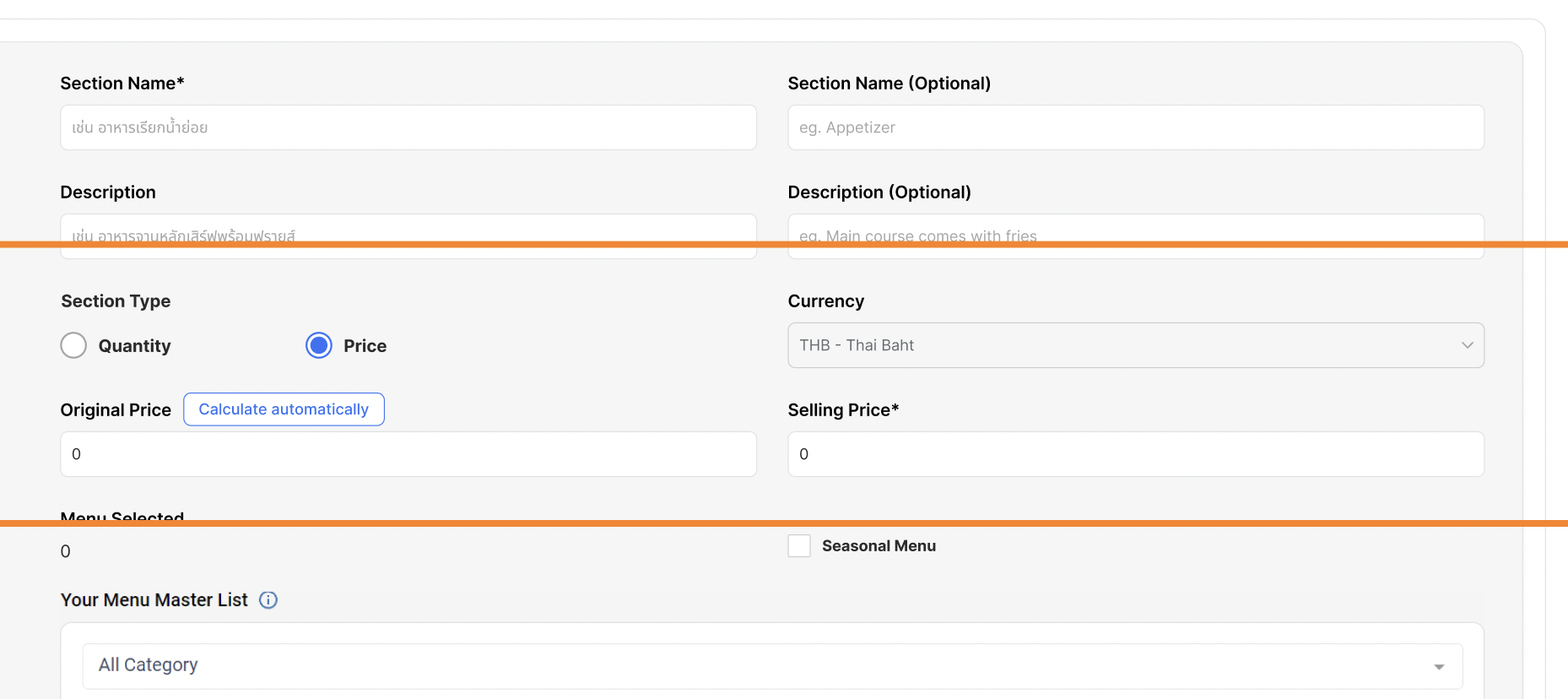 |
| HH menu v3 | There is dedicated setting for DIY package Original price (with the calculate automatically button) Selling price Same logic like hh menu v3 (display the menu section once the menu section is selected) 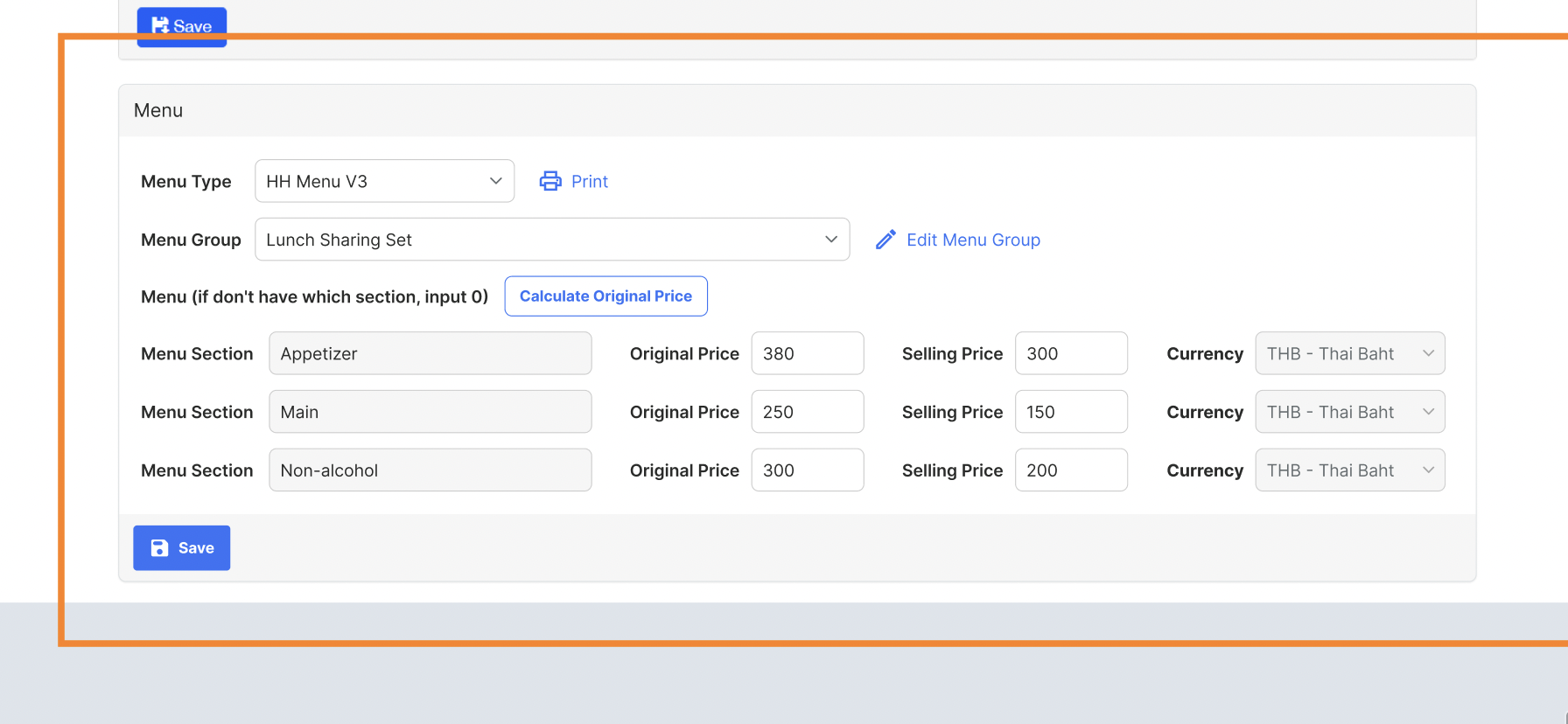 |
| Image Menu / IMenupro | There is dedicated setting for DIY package Original price (with the calculate automatically button) Selling price Same logic like image/imenupro Can add/edit/delete menu section manually 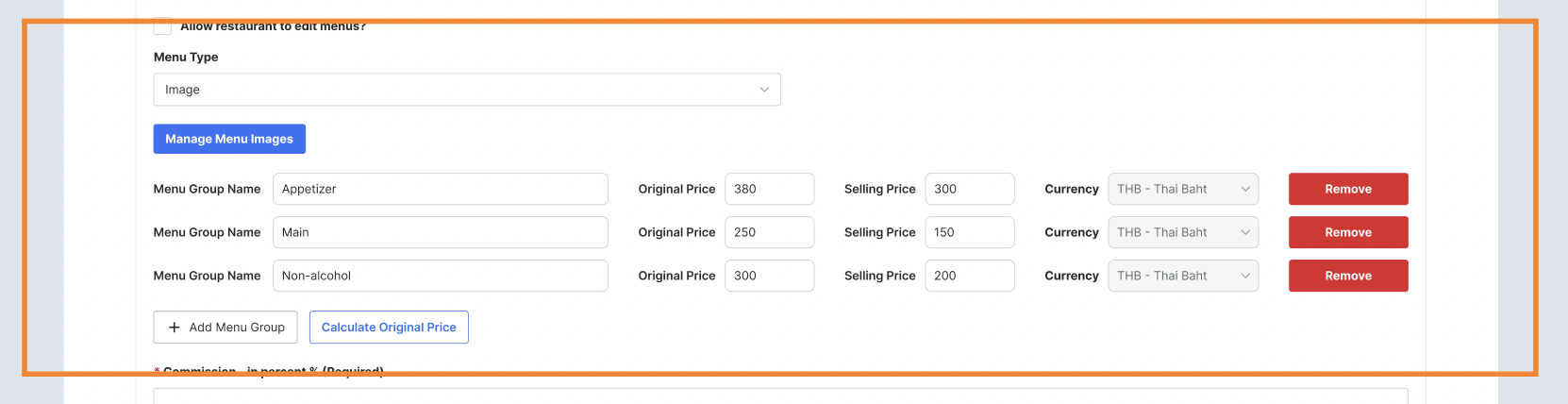 |
Display DIY on Partner Portal (Web and App)
| User Story | Requirement |
|---|---|
| Booking List | Display DIY set on booking list partner portal Yellow dot color Dine in Menu display (Menu section name, price and quantity) Display the booking summary when more details button clicked Booking summary include the list of packages, the menu inside the package (for D.I.Y), the discount (voucher, point and so on) Payment Summary include the payment method that user use This is the improvement for the other package types as well Check on figma for full context 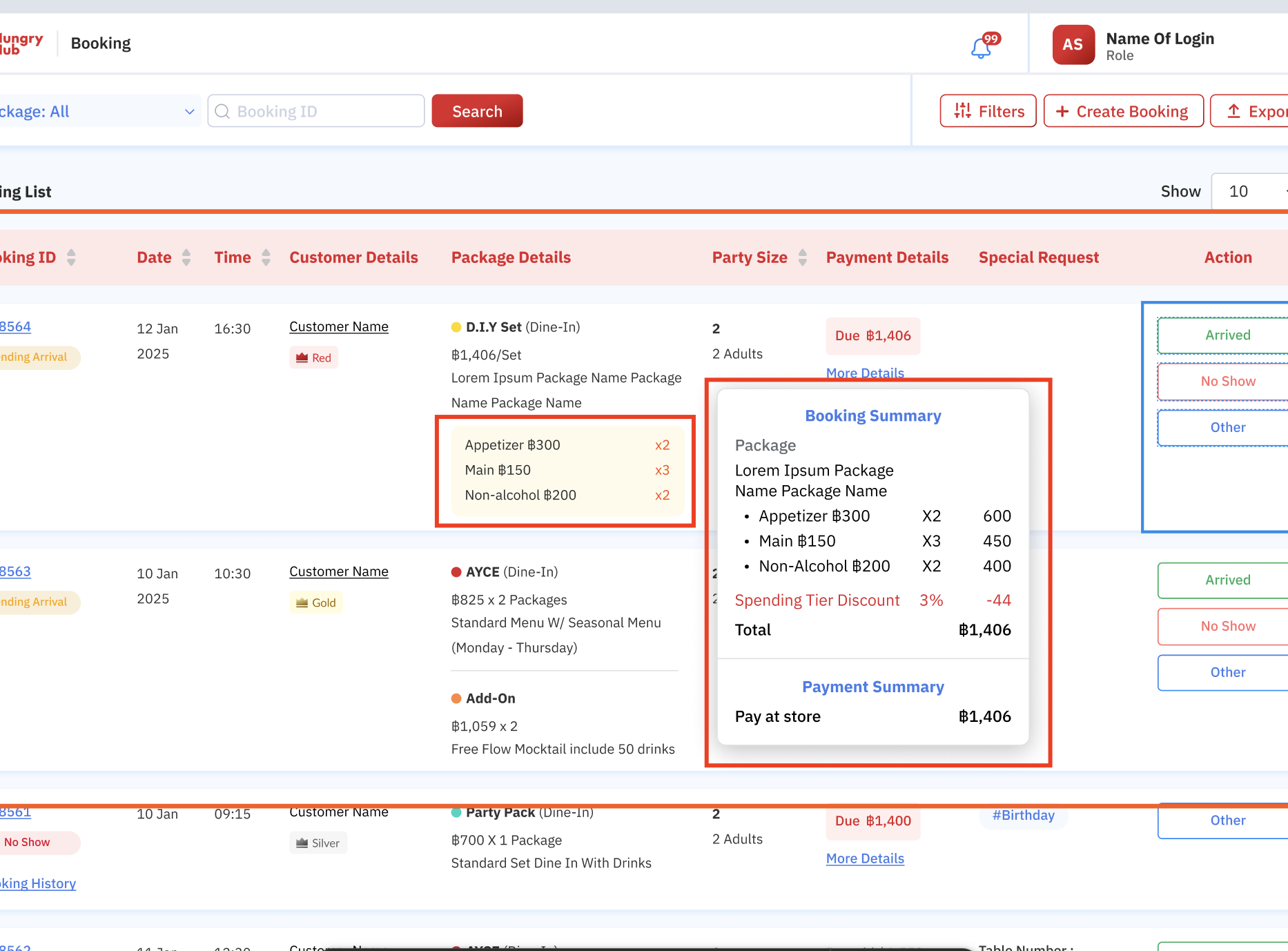 |
| Create / Edit Booking | Add D.I.Y set when choose package typeDisplay package name once D.I.Y set was selectedDisplay the menu section (uneditable) and choose the quantity Display the min. spend quantity (as alert) Can choose add on if any Make sure it should sync with the adult quantity terms (minimum quantity of that package) Validation if doesn't meet with the minimum quantity Spending tier discount is uneditable, but will follow based on the package quantity/price selected No need to show if there is no spending tier or doesn't meet the rules 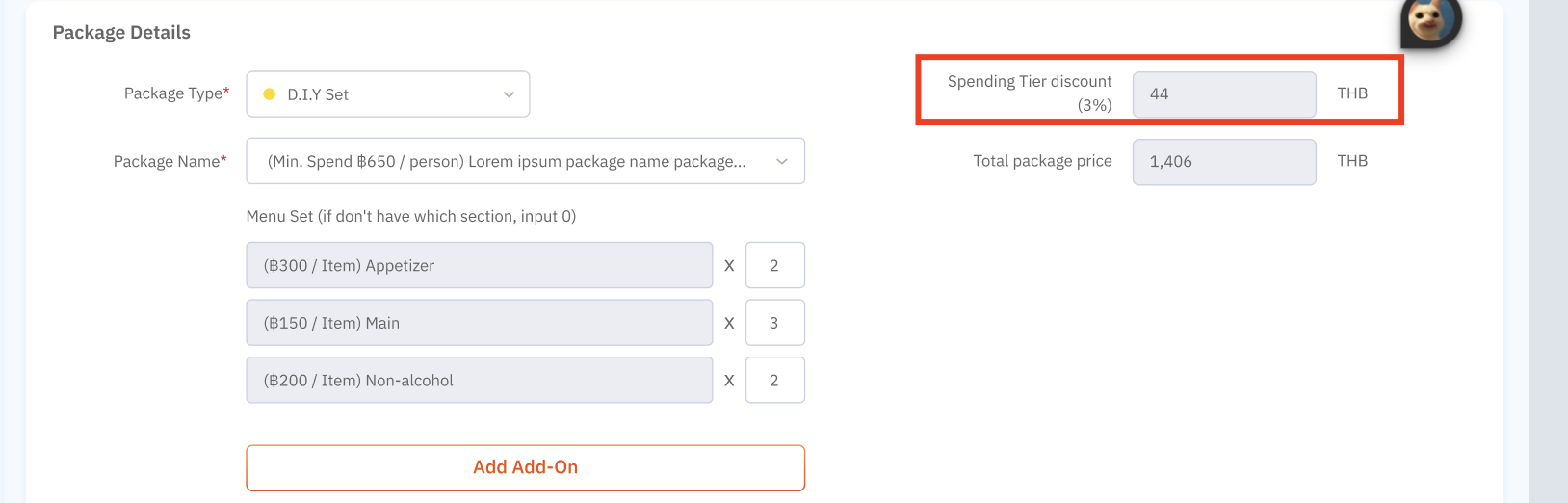 Alert 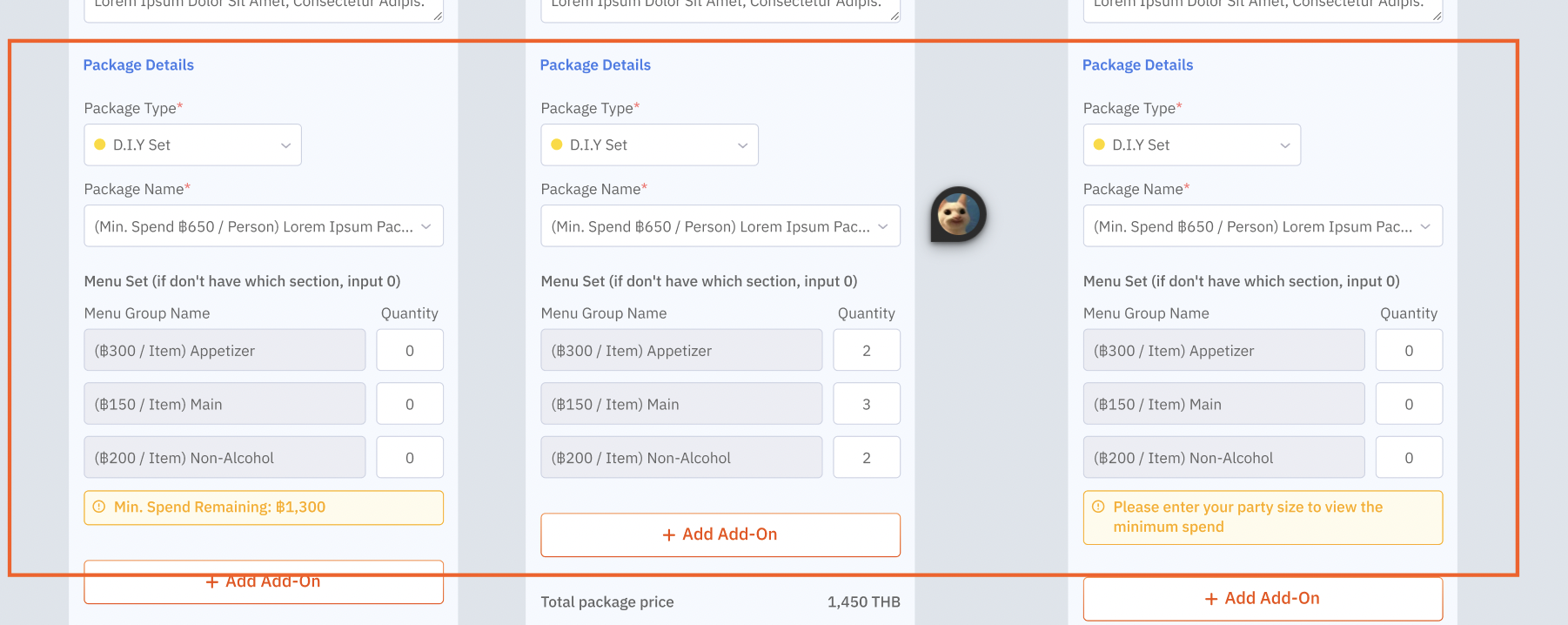 Please enter your party size to view the minimum spend → when the adult is 0/blank and menu qty is 0/blankMin. Spend Remaining: ฿1,300 → when the adult is not zero/blank and menu qty is 0/blankDynamic, will be reduced/increased once the menu qty was adjusted → like client side |
Package List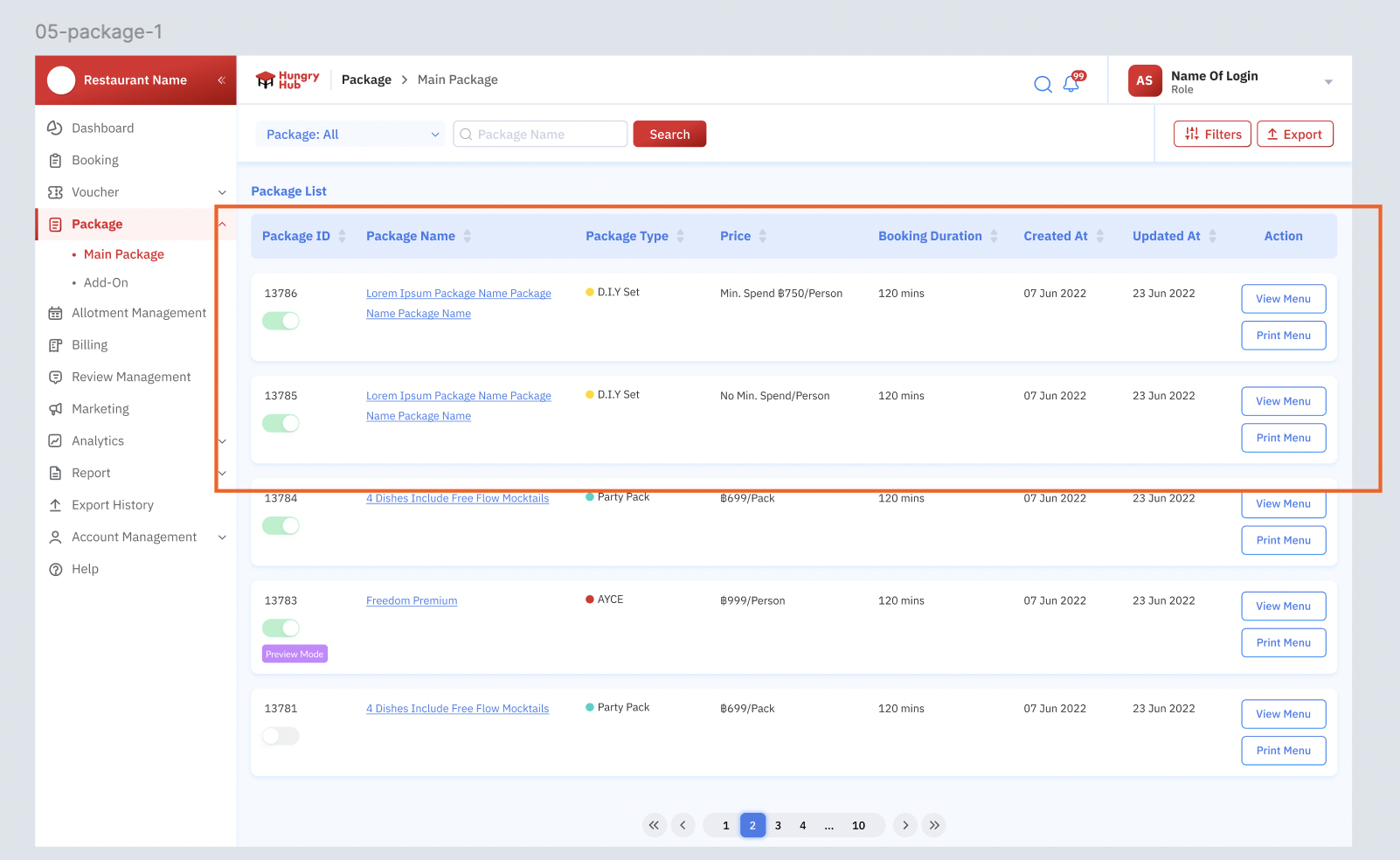 | Display the D.I.Y set on the table Price Use Min. spend in the first text if there is min. spend for the priceNo need to show the Min. spend, just display the No min. Spend/person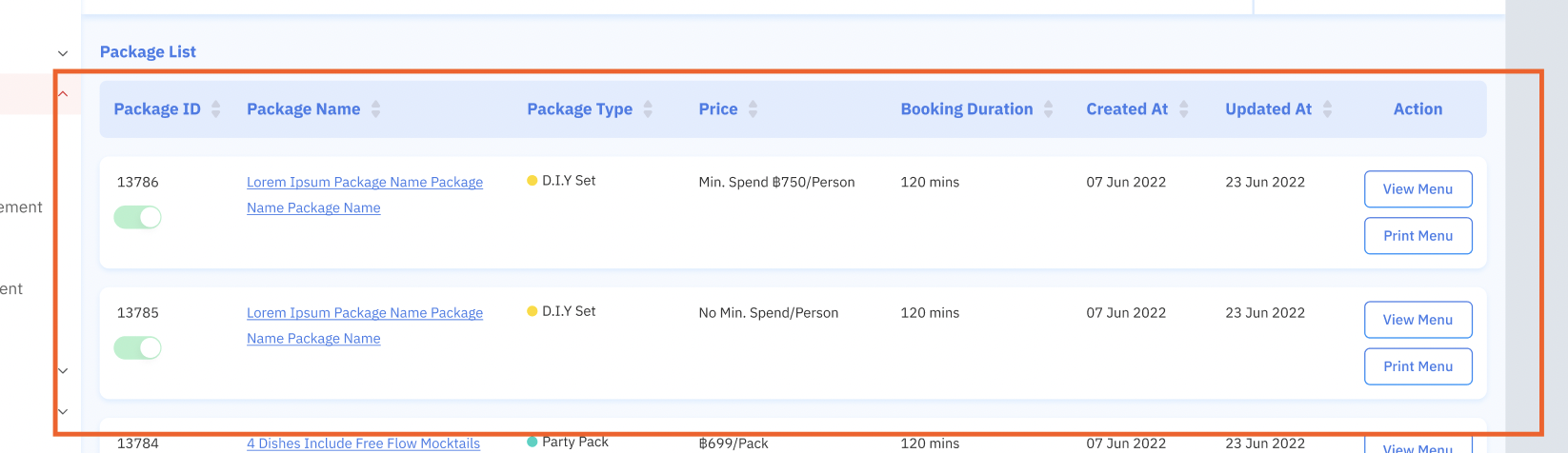 Make sure the redirection link is working as as usual View Menu → Redirect to menu page (new page if use hh menu v2/v3 or old page if not use that) Print Menu → Redirect to print menu like existing |
Billing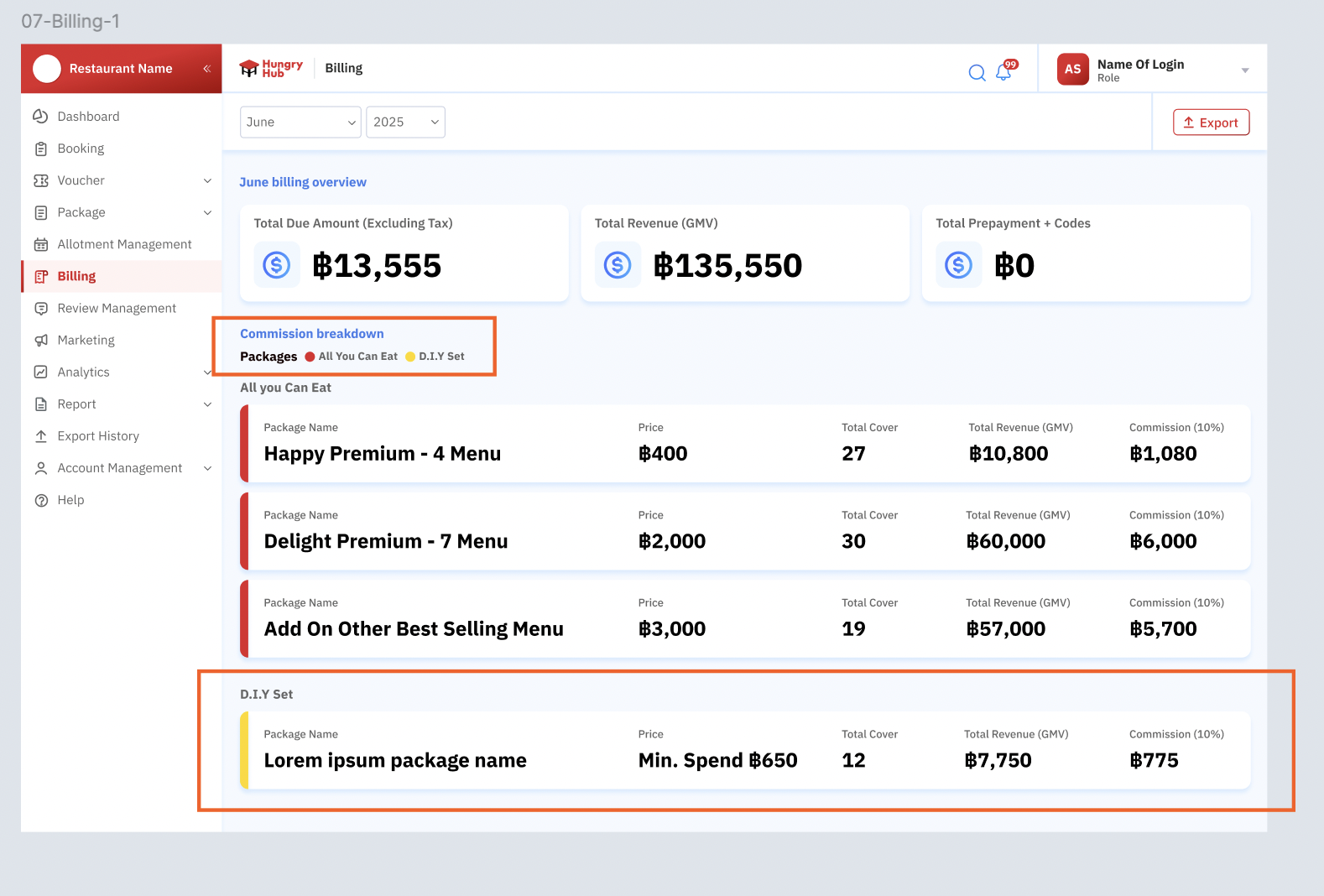 | Display on commission breakdown when there is any booking on that month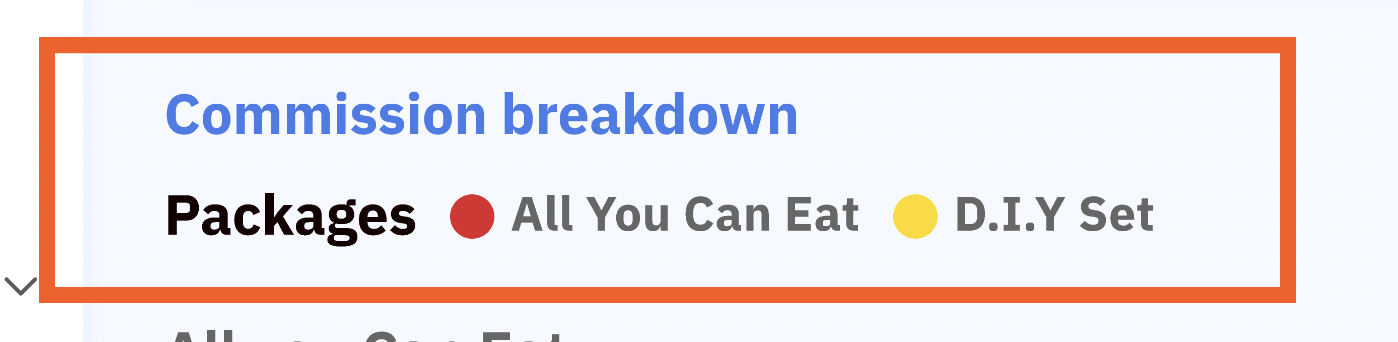 Display D.I.Y set list when there is any booking on that month Price Use Min. spend in the first text if there is min. spend for the price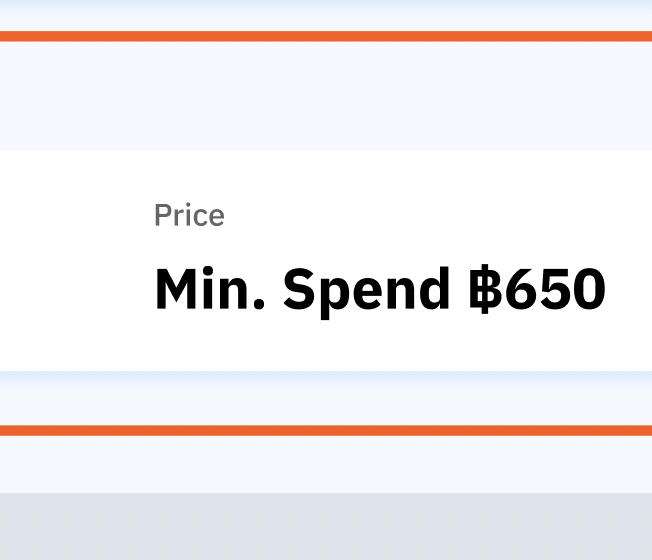 No need to show the Min. spend, just display the No min. Spend/person |
| Filter | Add D.I.Y set package type on all pages that have filters Package Booking List Review so on |
| Report | Make sure the list and calculation is impacted by D.I.Y set (should be shown up as well) Package Name Package Type → D.I.Y setFormula : Commission = Package Price x package quantity x commission field |
| Export | Add D.I.Y set package type and D.I.Y set package name on all reports exported Package Billing (Monthly Report) Booking List |
| Translation | Insert all translation into weblate |
Display DIY on Client Side
| User Story | Requirement |
|---|---|
| Store Page | Show D.I.Y set on package description (add on setting on admin dashboard → Restaurant package types) Yellow dot color Title Description 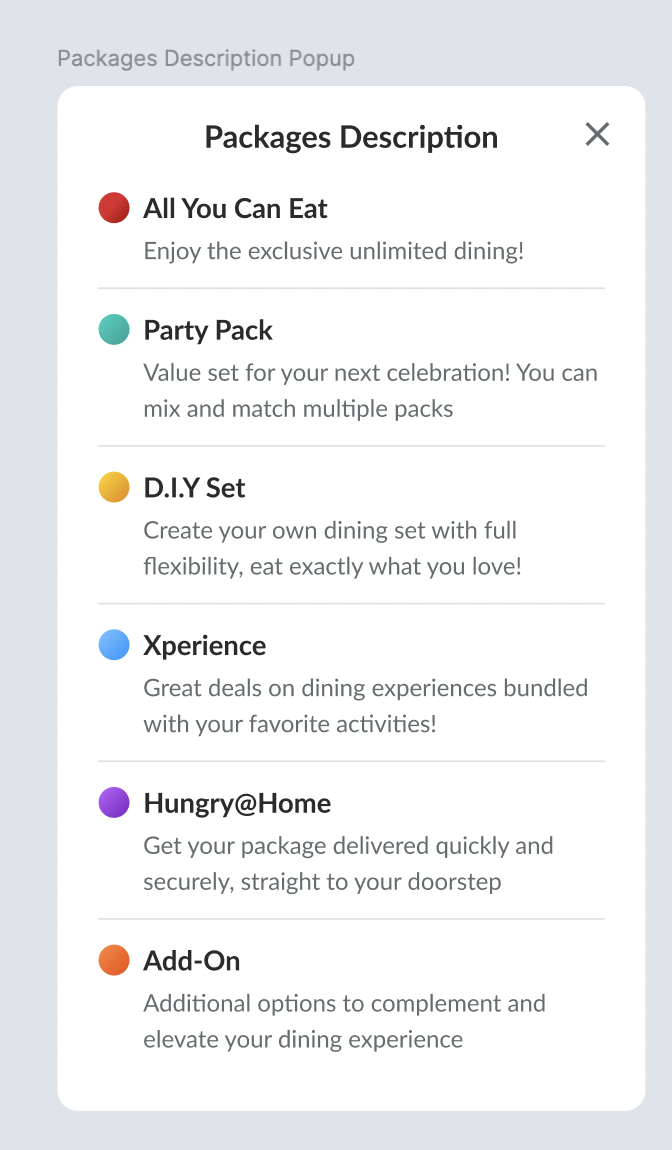 The package's order on store page can be set based on the packages description pop up (can check image above) Display the package card on store page Price Use Min. spend in the first text if there is min. spend for the priceNo need to show the Min. spend, just display the No min. Spend/person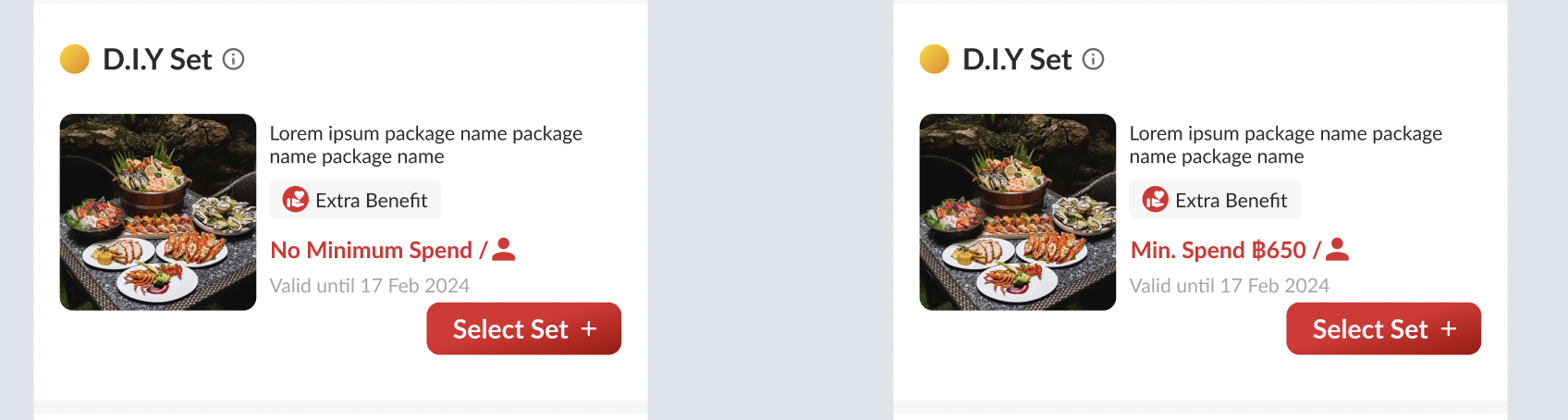 Select set button clicked and user need to adjust the quantity (will go to the checkout page if click sticky book button in the below) |
| Package Page | Click the package card There is a menu set to select the quantity of menu section 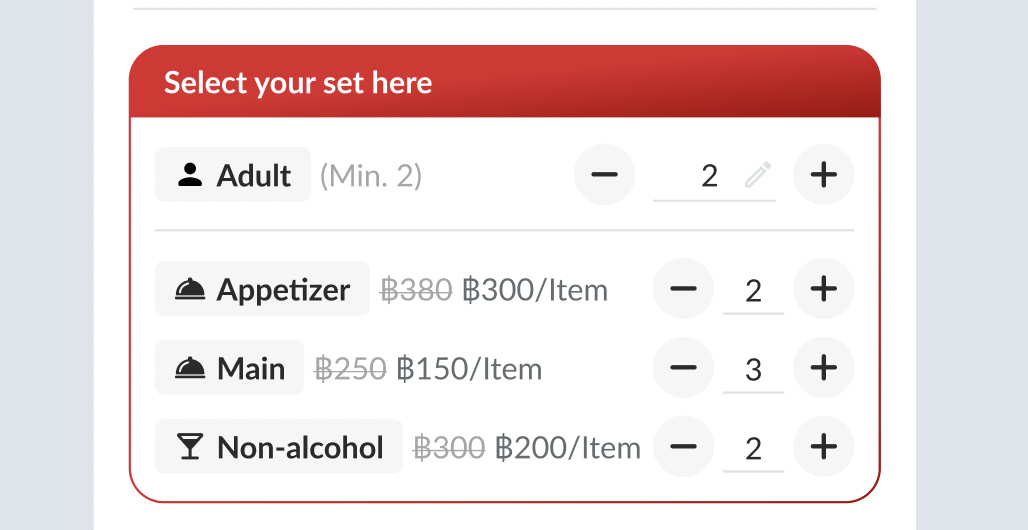 If the adult quantity is 0, will hide the menu sections to be selected 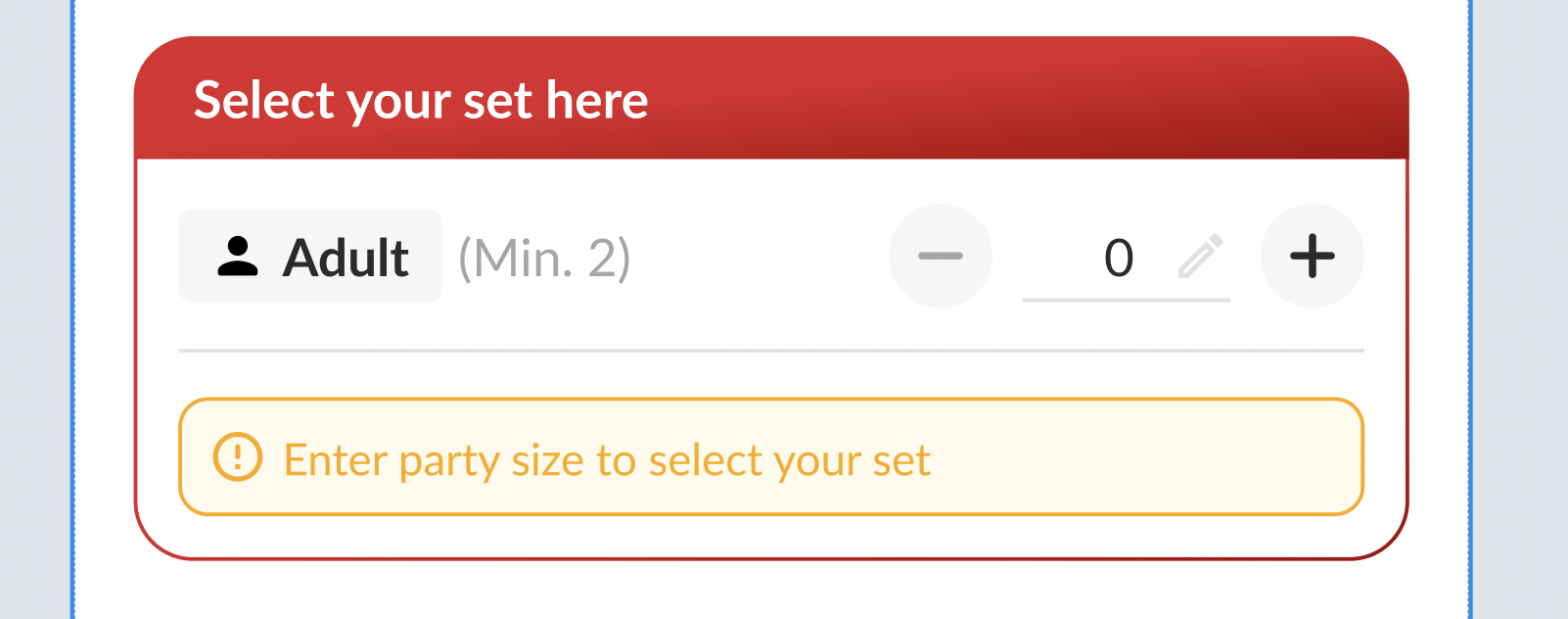 when adding the party size, if clicking the '+' button will jump directly to the package’s minimum people (in this case is 2). When decreasing the number, it will go back to 0 instead of stopping at 1, since we don’t allow users to select a number below the minimum → implement to other packages as well Min. Spend amount will be added/reduced if there is any menu section added/reduced → Only for the package with minimum spend (no need for no minimum spend) 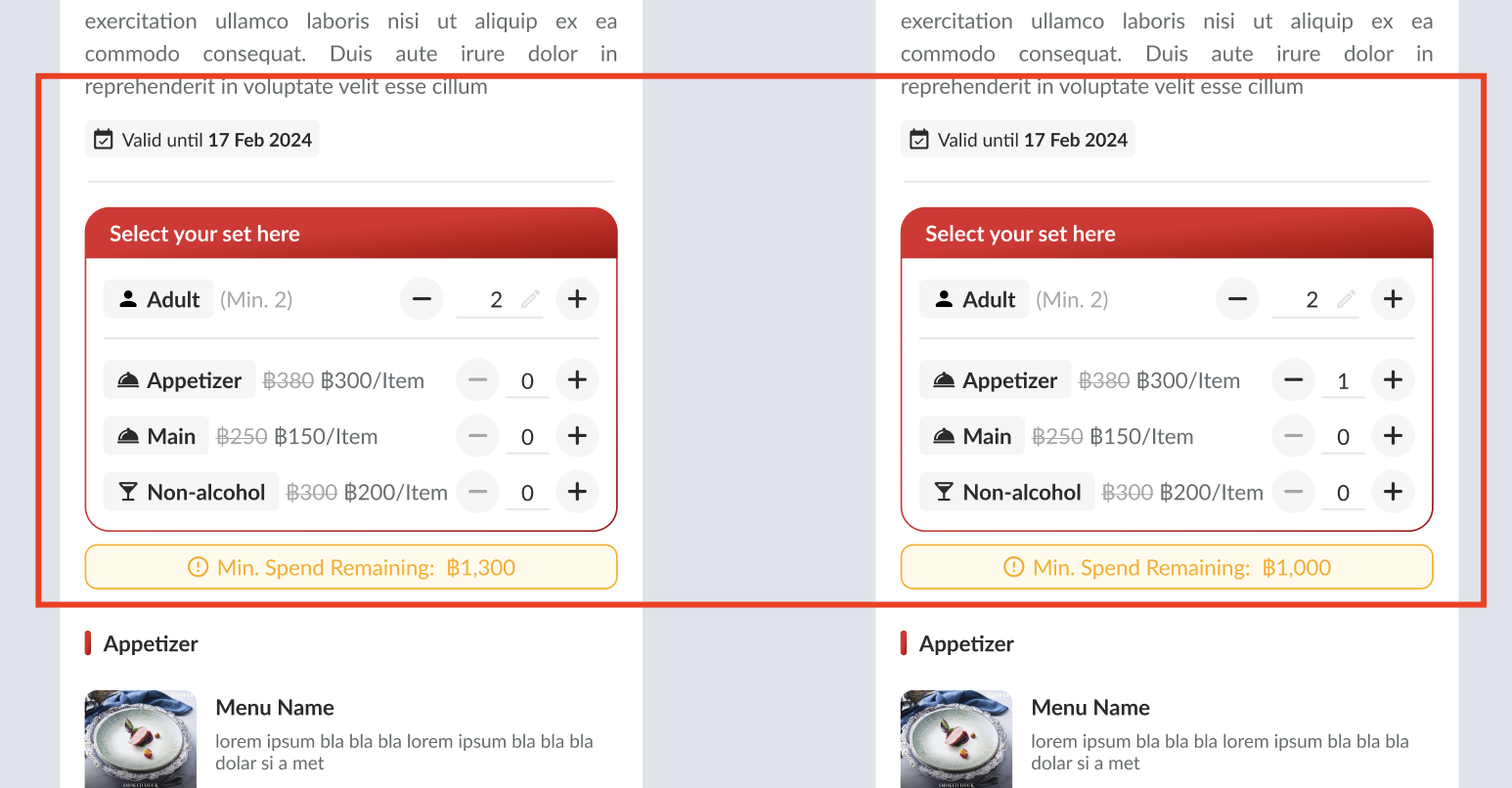 By default, min. spend amount will follow based the setting inputted Select at least 1 item to continue alert by default → hide it after there is any menu section selected (only for no minimum spend, no need for package with minimum spend)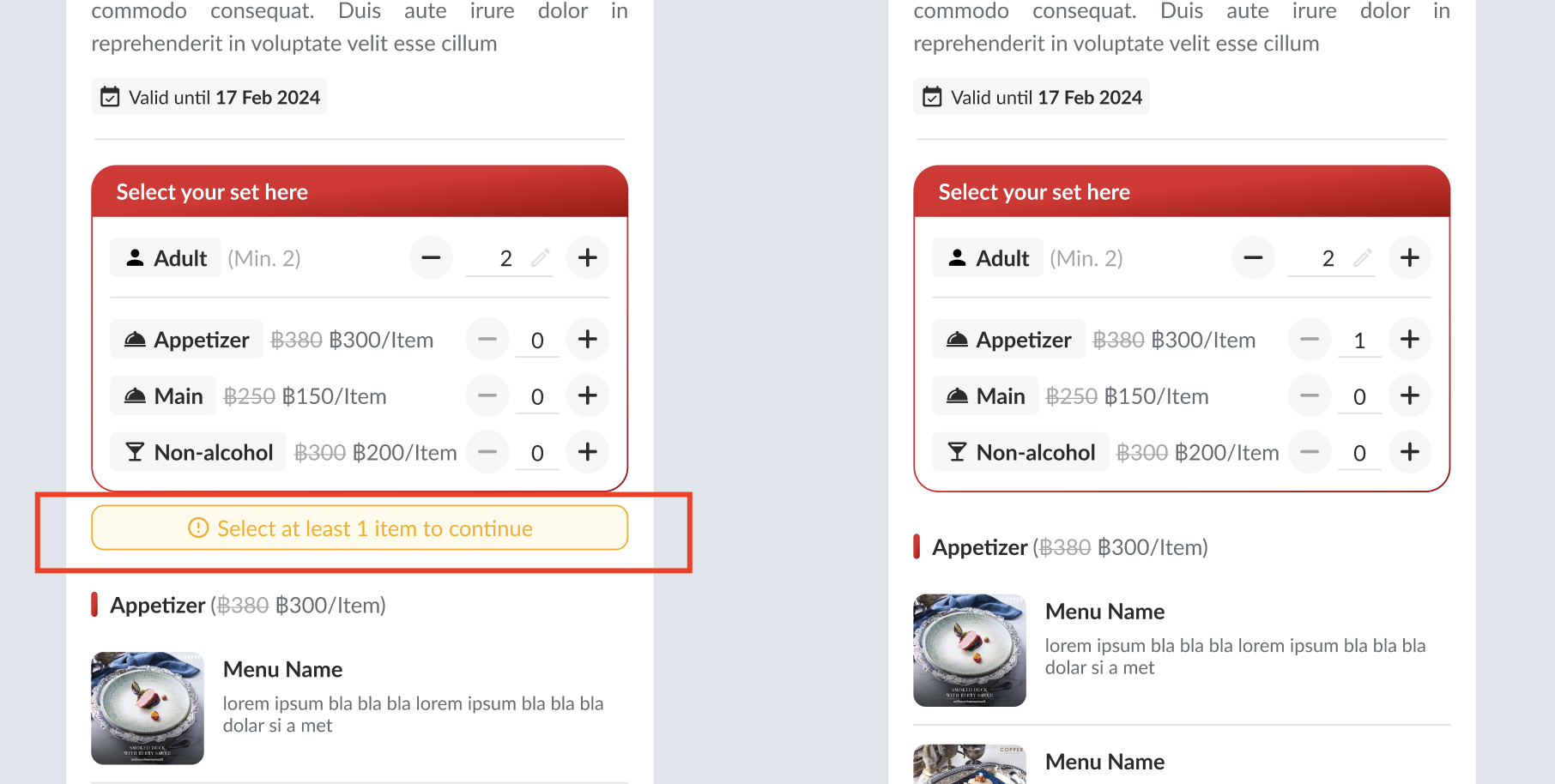 Spending tier section under the menu display Total spend per booking → use total price before discount Total spend per person → use total price before discount and divide it by PAX quantity 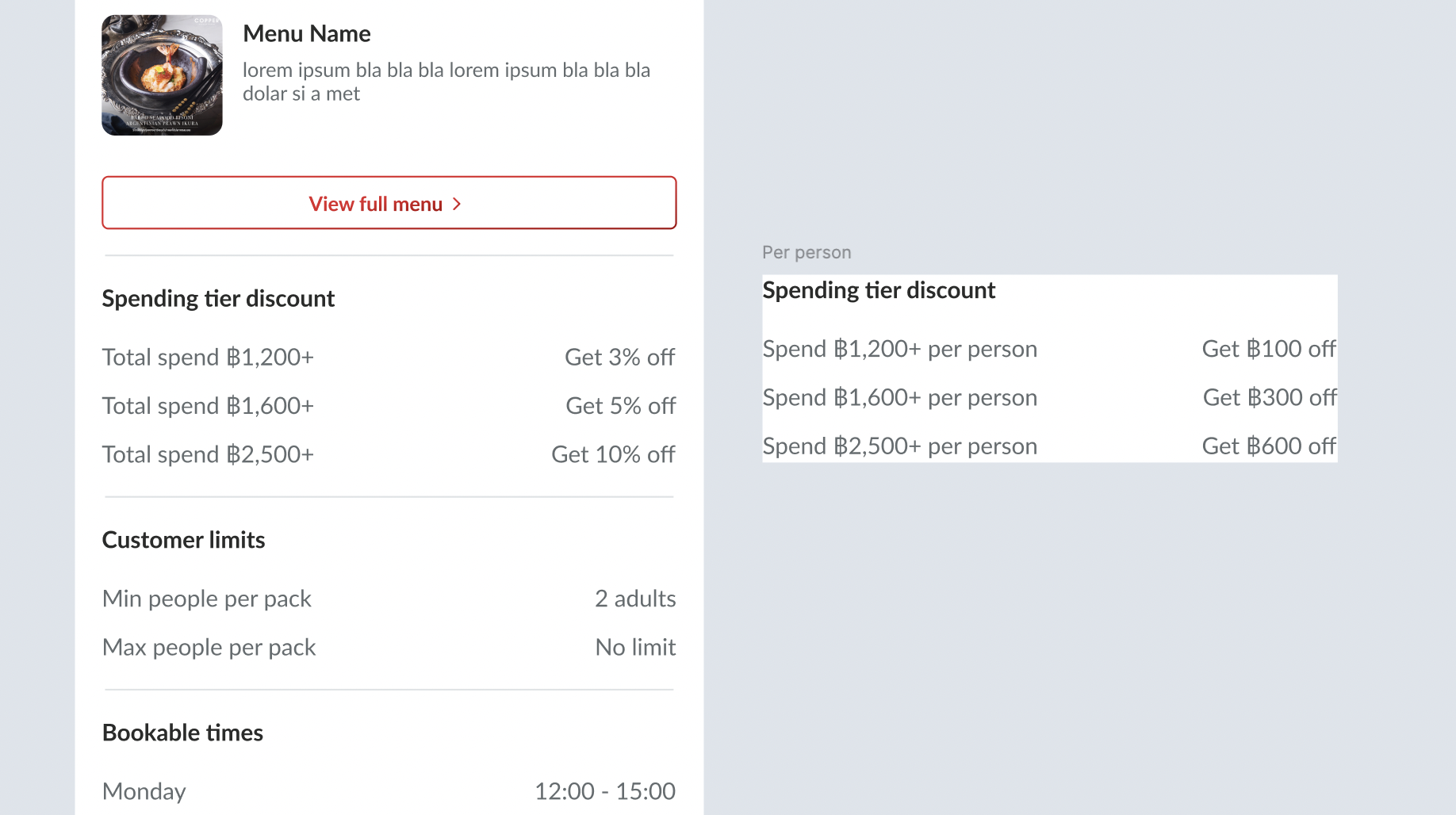 Total of menu sections selected Left → Total Original Price Right → Total Selling Price (Actual price to be used) 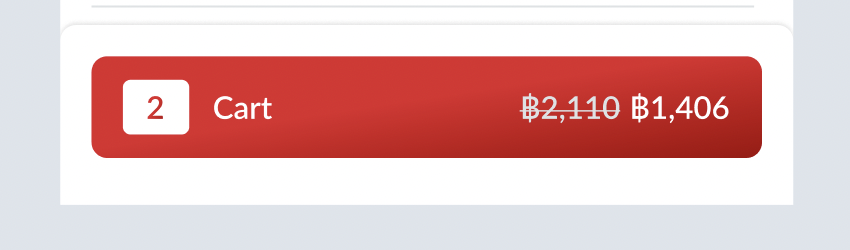 |
| Checkout Page | Show package with menu selection (can set by user on this page) Show Price on the total Left → Total Original Price Right → Total Selling Price (Actual price to be used) When total was clicked, show pop up and display all the calculations (like existing). don't forget to show : Spending tier discount Place voucher dicount under the spending tier discount (if any) Original price 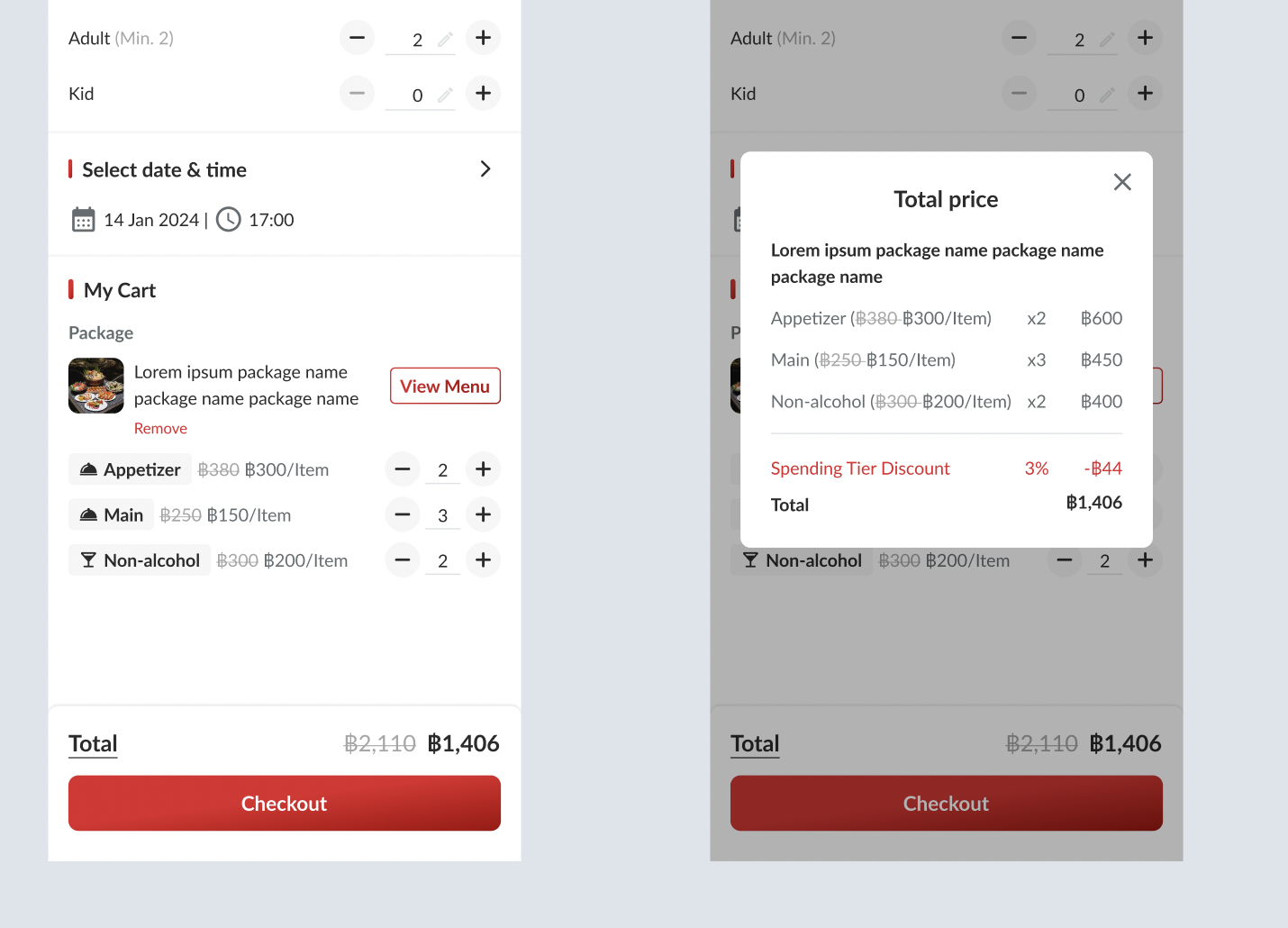 Package name in 2 line if there is no min. spend (truncated if exceed the line) Package name in 1 line if there is min. spend (truncated if exceed the line) 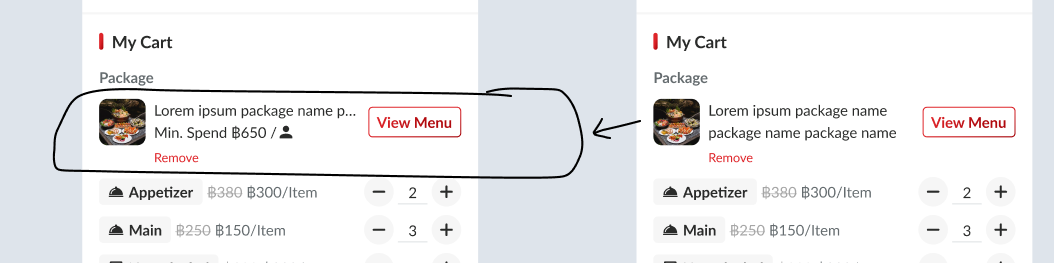 Display on the summary as well 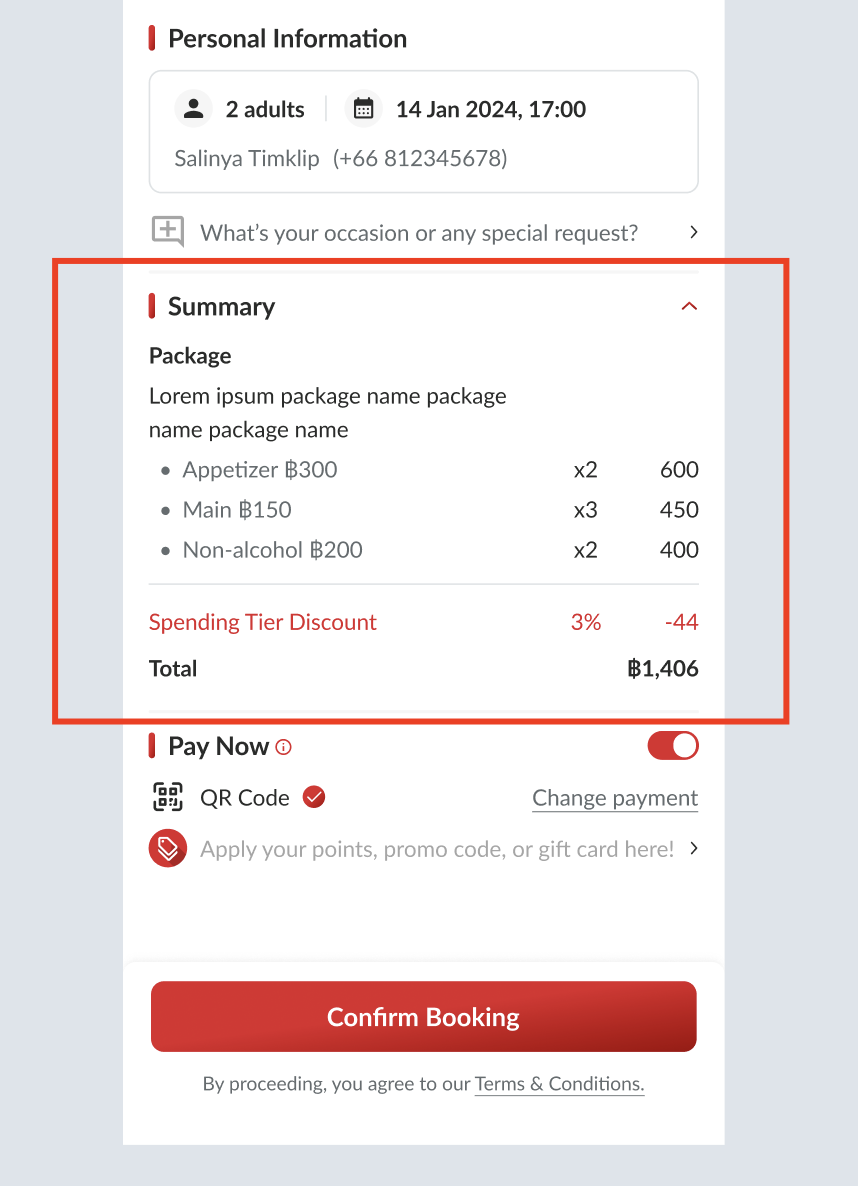 |
| Booking Confirmation Page | Display on the summary as well (like on the checkout page)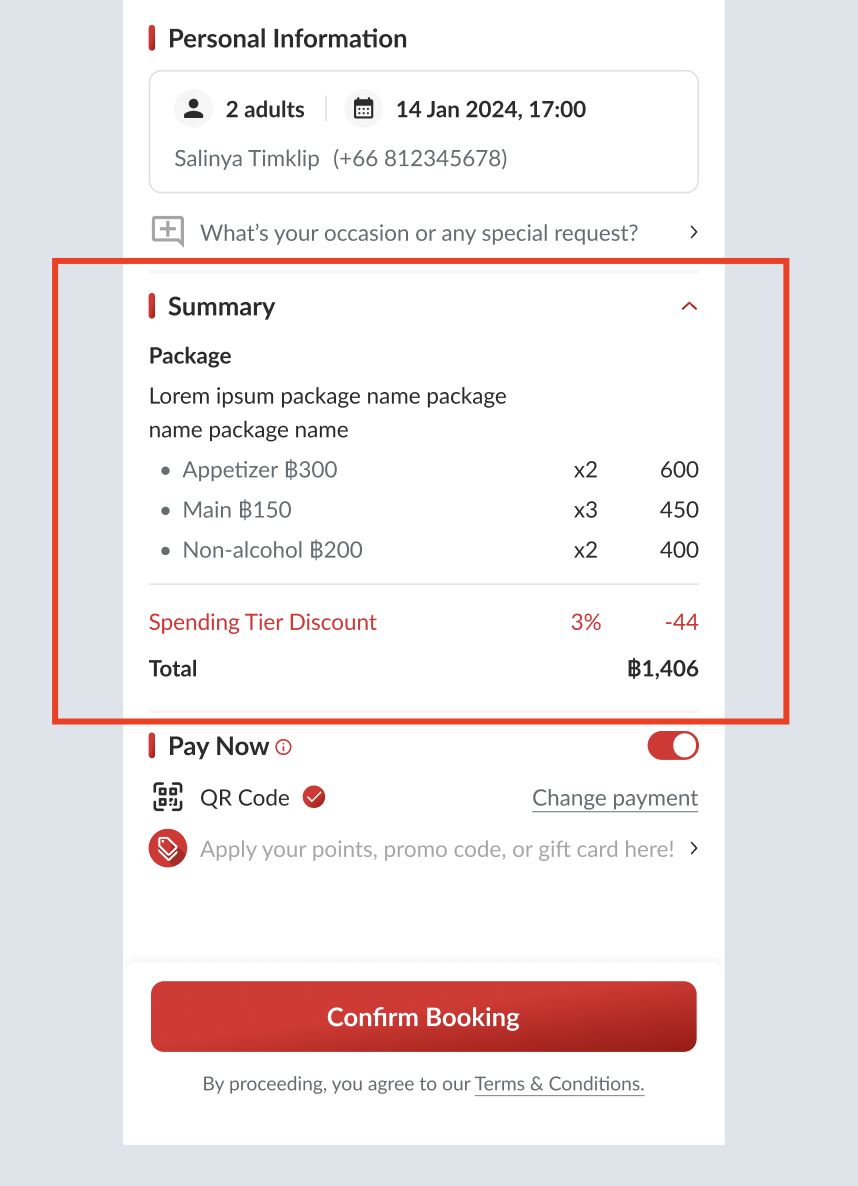 |
| Menu Page (HH menu v2 / v3) | When user select the view menu or qr code for menu Display floating button (open by default) → still can hide by click the floating button or close icon Alert logic should be same with the explanation above (check figma for full context) If all information haven't filled in, the button will be Go to Cart button, which means go to cart page to fill in the required fieldIf all information already filled in, the button will convert to Checkout button, which means go to checkout page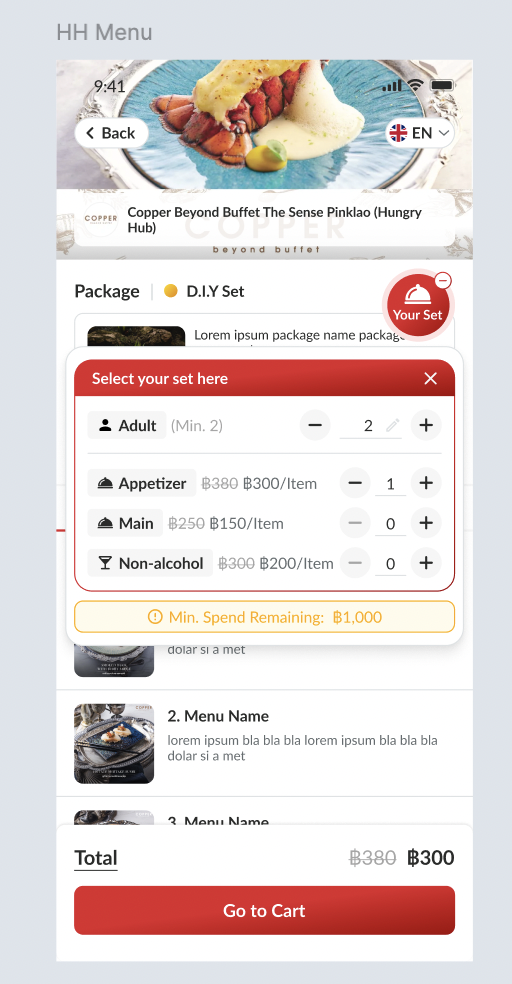 QR code menu : No need to display the menu selection, min. spend and sticky total, just display the menu list selected. the others should be same ex. Appetizer → 2 Main → 0 Non-alcohol → 3 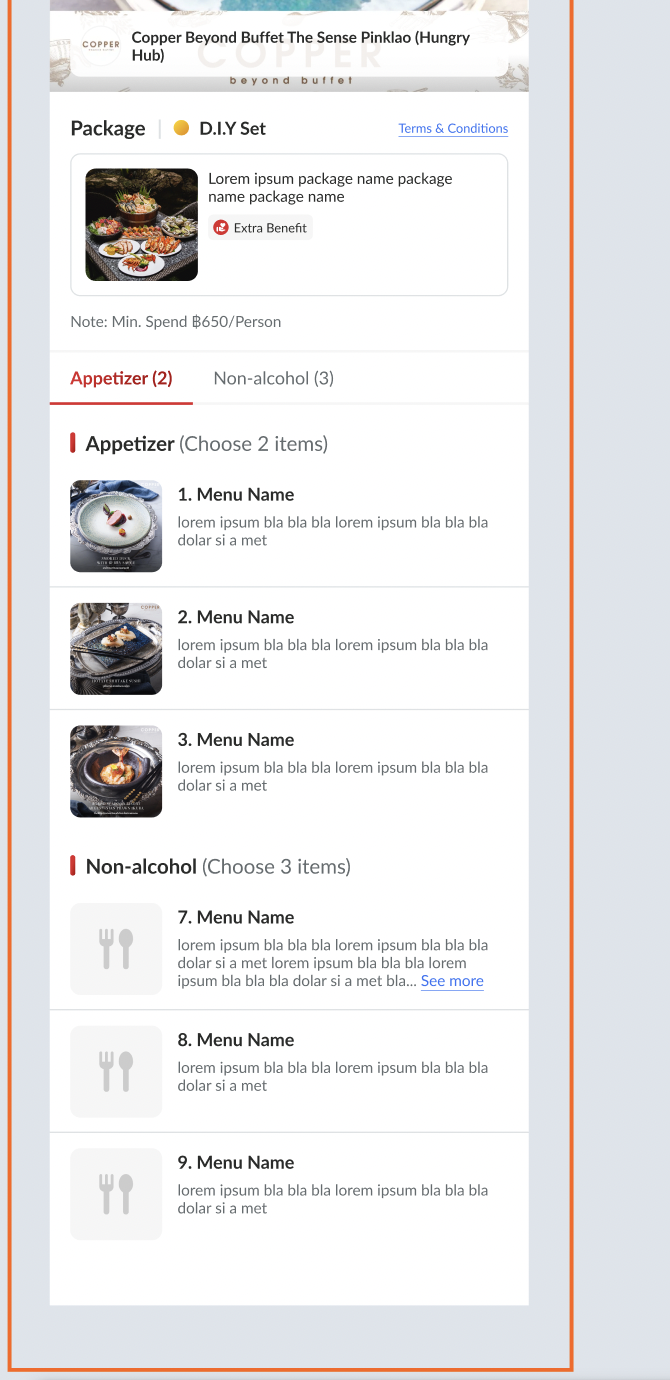 Floating button Default → open the menu selection window Click Close Icon / Floating Button → Hide menu selection window Only can sticky in the left/right side, can't in the center. if force to move to center, will stick to left/right 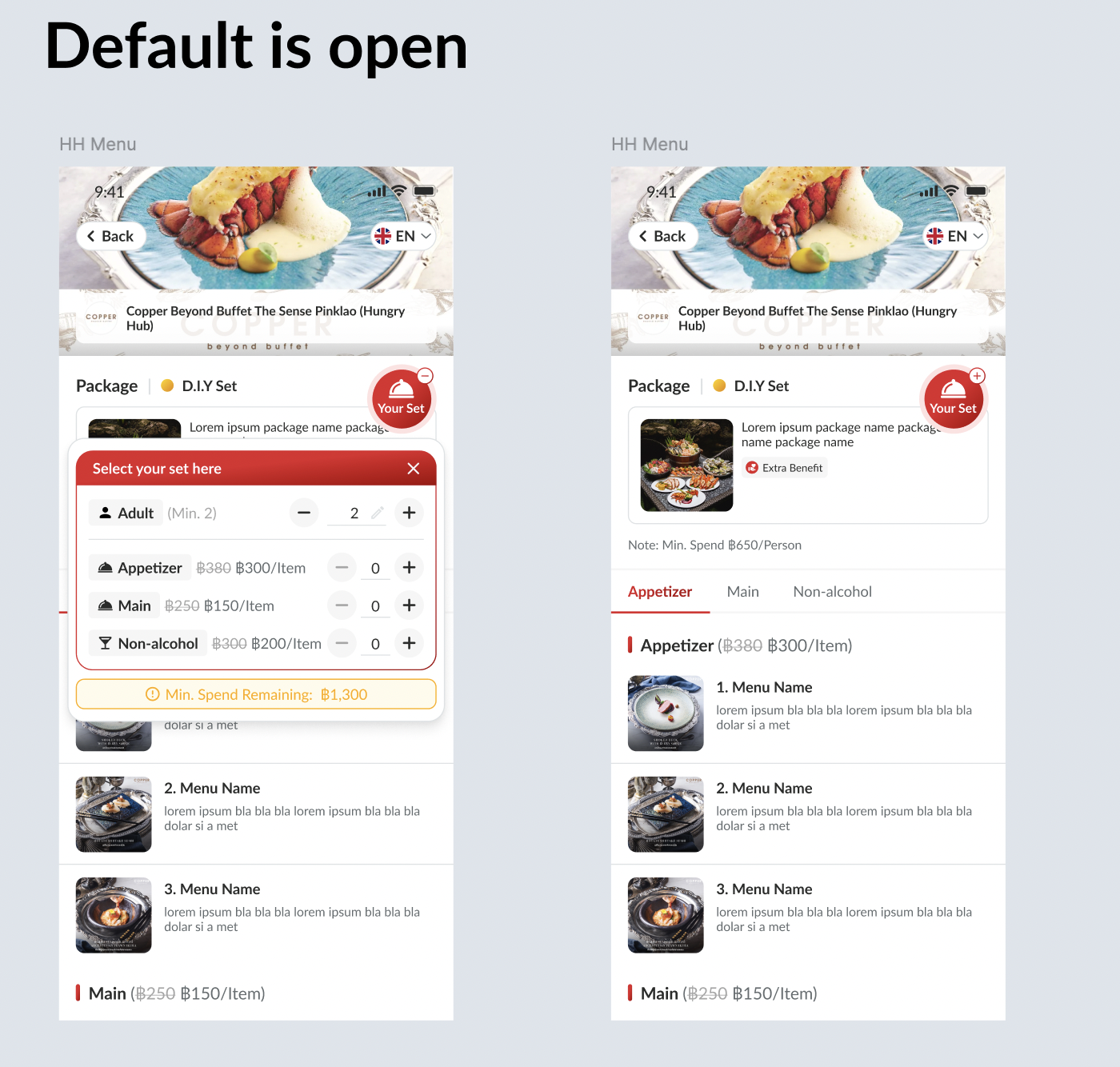 See the animation here : https://jam.dev/c/96721a27-2fc8-45ea-ab39-fc9249358192 |
| Edit Booking | Same logic like existing, just display some sections Menu selection 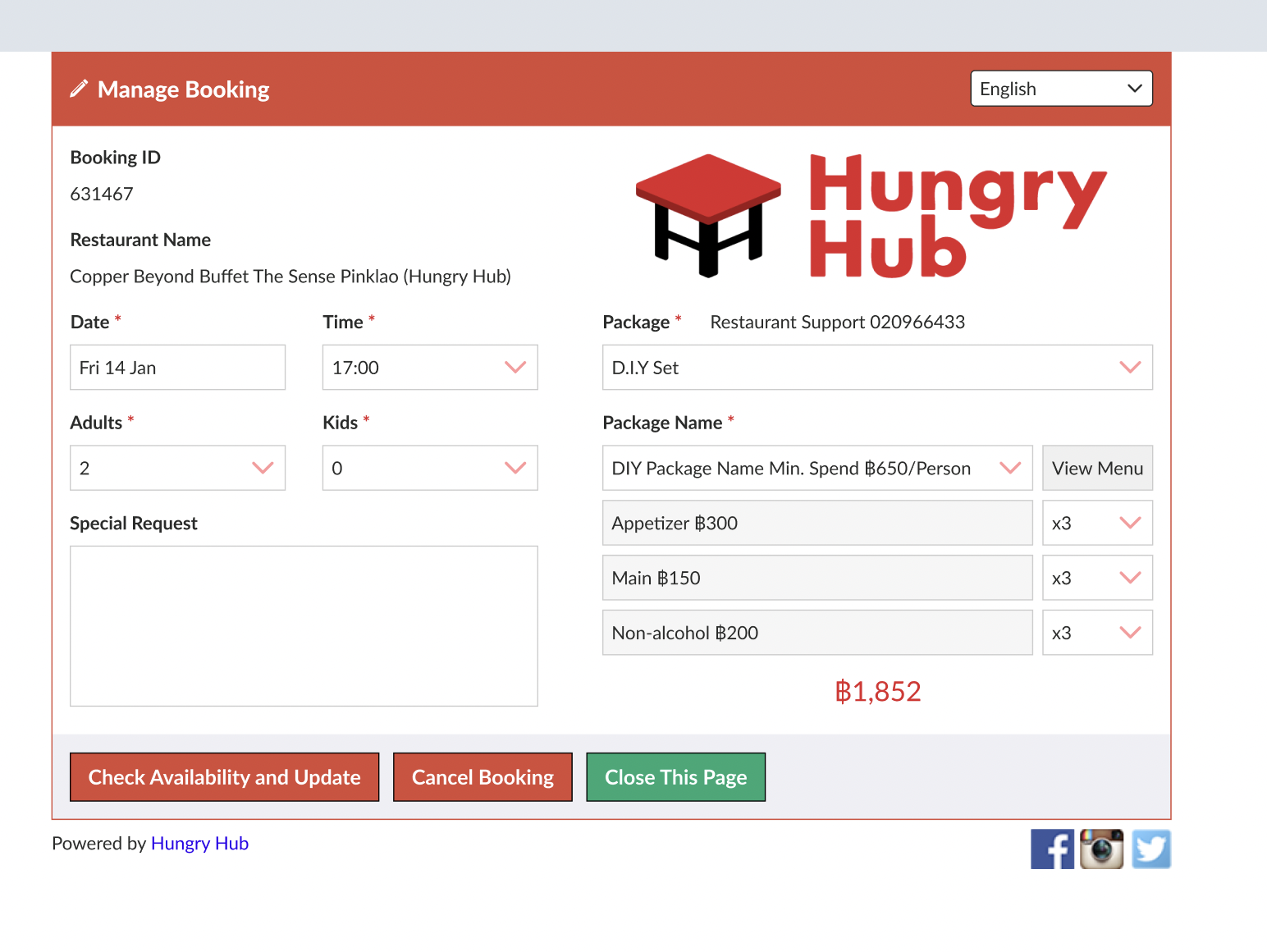 NB : check on figma |
| Profile | Same logic like existing |
| Translation | Insert all translation into weblate |
| Booking flow | Same like existing, just display some sections (explained above in each page) |
| Restaurant Card (From {price}) Homepage Search Page Group Landing Page 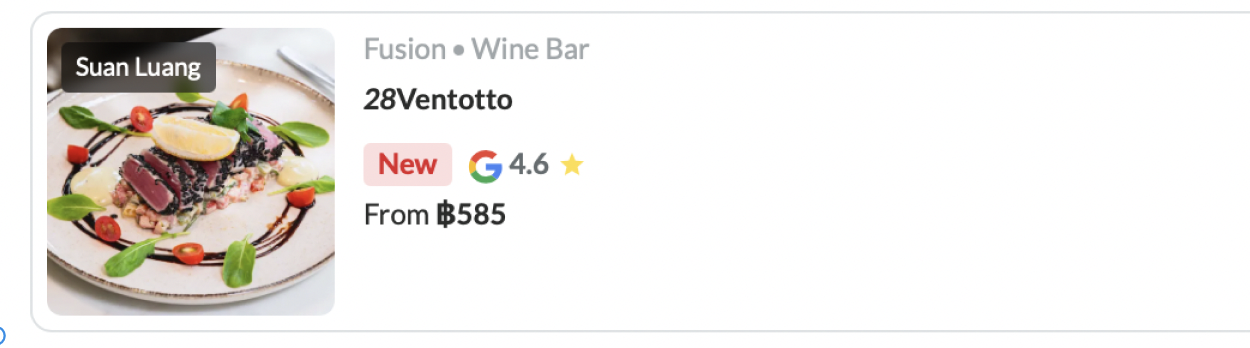 | Follow the lowest price. there are 2 scenarios Min. Spend If the minimum spend is lowest among all package prices, show "from {price}" using Min. spend No min. spend Use lowest price of menu section (if lowest among all package prices) |
| Mix and match | Same like existing, can mix and match with same DIY package. but can't mix across package Normally it would have 1 DIY package. since the menu would be same. if take more efforts, can skip this case (more than 1 DIYs, because it's so rare) |
| Add on | Can add add-on as usual |
| Kid Price | No need, like on party pack |
Booking Summary Logic
| User Story | Requirement |
|---|---|
| General | Show the payment discount by restaurant subsidized voucher only No need to show the voucher that subsidized by hungry hub Restaurant doesn't need to know about this information. so, display the full payment without discount. No discount badge label (purple badge) 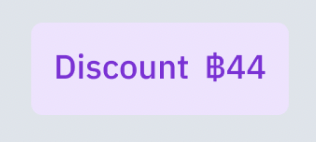 Calculate the discount on the payment summary If there is restaurant subsidized voucher based on percentage, multiply it based on the total price after calculated by spending tier discount Show the discount badge label (the price is from the restaurant subsidized voucher) Check on the figma for full context Calculate the spending tier discount |
| User Story | Requirement |
|---|---|
| User makes a booking and user gets booking confirmation email | Same with existing display, just add some sections D.I.Y set package Menu selection Spending tier discount (if any) 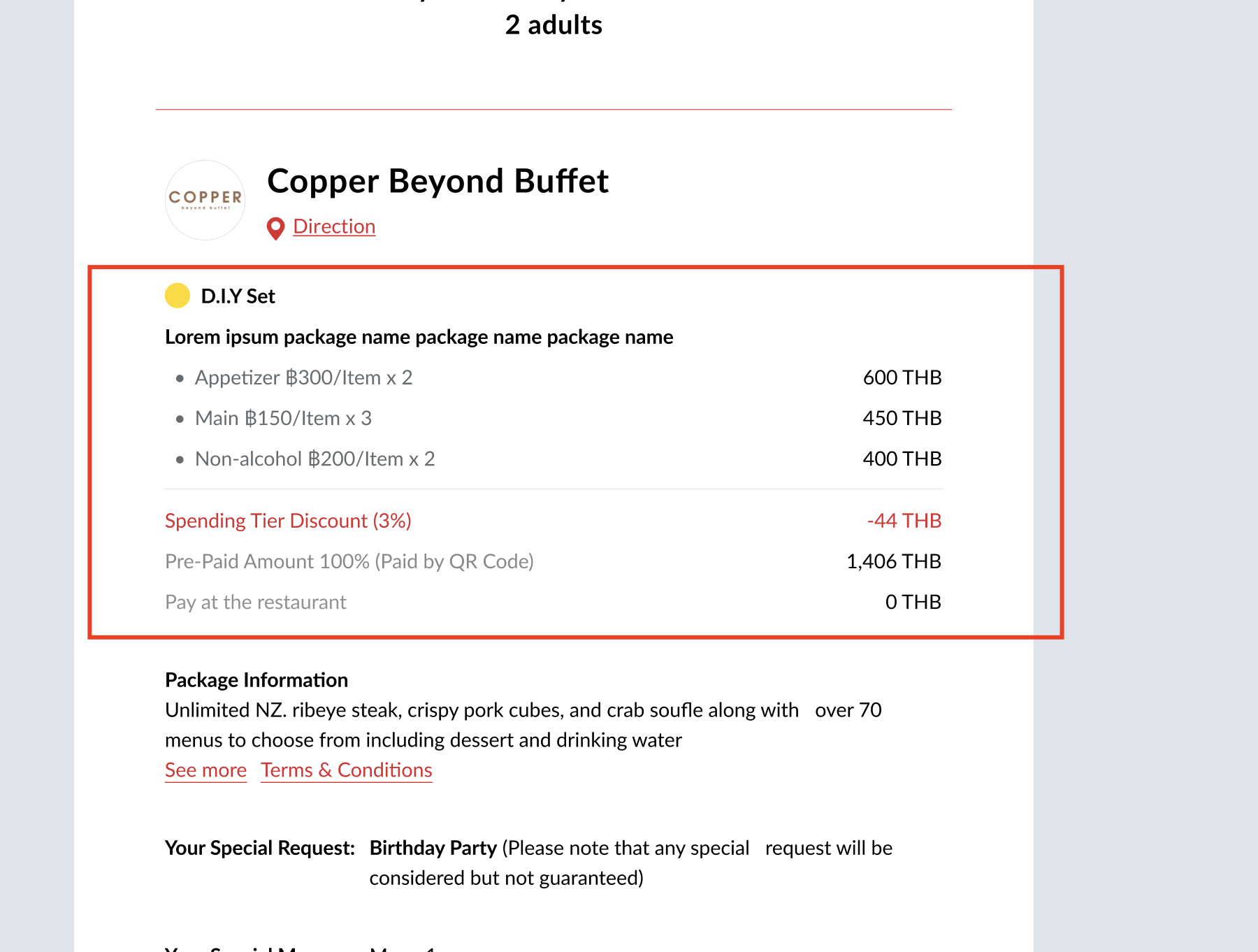 |
| User makes a booking and restaurant gets booking confirmation email | Same with existing display, just add some sections D.I.Y set package Menu selection Spending tier discount (if any) No need to show hungryhub subsidized voucher 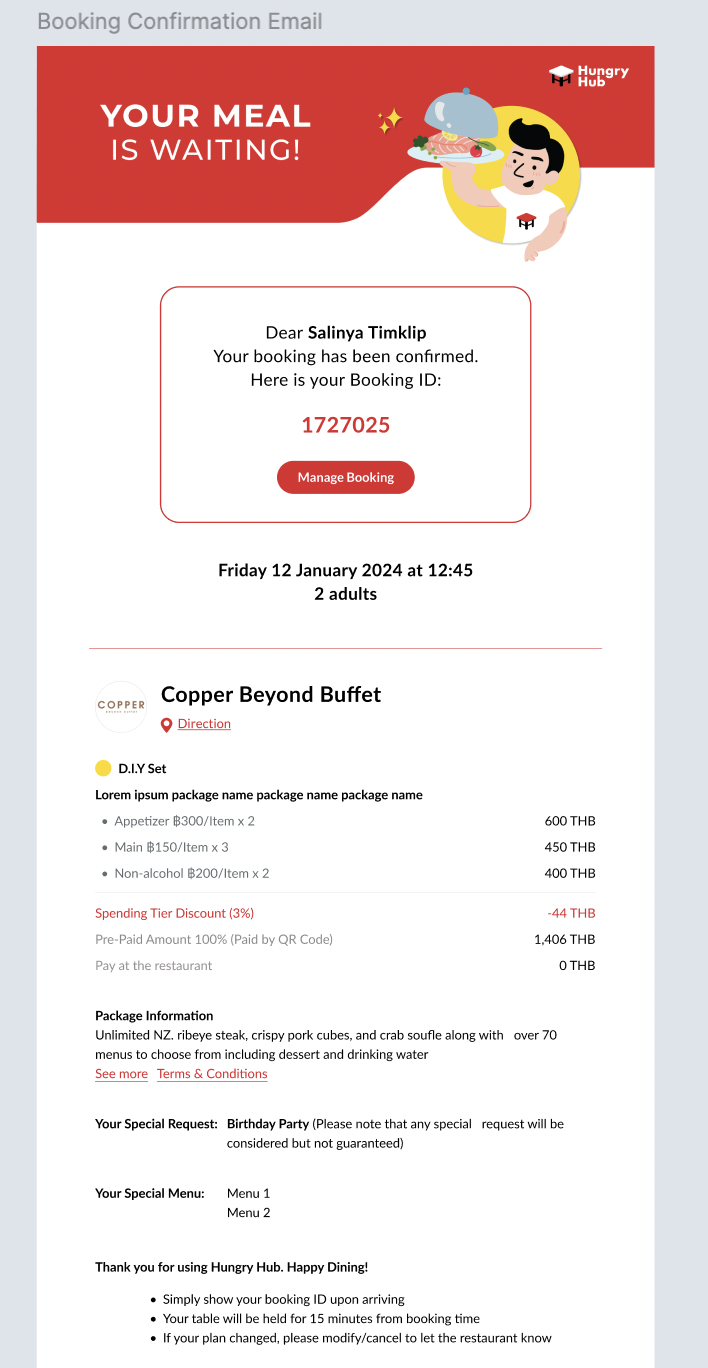 |
❓ FAQ
| Question | Answer |
|---|---|
| Based on the timeline, we will release HH menu v3 first, how about the release plan for DIY? | Once hh menu v3 was released, we will migrate hh menu v2 to v3. so, DIY will use v3. no need to develop for v2. |
KPIs and Success Criteria
- Adoption Rate: Percentage of utilizing the DIY Package feature.
- Customer Satisfaction: Feedback ratings from customers who used the DIY Package.
- Revenue Impact: Analysis of average spend per person for DIY Package bookings compared to standard packages.