AI Generated Image
Feature Overview
Admins should be able to:
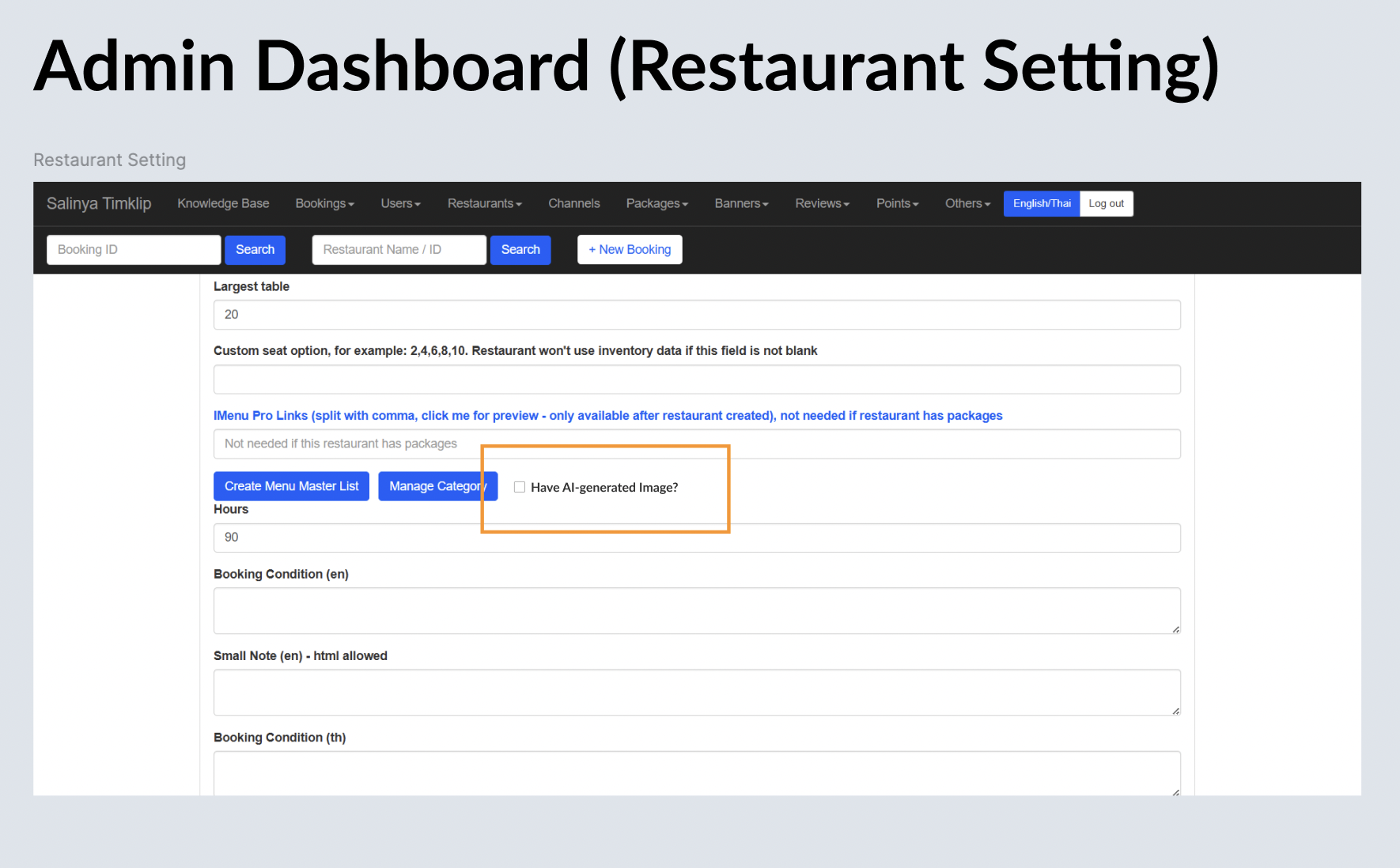
- Mark a restaurant’s menus with an “AI‑generated image” flag via a checkbox.
- Optionally auto‑generate AI images
- Clearly label these images in the app/website with a visible watermark and disclaimer stating “AI‑generated – for illustrative purposes only" or similar. Why: This builds trust through transparency, reduces user complaints about misleading imagery, and ensures legal/regulatory compliance (e.g. limited-risk AI content labeling under the EU AI Act) . It's in line with Meta’s visible “AI-generated” labeling strategy for ads and media . Design File : https://www.figma.com/design/06upxjt19EbVIFwnQGs162/QR-Code-for-Menu?node-id=1826-8996&t=V1sMn5Ld7HNmE2P8-1
Problem Statement
Today, AI-generated food images are added manually without any visible flag in the UI. Diners may be misled when AI images don’t accurately reflect the actual dish. Admin controls are inconsistent, making the process inefficient and prone to errors.
Goals & Objectives
| Goal | Description |
|---|---|
| Admin control | Easily mark when AI images are in use or not per merchant |
| Transparency | Clear and accessible UI label on mobile/web for end users |
| Consistency | Standardize process across all restaurant profiles |
| Compliance | Meet regulatory and societal expectations for content authenticity |
User Stories
Admin Persona (Ops User)
- “As an admin, I want a checkbox labeled ‘AI-generated Image?’ so I can flag that a restaurant’s menus use AI-generated images.”
- “As an admin, I want a button to auto‑generate images per menu (and optionally for all menus in batch)."
End-User Persona (Diner)
- “As a diner, I want to know if the menu image is AI-generated, so I can set realistic expectations.”
Functional Flow & Requirements
Administrator Controls (Restaurant Admin Dashboard)
- Checkbox:
Labeled “AI-generated Image?” with tooltip: “Enable if the menu image is generated via AI. Disclaimers will appear to users.”
- Image Generation Controls:
Buttons on restaurant dashboard:
- “Generate AI Images for this menu” → only specific menu selected
- “Generate for all menus” → override all images including real images
- “Generate for menus currently missing images” → only for blank images
- Used & Unused Status Filter → Private (https://app.clickup.com/9003122396/docs/8ca1fpw-11562/8ca1fpw-49076) → can implement later if haven't implemented it before
- For b, c and d points, will show the filter pop up first before go to the prompt pop up.
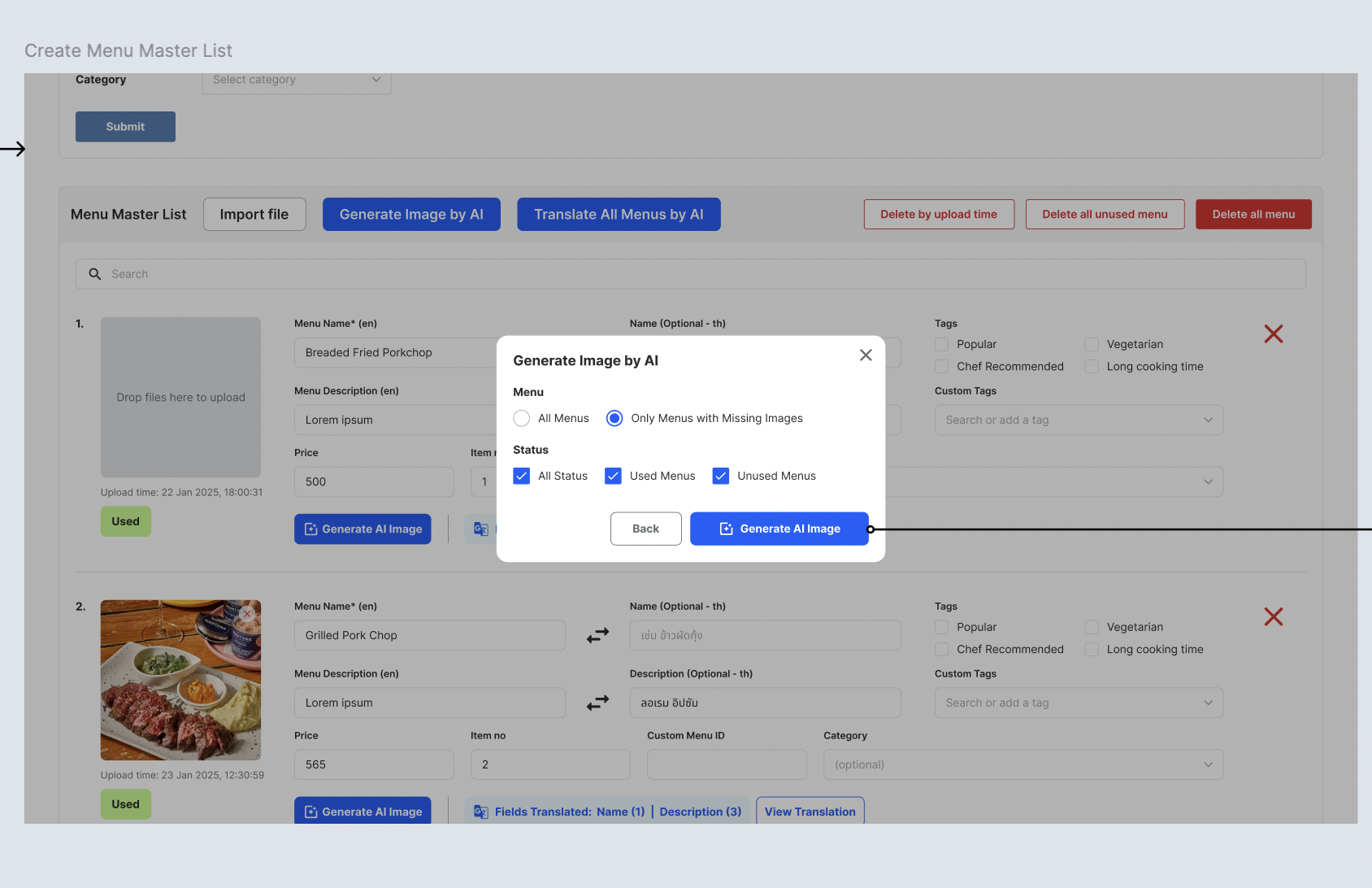
When clicked:
- System sends restaurant data (restaurant name, restaurant description, dining style, cuisine, menu name, menu description, price, city) to an AI-model endpoints.
- Can edit the prompt or just use the preset. here's the prompt :
Create a high-quality, photorealistic image of a dish called "{menu_name}" served at "{restaurant_name}" in {city}.The restaurant is described as: {restaurant_description}.Dining style: {dining_style}.Cuisine type: {cuisine}.Visualize the dish to match this description: {menu_description}.Make it look appetizing, professionally plated, and styled as it would appear in a high-end restaurant menu photograph.Include realistic textures, vibrant colors, and natural lighting that evokes a {dining_style} experience.Show the dish isolated on a table setting suitable for the restaurant's style.Do not include any text or price in the image. - Note: Your edited prompt will be used one time only and won’t affect the original prompt
- For Generate AI Images for specific menu, will go directly to this pop up to generate (without filter pop up)
- Show the content of the parameter instead of showing the parameter itself (check image below)
- Can edit the prompt or just use the preset. here's the prompt :
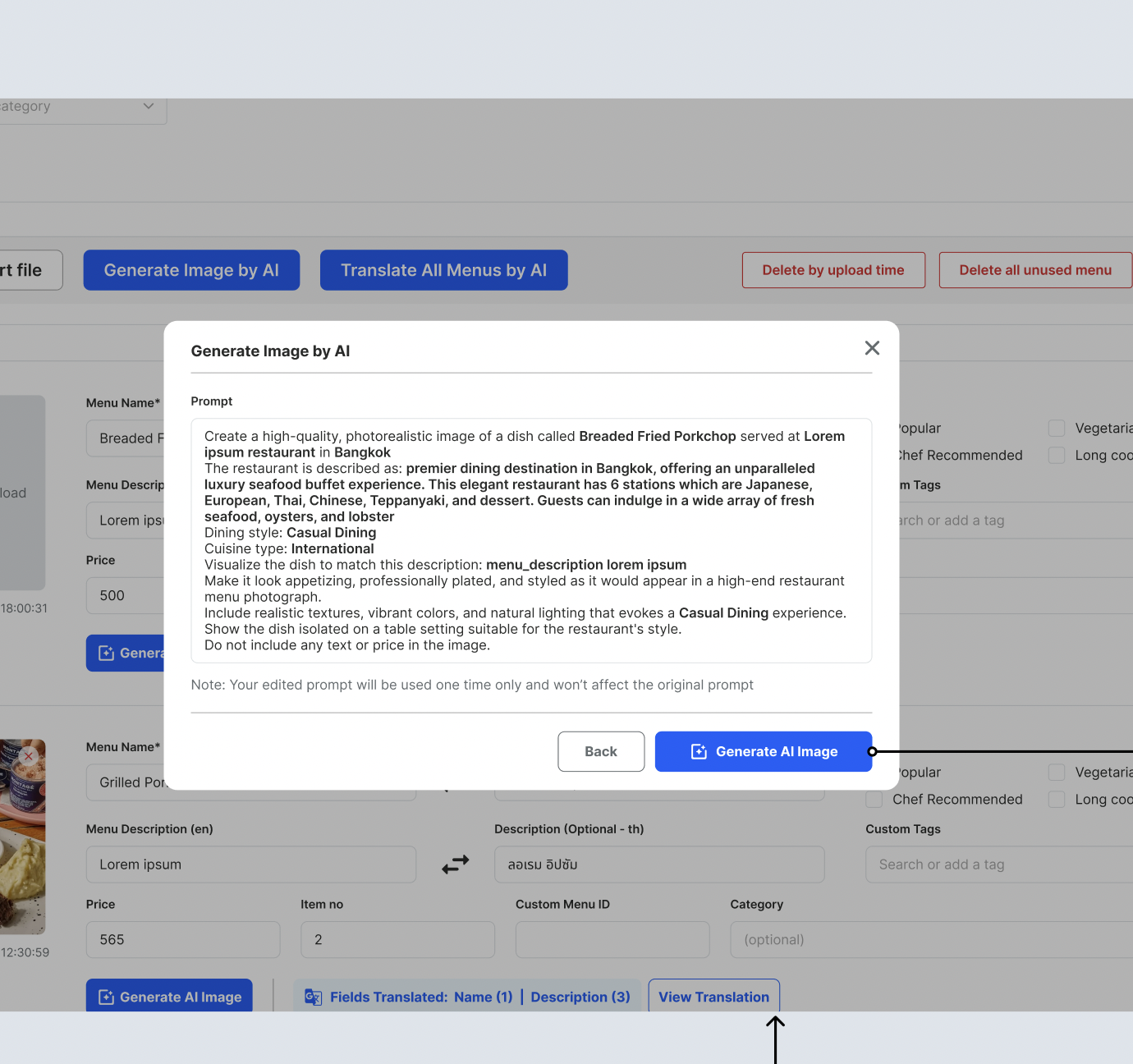
- Use loading when generating image
- Still can regenerate, but it will terminate the current process and run the new process
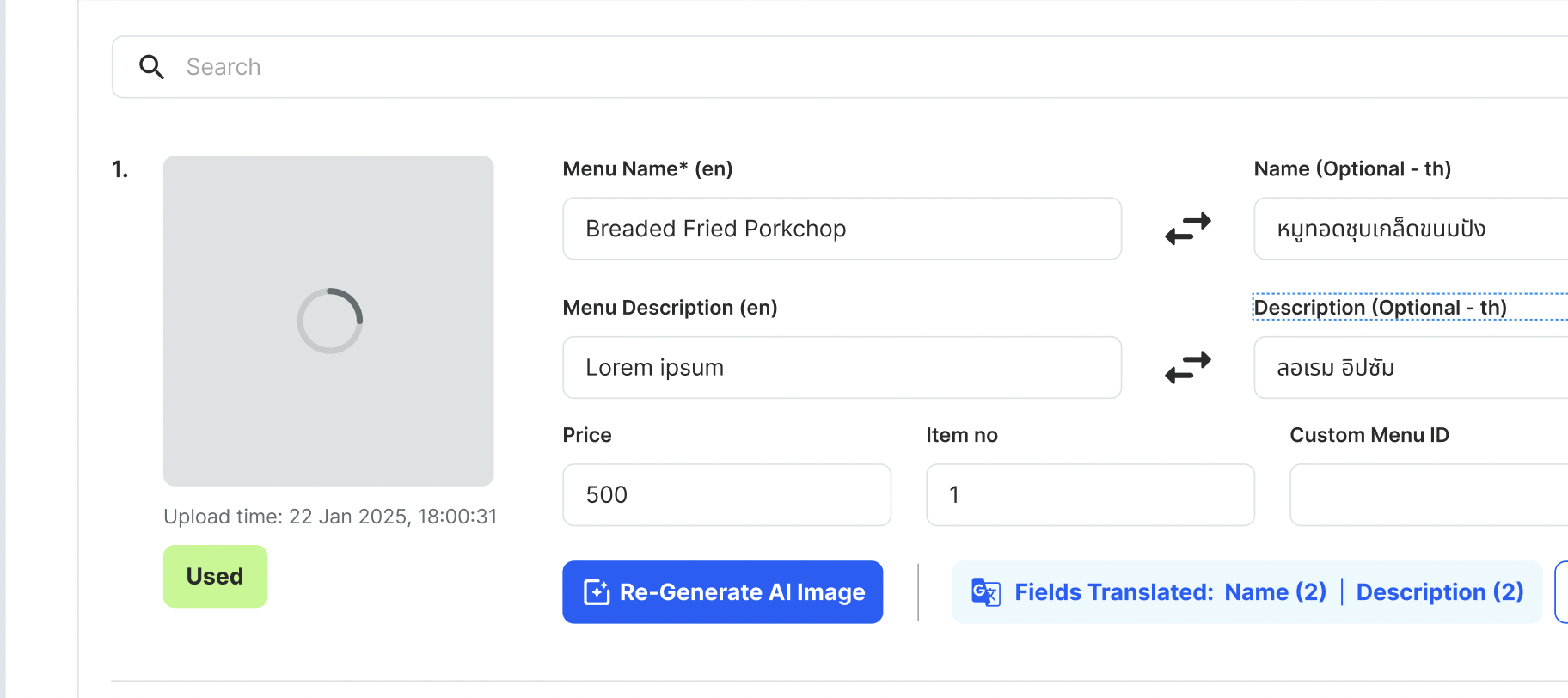
- After image inference, each image is wrapped via imgproxy with visible watermark “AI-generated” and optional underlying metadata (e.g. JSON‑encoded IPTC/C2PA tags) indicating the model used.
- Success generation shows the tick label
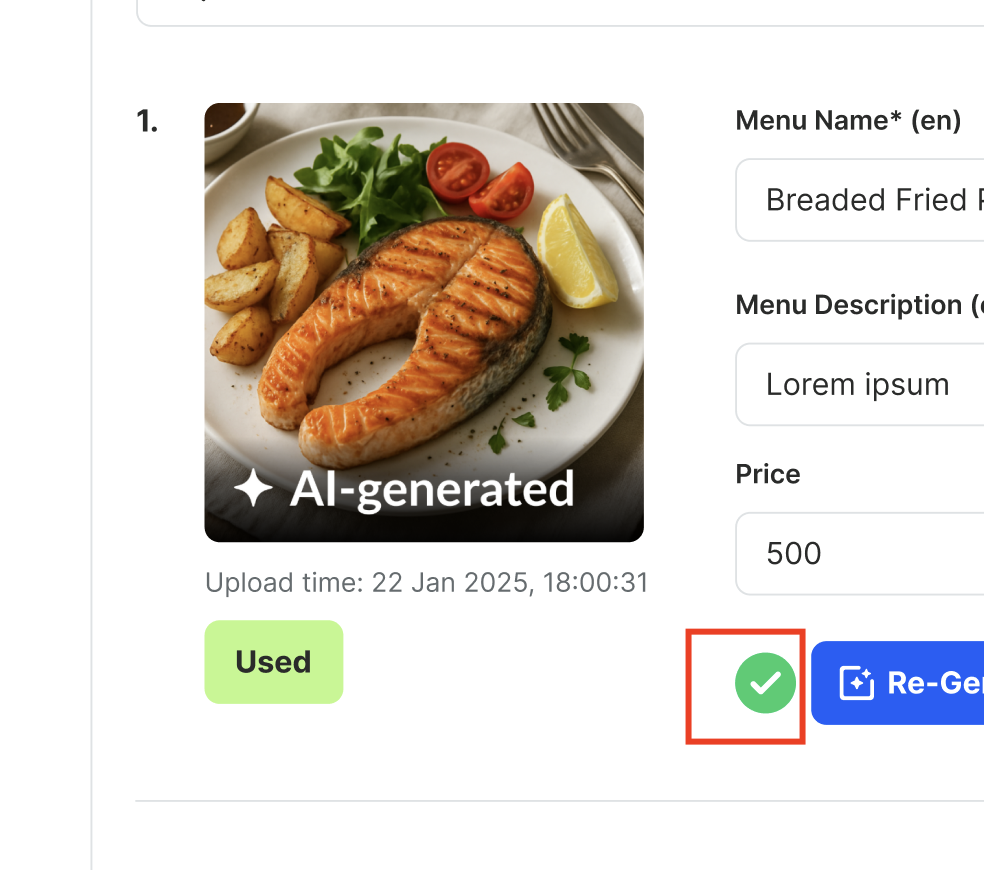
- Failed generation shows toast with retry button: “Failed to generate AI image (Try Again?)” → When the button clicked, Regenerate the image
- Success generation shows the tick label
When clicked the menu with generated image
- Change the Generate button to Re-generate button
When clicked the menu with real image
- Show the confirmation pop up (use native design) that the generation will replace the current real image :
It will replace the real image with the AI generated image. do you want to continue? (Generate Anyway/Cancel)
When clicked the submit button but the image is still generating
- Show the confirmation pop up when the image is still generating but admin forces to submit :
- Message :
AI is still Generating the Image, Do you want to submit without the generated image? - Button
Wait the image→ Close the pop up and continue generatingSubmit without generated image→ Save the changes, but without the generated image (if not completed yet)
- Message :
Note :
- Close button/icon on the pop up to close the pop up
- Back button to go back into previous process
- if the menu A has same menu name with menu that we want to generate, no need to generate a new one.
- example: today a user ask to generate an image for "rice bowl xxx". if next week the user asking for the same menu name but for other restaurant, then use the image that you have been generated. but still with AI generated label.
Front-end Display (Web/App)
- If “AI-generated Image?” is checked in admin dashboard (restaurant setting):
- Display disclaimer text on the menu page (both app and desktop), positioned under image package/library but above menu items:
“📌 AI-generated image: for illustrative purposes only...”
-
* The watermark (e.g. bottom-right corner) shows **“AI‑generated”**, always visible across different UI contexts (including QR menu).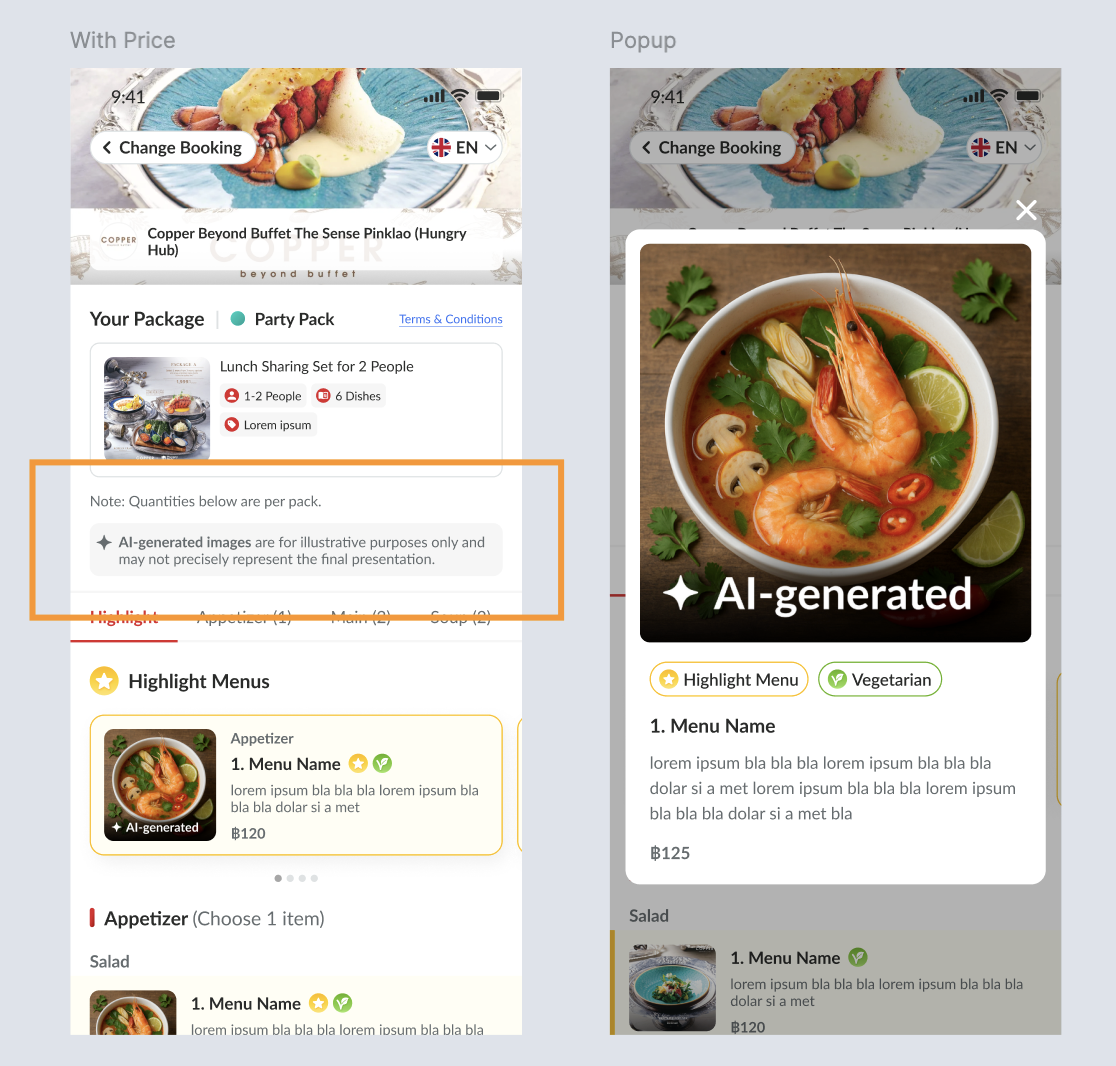
- The disclaimer text must be localizable (core languages English and Thai → multilanguages as well) and designed for accessibility: high contrast text (white with black outline or opaque background), font size ≥ WCAG standard.
- If the checkbox is unchecked, no watermark or disclaimer should appear at all.
Feature Scope Breakdown
Must-Have
- Admin checkbox per restaurant
- Single-menu, all-menus, and missing-images auto-generation options
- Image labeling via watermark (visible and/or metadata)
- Disclaimer text visible on all relevant screens (app, web)
Should-Have
- Translation support (multilanguages → 15 languages)
Design Principles & Considerations
- UI Placement:
- Checkbox next to “Manage Category”
- on restaurant settingImage generation buttons in context under each menu or global header
- Visual Design:
- Watermark badge “AI‑generated” consistent across image previews and final image
- Disclaimers must function in variable layout contexts (e.g. long menu lists, small screens)
- Usability:
- Alt text for assistive devices: “AI‑generated preview (not real image).”
Key Performance Indicators (KPIs)
| Metric | Definition | Target |
|---|---|---|
| Disclaimer visibility rate | % of restaurants with checkbox enabled where users see the disclaimer correctly | 100% |
| Full generation success | % where models return valid previews | ≥ 80% |