1028 - Multi Currency
Feature Overview
What is the feature? Introduce multi-currency support on the frontend (FE) to display estimated prices in the user's target currency based on real-time exchange rates. This feature does not affect actual billing, which remains in the restaurant's base currency (THB/SGD). Design link : https://www.figma.com/design/PvOG3Actzf6wjG0cyglyVC/Multi-Currency?node-id=0-1&t=3WTr983lWPRX51ed-1 Glossary
- Target currency = Selected currency = Est. currency
- Base currency = Restaurant's local currency
Problem Statement
Current Limitation: Users outside Thailand/Singapore may struggle to understand price value due to unfamiliarity with THB/SGD. This creates cognitive friction and trust issues in price comparison and decision-making. Why now?
- Growing international user base
- High demand from product & marketing for localized pricing perception
- Preparation for Phase 2 (actual multi-currency payment)
Goals & Objectives
🎯 User-Centric Goals:
- Help users estimate costs in their familiar currency
- Improve pricing transparency and trust
- Enhance overall booking experience
💼 Business Goals:
- Improve conversion rates from international users
- Support multi-country marketing efforts
- Lay the foundation for full multi-currency support in Phase 2
User Stories / Use Cases
- As an International user, I want to see estimated package prices in my local currency on the homepage and restaurant listings, so I can better understand the cost before booking.
- As a traveler browsing from Singapore, I want to see THB prices from Thai restaurants converted to SGD for comparison.
Requirement
General Logic
- Support for THB and SGD as base currencies
- Support target currency (Order by alphabetical sort)
- 🇦🇺 AUD (Australian Dollar)
- 🇨🇳 CNY (Chinese Yuan)
- 🇪🇺 EUR (Euro)
- 🇬🇧 GBP (British Pound Sterling)
- 🇭🇰 HKD (Hong Kong Dollar)
- 🇯🇵 JPY (Japanese Yen)
- 🇺🇸 USD (US Dollar)
- Fetch exchange rates from API (mid-market exchange)
- Correct currency symbol formatting (front/back, e.g., "Rp100.000", "THB 300")
- Alert when API exchange rate call fails →
Can't convert, Please refresh your page and try again - No need to implement on 3rd party's display
- Client-side exchange rate fallback mechanism if API fails
- Fallback → Previous price selected → If can't, Use base price
- Monitoring dashboard for exchange rate anomalies (for product analysts)
Homepage, Store Page, Detail Package page, Menu Page:
- Currency switch button on navbar → redesign the navbar display
- Display the selected language and currency beside the text (Example : Language | EN, Currency | THB)
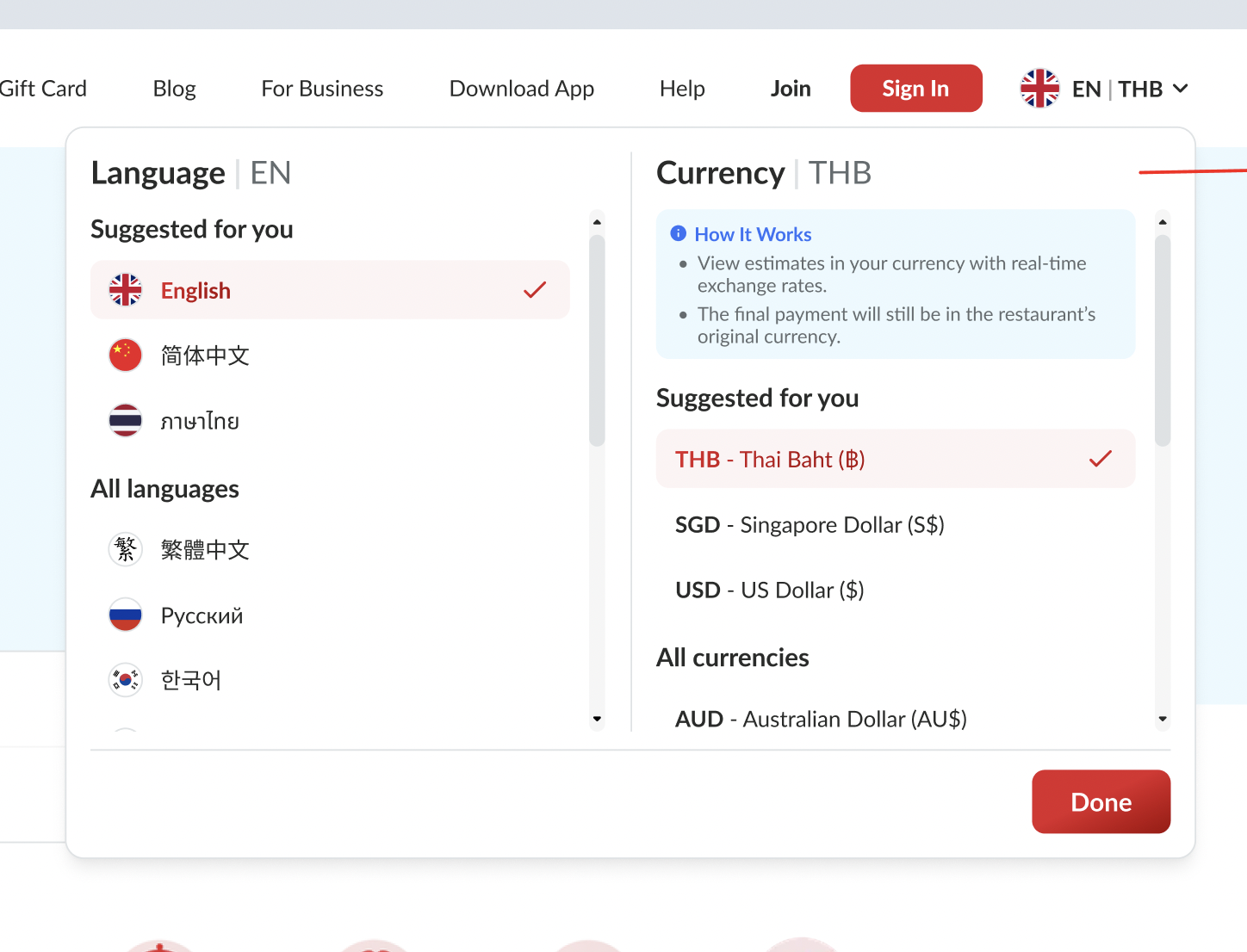
- Replace original currency with selected currency
- Scope : all displayed currency, including dynamic pricing, original price, kid price etc
- Suggest 3 currency (check on figma) → {User personalization} + USD + {The city the user is currently viewing}
- User personalization (cookies/location), check the priority below
- Cookies (Selected currency)
- Browser/Device location?
- IP location
- Fallback → Hide the currency
- USD → Default
- The city the user is currently viewing (city selector on the homepage / param), check the priority below
- THB or SGD
- Fallback → Hide the currency
- User personalization (cookies/location), check the priority below
Search Page:
- Replace original currency with selected currency
- If user filters by price in Target price, FE performs double conversion (example below)
- Filter → USD to THB (search logic)
- Result → THB to USD (display logic)
- Filter price based on currency → Private (https://app.clickup.com/9003122396/docs/8ca1fpw-7922/8ca1fpw-54256)
- Double conversion handling:
- Target Price convert to → Base Price for filtering
- Base Price convert to → Target Price for display
Profile:
- There are some scopes
- Booking & Voucher page
- Booking
- Booking history : Base Currency
- Upcoming booking : Base Currency
- Voucher
- Available voucher : Both
- Updated/redeemed voucher : Base Currency
- Booking
- My Offers & Gift Card
- Promo Code
- Available Promo Code : Both
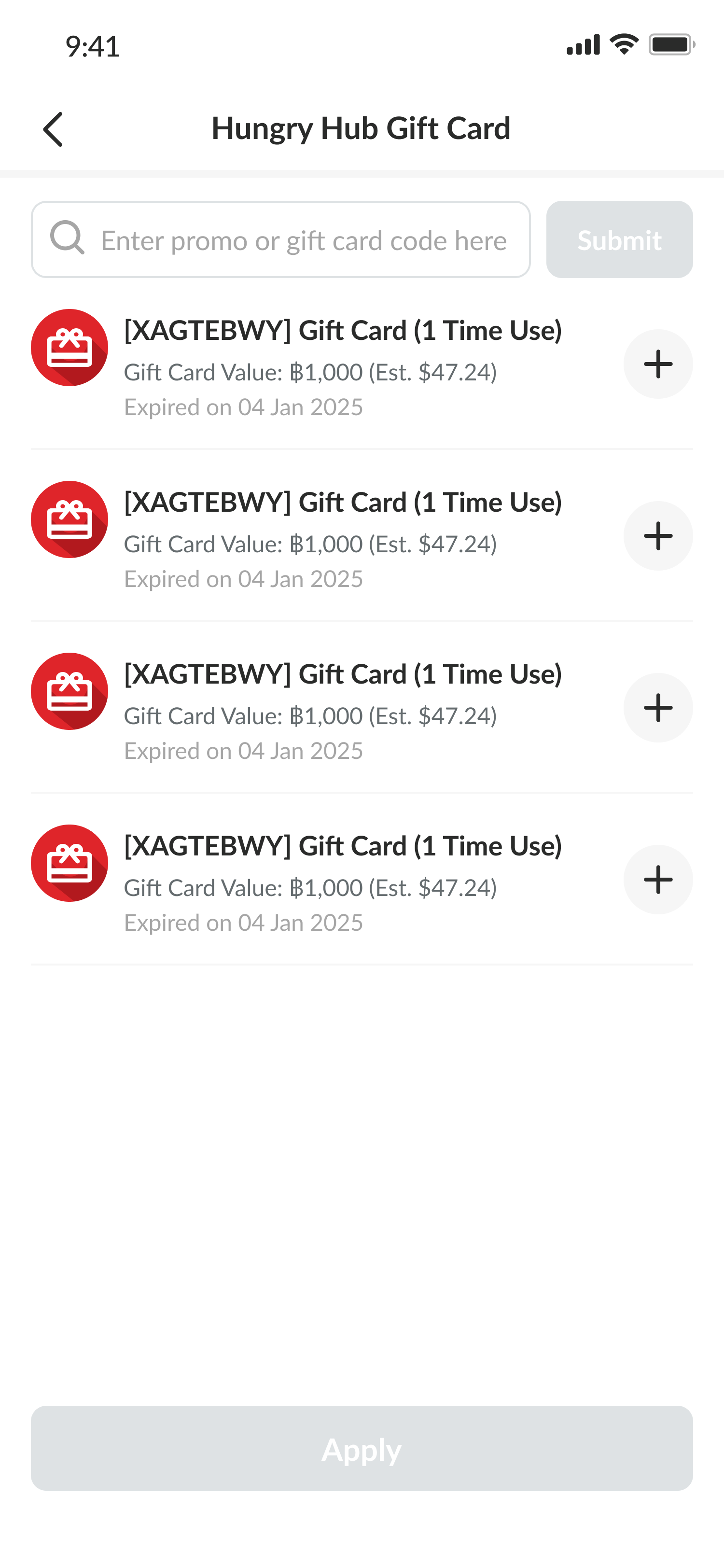
- Gift Card
- Available Gift Card : Both
- Expired/used up Gift Card : Base Currency
- Promo Code
- Booking & Voucher page
- Both : Show base currency/restaurant's local currency and add target currency as estimation (Est.) → can check the behavior on offers page below
- Note : if this part takes more efforts, use the target currency. because it's rare for tourist. since we will have phase 2 that implement the real currency to pay.
- Language & Currency Switcher on Profile (App)
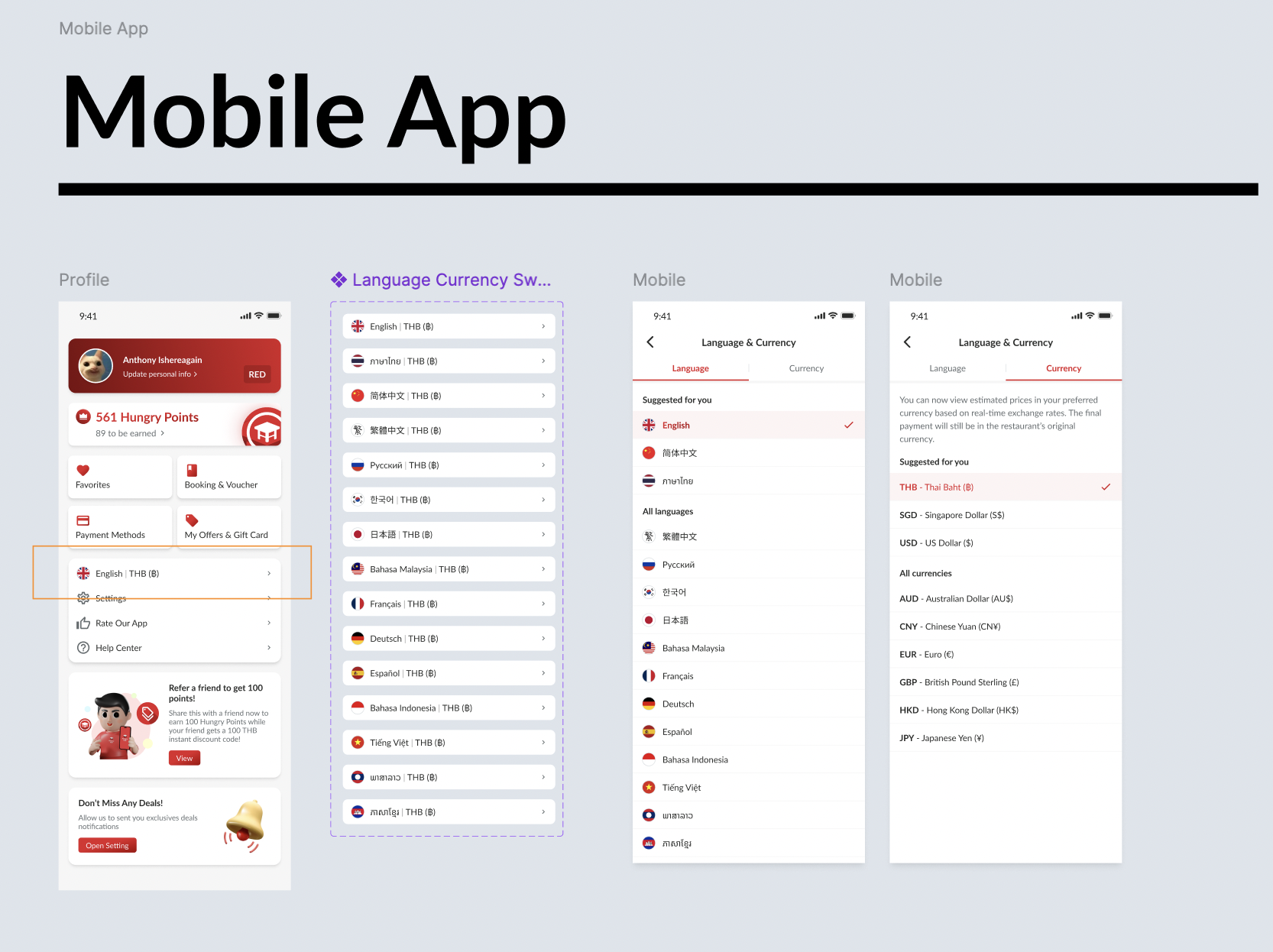
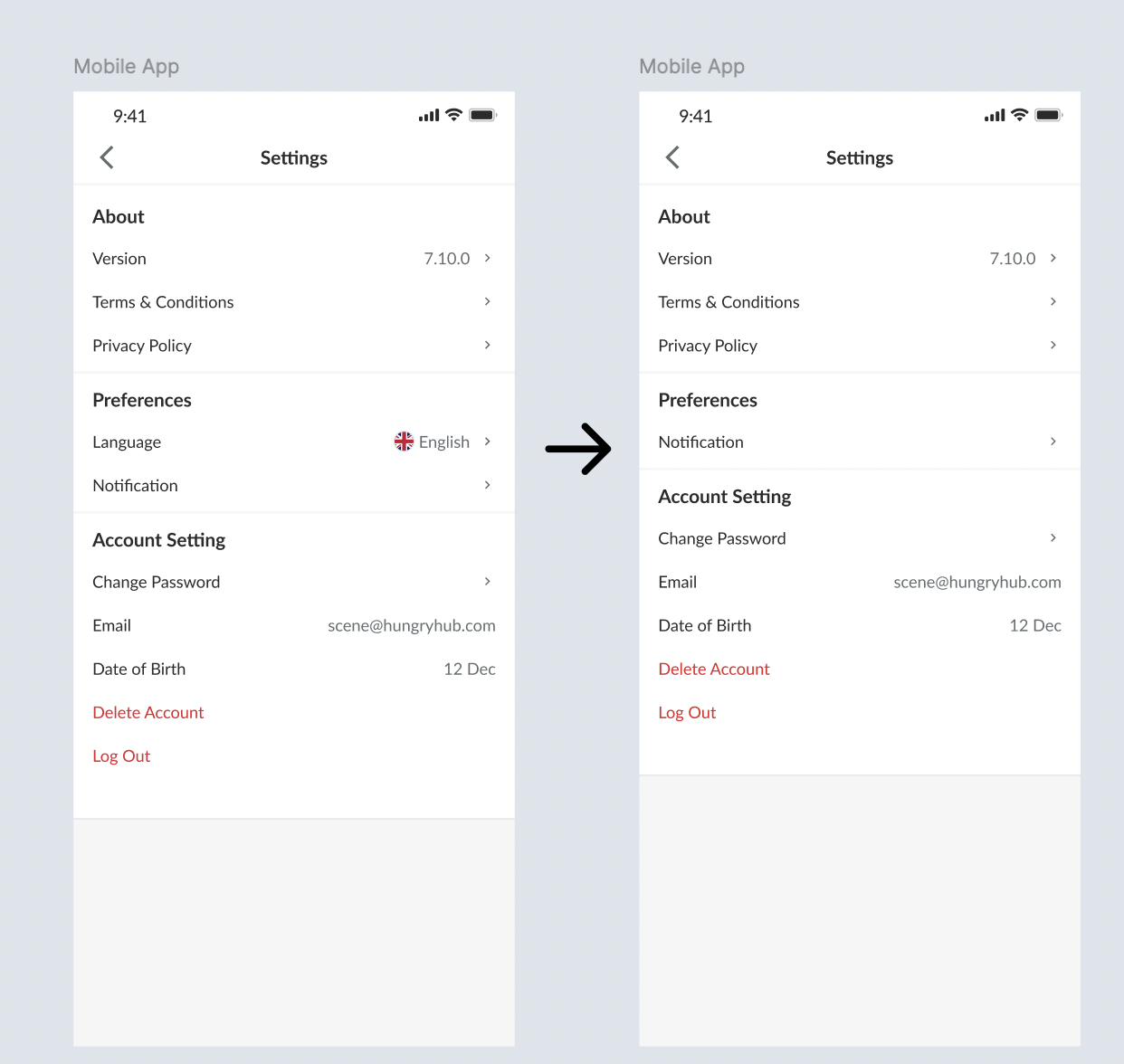
- Language setting on App
Email:
- Revert to base currency/restaurant's local currency (THB/SGD) → No converted currency shown in any transactional context. Scope below :
- Email → All booking emails (booking confirmation email)
Checkout page:
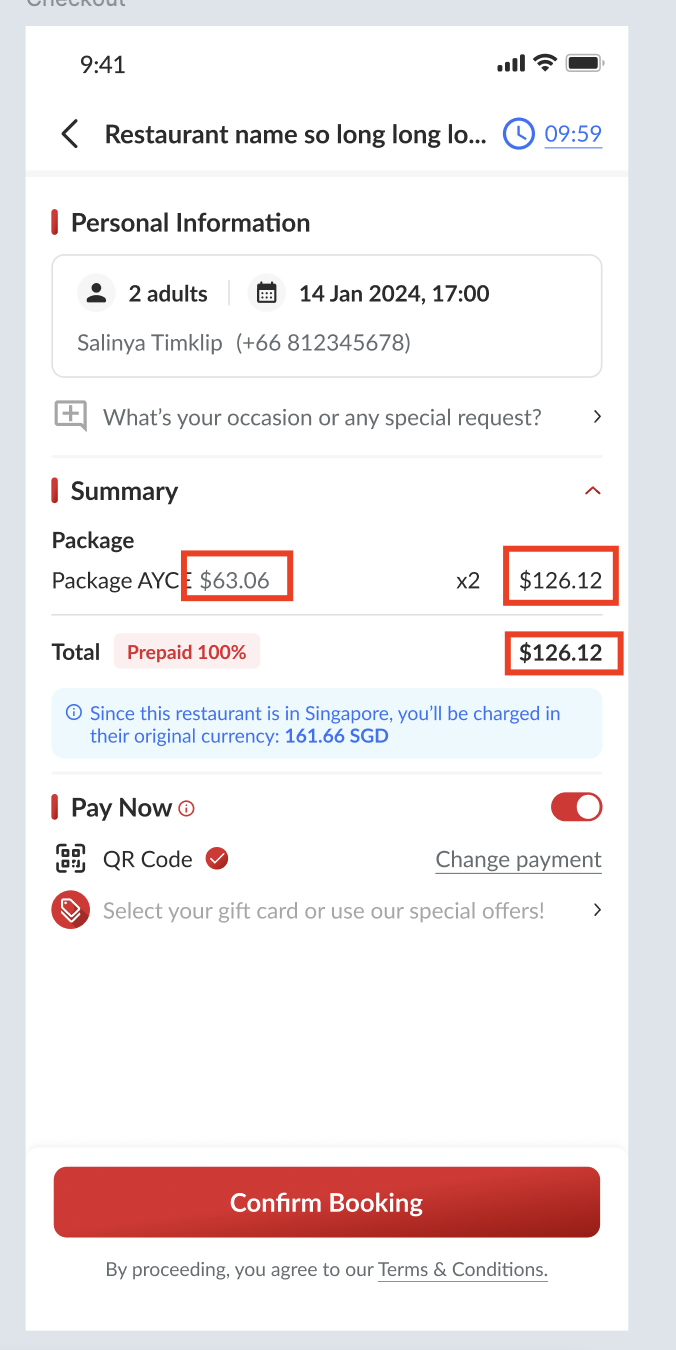
- Replace original currency with selected currency for the package price, original price and total price
- Show the blue alert to add the information that user will be charged in restaurant's local currency
Offers page:
- Show base currency/restaurant's local currency and add target currency as estimation (Est.)
- Note : if this part takes more efforts, just keep the base currency. because it's rare for tourist. since we will have phase 2 that implement the real currency to pay.
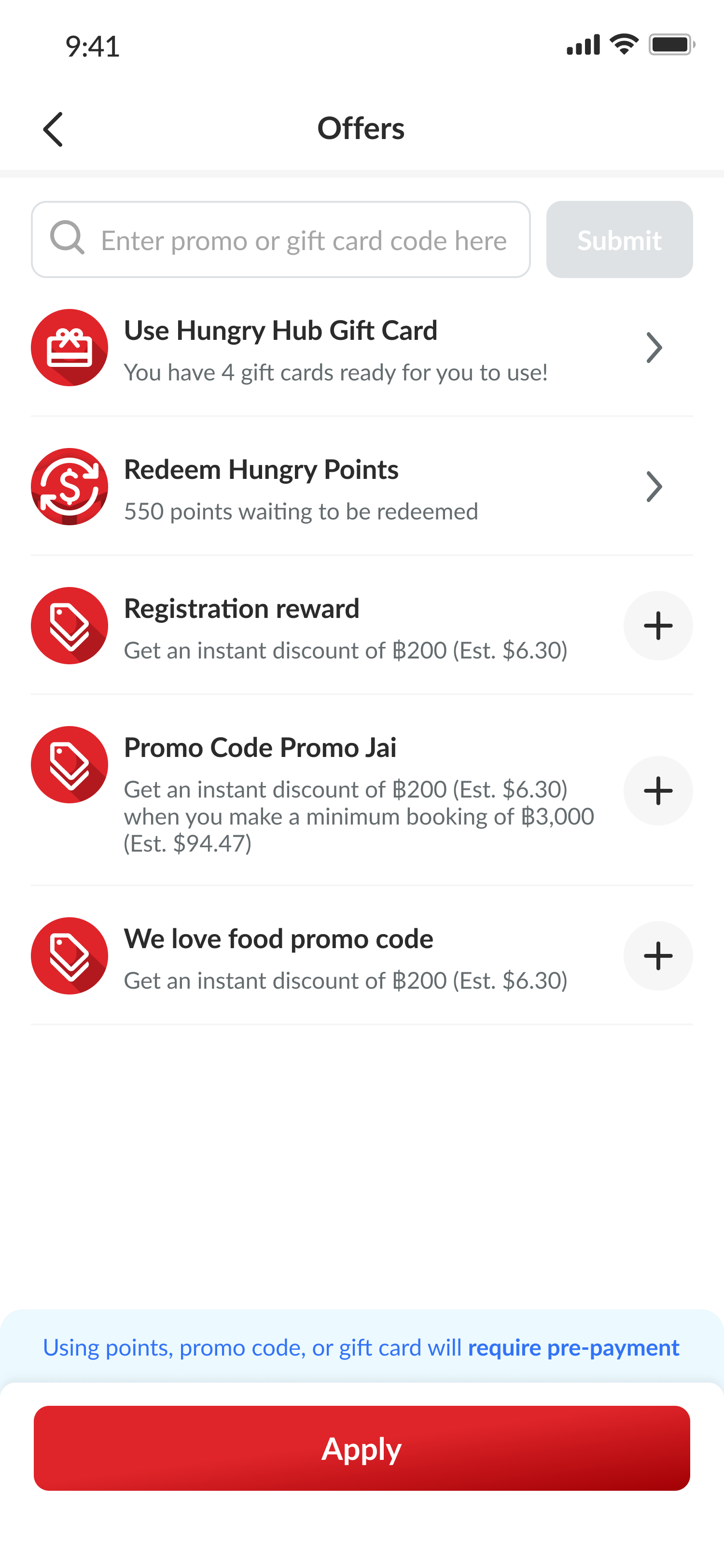
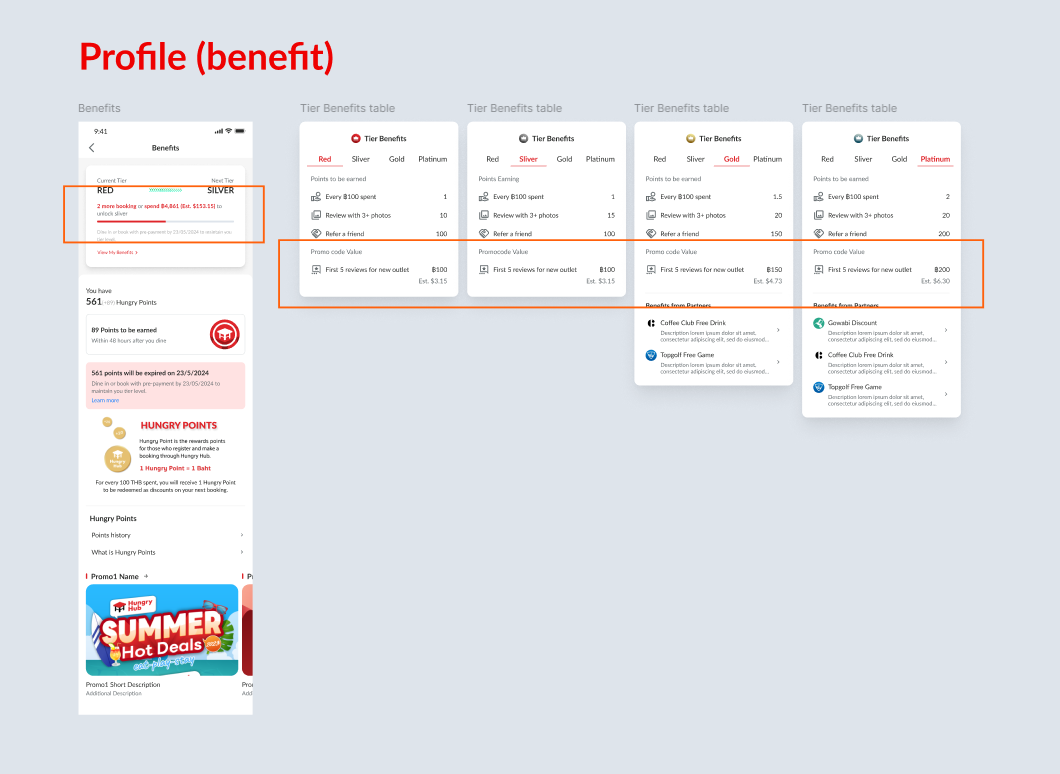
Benefit page:
- Show base currency/restaurant's local currency and add target currency as estimation (Est.)
- Note : if this part takes more efforts, just keep the base currency. because it's rare for tourist. since we will have phase 2 that implement the real currency to pay.
- No need to change for the others (points comparison or image) → use base currency like existing
Transactional Page
- Revert to base currency/restaurant's local currency (THB/SGD) → No converted currency shown in any transactional context. Scope below :
- Payment Page
- Booking Confirmation
- Edit/modify Booking client side
Buffer
- The system should provide a configurable Buffer setting that defines a percentage-based tolerance applied to the exchange rate. This buffer can accommodate market fluctuations or risk management.
Adjusted Exchange Rate = Base Exchange Rate × (1 + Buffer%)Adjusted Price = (Base Exchange Rate × (1 + Buffer%)) × PriceAdjusted Price = Adjusted Exchange Rate × Price
- Example:
- Base exchange rate = 1 THB = 0.031 USD
- Buffer = 2% = 0.02
- Price (THB) = 12,000 THB
- Adjusted Exchange Rate = 0.03162USD per THB
- Price Without Buffer = 372USD
- Price With Buffer (Adjusted Price) = 379.44USD
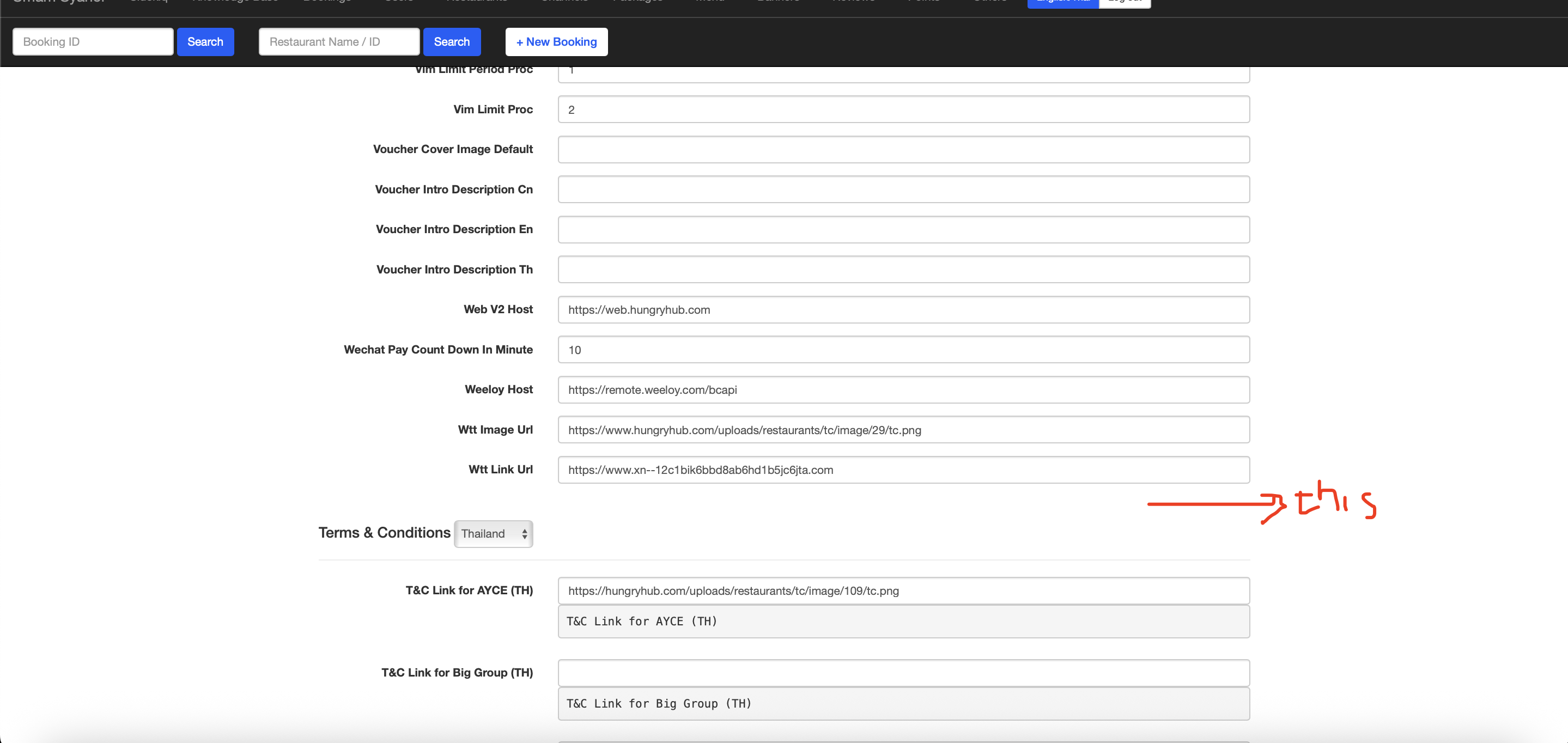
- Put the Exchange Rate Buffer in currency field in setting in admin dashboard (global level)
- Add separate section
- Section title :
Exchange Rate Buffer - Field label :
{currency} buffer (%)→ Example :THB buffer (%)- Provide this field in each currency (All currencies → base & target currency) → provide for MYR as well, related to this Malaysia Expansion (Draft) (https://doc.clickup.com/d/h/8ca1fpw-55296/f50d01f7b1a6685)
- Section title :
- Add separate section
UX Considerations:
- Respect locale conventions (e.g., comma vs. dot separators)
- Use international currency formatting standards
Success Metrics / KPIs
- Click-through on restaurant cards
- Conversion rate for other currencies
- Exchange rate fetch success rate (technical consideration)
Risks & Assumptions
- 🟡 Risk: Misunderstanding of estimated pricing leads to booking abandonment.
- Mitigation: Clear instruction, limit use to non-transactional areas.
- 🟡 Assumption: Exchange rate API is reliable and has high uptime.
- 🔴 Risk: Double conversion in filters could lead to price mismatch or incorrect results.
- Mitigation: Round conversions smartly, show exact logic in QA and test thoroughly.
Out of Scope (for Phase 1)
- Actual multi-currency payment
- Admin Dashboard changes