1024 - Checkout Page
🧾 History
| Date | Changes | Link | By |
|---|---|---|---|
| 4th June 2024 | List of Changes Adjust font size Adjust spacing Remove +xx Points from this booking Adjust Special menu alert Adjust Pay now alert & toggle Move Terms & Cons to under Confirm button Remove Total Price above Confirm button Make button sticky with the bottom (Mobile only) change header from Checkout to Restaurant name Move Join/Sign in button for guest to confirm booking page instead (Sign in to earn their points) Adjust info input fields size for guest Remove error text for input fields or others can compare on the figma... | This PRD | Umam |
📕 About
| Context | Checkout page is the section where customers finalize their purchases. On this page, customers typically review their selected items, choose a payment method, and confirm their order. |
|---|---|
| Problem | Too much information Need to scroll more |
| Solution | Adjust the layout Reduce space for less scrolling |
| Name of Feature | Checkout Page |
| Objective | Adjust font size Adjust spacing Remove +xx Points from this booking Adjust Special menu alert Adjust Pay now alert & toggle Move Terms & Cons to under Confirm button Remove Total Price above Confirm button Make button sticky with the bottom (Mobile only) change header from Checkout to Restaurant name Move Join/Sign in button for guest to confirm booking page instead (Sign in to earn their points) Adjust info input fields size for guest Remove error text for input fields or others can compare on the figma... |
| Gains | User can confirm and checkout faster Simple information and context can be understandable |
| Pains | Some informations can't be displayed because of lack space |
| Figma Link | https://www.figma.com/design/suDZ8JohloPf0kpLZ9AuL7/Checkout-Page?node-id=4037-1378&t=3HnzqcoVn2KbA4Pz-1 |
| Available Platform | Web and App |
| Sprint | TBD |
| Related PRD | - |
| Out of Scope | - |
🎯 User Story & Requirement
Header for Old Store Page
| User Story | Requirement |
|---|---|
| Header flow New design 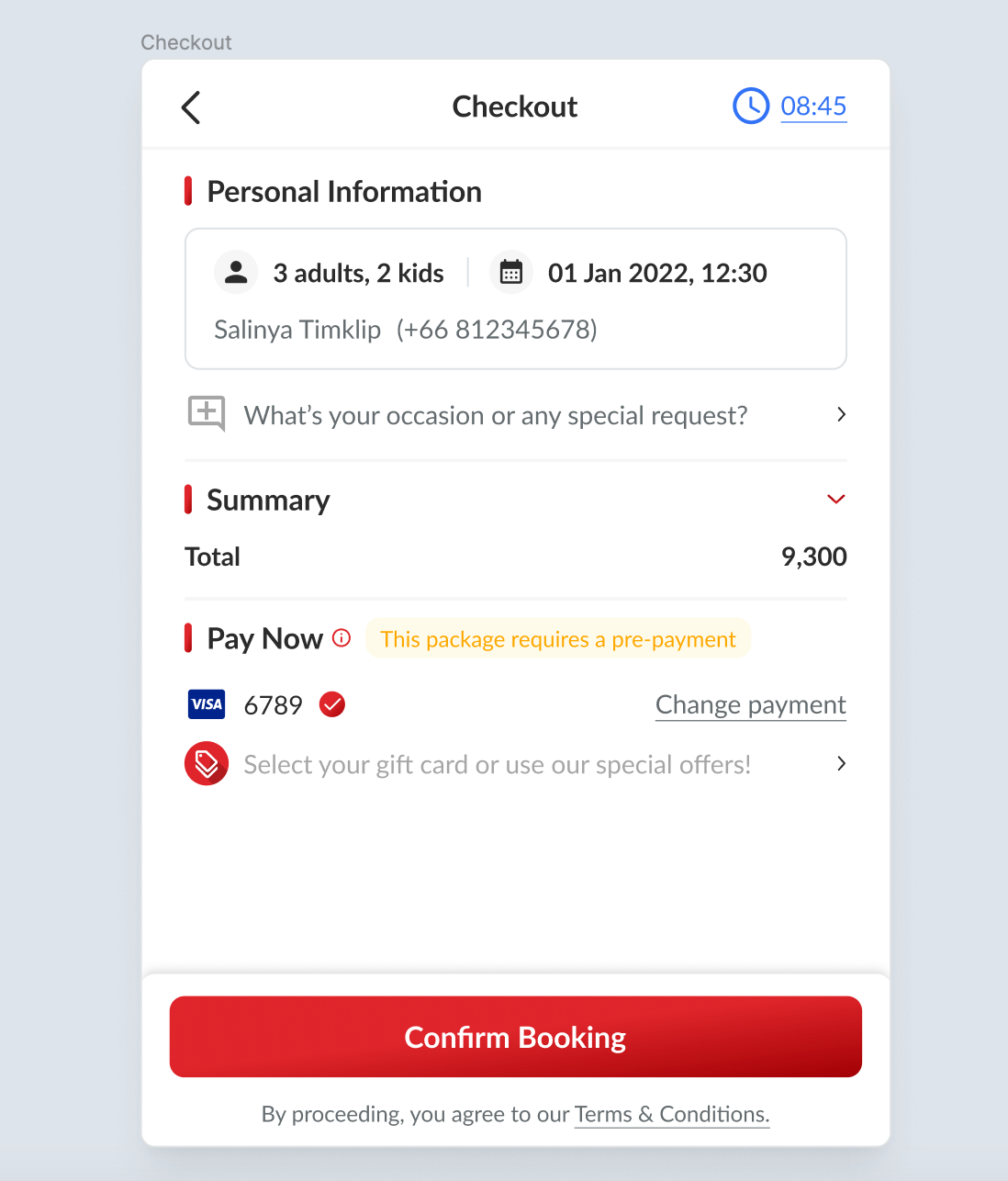 Old design : 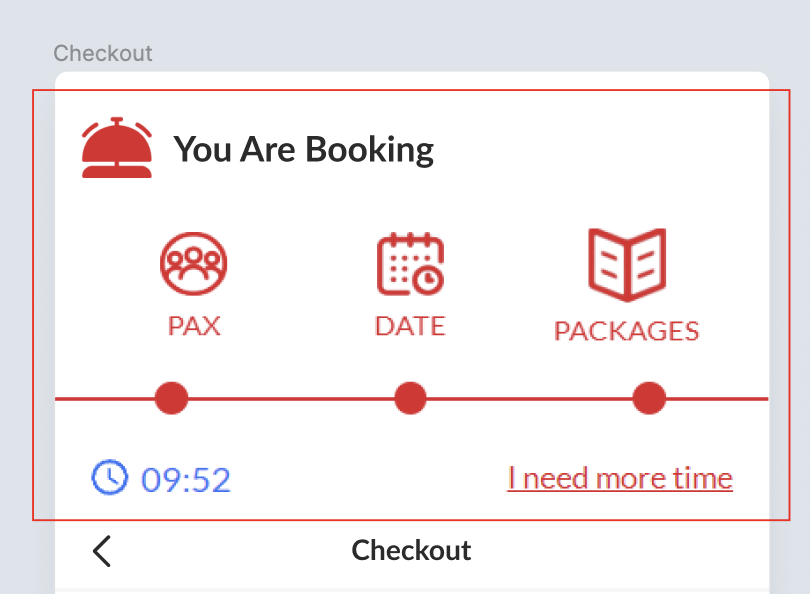 | In the old design, we have header flow to choose PAX, Date, or packages. In the new design, Once user is in the checkout page, remove the header flow |
Header for Old Store Page, New Store Page and Mobile
| User Story | Requirement |
|---|---|
Old Store Page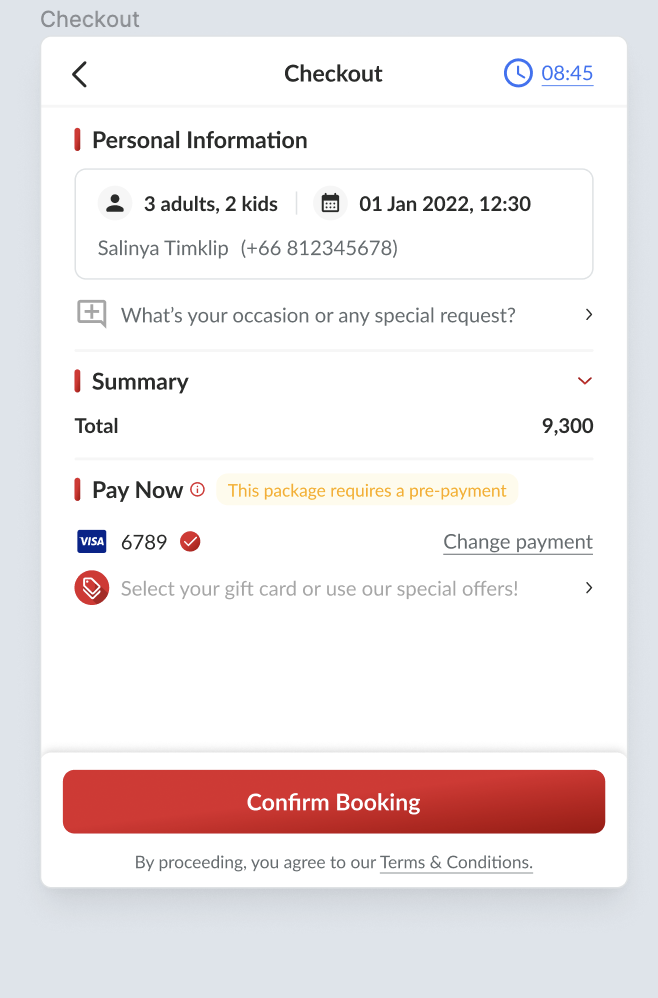 | Here is the element to be displayedBack buttonCheckout textPlace it into center Timer |
New Store Page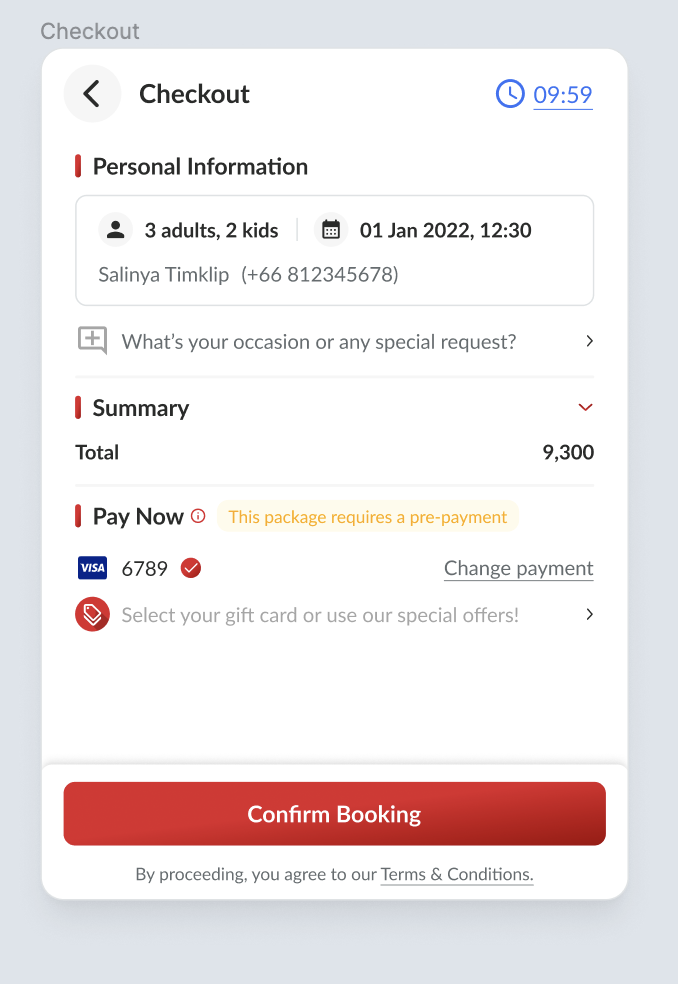 | Here is the element to be displayedBack buttonCheckout textPlace it at the right side of back buttonTimer |
Mobile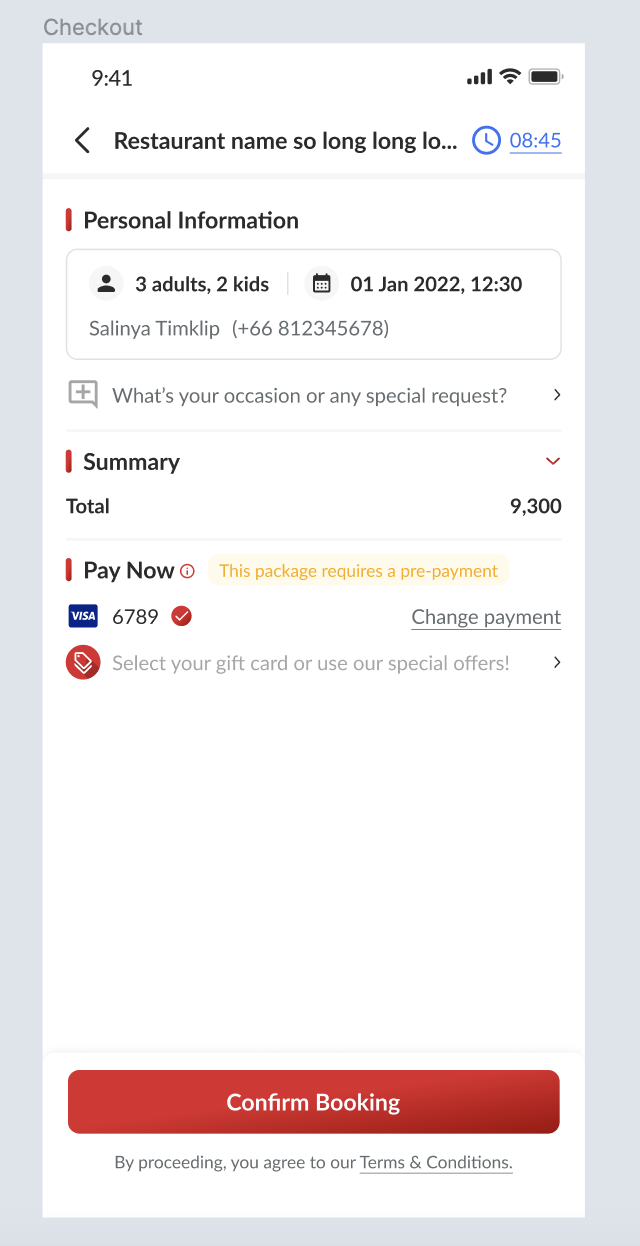 | Here is the element to be displayedBack buttonRestaurant Name Place it at the right side of back buttonTruncated text Timer |
Personal Information Section
| User Story | Requirement |
|---|---|
Guest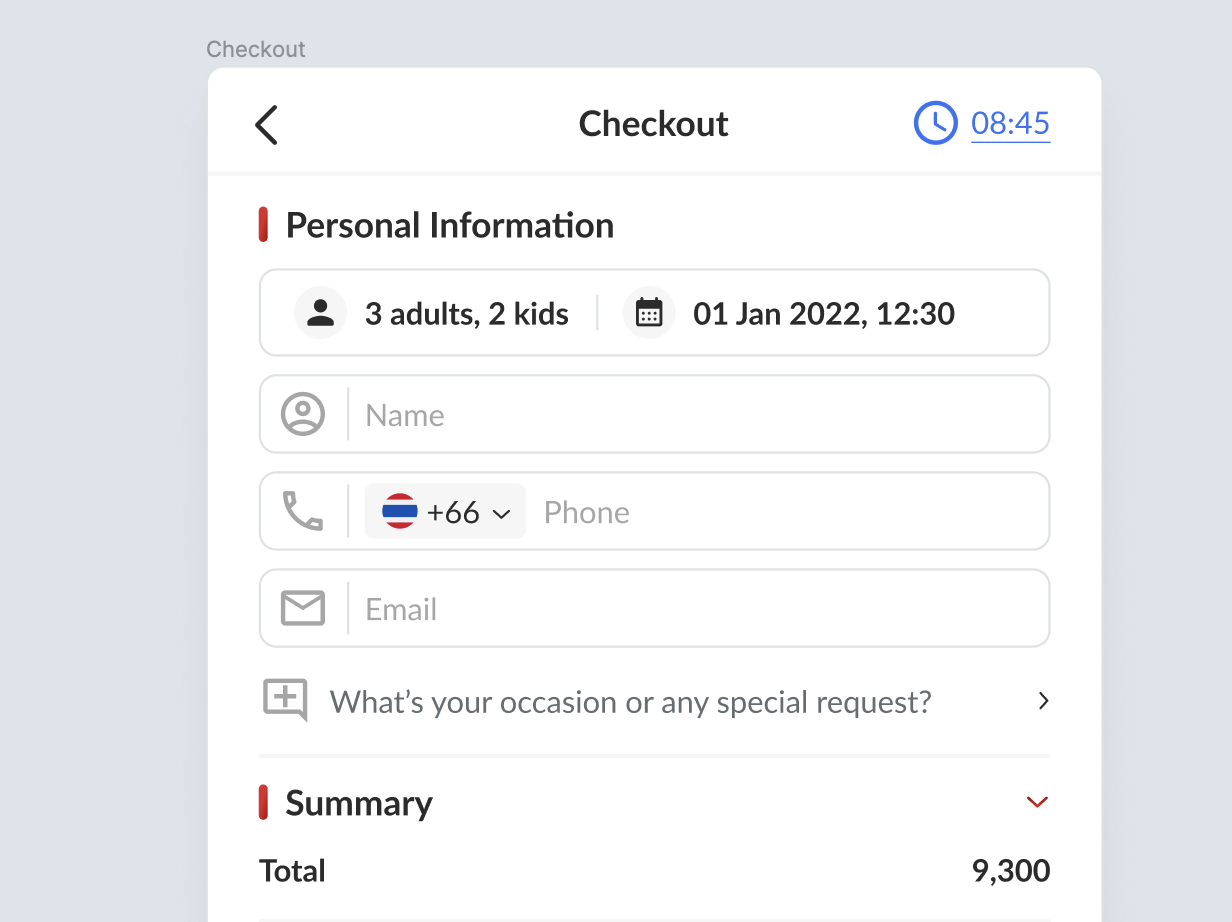 | Need to fill out some forms Name Phone Number Remove error text for input forms |
Registered User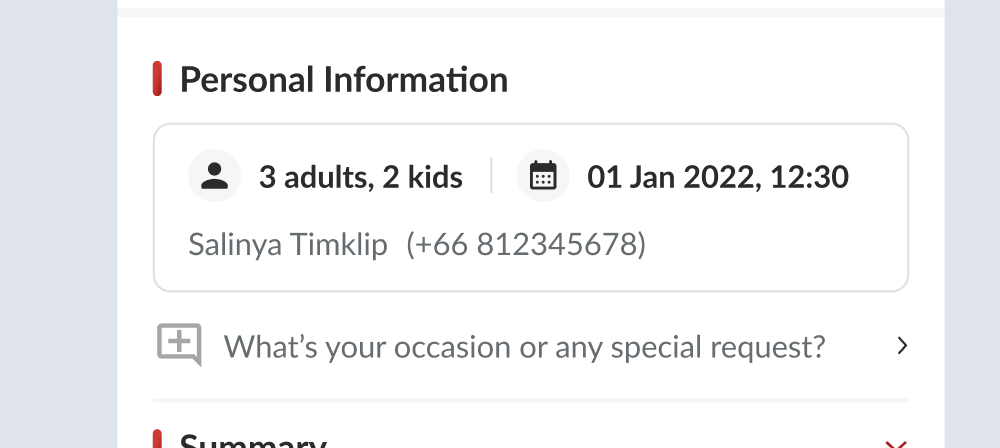 | No need to fill out form |
Sticky Button in the checkout page
| User Story | Requirement |
|---|---|
Total Price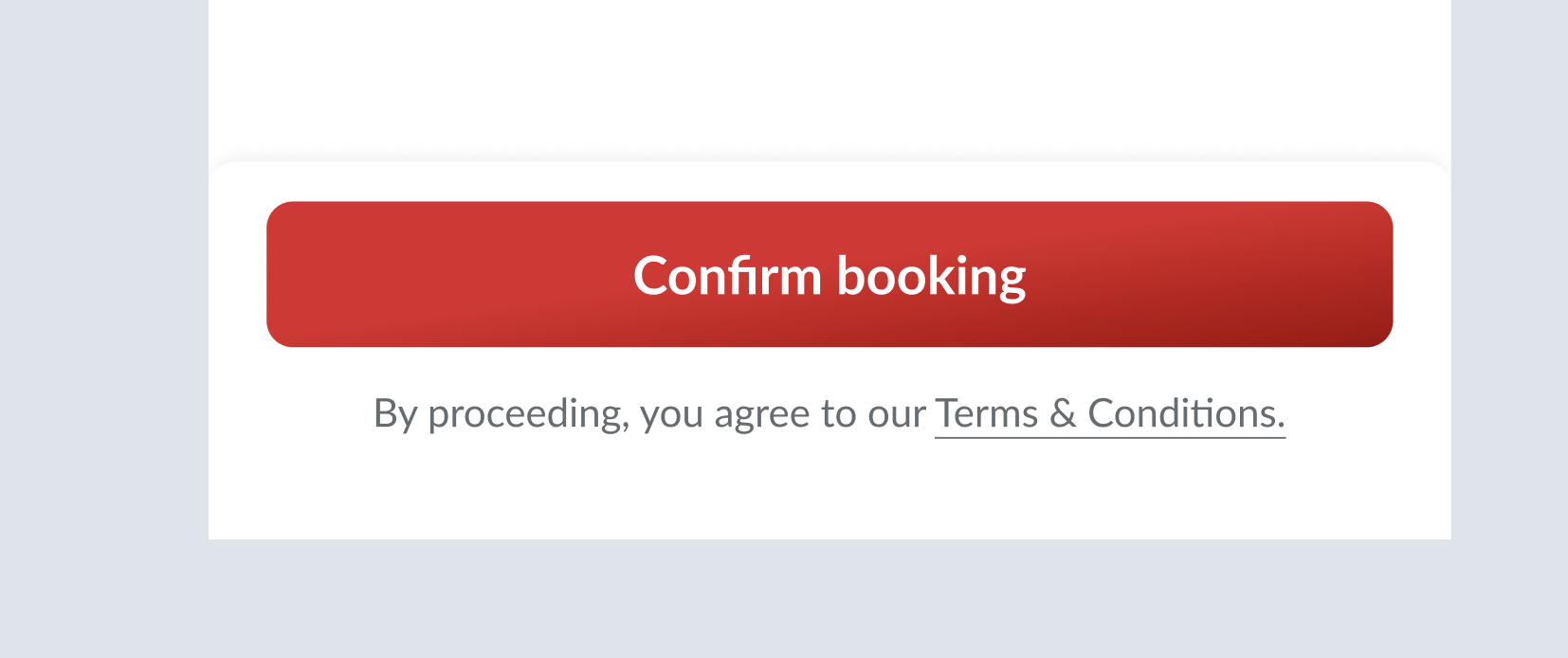 | Remove the total price from sticky button It will be redundant if we keep the total price at the sticky button |
Terms and Condition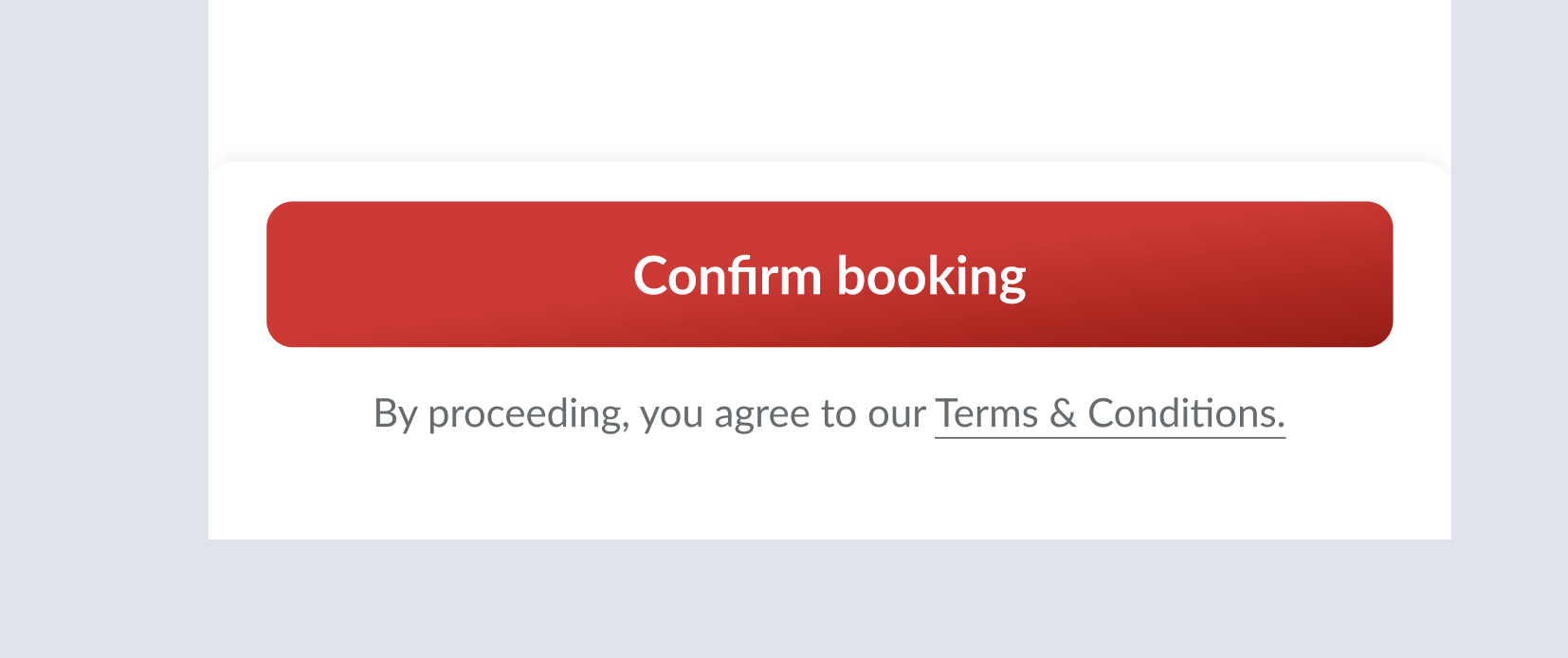 | Move it under the button Here is the element to be displayed By proceeding, you agree to our Terms & Conditions. textTerms & Conditions text need to be underlined (indicates link) |
Pay Now
| User Story | Requirement |
|---|---|
| Option to Pay Now Turn On : 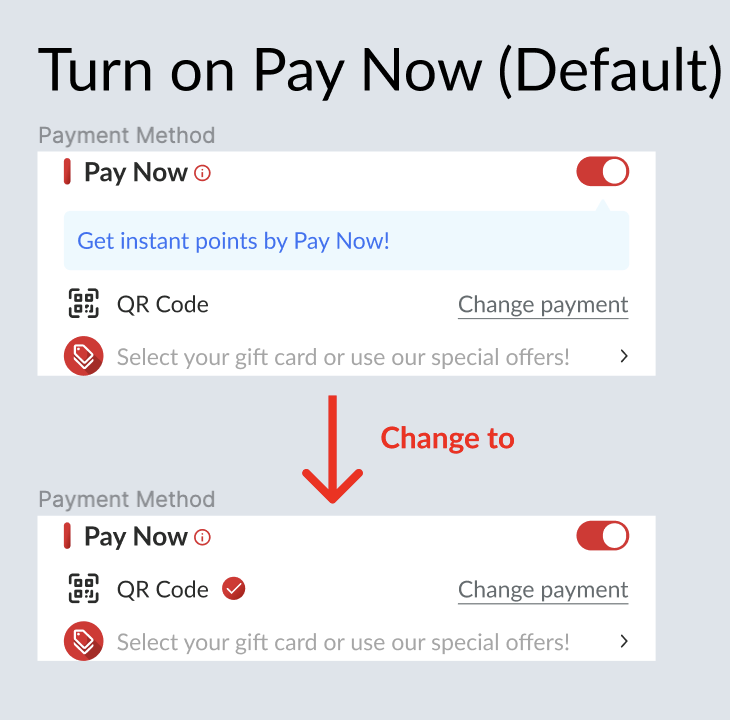 Turn off 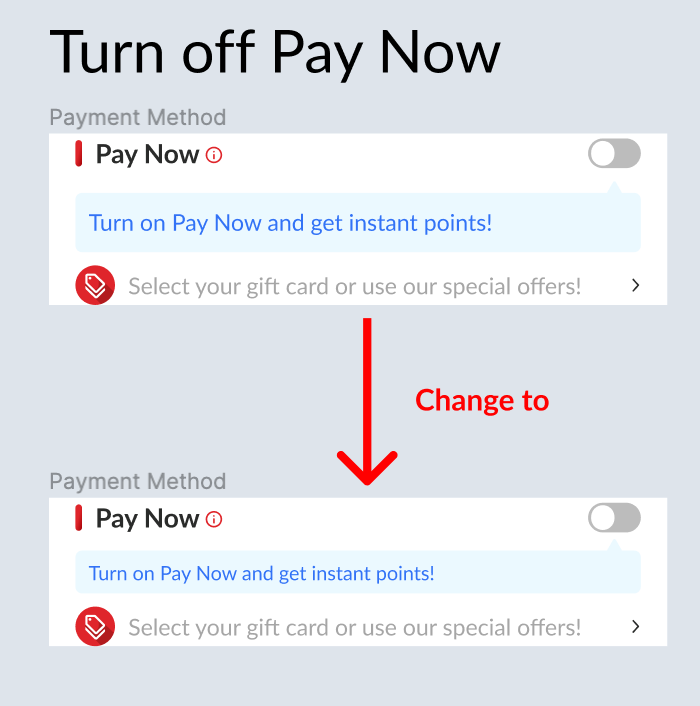 | The toggle button is switched to On by defaultDon't display any alert when the toggle button is onIf the toggle button is Off , Display Turn on Pay Now and gets instant points! under the Pay Now titleTurn on Pay Now and gets instant points! block with blue color |
Require pre-payment (Pay Now)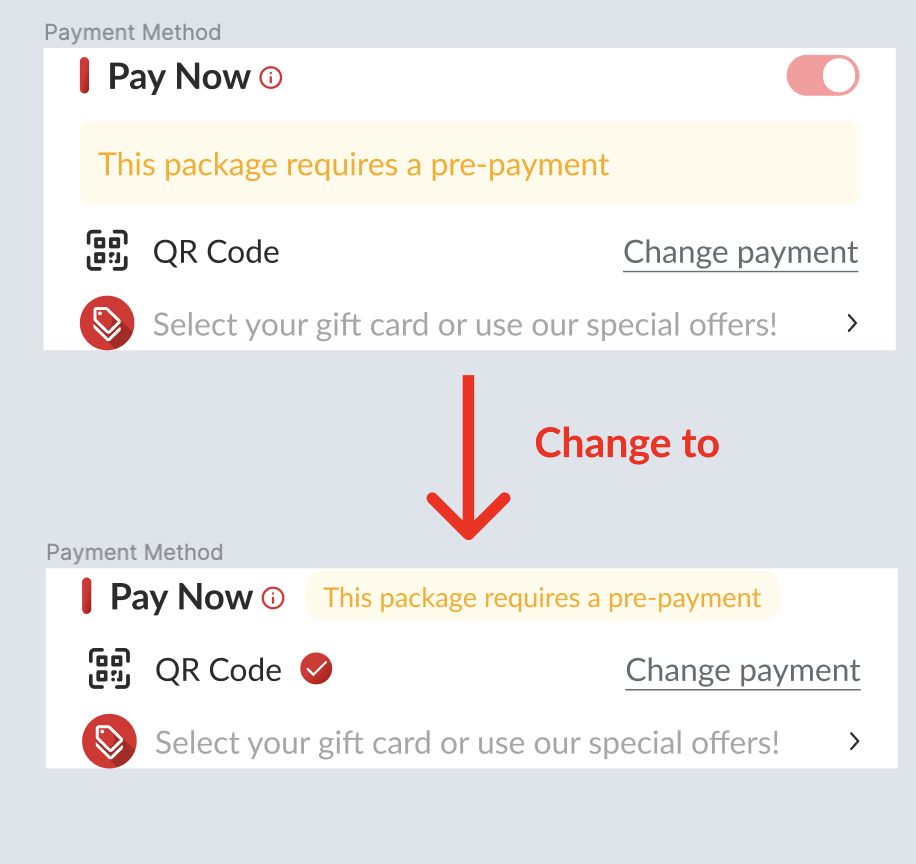 | Pay Now is activated permanentlyRemove the toggle button This package requires a pre-payment alert block with yellow colorPlace the alert at the right side of the title Reduce the alert block margin and font size |
Require deposit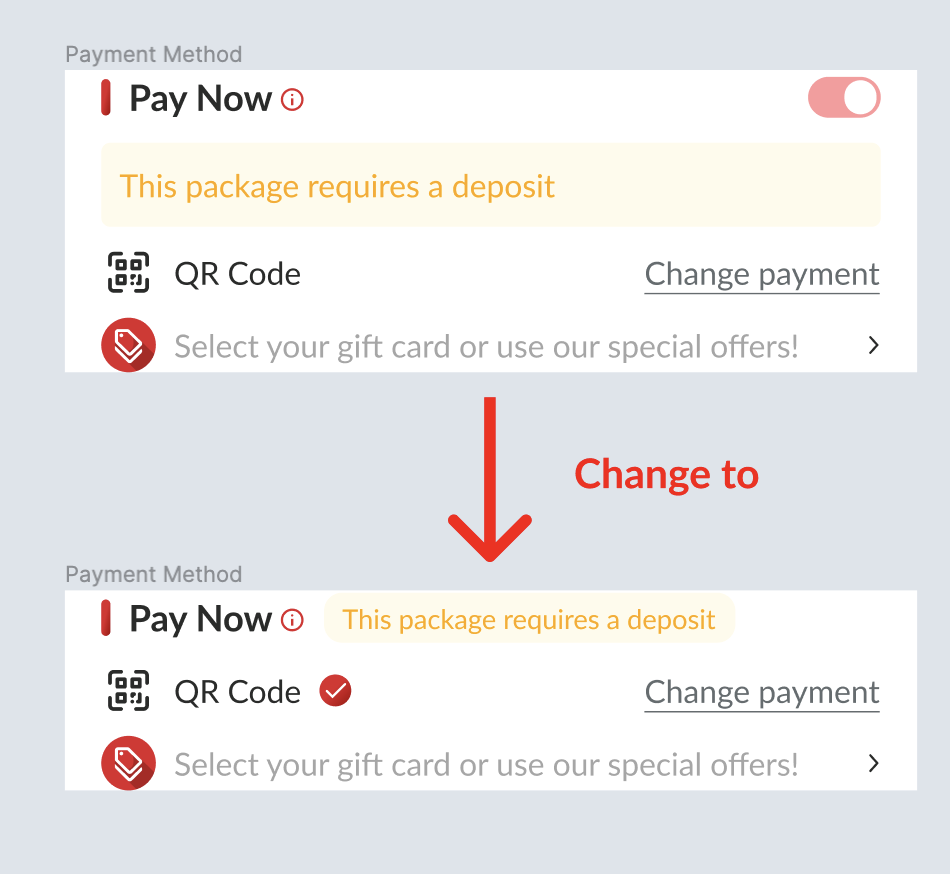 | Pay Now is activated permanentlyRemove the toggle button This package requires a deposit alert block with yellow colorPlace the alert at the right side of the title Reduce the alert block margin and font size |
Pay on site 100%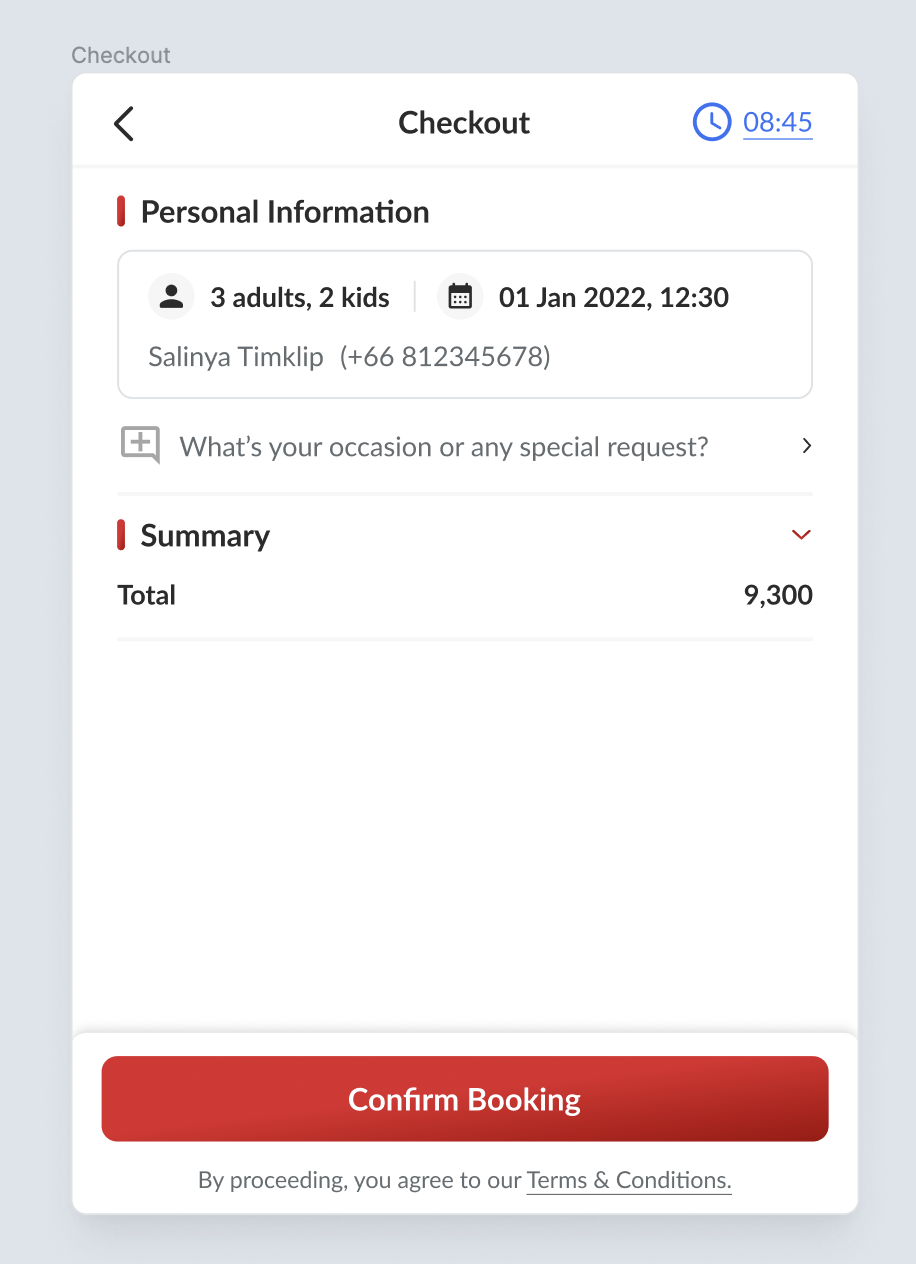 | Remove Pay Now, Payment and Offers section |
After selected the offers/gift cards that requires pre-payment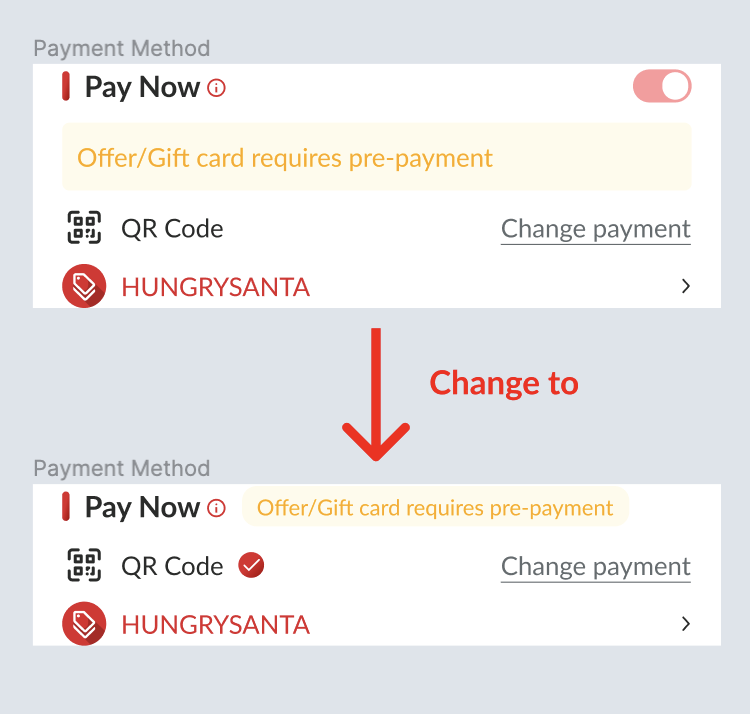 | Pay Now is activated permanentlyRemove the toggle button Offer/Gift card requires pre-payment alert block with yellow colorPlace the alert at the right side of the title Reduce the alert block margin and font size |
Special Menu
| User Story | Requirement |
|---|---|
The package has special menu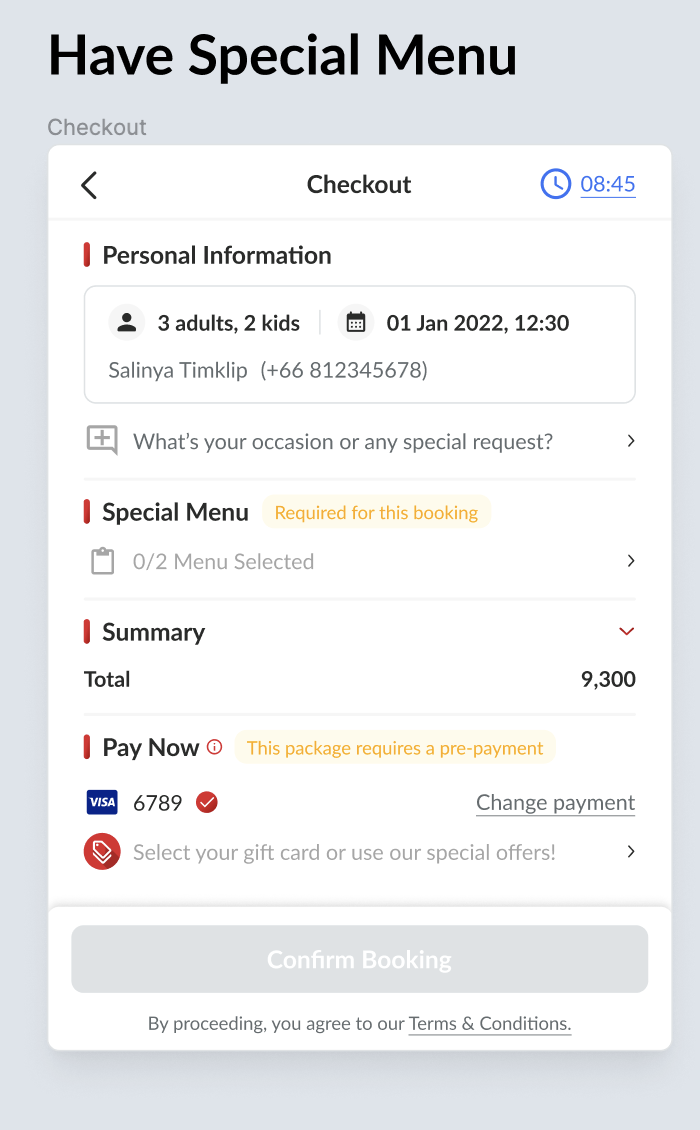 | Special Menu section is placed under the Personal Information sectionThere is Required for this booking alert with yellow block at the right side of the section titleReduce the alert block margin and font size |
The package doesn't have special menu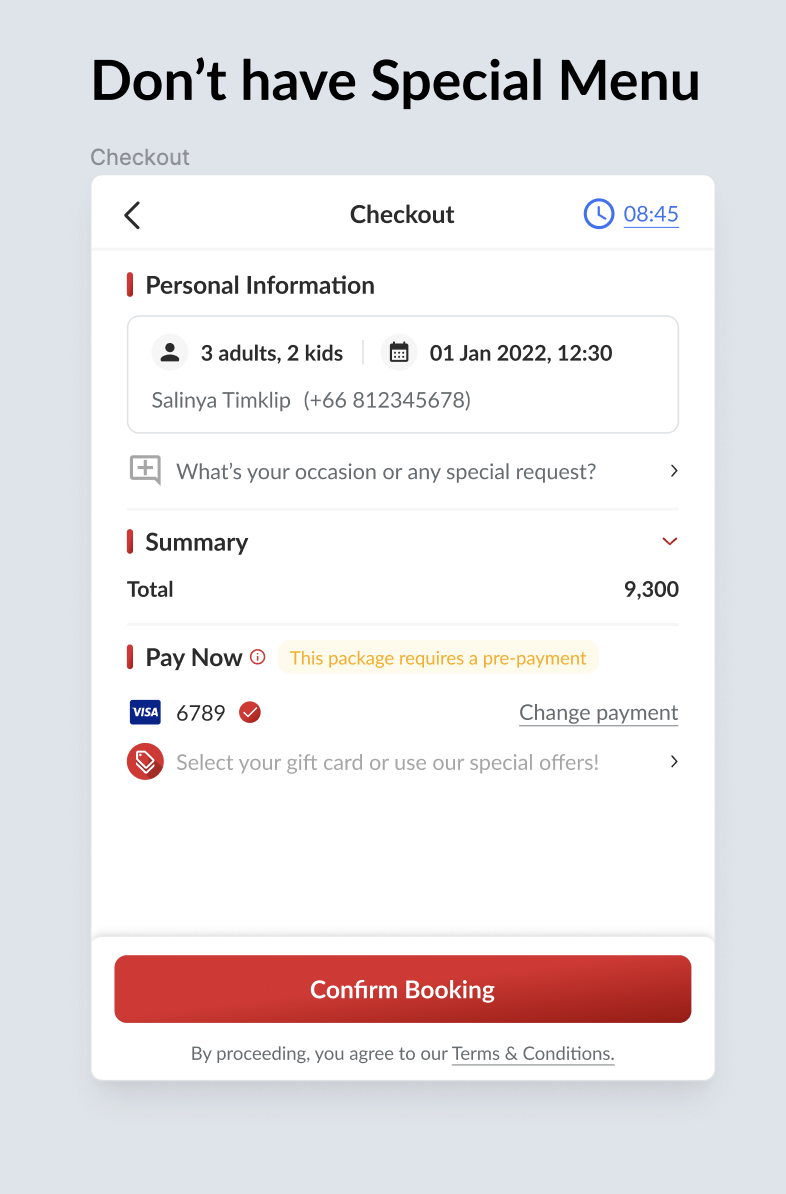 | Remove the Special Menu section |
Remove +xx Points from this booking on the checkout page
| User Story | Requirement |
|---|---|
Remove +xx Points from this booking on the checkout pageNew Design 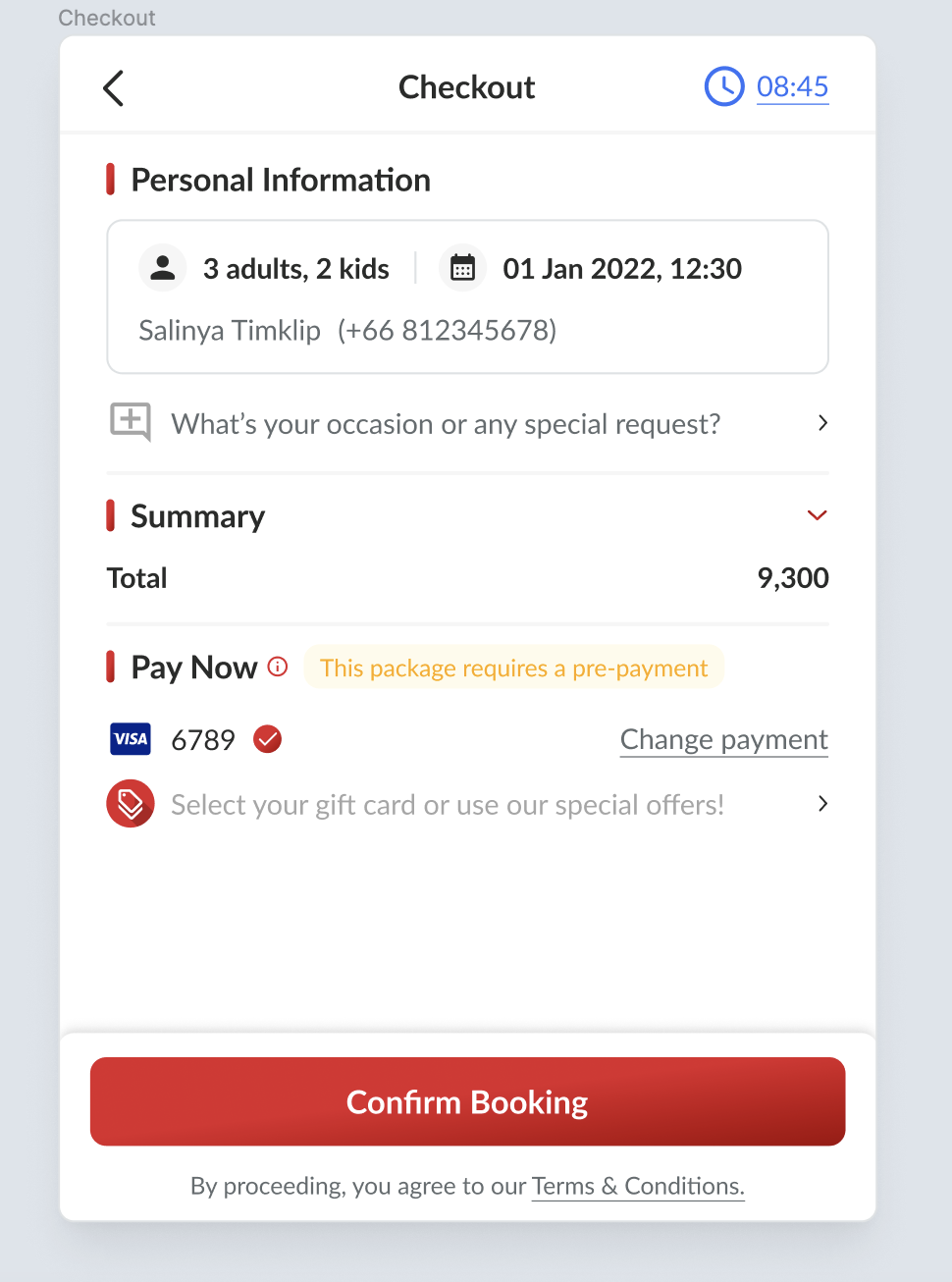 Old Design 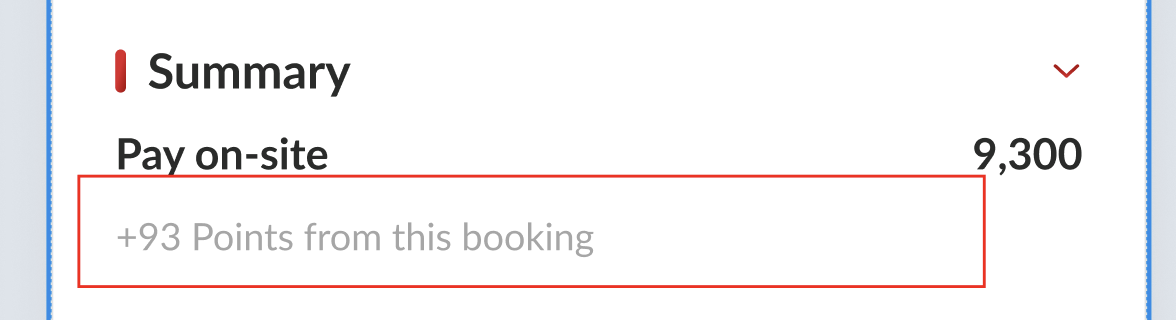 | In the new design, we want to remove it to reduce the space |
Payment Section
| User Story | Requirement |
|---|---|
Registered user with the saved card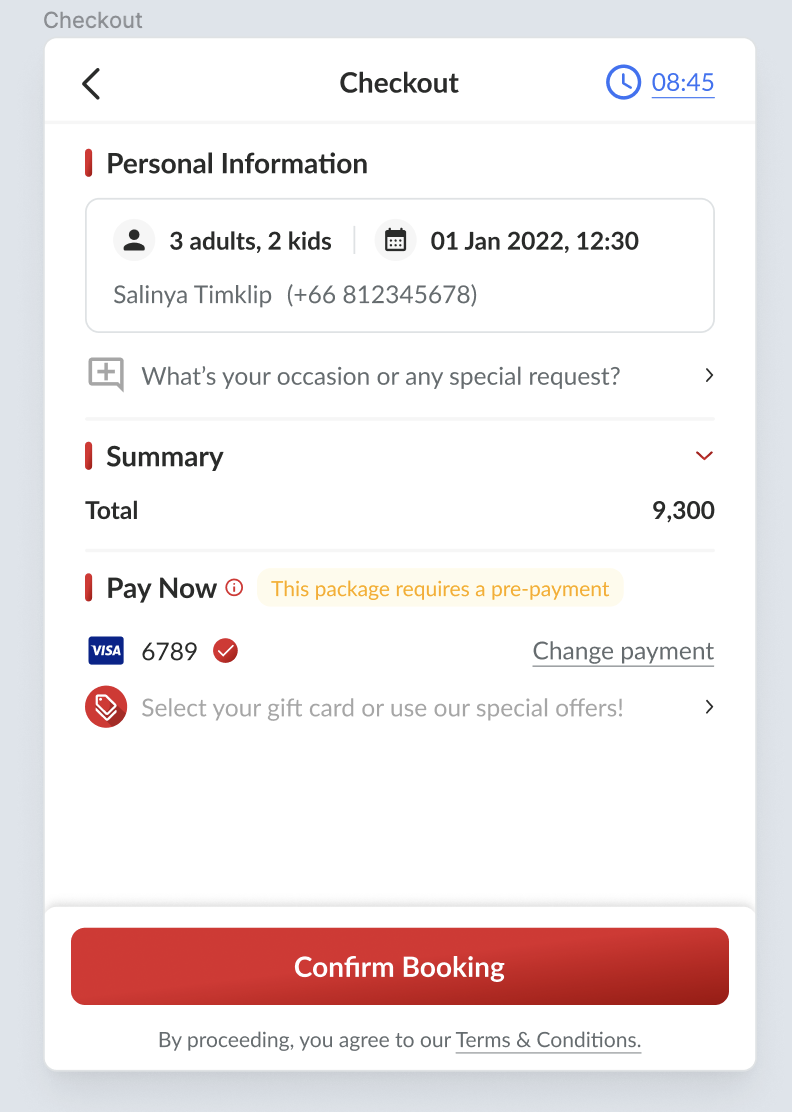 | Display the payment method in 1 line Provide Change Payment at the right sideShow the credit card information (Saved Credit Card) Icon of credit card Last 4 numbers of credit card |
Guest / Registered user but doesn't have saved card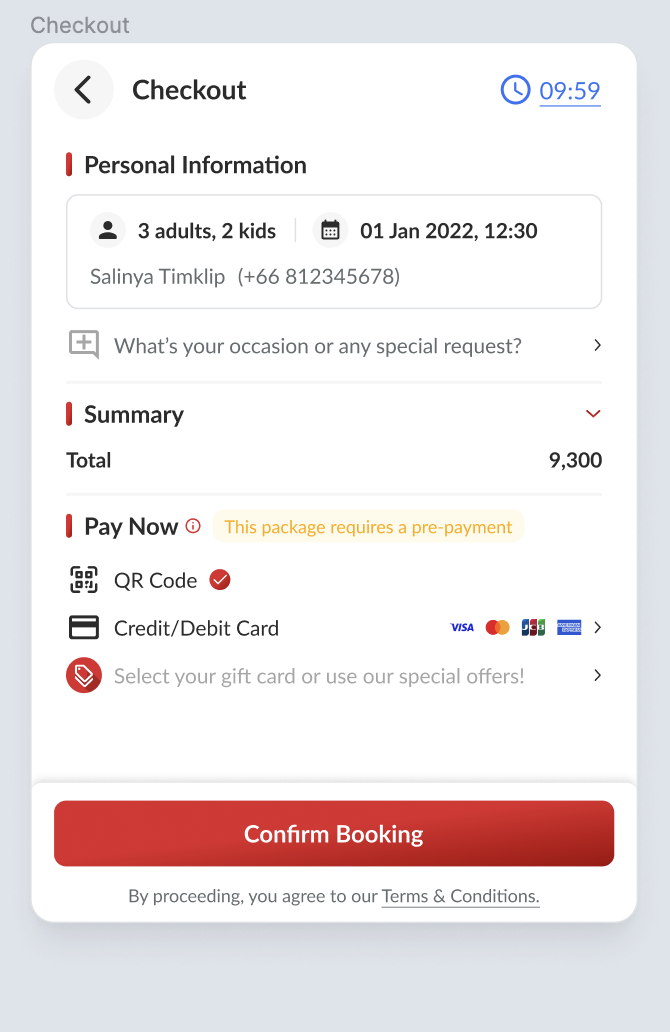 | Display the payment method in 2 linesQR CodeBy default, The selected payment method is QR code Credit/Debit CardCredit/debit card icons are appeared at the right side |
Payment Method Page
| User Story | Requirement |
|---|---|
Header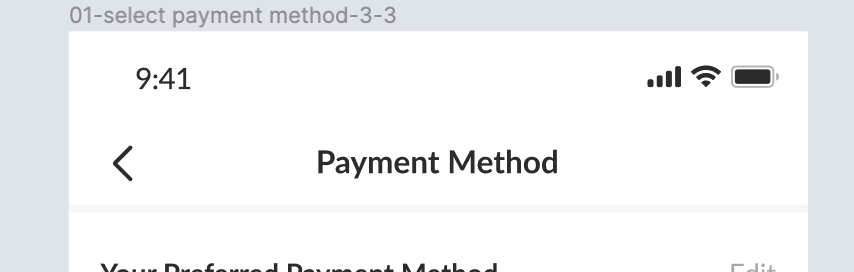 | Here is the element to be displayed Back button Credit/Debit Card text |
Add credit/debit card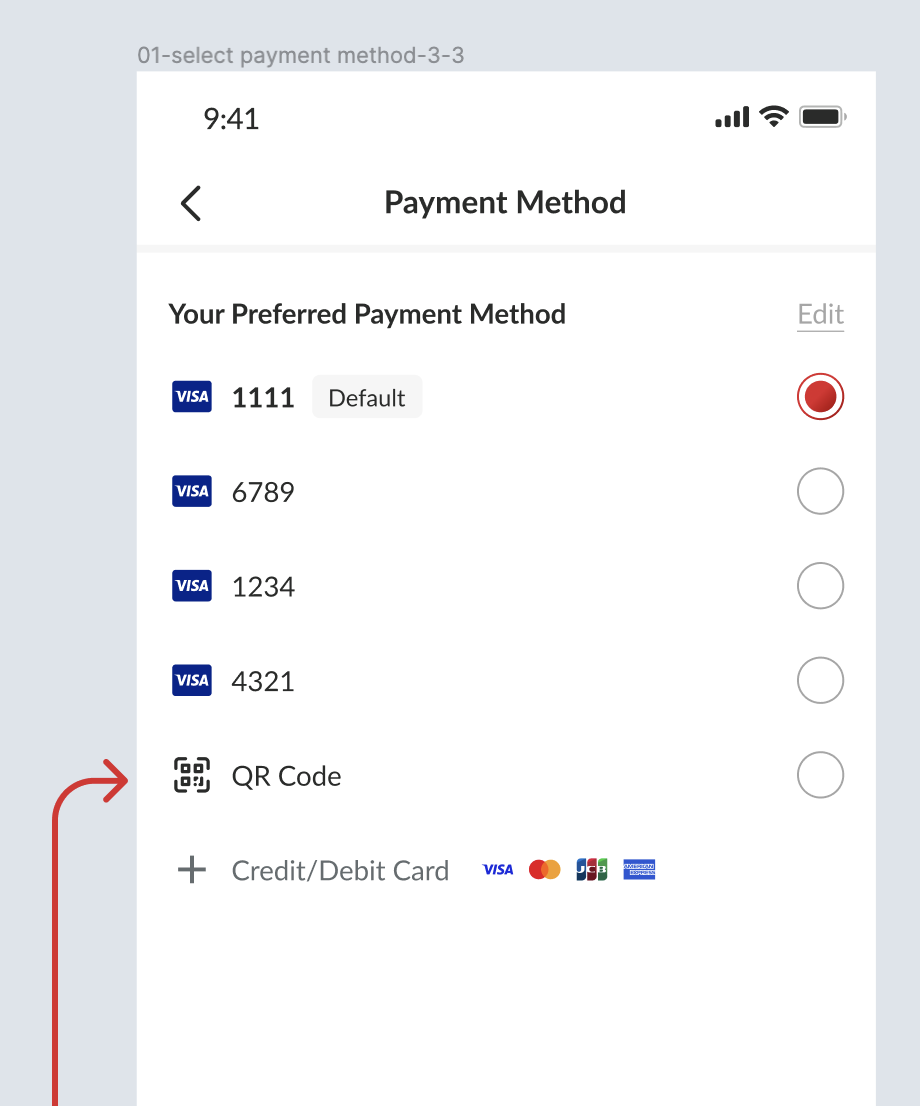 | Here is the element to be displayed+ IconCredit/Debit Card textCredit/Debit Card icon |
Credit/Debit Card Page
| User Story | Requirement |
|---|---|
Header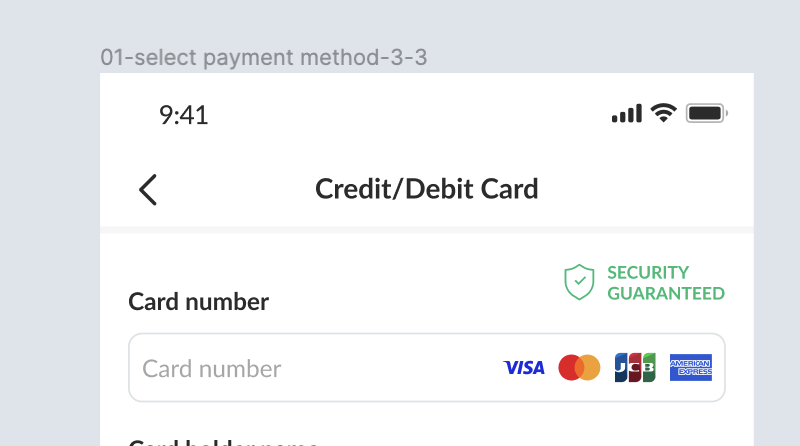 | Here is the element to be displayed Back button Credit/Debit Card text |
Security Guaranteed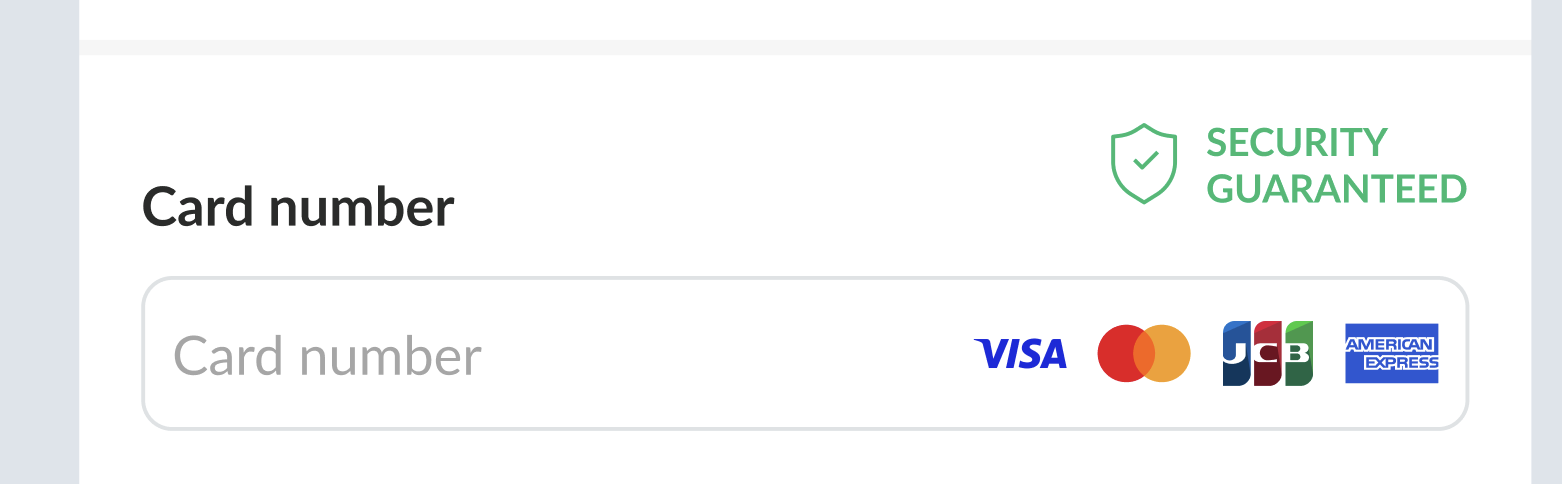 | Here is the element to be displayedSecurity Guaranteed iconSecurity Guaranteed text |
Save this card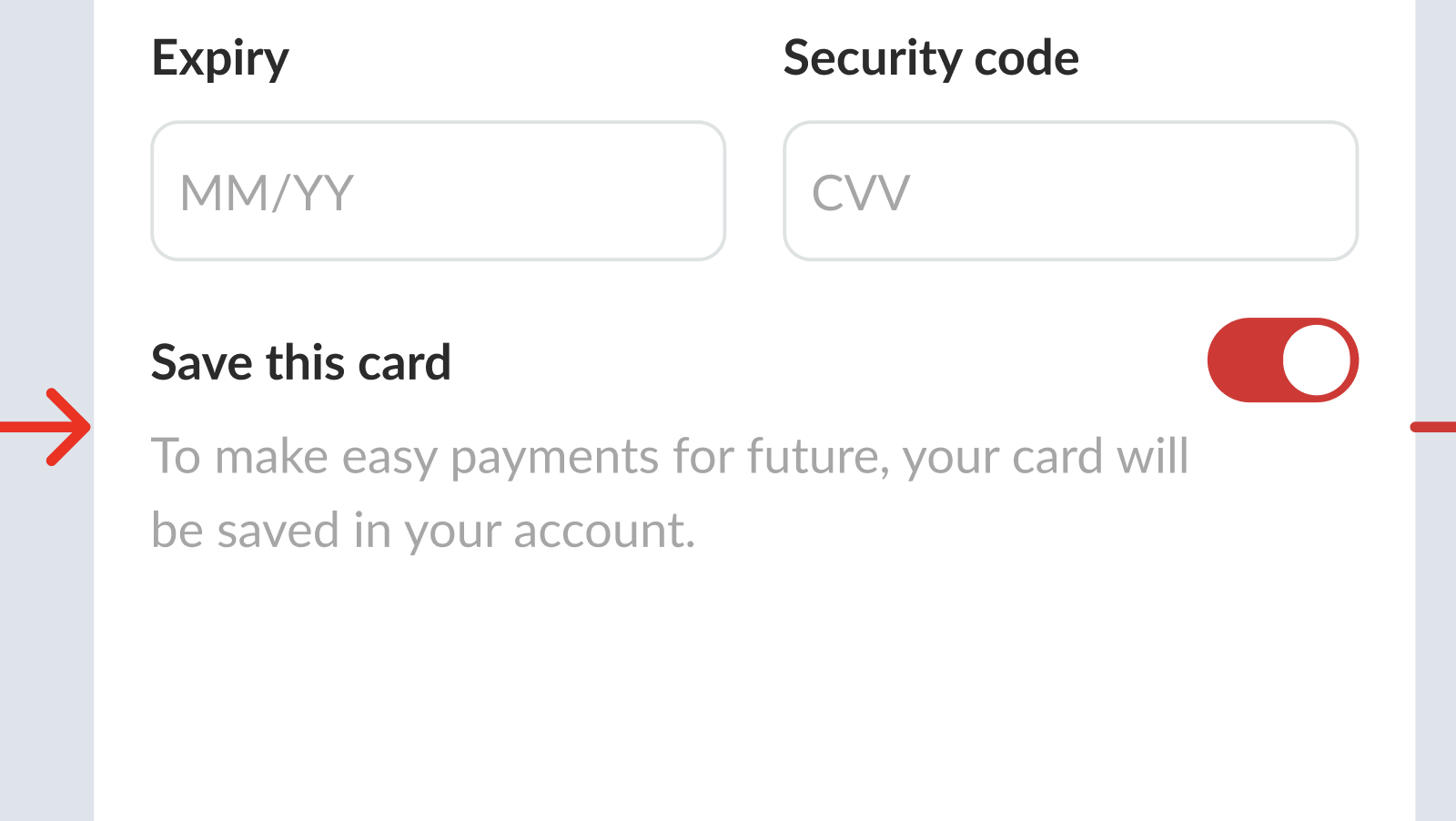 | Here is the element to be displayedSave this card as titleTo make easy payments for future, your card will be saved in your account. as decriptionToggle button |
Card number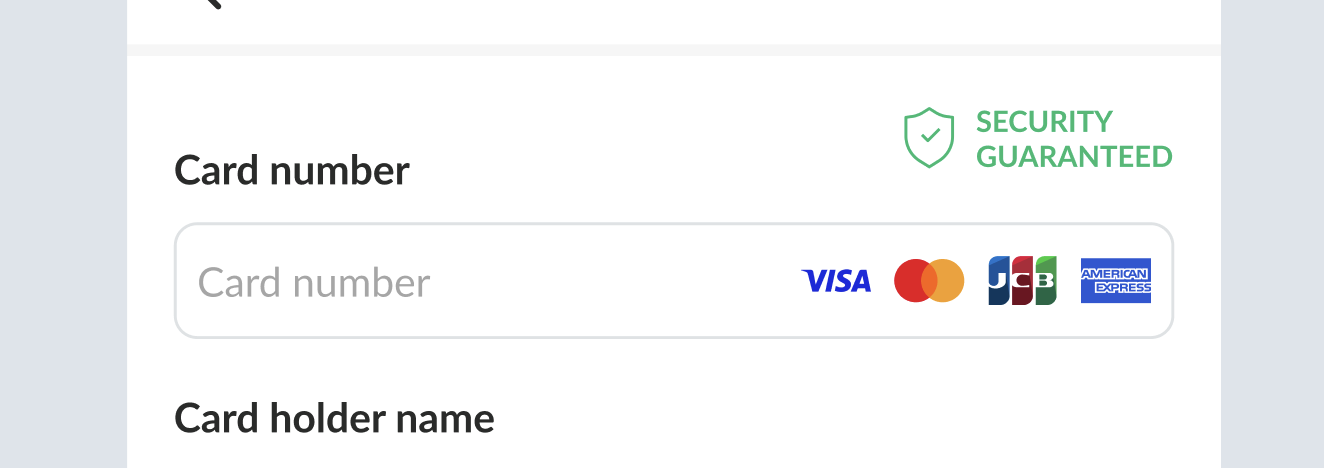 | in the form, provide available credit/debit card Once the form is filled out, display only the valid credit/debit card 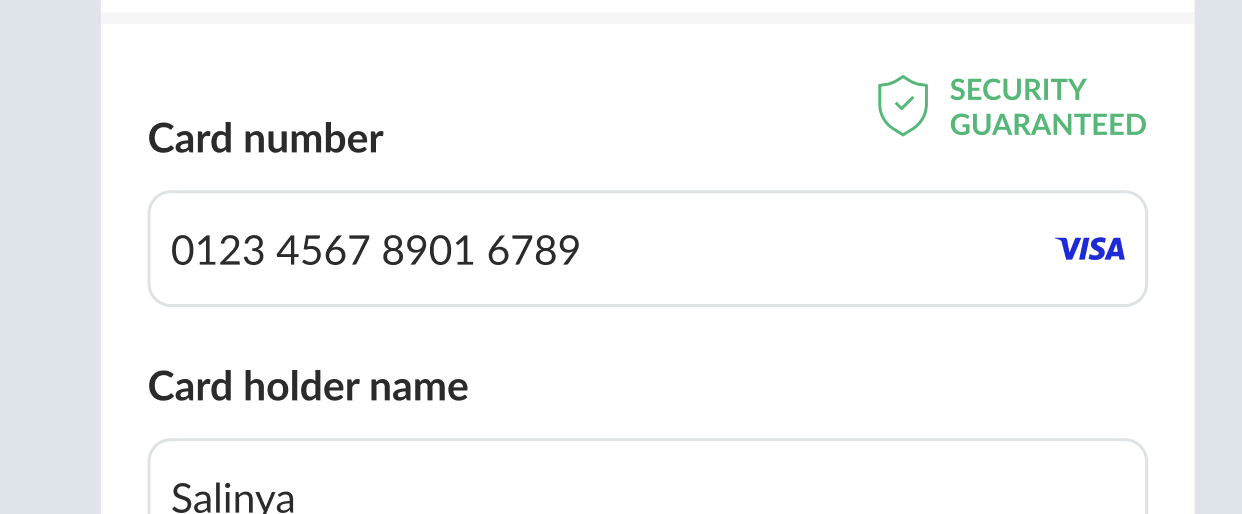 |
Add Credit / Debit card process
| User Story | Requirement |
|---|---|
| Registered user with the saved card can add more credit / debit card | Here is the flow Click Change paymentIn the Payment Method page, Click Credit/Debit Card buttonIn the Credit/Debit Card page, fill out all of the forms. user can choose to save the card or not.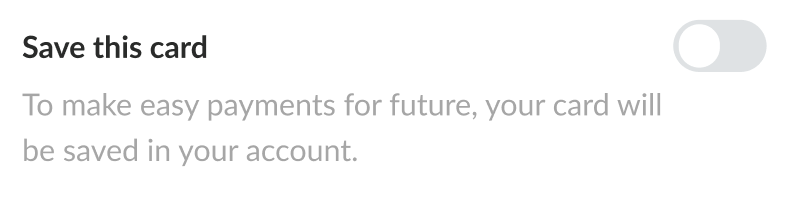 Switch on to save the card and set it as defaultSwitch off to use the card without saving it (1 time use)Click Apply and use this card button.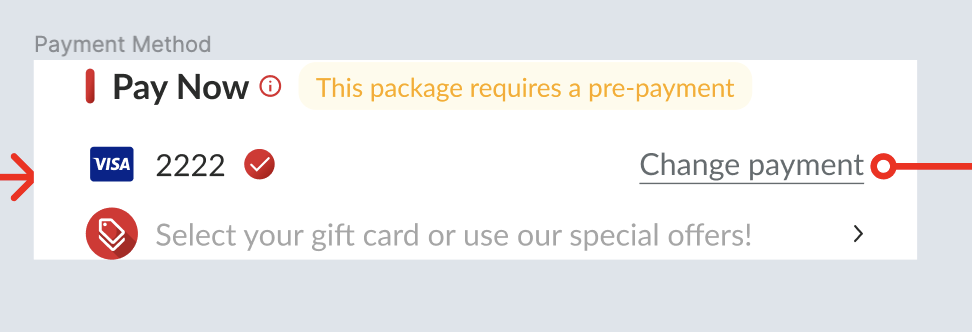 |
| Registered user who has no saved card, can add more credit / debit card | Here is the flow Click Credit/Debit cardIn the Credit/Debit Card page, fill out all of the forms. user can choose to save the card or not.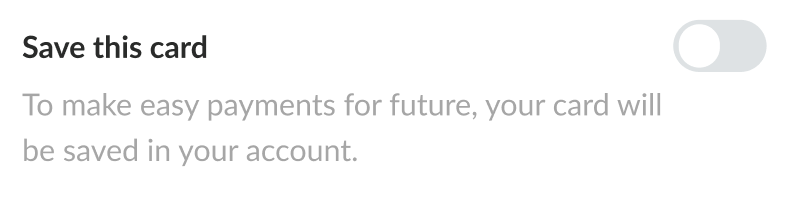 Switch on to save the card and set it as defaultSwitch off to use the card without saving it (1 time use)Click Apply and use this card button.On checkout page, there are some cases for displaying payment section based on user's choice previously Switch onDisplay the default credit card and make it into 1 line 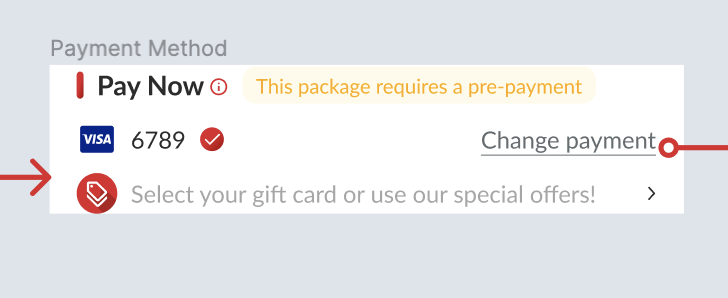 Switch offDisplay the QR code and applied credit card, make it into 2 lines If user clicks the applied credit card, it will redirect to Card detailsCan't set applied credit card as default 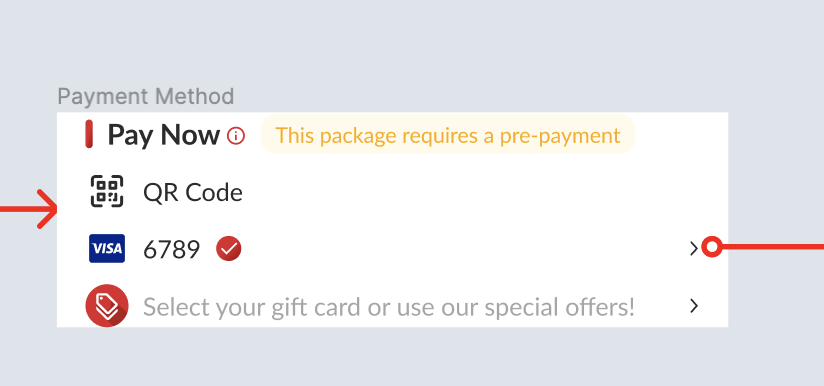 |
| Guest | Here is the flow Click Credit/Debit cardIn the Credit/Debit Card page, fill out all of the forms. user can't save the card (1 time use)Click Use this card button.On the checkout page (payment section), display the QR code and applied credit card, make it into 2 lines If user clicks the applied credit card, it will redirect to Card detailsCan't set applied credit card as default 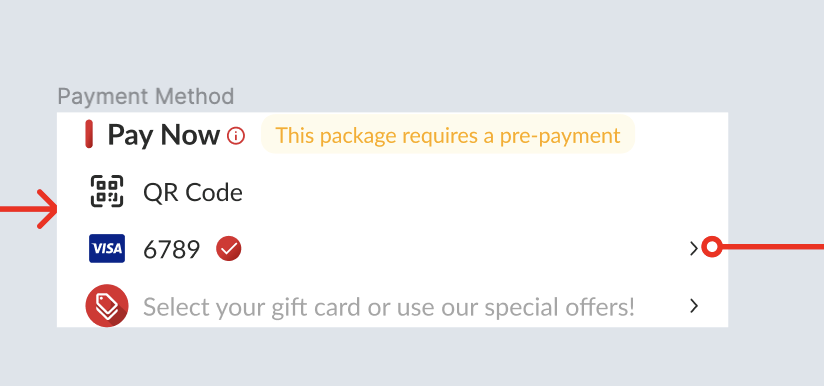 |
Expired Credit / Debit Card
| User Story | Requirement |
|---|---|
| Saved credit / debit card was expired | Make the number of credit card disable (grey color) Place Card Expired label beside the card numberPlace Card Expired label inside the card details on the card details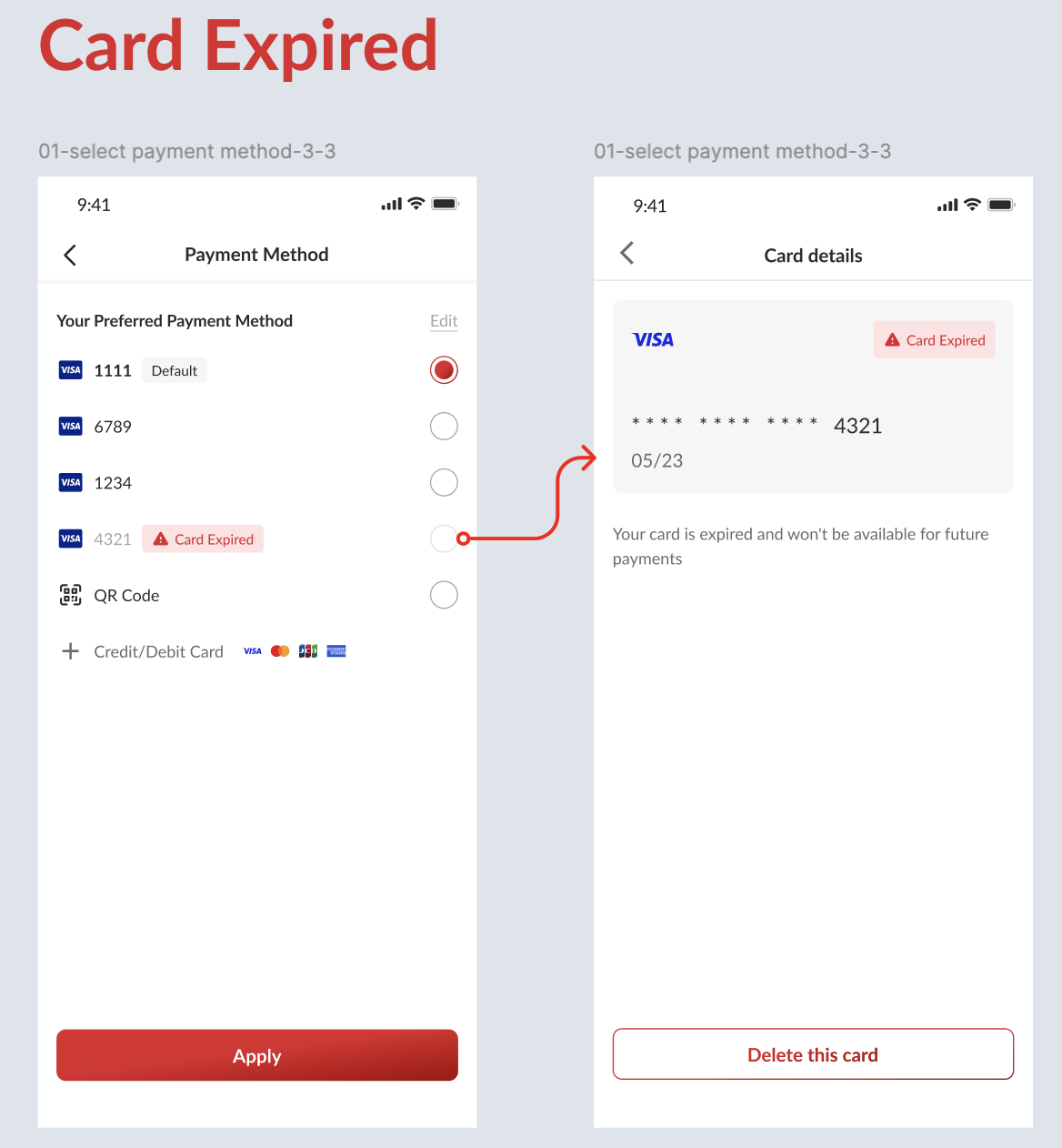 |
Select Special Menu
| User Story | Requirement |
|---|---|
| I want to select special menu based on my selected package | Provide separate page for special menu after click the special menu Every special menu can be chosen based on the maximum quantity provided (by increasing/decreasing the quantity) Once the special menu has chosen, the button will be active 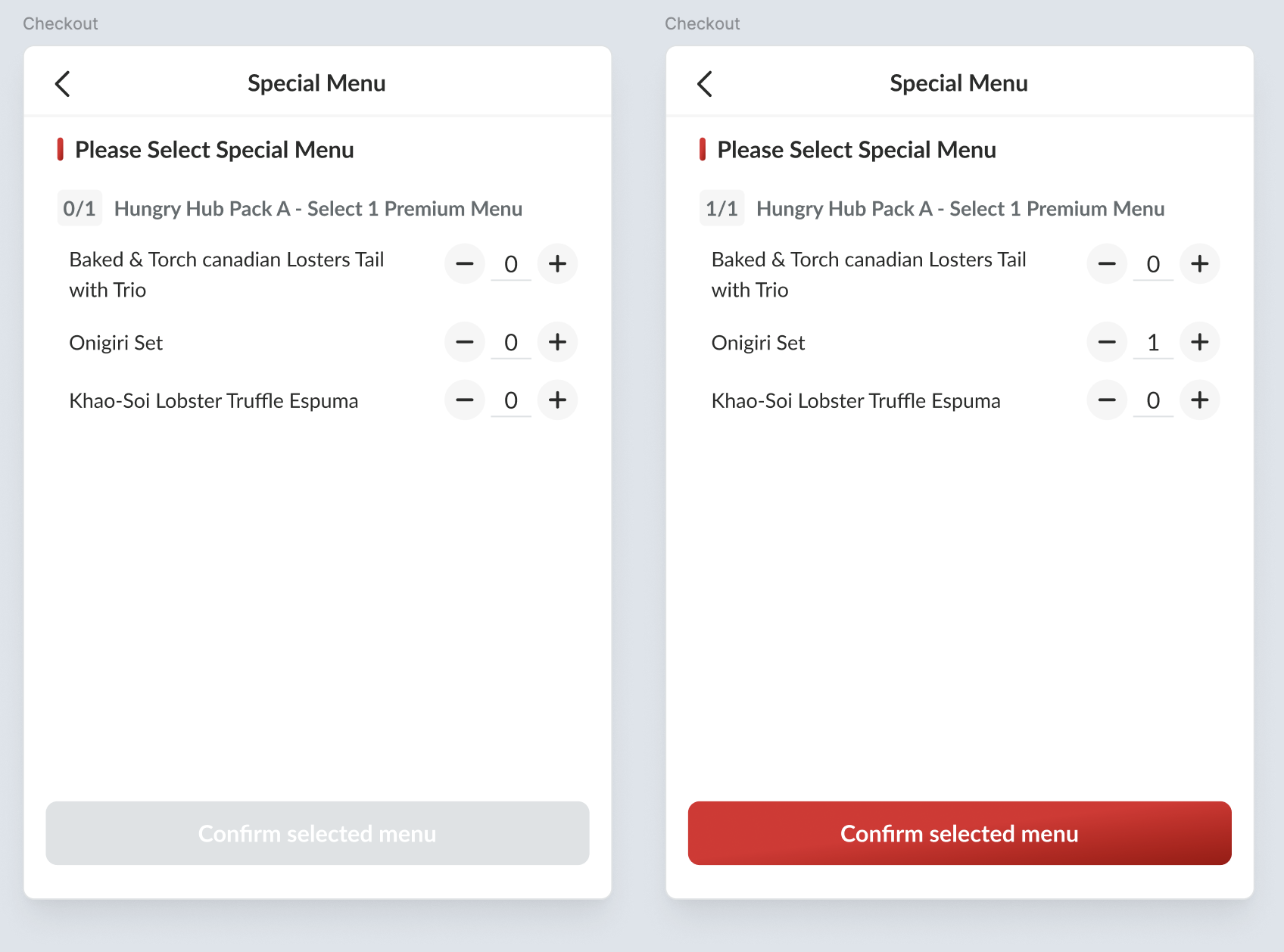 Display the chosen menu and the quantity and Confirm it if correct 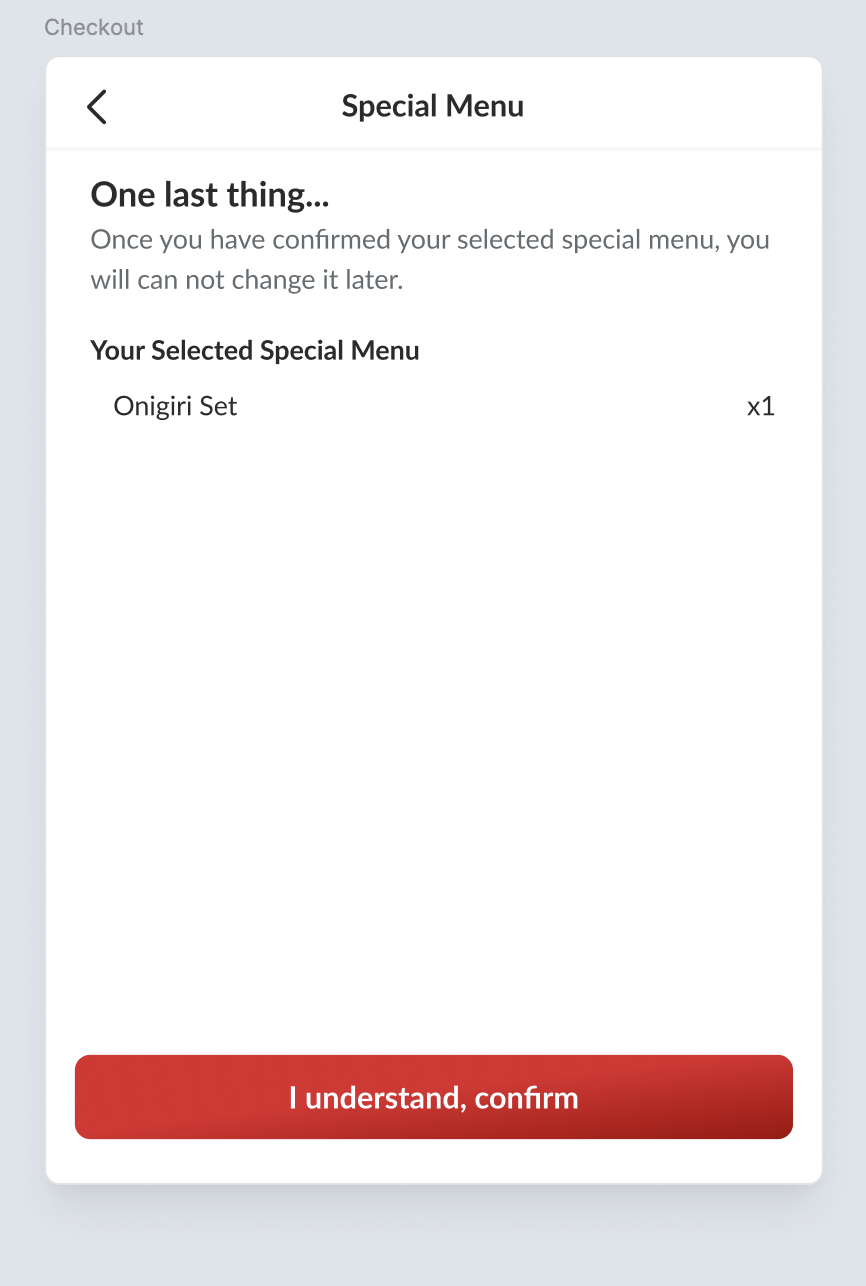 The result should be like this 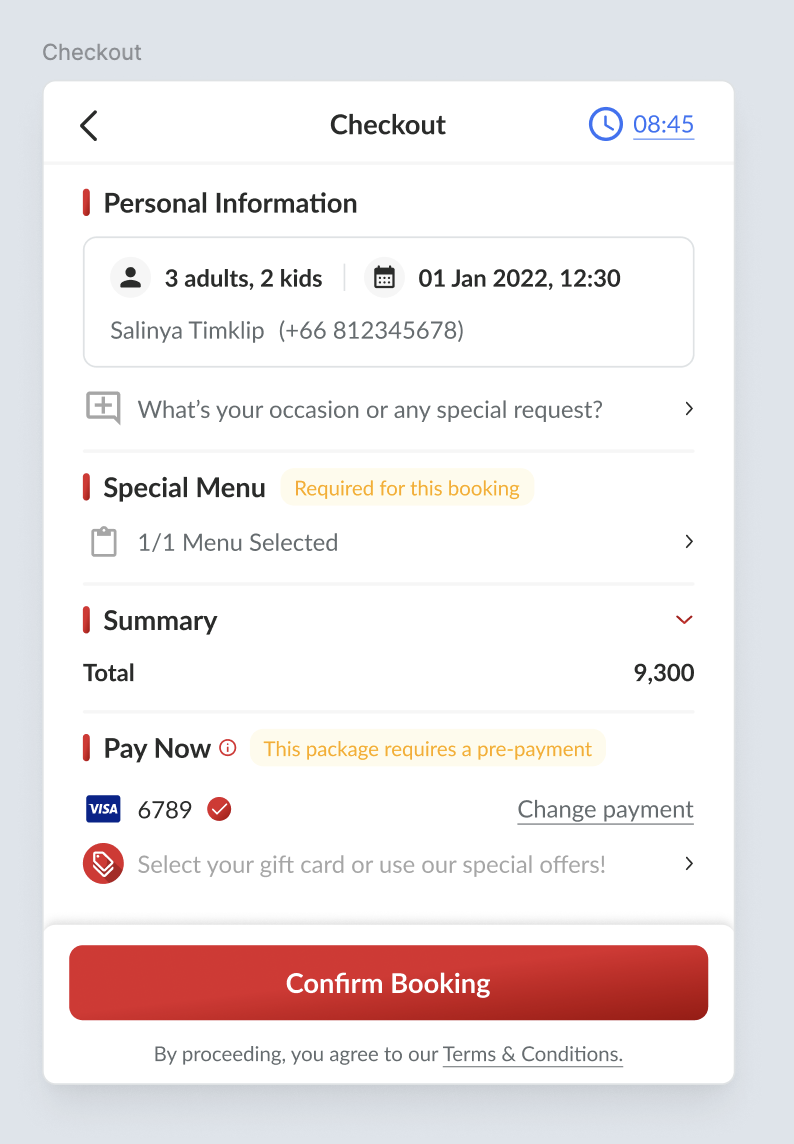 |
❓ FAQ
| Question | Answer |
|---|---|
| Insert into this if you have any question | I'll answer soon |