How to Check and Submit Annual Leave
How to check annual leave allowance
- Open this sheet : https://docs.google.com/spreadsheets/d/1gwdC_C0vPv-2DghGrrCVbYsK3W8yh8cQq_y66v08OuU/edit#gid=0* You can check Vacation Leave (carried from last year), Vacation Leave for this year, and Personal Leave
- If you already submitted new leave on HumanSoft you can do this calculation or just check the
Leave Report Doc:
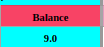
Balance Leave from Google Sheets - HumanSoft Approved Leave (check the quota)
* If you think the Google Sheets are already updated, just see the balance from Google Sheets
How to Submit Leave Report
- Download HumanSoft Application on your phone
- Input Hungryhub Domain name
hungryhub12 - Input Your Username and Password, please check here:
https://docs.google.com/spreadsheets/d/1tK_eBK2yBf-wRDIf-9r0excCXygh2-lJahOvc2XeIKw/edit?usp=sharing
- Follow the user journey
- You can skip to Add the email or phone or social media account until you reach the Homepage
- Click Menu Document
- Click + Time Leave
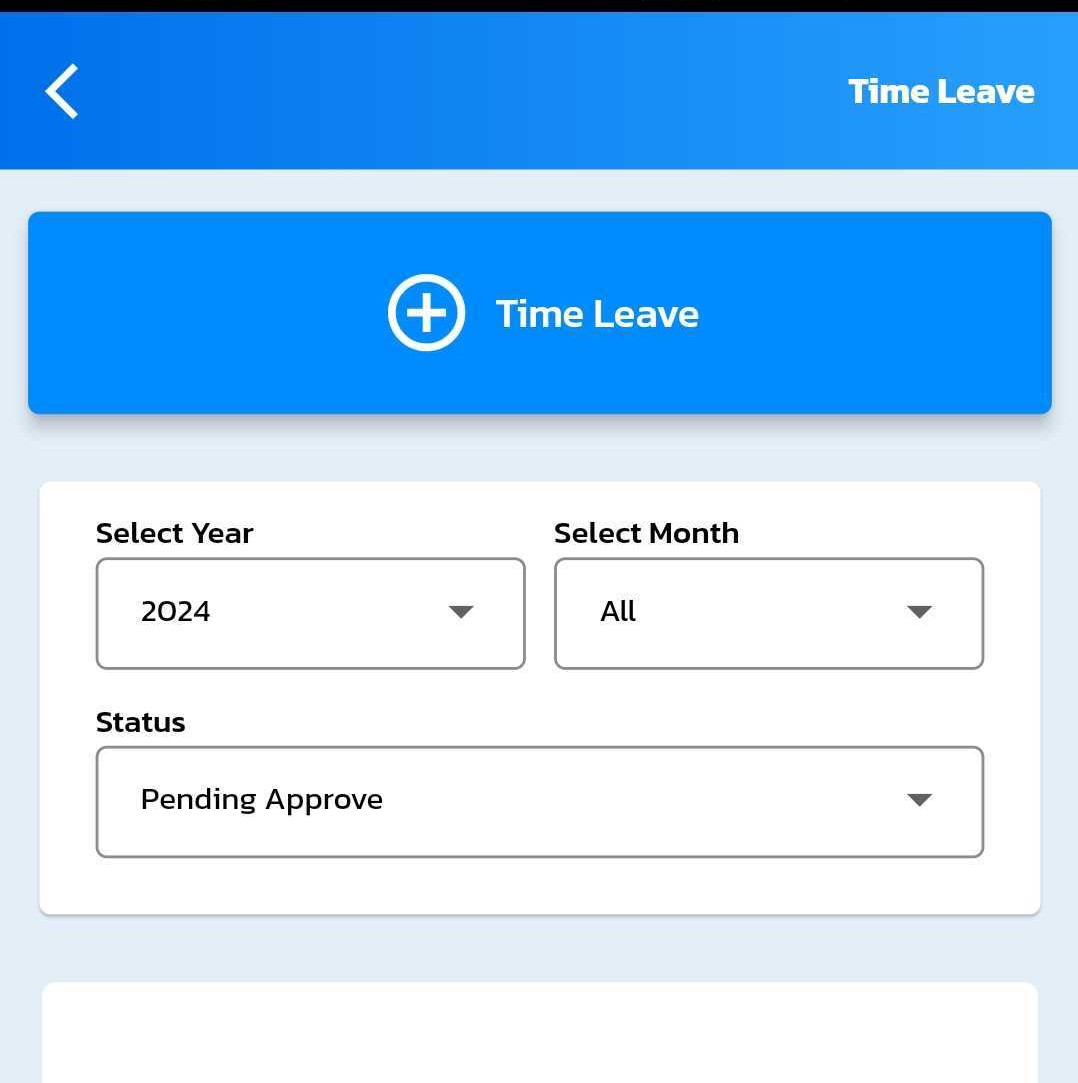
- Pick Leave
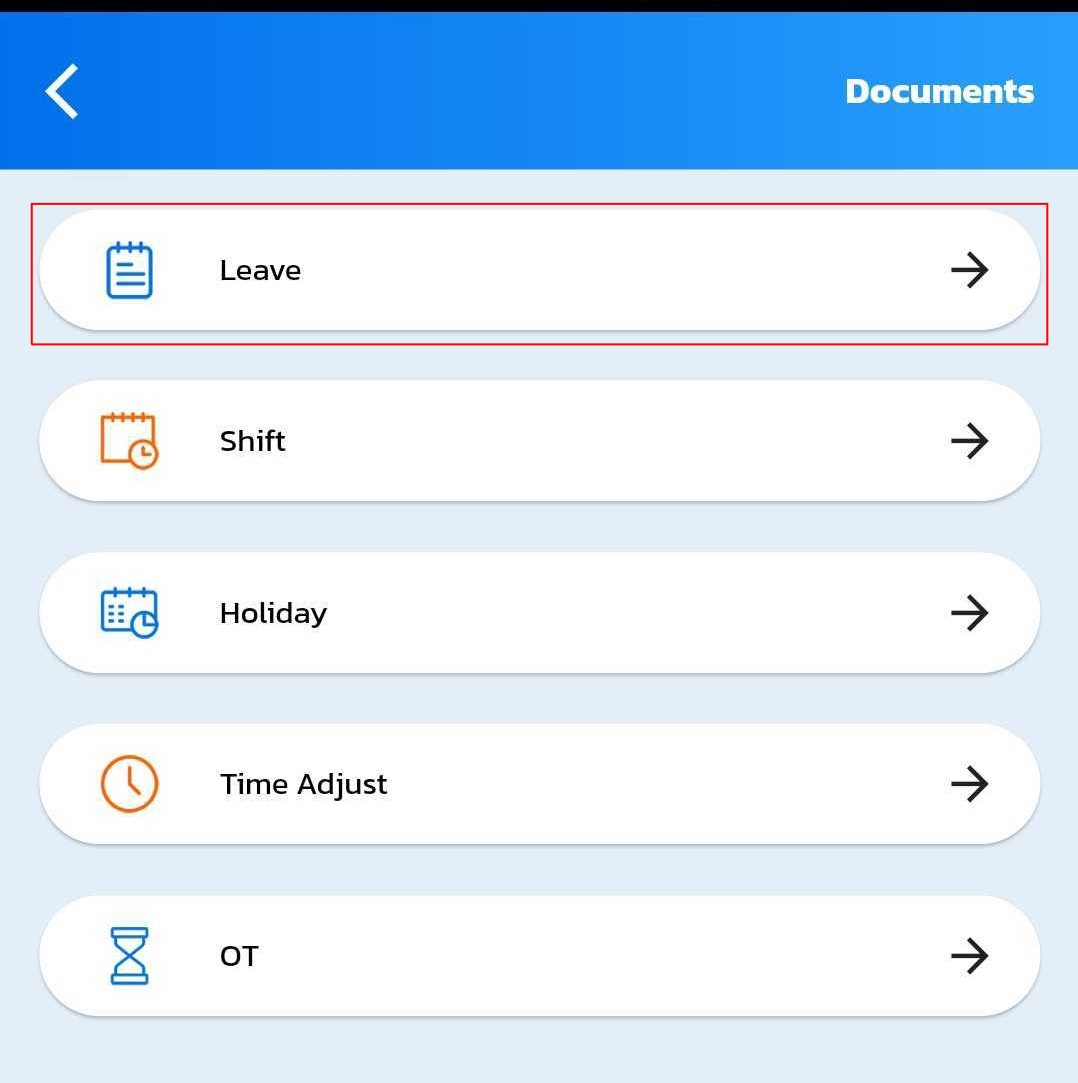
- Fill the form:
Pick the Leave Type, Start Date/Time, To Date/Time, and the Detail. you can ignore the time just use the default time if you leave full day.
Attach photo if needed.
- Click Save
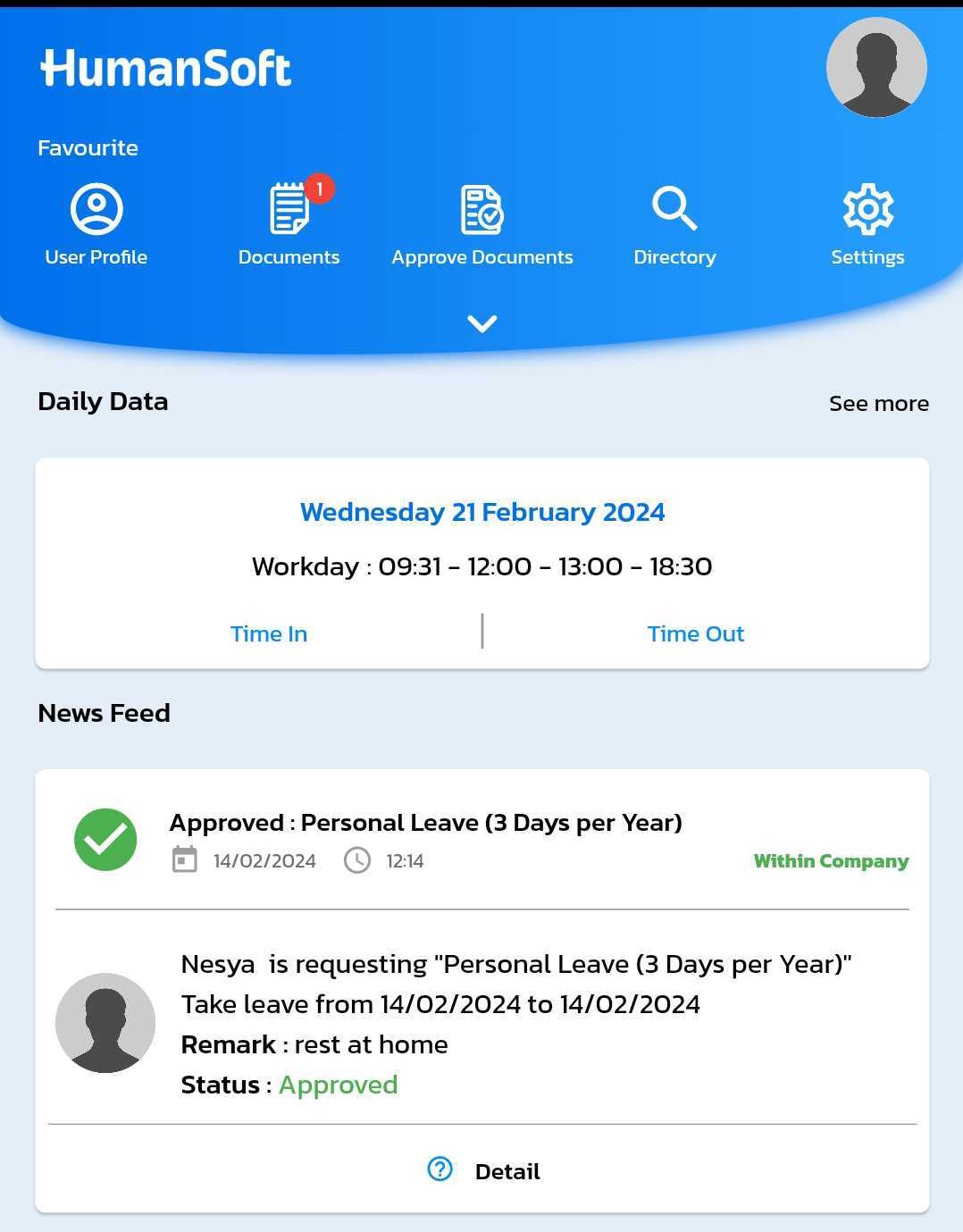
- If Your Leave was approved, it will show on you Homepage like this: