How to edit Homepage using Jaguar
From now on, the homepage settings in the admin panel will be redirected to Jaguar. If you want to edit the homepage section settings, please do it from the Jaguar website.
How to create a Section
- Open https://jaguar.hungryhub.com/dashboard
- Login using your hungryhub account
- Open Sections → Create to create new section
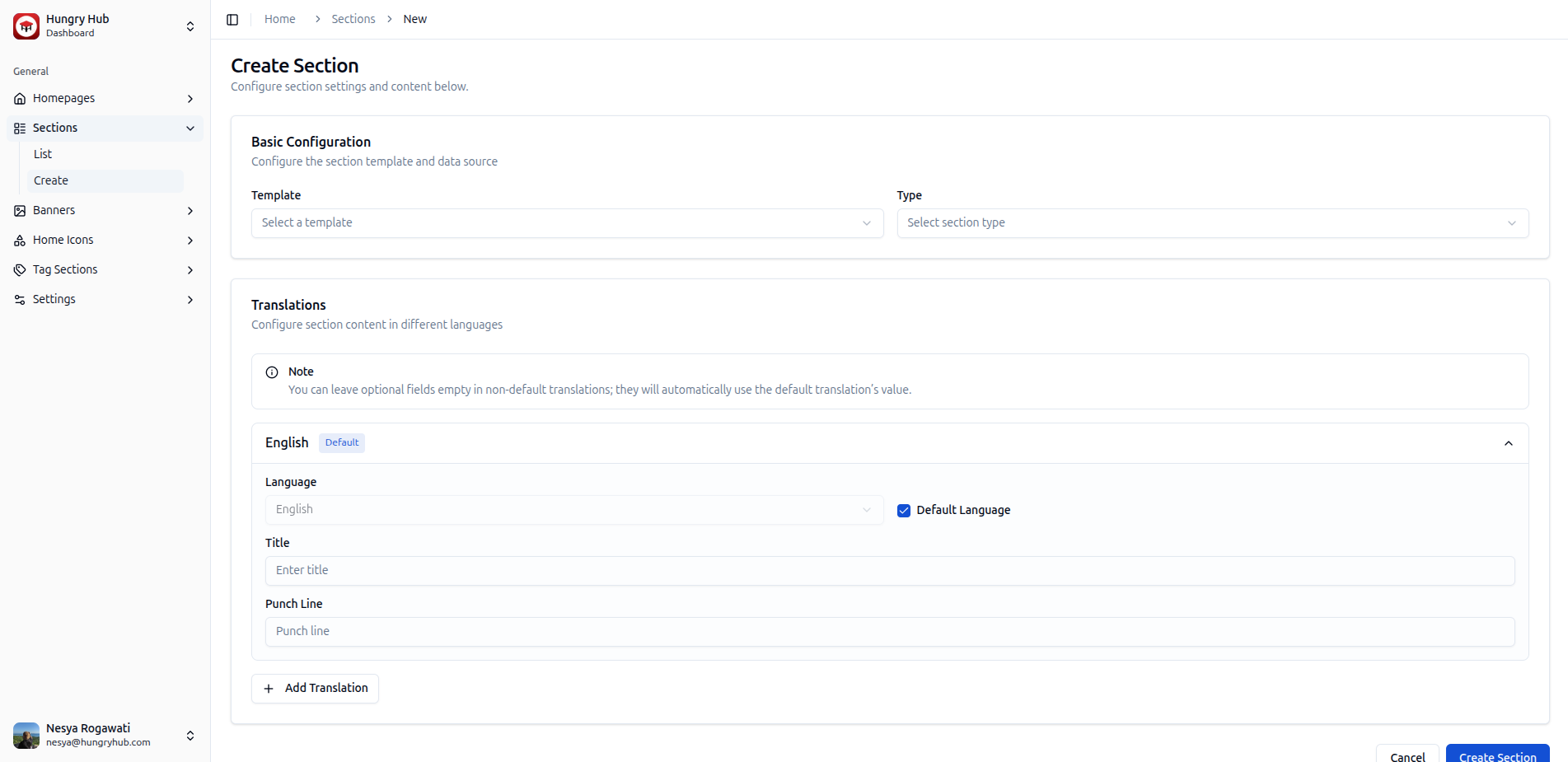
- Insert the basic configuration
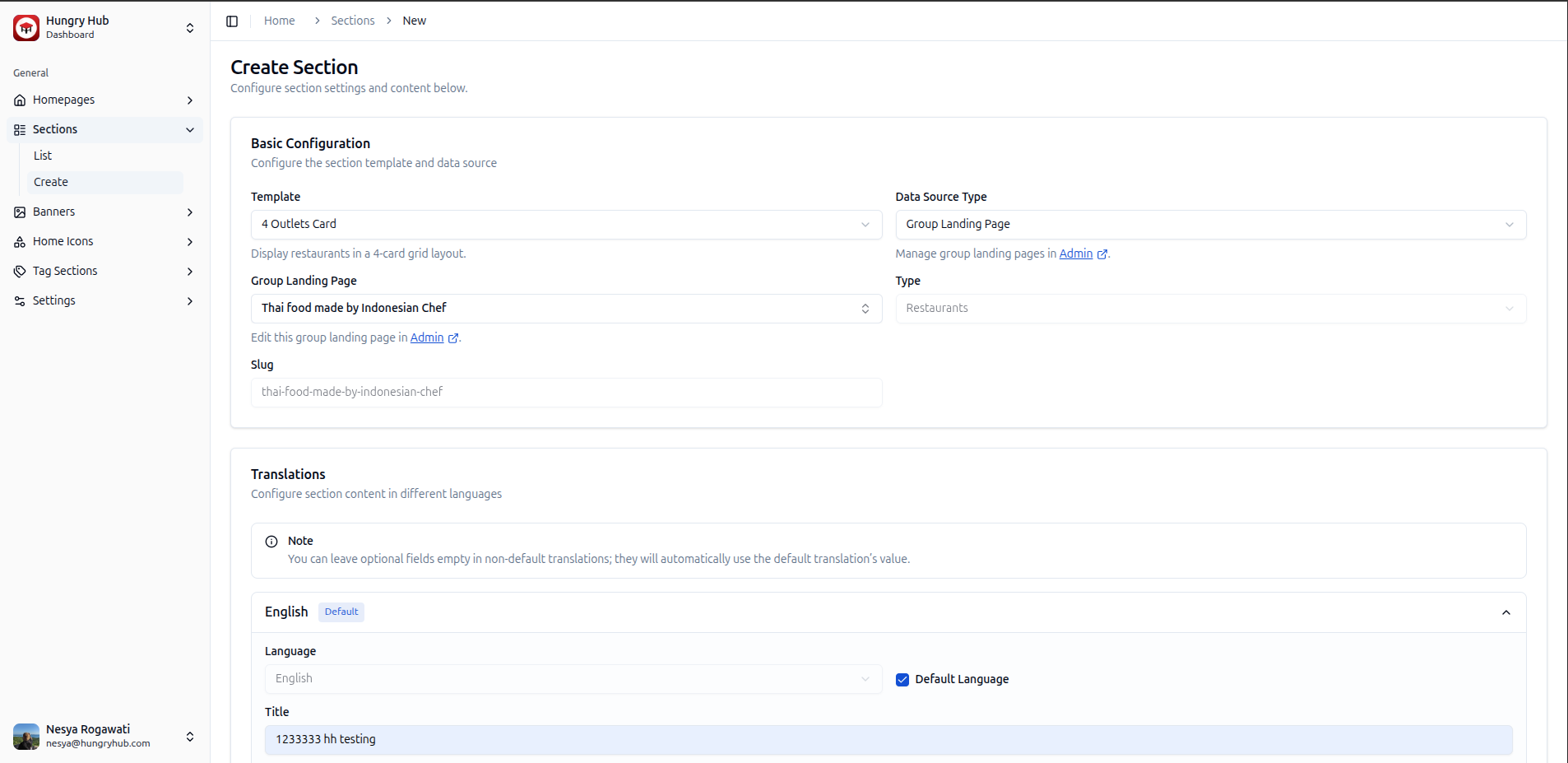
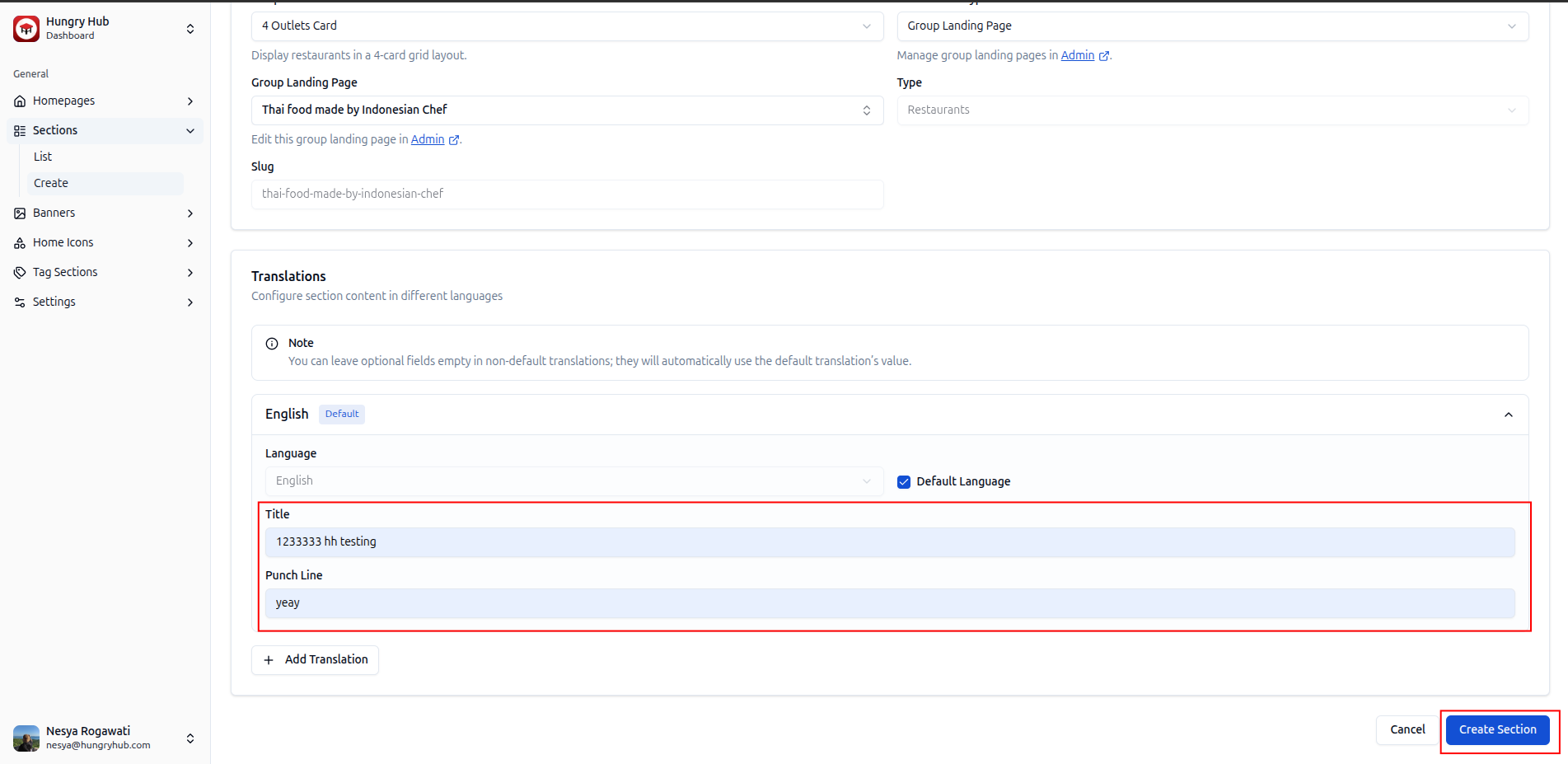
- Insert the translation for the title and punch line
- Click "create section"
- Open Sections → List → pick the section that you create → view
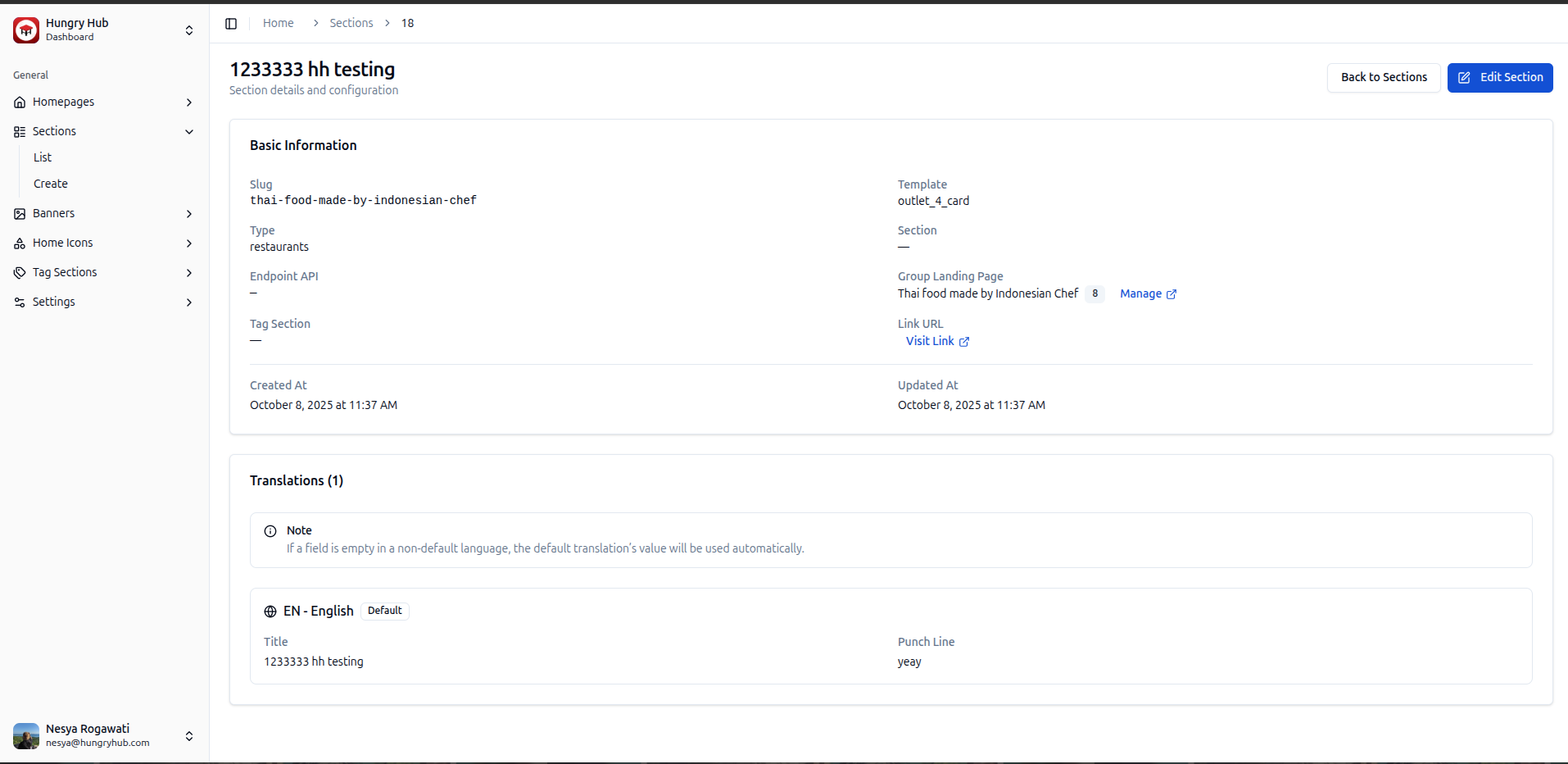
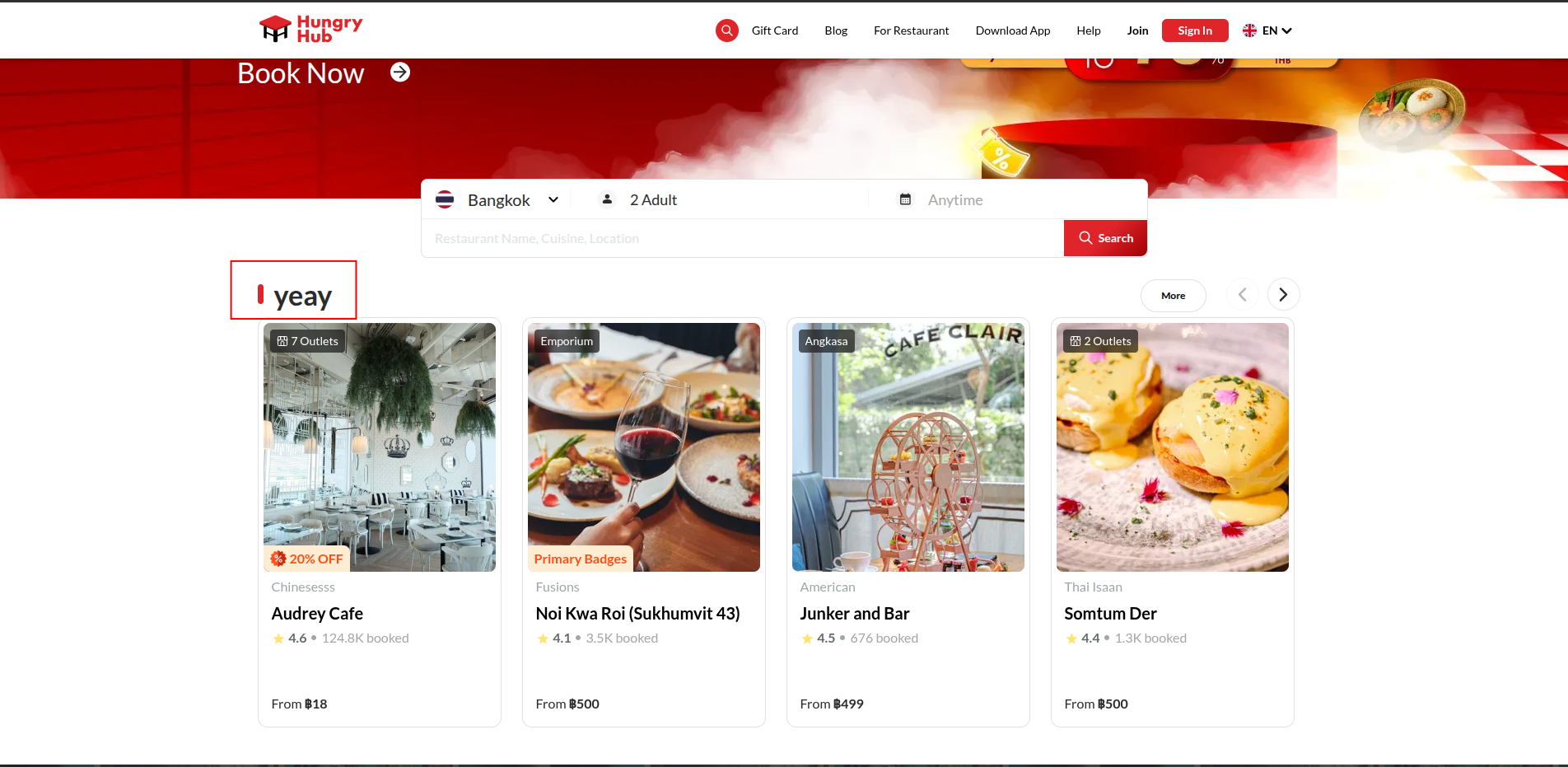
- the punch line will be shows on the homepage section title like this:
How to create a Banner
- Open https://jaguar.hungryhub.com/dashboard
- Login using your hungryhub account
- Open Banners → Create to create new banner
- Pick the banner type (hero banner or promotion banner)
* the position display order is Auto-filled with next available position, but if you want you can manually input the number of the order.
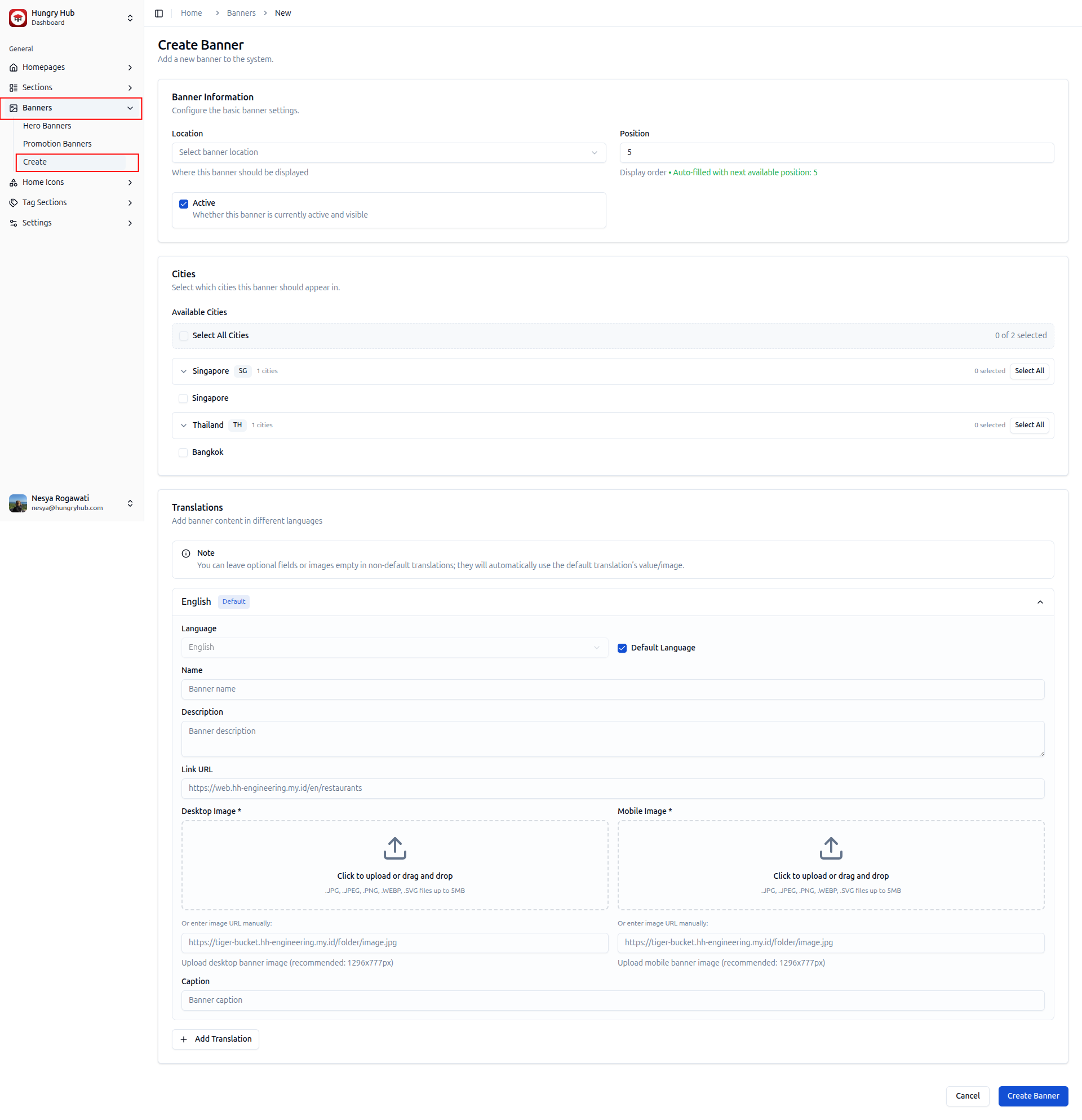
- Select the cities that the banner will shows
- Add the banner information such as name, description, link URL (redirect link when the banner was clicked), desktop image, mobile image and caption for the banner
- Click "create banner"
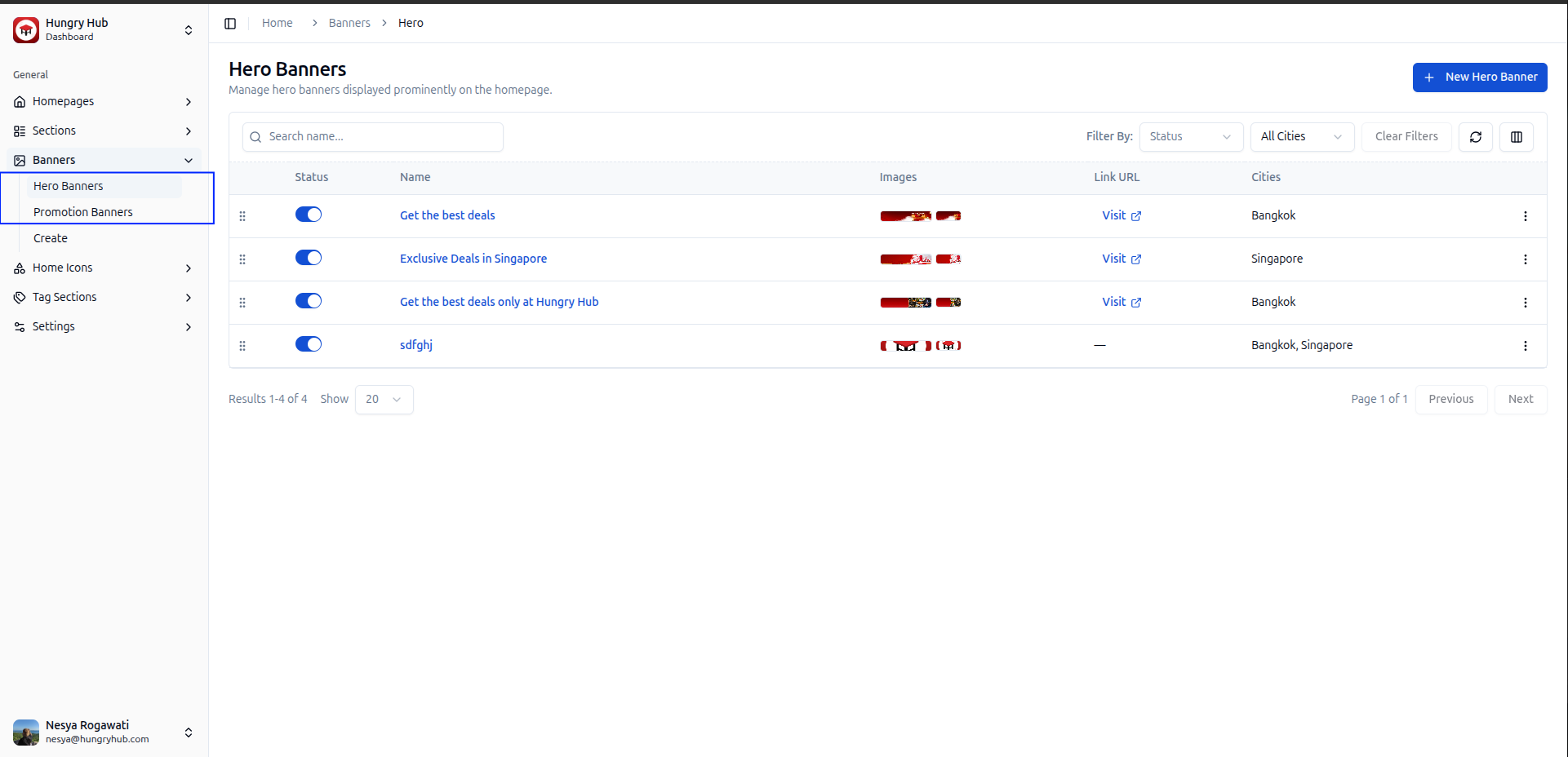
- Open Banners → Hero Banners or Banners → Promotion Banners to see your newest banner based on those 2 types
How to create a Homepage
- Open https://jaguar.hungryhub.com/dashboard
- Login using your hungryhub account
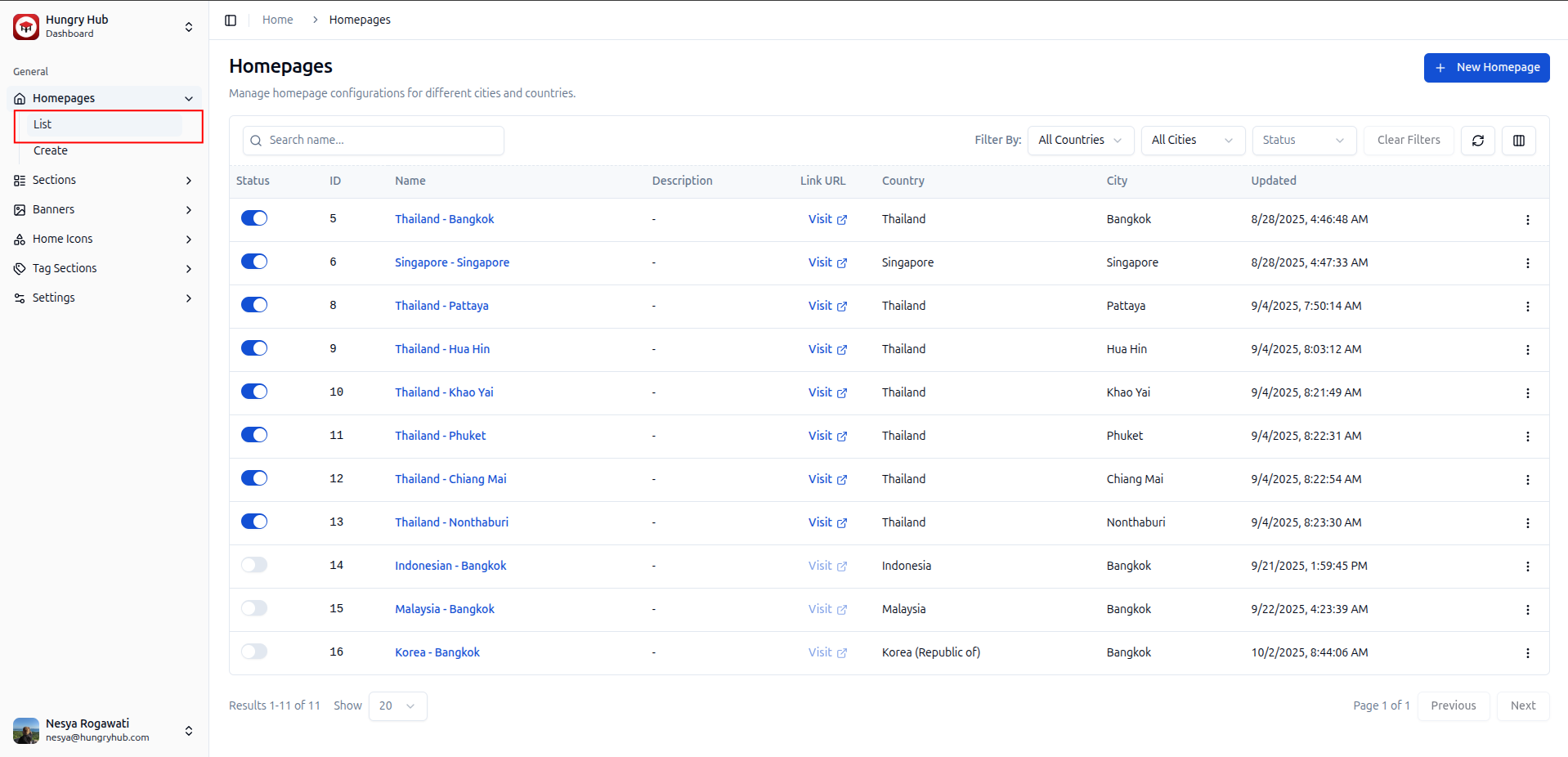
- Open Homepages → List to see the list of homepage based on the city
- Click Homepages →Create to create new homepage
- Insert the homepage setting such as name, country description city and the active checkbox
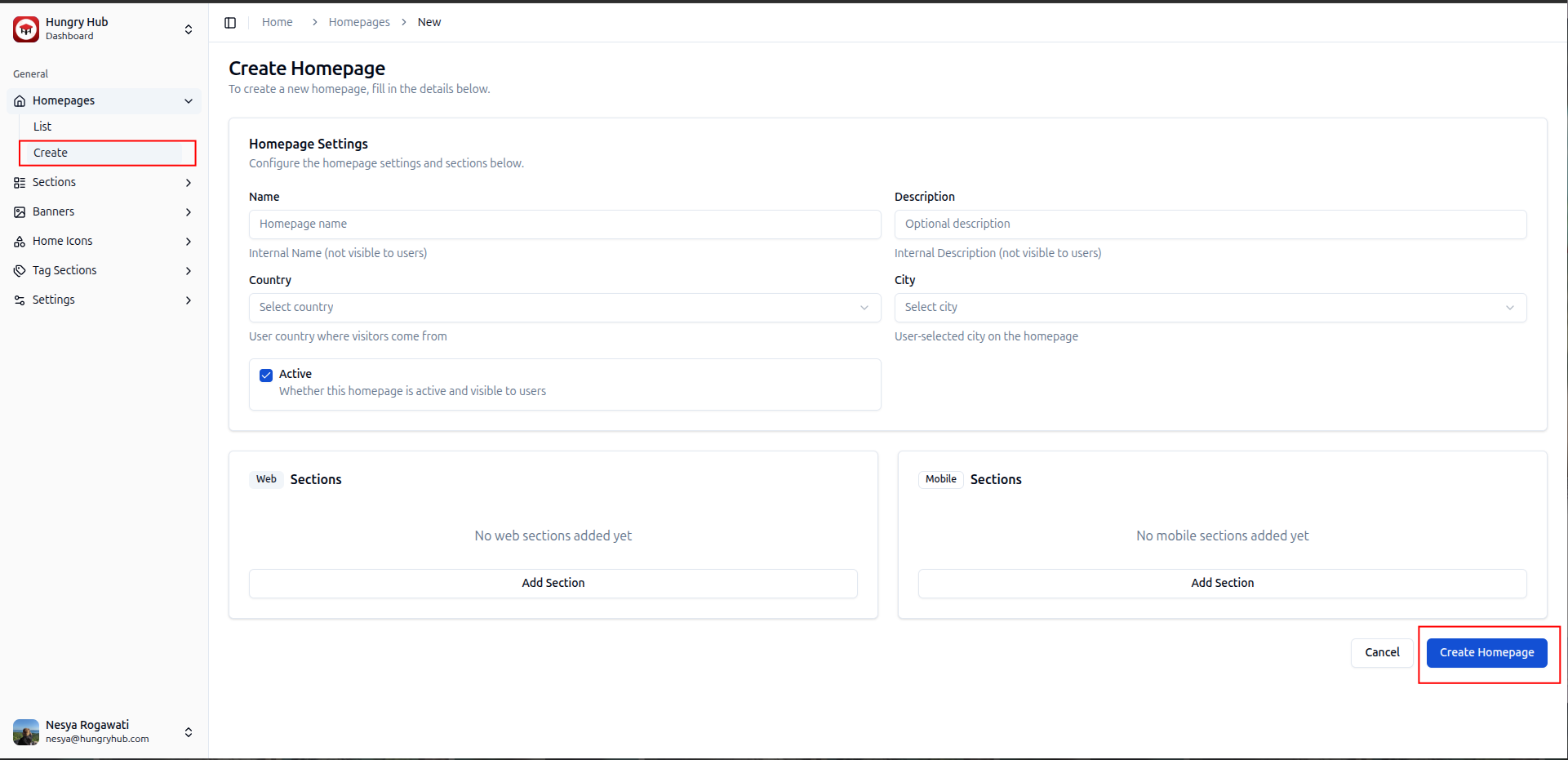
- Add the section that you already created into the homepage (you can add the section into web or mobile section), and click "create homepage"
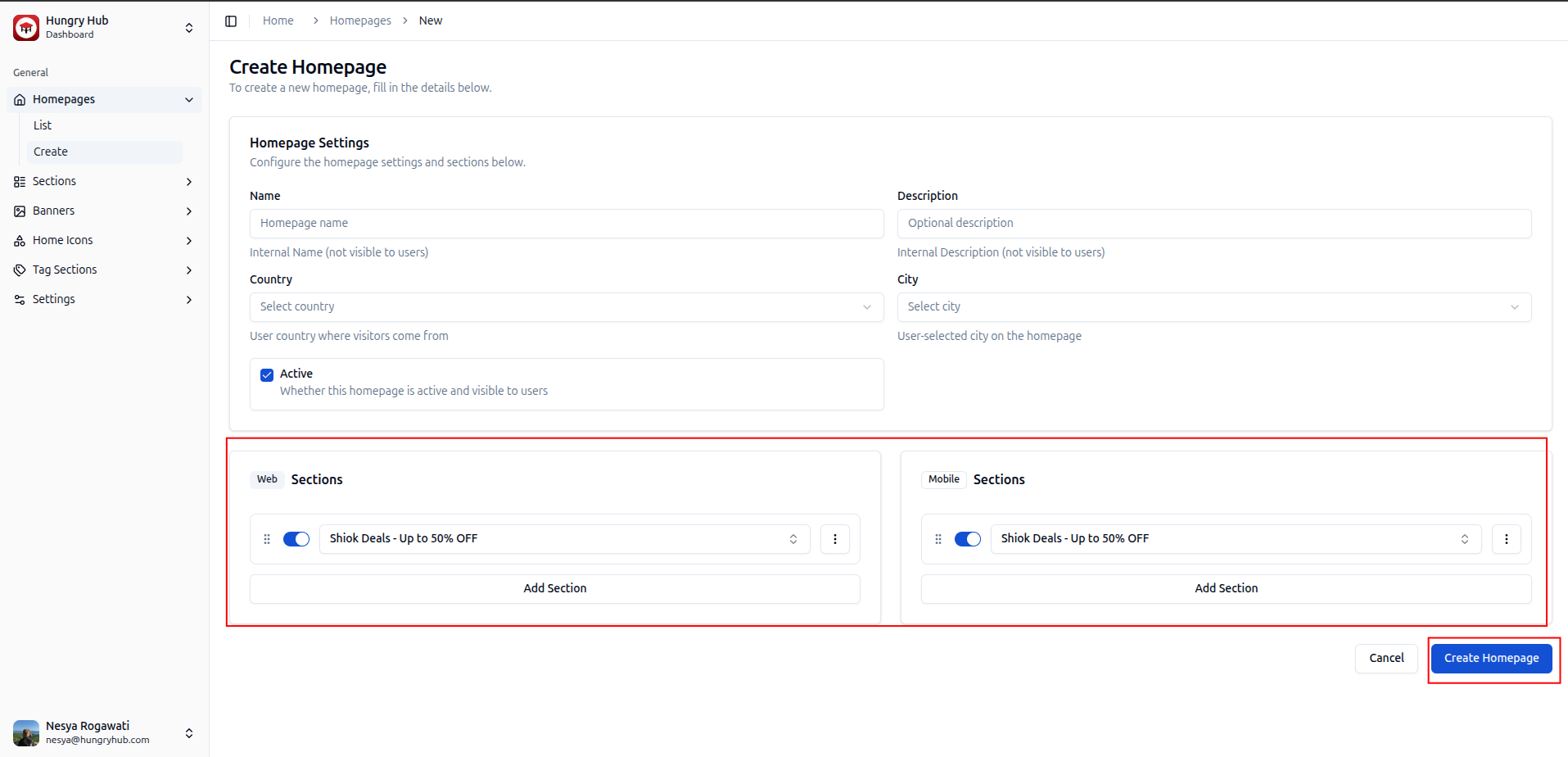
- It will shows on the Homepages →list