How to create ads
Link Project : A - Cycle 1: Ads Feature
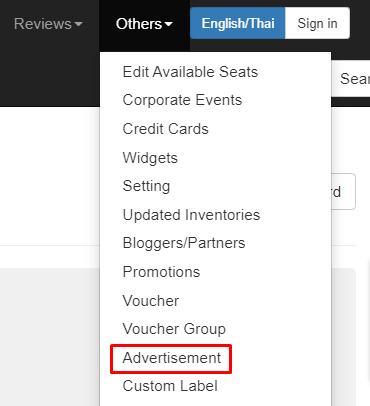
- Open the admin dashboard and click the "Others" navbar, then select the "Advertisement" menu
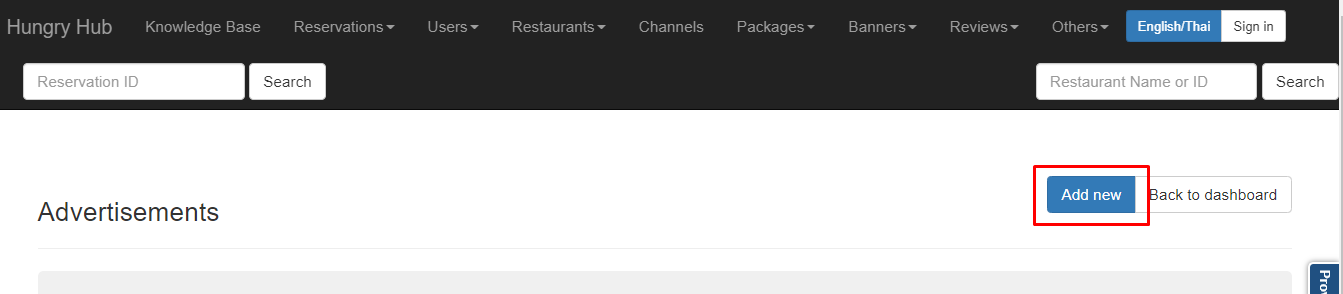
- Click "Add New" to create a new ads
- Then the input form will appear as shown below
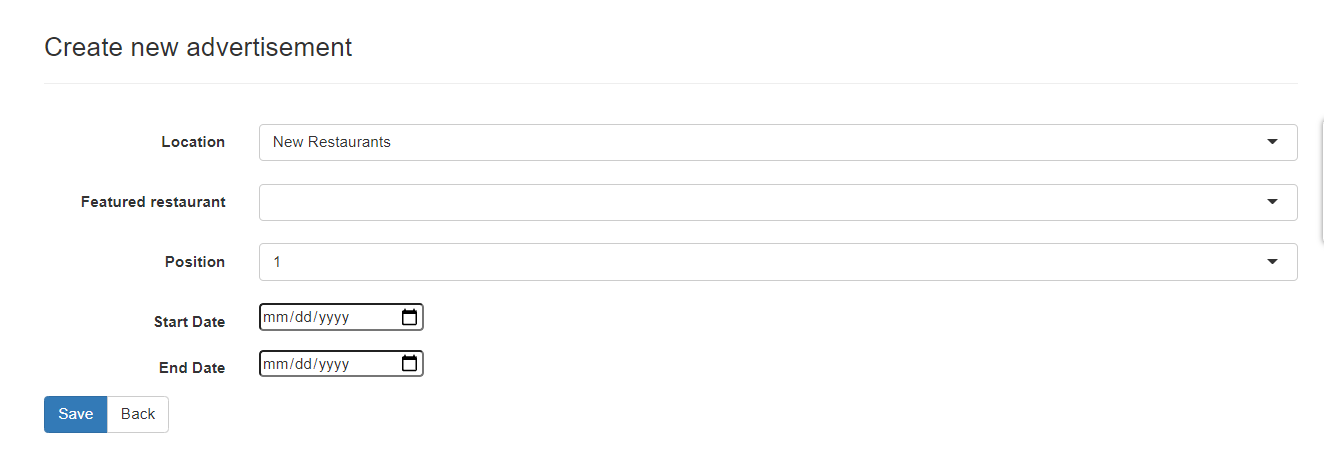
- Location : To choose where the ads will be displayed in a particular section,
- If you select "New Restaurant" then the ads will appear in the new restaurant section
- If you select "Trending Restaurant" then the ads will appear in the trending restaurant section
- If you select "Popular Branch" then the ads will appear in the Popular Branch section, and when selecting a popular branch location an input form will appear to input the name of the branch where the ads will be displayed.
.png)
- Featured Restaurant : To input the name of the restaurant where the ads will appear
- Position : To determine ads position
- Start Date : To determine the first date the ads will appear
- End Date : To determine the end date the ads will be shown
- Save : To save a new ads