How to create a Restaurant
Admin Side
- Navigate to https://hungryhub.com/admin/restaurants
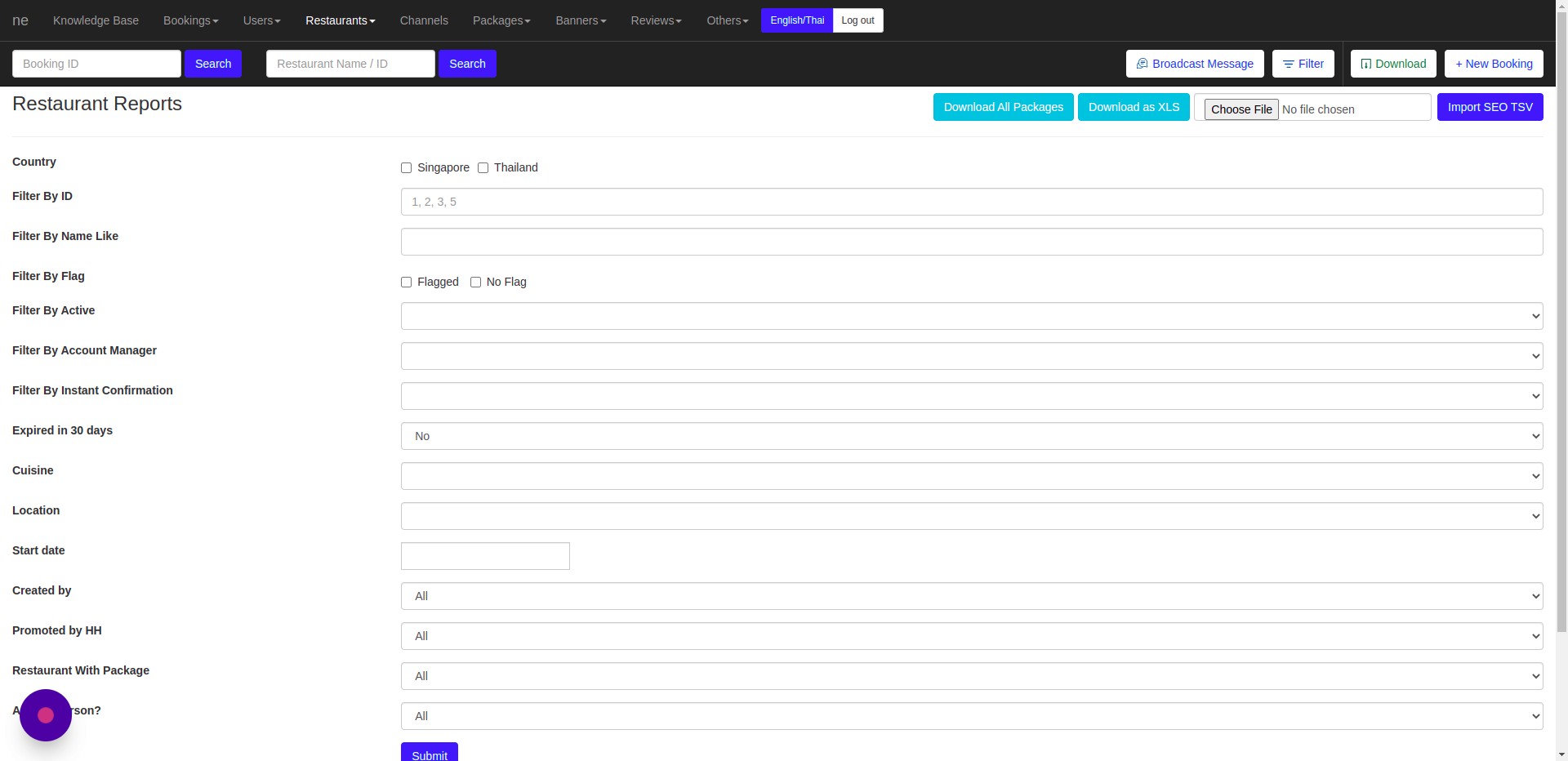
- Click "Restaurants"
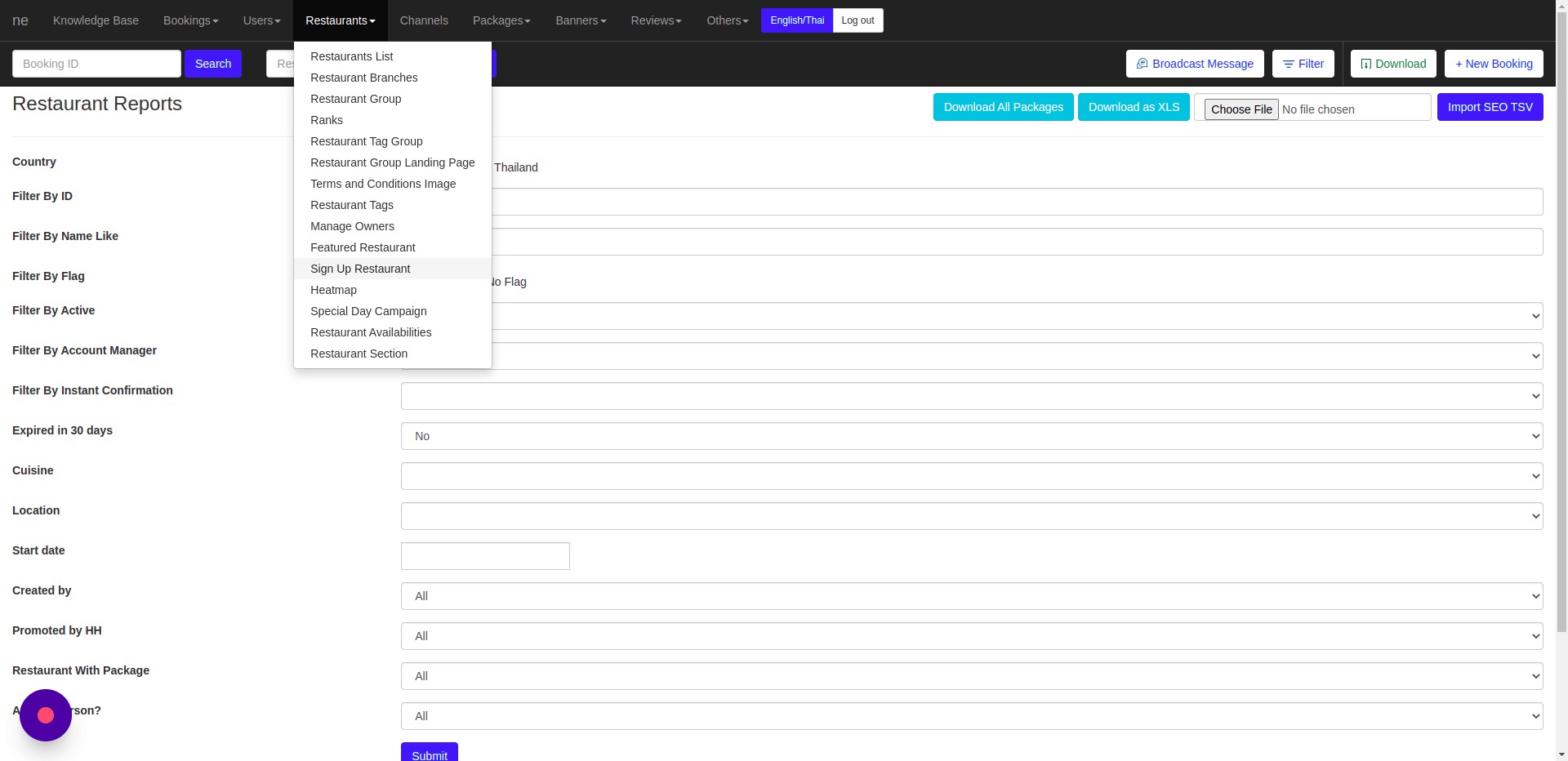
- Click "Sign Up Restaurant” and fill the restaurant detail
- Fill the form and Click "SIGN UP NOW!”
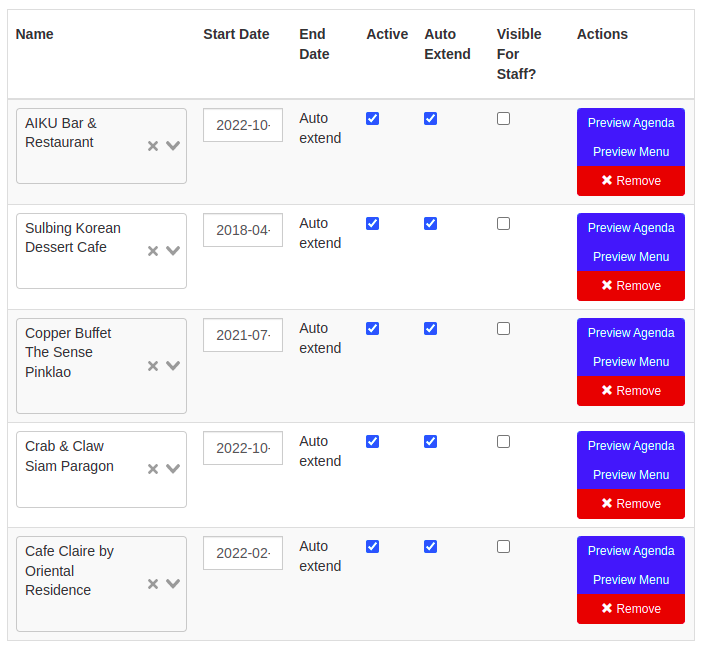
- Create a package, and add the restaurant to package If you check the “visible for staff?” it means the package was only show when you sign in using hungryhub email
- Click action ➝ login ➝ Image ➝ Cover
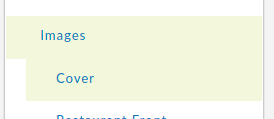
- Upload Image cover
- Back to restaurant list page, click action → edit
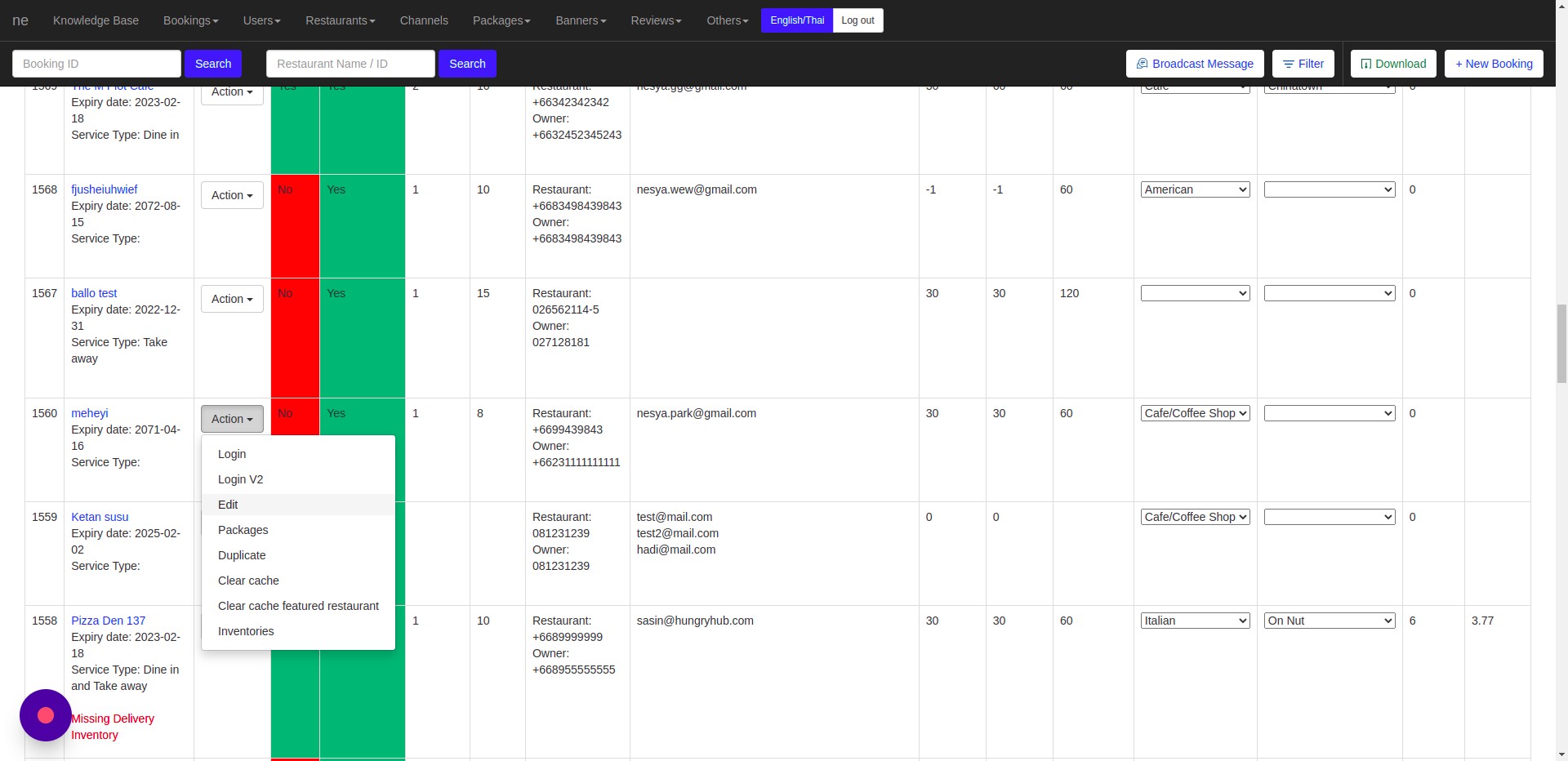
- Check the "Allow Booking? (if not ticked, then restaurant can not accept booking, even if active, has package, nor expired)".
- Check the commission, and "active?"(if you check active, then the restaurant will be visible for customer)
- Do not active your restaurant before the data was correct
- Don’t forget to clear cache and clear cache featured restaurant first
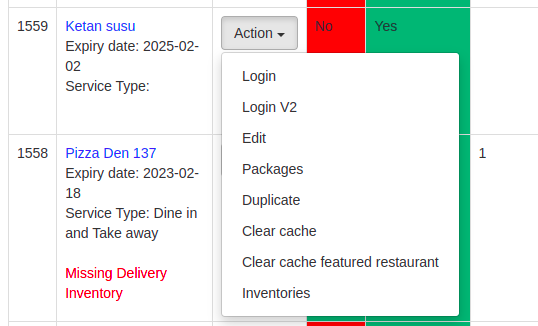
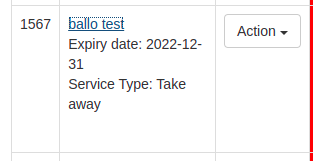
- You can open the web version for the new restaurant by click the restaurant name on “Restaurant List”
- After checking the restaurant on web, you can edit the restaurant to active if the restaurant is already correct
User Side
https://jam.dev/c/6a885a0d-0251-447e-bd31-edad2afb84e4
- Visit
hungryhub.comand select the "For Business" option.
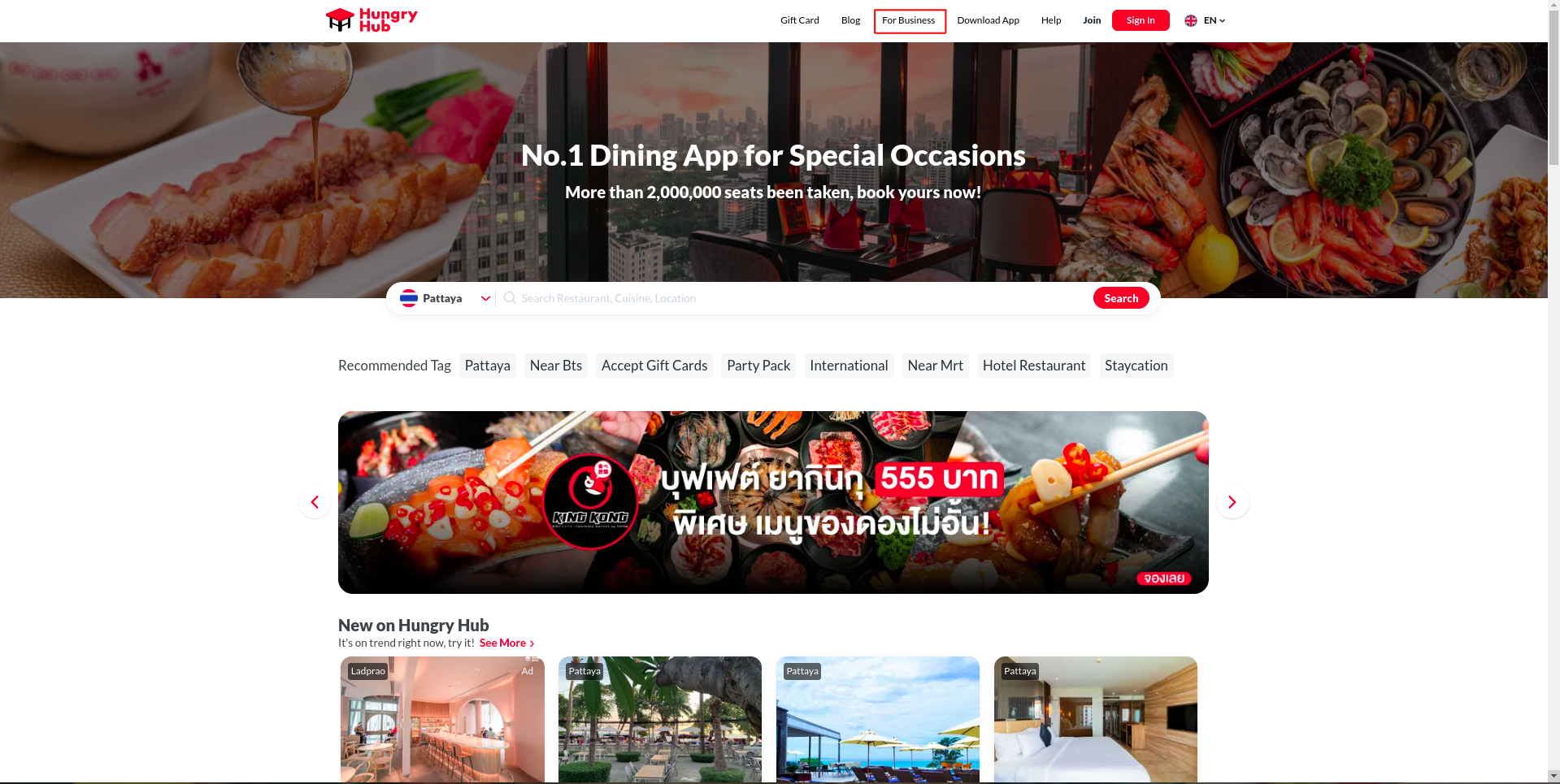
- Then, click on the "Join Us" button or access it through the navbar and select the type of business you have, either a hotel or a restaurant.
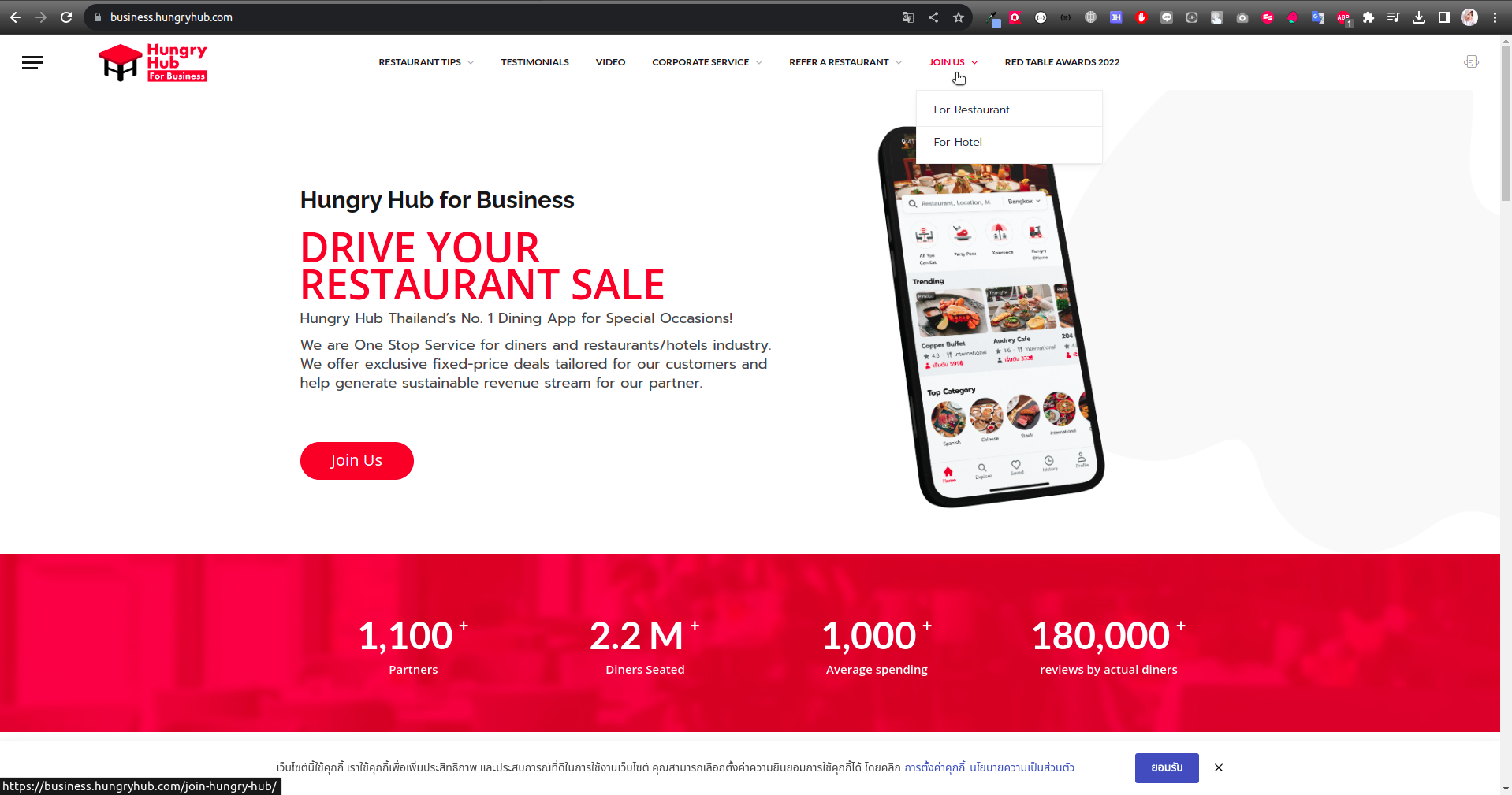
- Then you will be redirected to https://business.hungryhub.com/join-us-hotel/ for a hotel partnership or https://business.hungryhub.com/join-us-restaurant/ for a restaurant partnership.
- These pages provide detailed information about the type of partnership offered and the benefits of joining hungryhub.
- Once you have decided, click "Join Us" and you will be redirected to a google form. Please complete the form to proceed.
- Hungryhub team will contact owner for the future confirmation.
Ops Side
- Sales preparation for
- Outlet (Restaurant) will be completed in the GG form by the Sales team.
- They will then finalize the Package Detail Proposal which outlines the menu in each package.
- The task will then be sent to the Operations team who will use the information provided to create outlets.
- Prepare the outlet for a demonstration.
- The sales team has received the link for the new outlet and the outlet owner has confirmed the information during the last communication.
- The operations team will now make the outlet live
- and it Ready to be booked!.