How to create DIY SET Package
-
Open Admin Dashboard https://hungryhub.com/admin/dashboard?locale=en
-
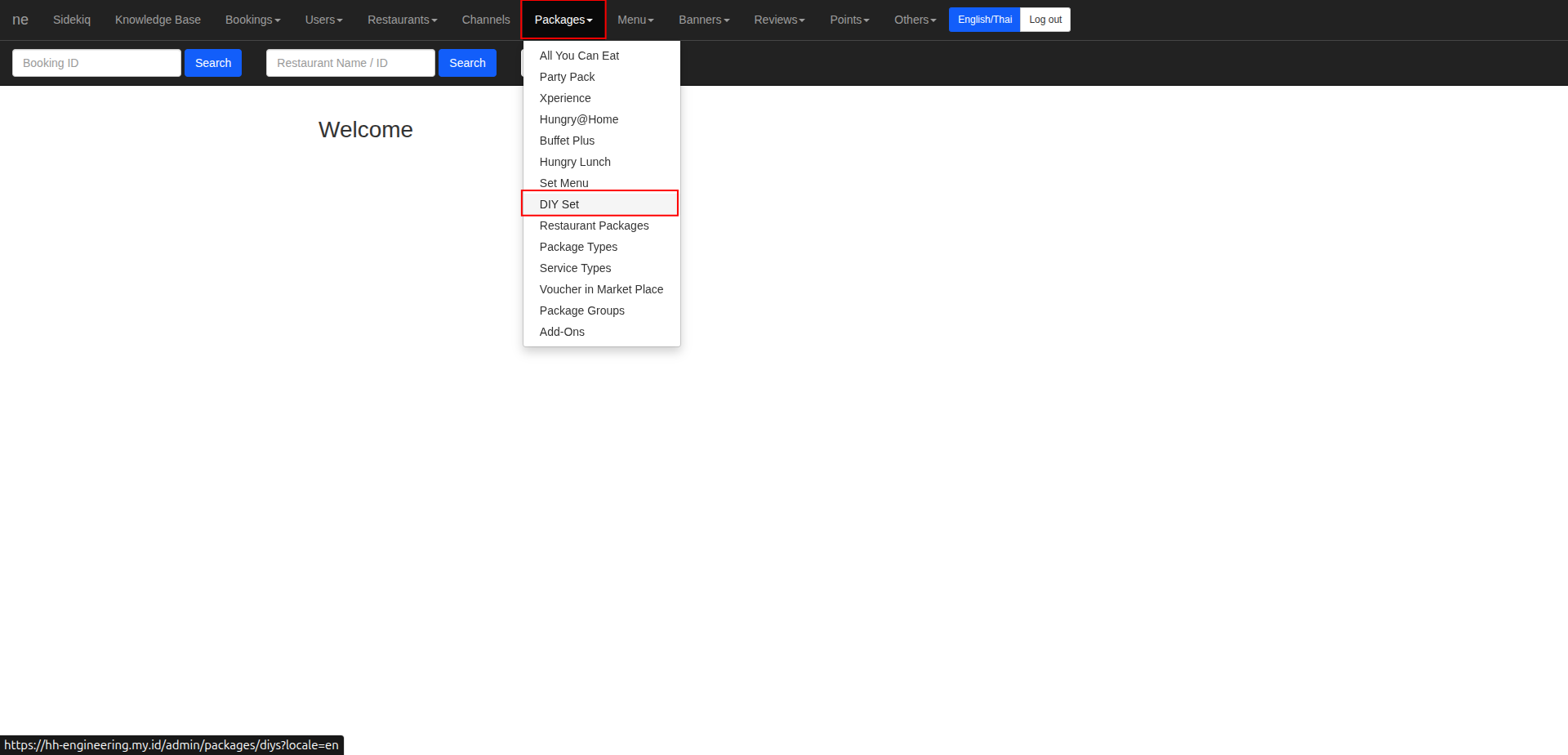
Navigate to the DIY Set Package Menu
-
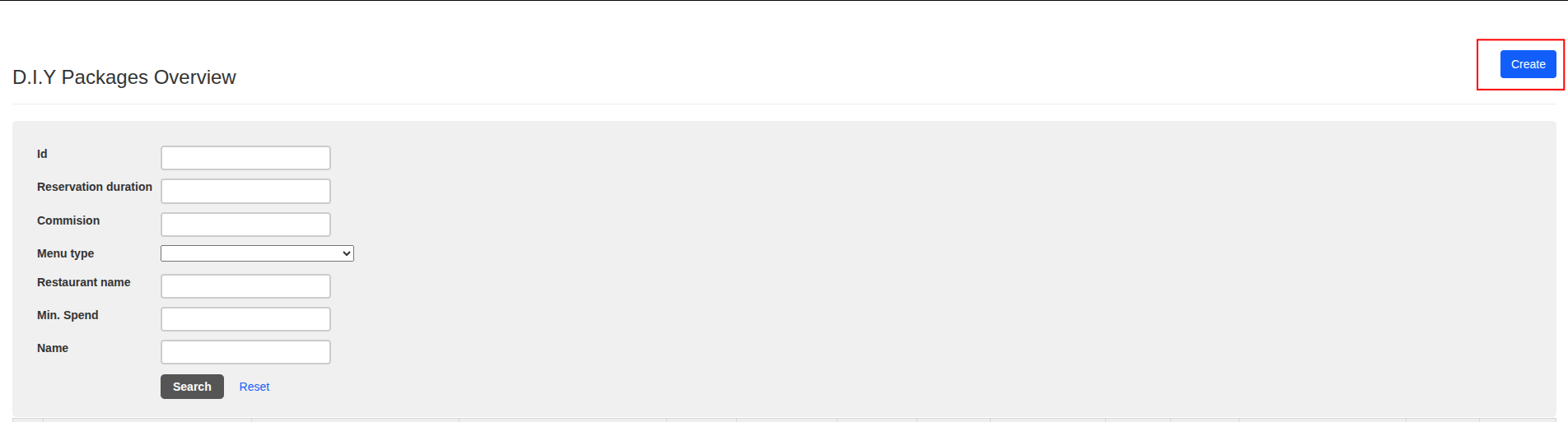
Click Create button
-
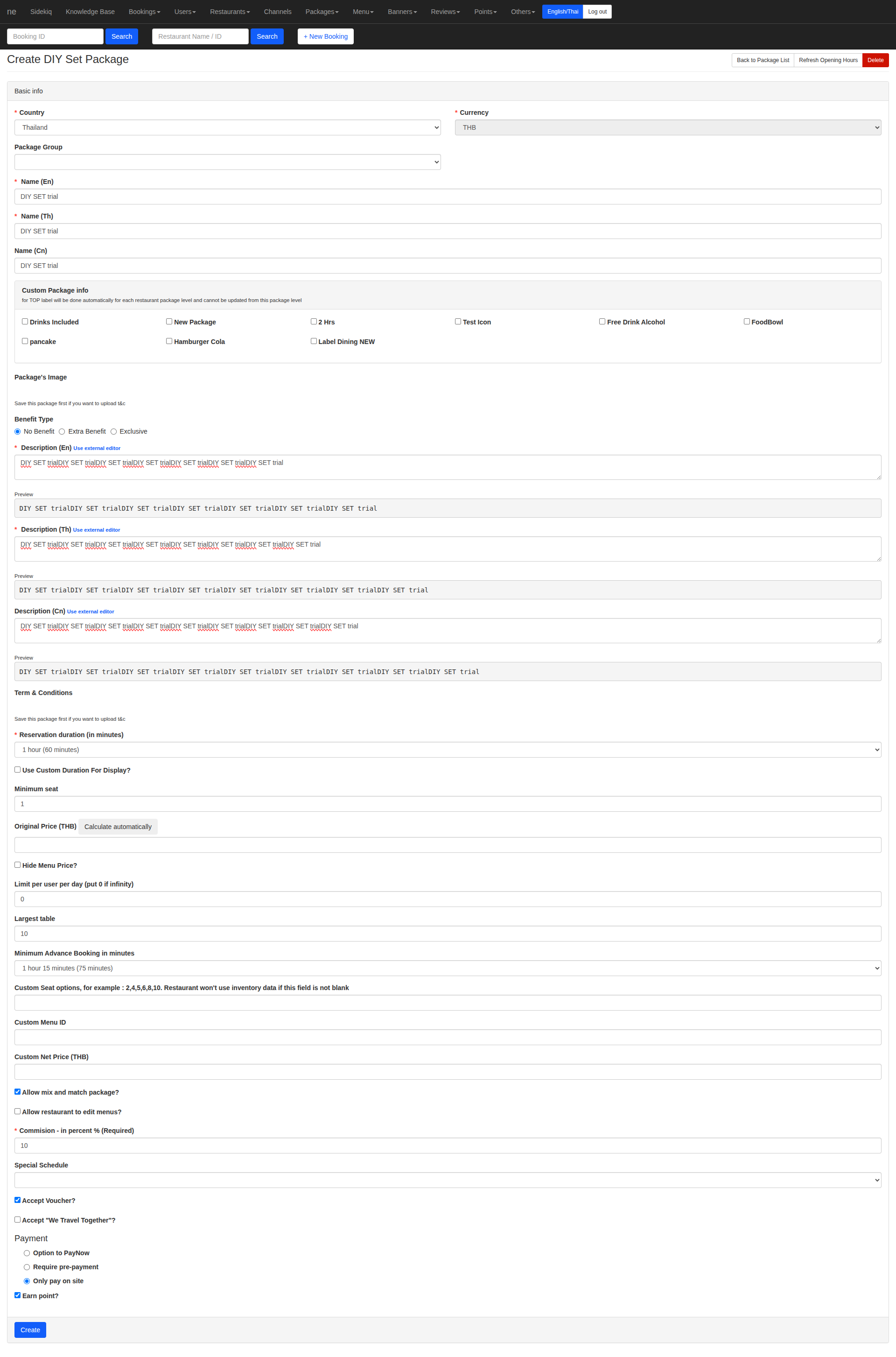
Fill in Basic Package Information
-
Click Create
-
Configure Pricing Model DIY Set pricing can be configured either per person or per item.
-
Minimum and Maximum Persons

Example: If set to 3 persons, a user should book for 3 people or more.
-
Minimum Spending Requirement

Example: If set to 3 persons with a 900 THB minimum spend per person, each booking must meet that threshold.
-
Spending Tier Discount
What is the Spending Tier Discount?
A discount feature for DIY Set packages that can be applied per booking or per person, depending on the total spend for a single booking ID.
a. Per Booking & Percentage
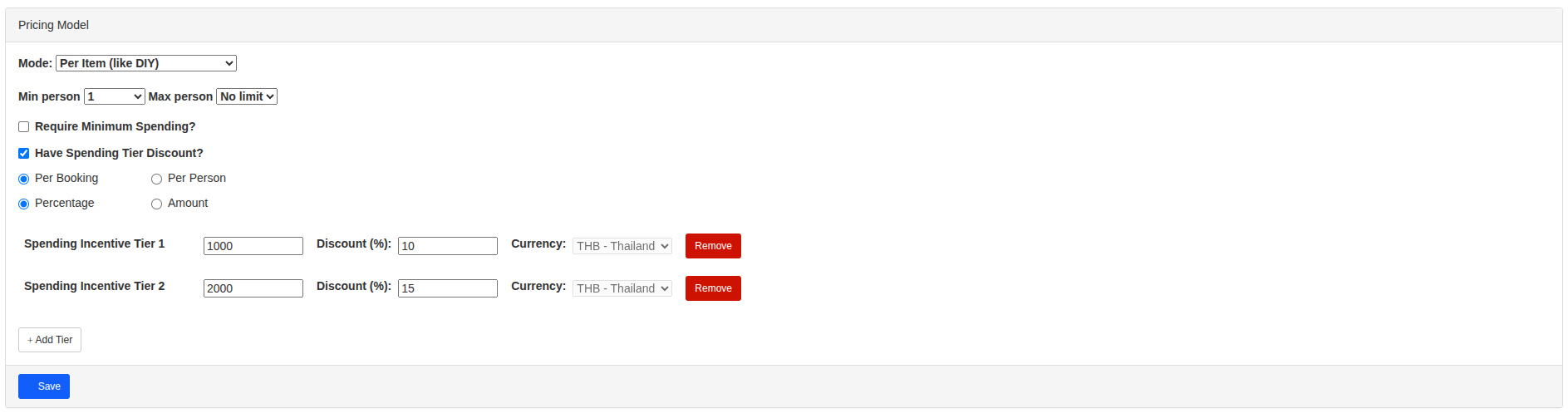
- Users receive a 10% discount on their total spend when booking a DIY Set with a minimum spend of 1,000 THB.
- Users receive a 15% discount on their total spend when booking a DIY Set with a minimum spend of 2,000 THB.
b. Per Person & Amount
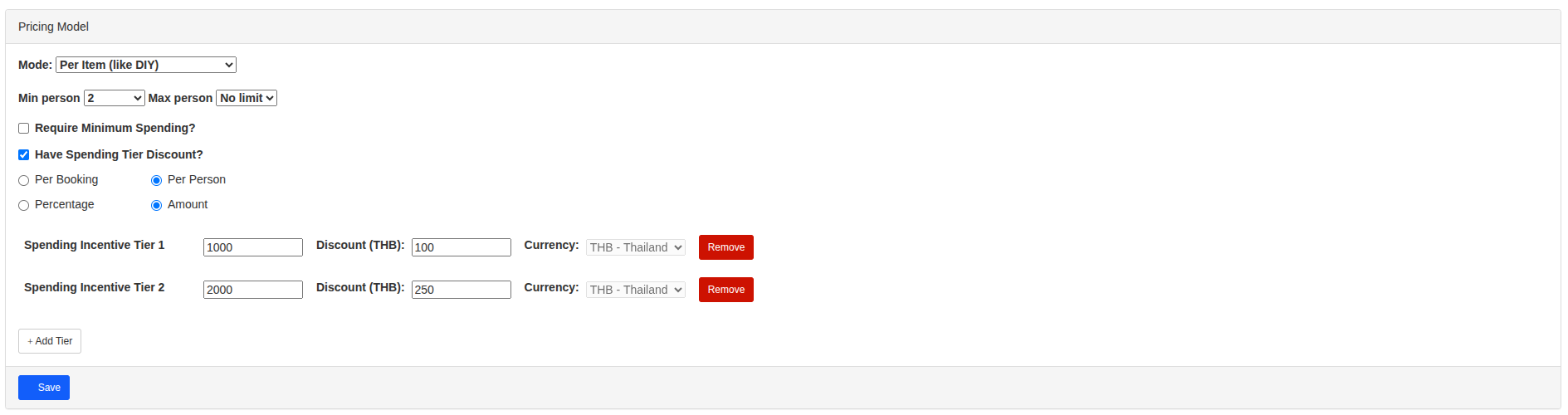
- Users receive a 100 THB discount per person when booking a DIY Set with a minimum spend of 1,000 THB.
- Users receive a 250 THB discount per person when booking a DIY Set with a minimum spend of 2,000 THB.
- Example: If two people spend 1,200 THB each, the total discount will be 200 THB (100 THB per person).
-
-
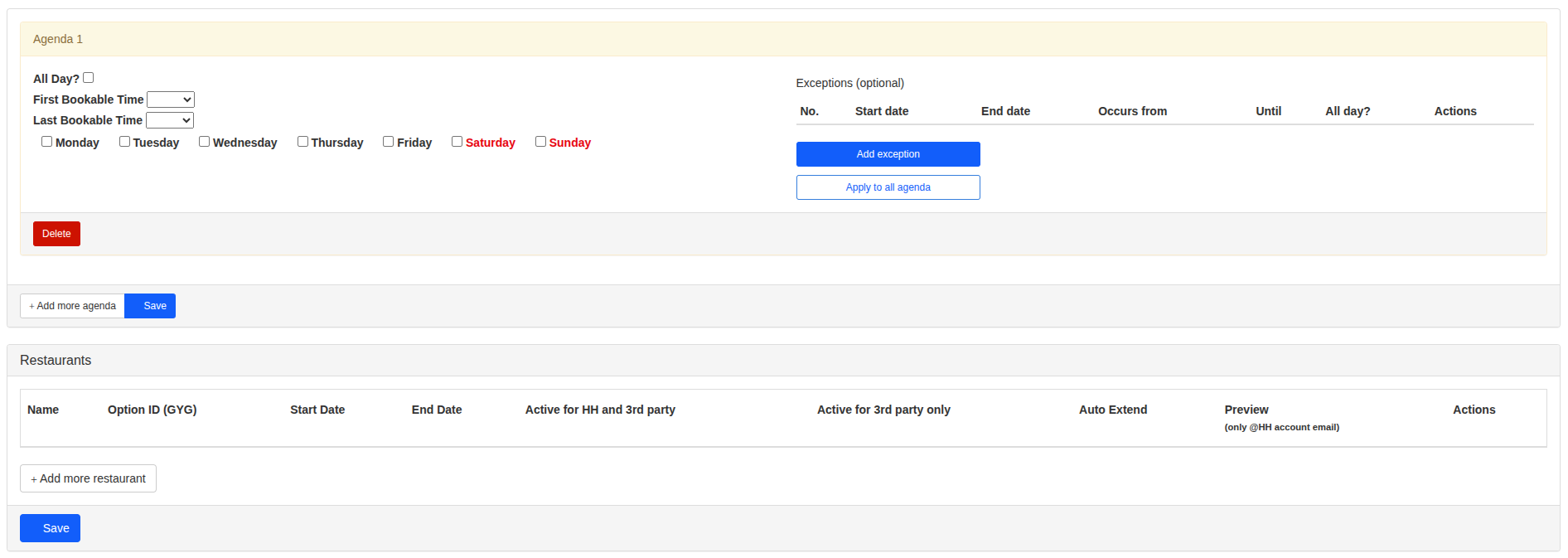
Set Agenda and Restaurant Choose the agenda and assign the package to a restaurant.
-
Set the Menu for the Package
Select the menu type:
if you pick menu type other than HH Menu V3, you need to set the menu section like this:
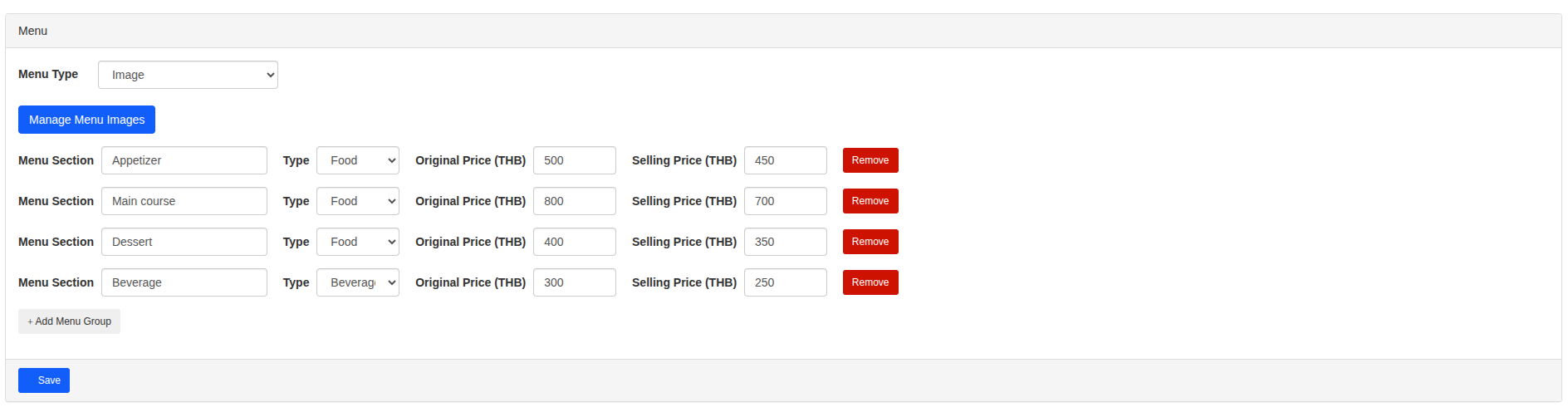
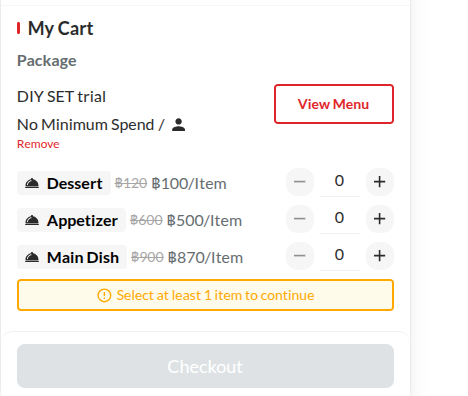
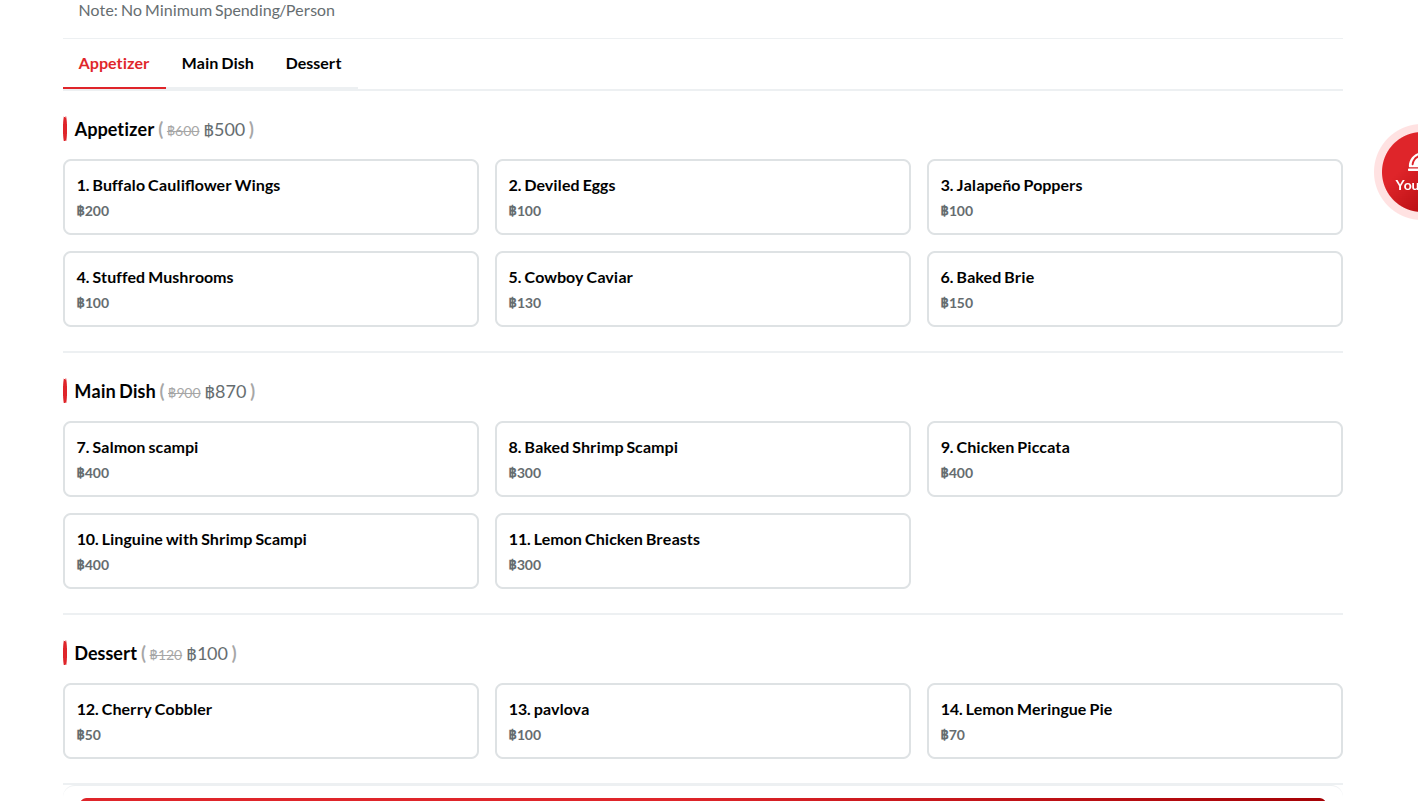
and it will shows on the client side like this :
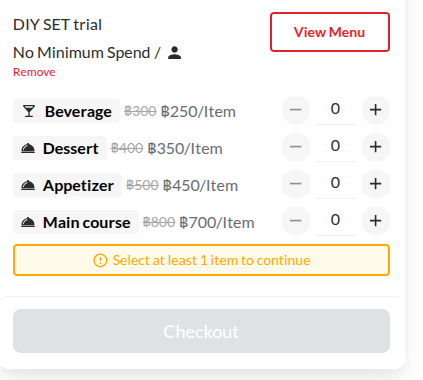
if you pick menu type HH Menu V3, you just need to pick which menu group that you want to use for this package, and insert the price for each menu section like this:
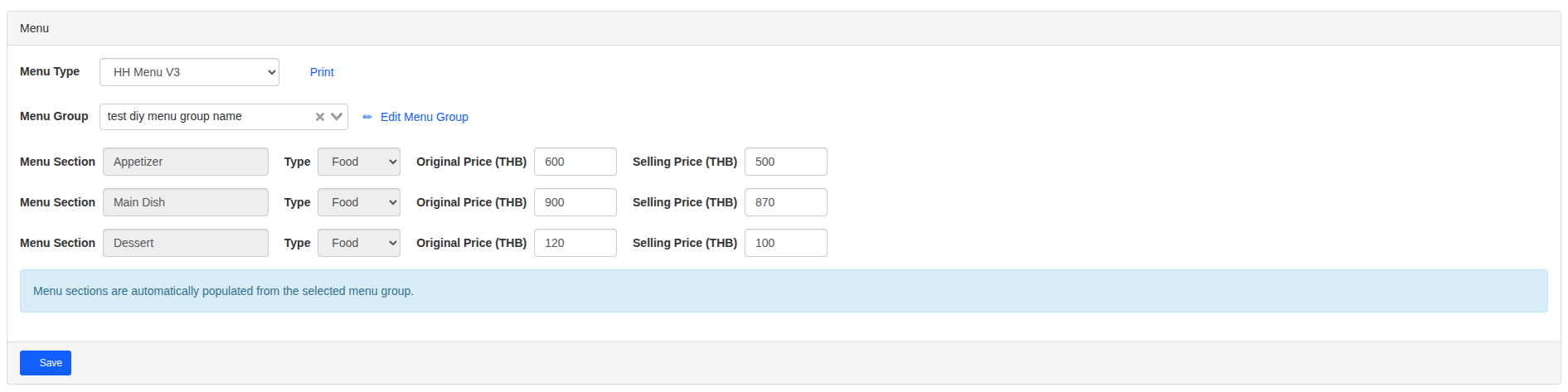
and it will shows like this on client side :