How to View Test Results in Allure Report
his tutorial will guide you through the process of navigating an Allure report to analyze test results, including passed, failed, broken, and skip tests, and how to access error logs and screenshots.
📺 Step 1: Open the Allure Report
- In the Slack message, you’ll see a summary of the test results. Shows the distribution of results:
- Passed: Tests that executed successfully.
- Failed: Tests that encountered errors or assertion failures.
- Skipped: Tests that were skipped during execution.
- Broken: Tests that failed due to unexpected errors.
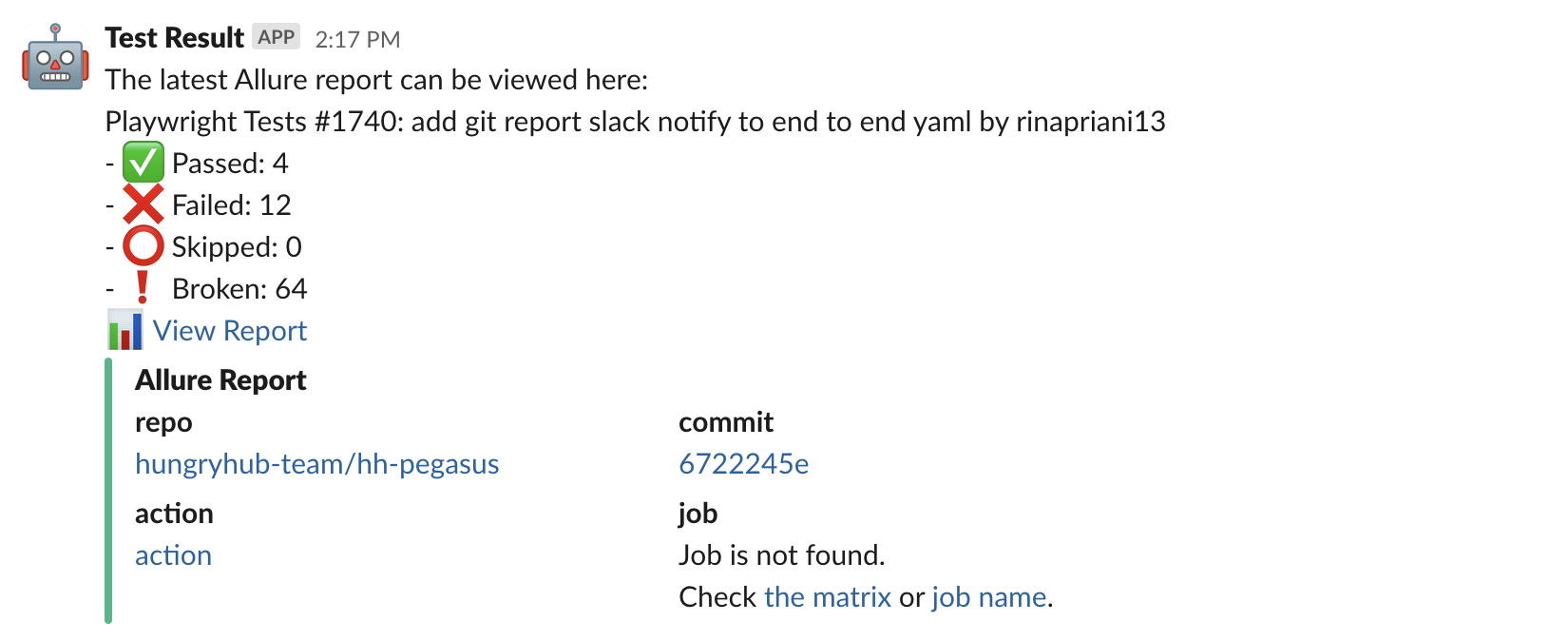
- Click the :bar_chart: View Report link. This will redirect you to the Allure report in your browser.
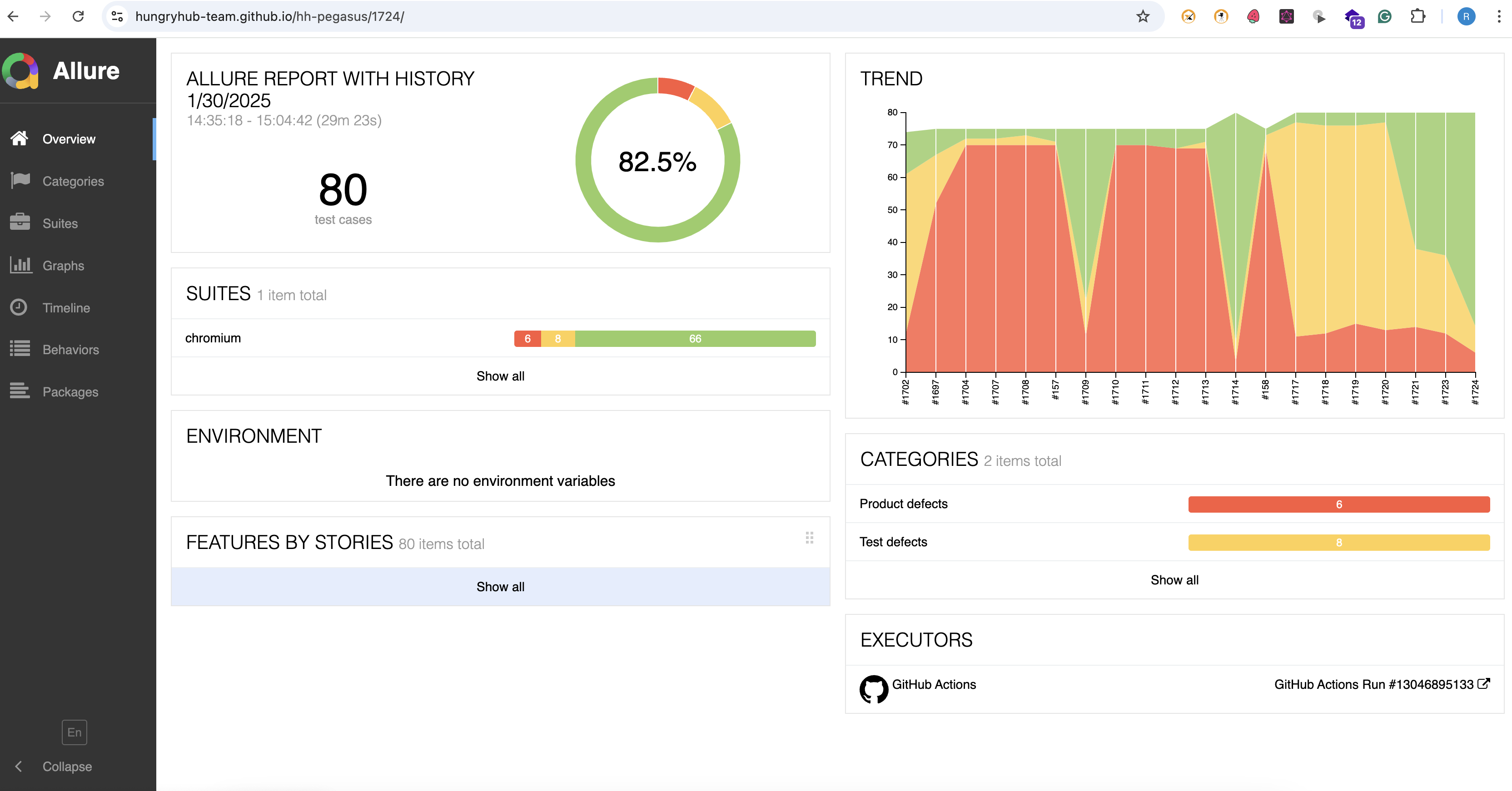
👥 Step 2: View Detailed Test Results
- Click on the "Behaviors" or "Suites" tab in the left-hand menu.
- Behaviors: Groups tests by features or stories (if configured).
- Suites: Groups tests by test suites or classes.
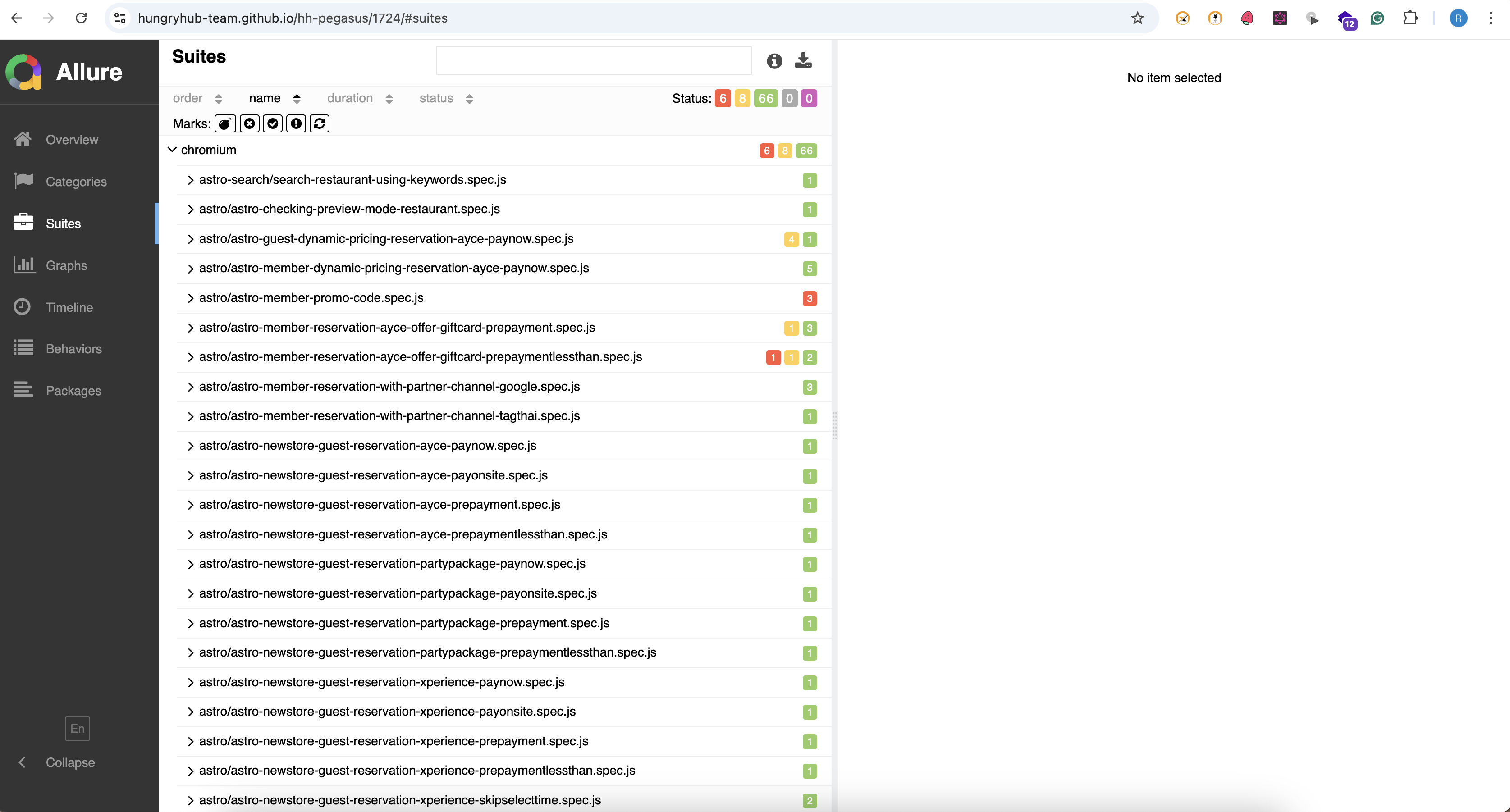
- Expand the test suite or behavior to see individual test cases.
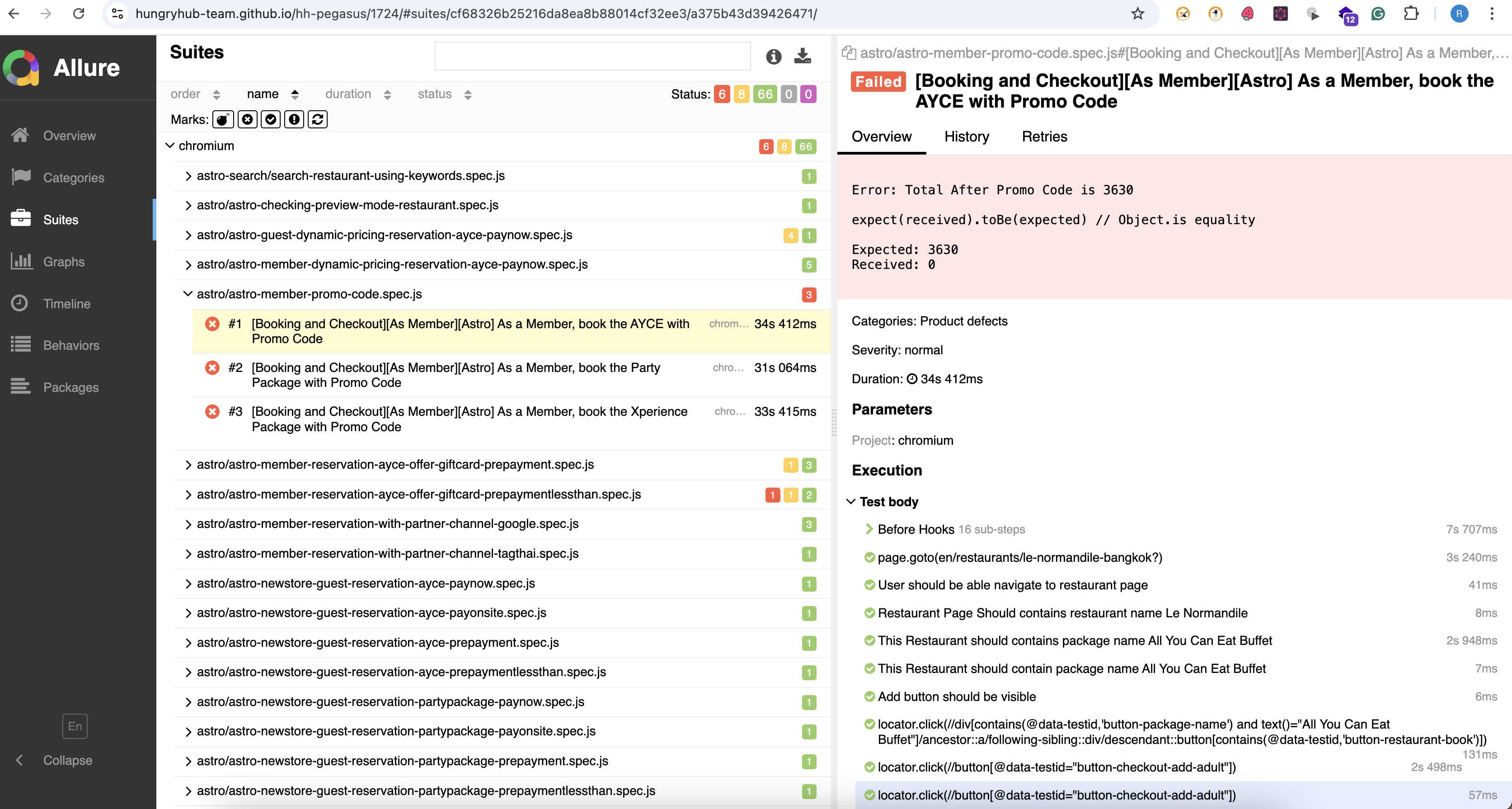
- Click on a specific test case to view its details.
📝 Step 3: Analyze Failed or Broken Tests
For failed or broken tests, follow these steps to debug:
- In the test case details, scroll down to the "Test Body" section.
- Look for the "Steps" section. Each step will show:
- The action performed.
- The result (e.g., passed, failed).
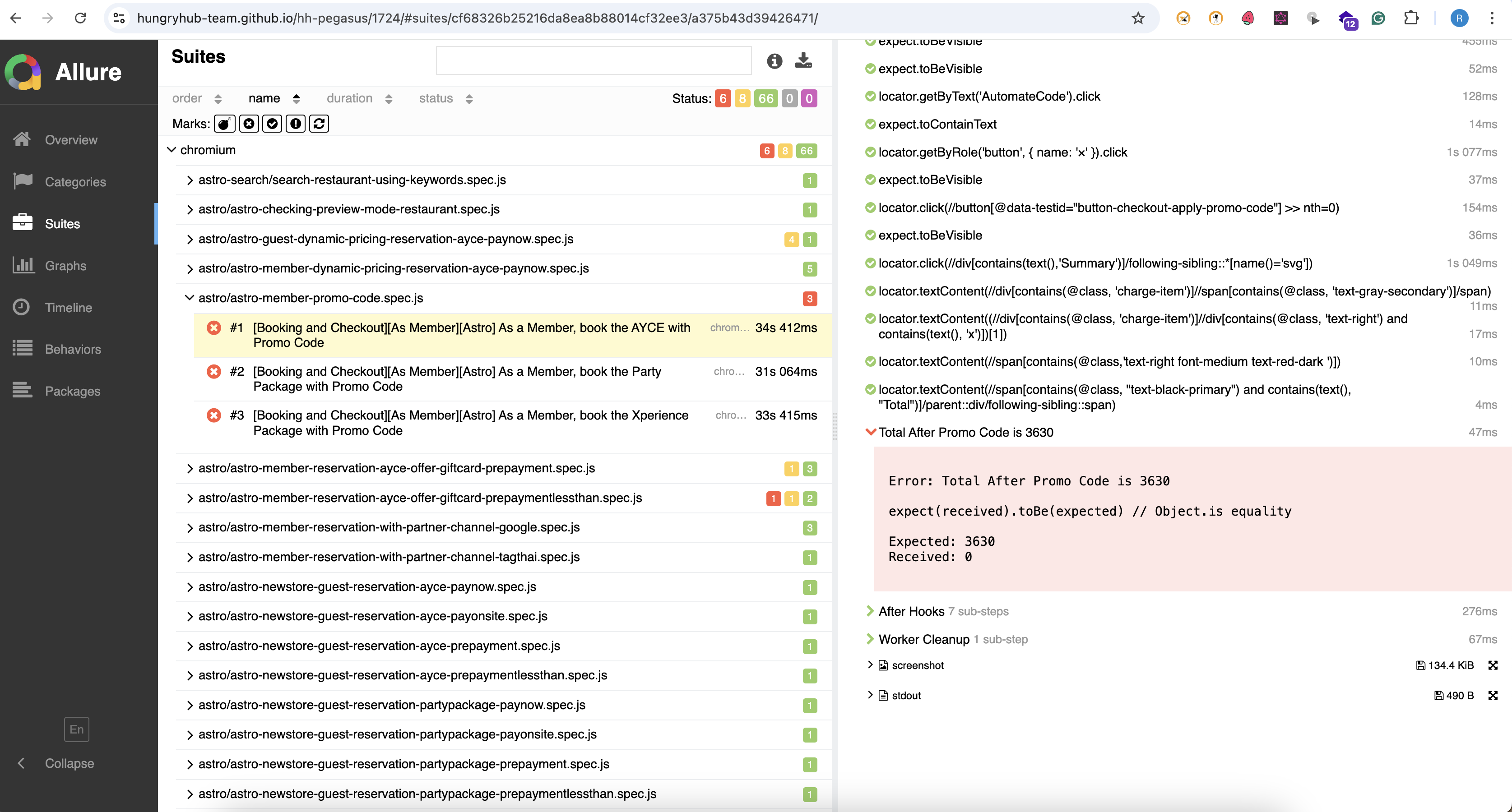
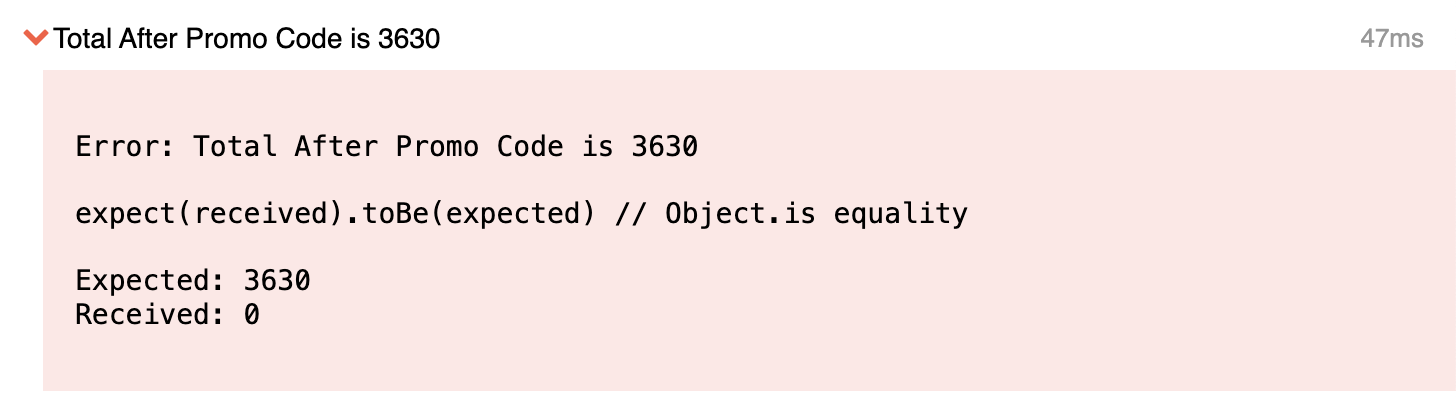
- If a step failed, you’ll see the error message and stack trace under the step.
✅ Step 4: View Screenshots or Attachments
If the tests captured screenshots or other attachments (e.g., logs, JSON files), you can view them in the report:
- In the test case details, scroll down to the "Attachments" section.
- Click on the attachment (e.g., a screenshot) to view it.
- Screenshots are especially useful for debugging UI test failures.
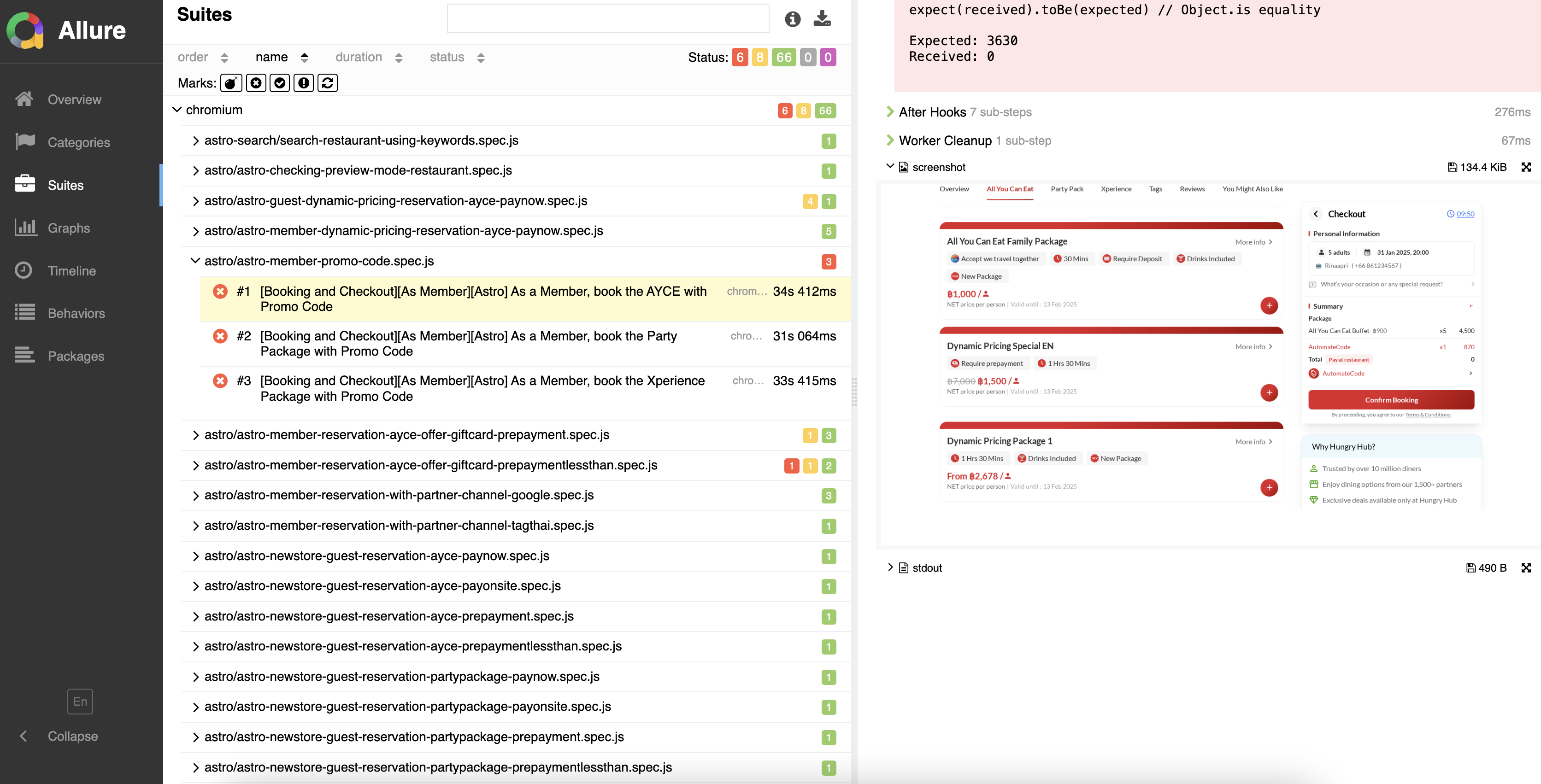
- Screenshots are especially useful for debugging UI test failures.