How to Use Dynamic Homepage Setting - Admin
Glossarium
- The default homepage setting cannot be duplicated or deleted, the Admin can only edit the data.
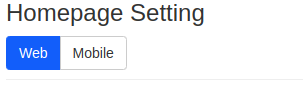 if admin pick web it will show homepage section that will used on website, if admin pick mobile it will show homepage section that will used on mobile.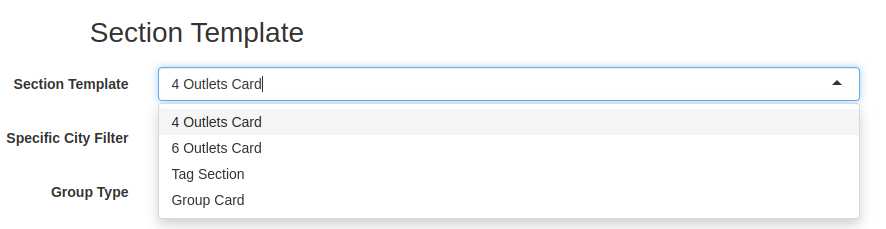
Admin can pick 4 types of section template:
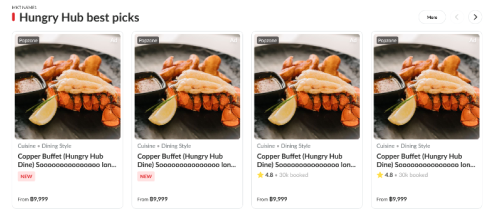
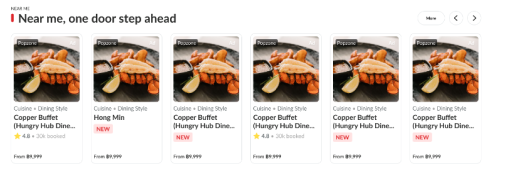
- 4 Outlet card and 6 Outlet card has same design like this:
- Tag Section would be like this:
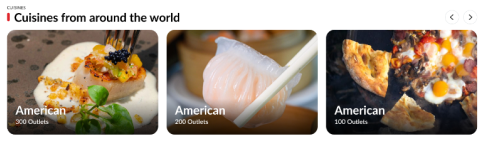
- Group Card would be like this:
now only available for mobile version 
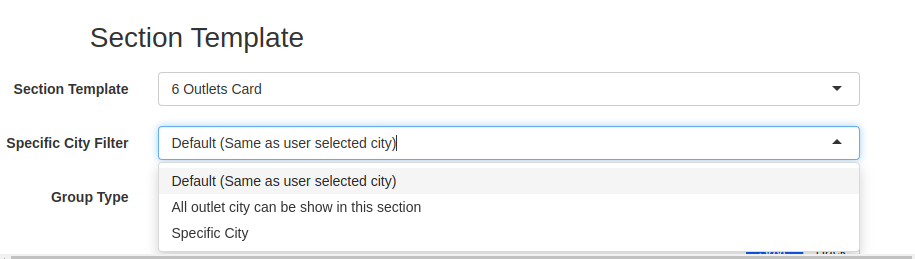 On Specific City Filter you can choose from 3 options:
-
It only shows the outlet that on the same city as the user selected city example: If user pick bangkok, it will show the restaurants that located in bangkok and if user pick all city, it will show all the restaurant from all locations 2. All outlet city can be show in this section This section will show on all city, and shows all restaurant 3. Specific City This section shows only on specific city, and the restaurant that show only the restaurant on that city1. Default
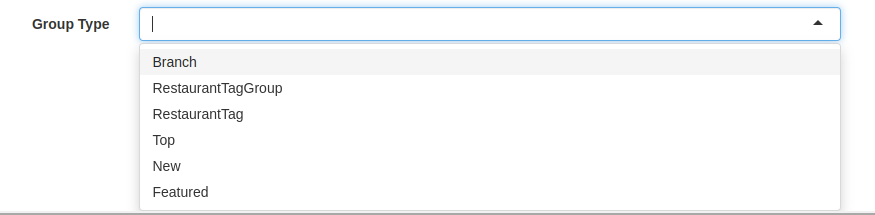
You can pick which Group you want to pick:
- Branch = Choose which Restaurant Branch
- Restaurant tag Group = Choose which Restaurant Tag Group
- Restaurant Tag = Choose which Restaruant Tag
- Top = Top Restaurants
- New = New Restaurants
- Featured = Featured restaurants
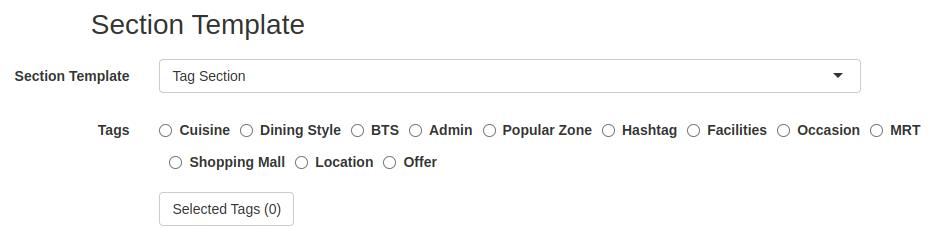
Pick the Tags ➝ Click Selected tags ➝ Pick which tag you want ➝. Click Save Changes
How to create Homepage Section
- Open
https://hungryhub.com/admin/restaurant_sections?locale=en - Click "Add New" button
- Fill all the fields
- Pick the Section template as explained on Glossarium
- Click Save
How to edit Homepage Section
- Open
https://hungryhub.com/admin/restaurant_sections?locale=en - Pick the Homepage Setting that you want to change
- If you want to change the Title, Punch Line, Section Template and existing link, you can change on the homepage setting table and then Click "Update"

- If you want to edit the rest of the data, Click Action ➝ Edit
- Edit the data
- Click Save
How to change the Homepage Section order
- Open
https://hungryhub.com/admin/restaurant_sections?locale=en - Pick the Homepage Setting that you want to change the order setting
- Click this icon
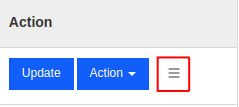
- Drag the homepage setting up and down
- The higher the order, the higher the homepage will appear.
How to hide the Homepage Section
- Open
https://hungryhub.com/admin/restaurant_sections?locale=en - Pick the Homepage Setting that you want to hide
- Click this icon
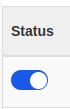
- If the icon colour was blue, the setting was visible.
- If the icon colour was grey, the setting would be hidden.
How to duplicate Homepage Section
- Open
https://hungryhub.com/admin/restaurant_sections?locale=en - Pick the Homepage Setting that you want to duplicate
- Make sure its not the default homepage setting, because you can't duplicate the default homepage setting
- Click Action ➝ Duplicate
- You will redirect to this form
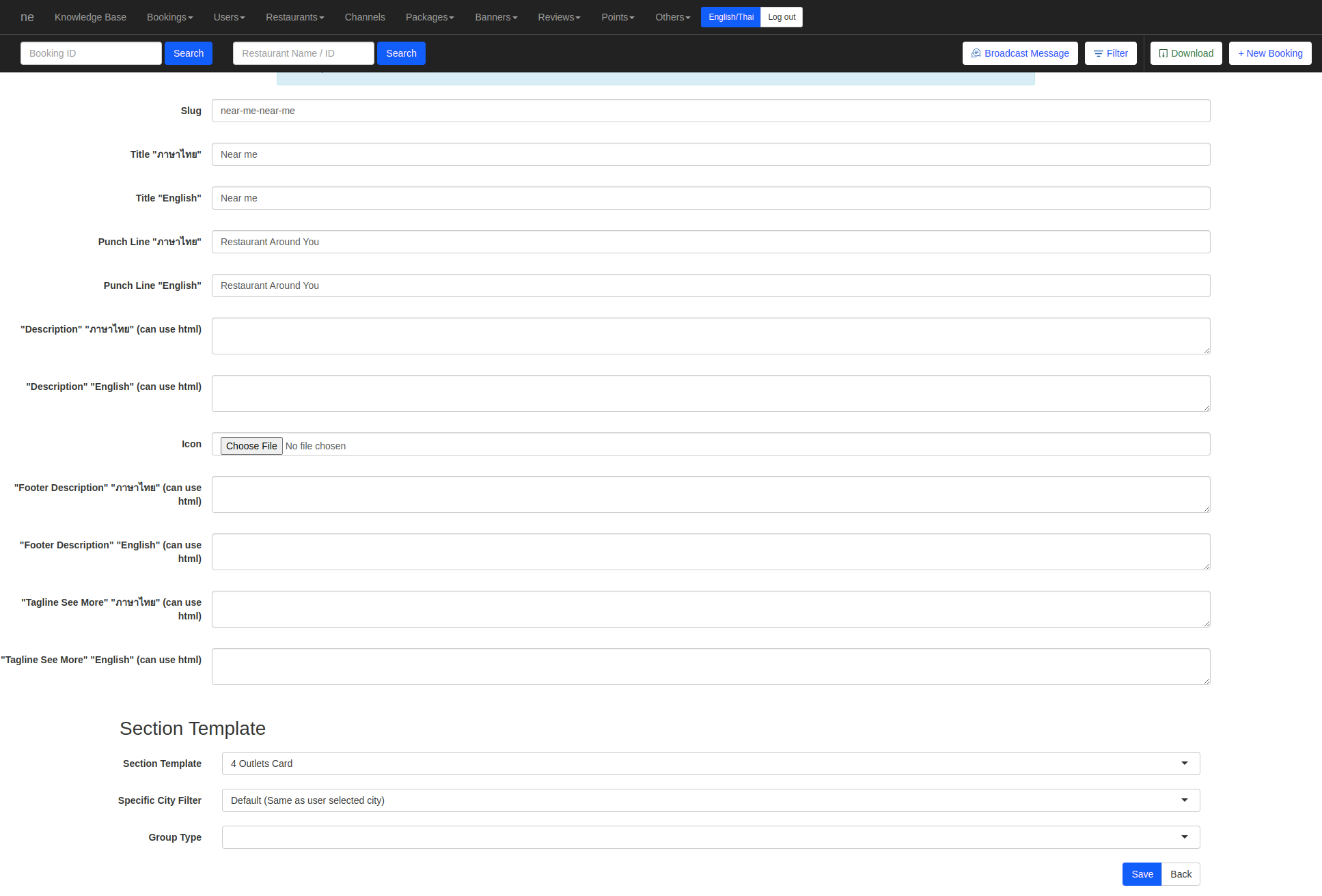
- Change the data that you want to change
- And click Save
How to delete Homepage Section
- Open
https://hungryhub.com/admin/restaurant_sections?locale=en - Pick the Homepage Setting that you want to delete
- Click Action ➝ Delete
- Click Delete Section ➝ OK
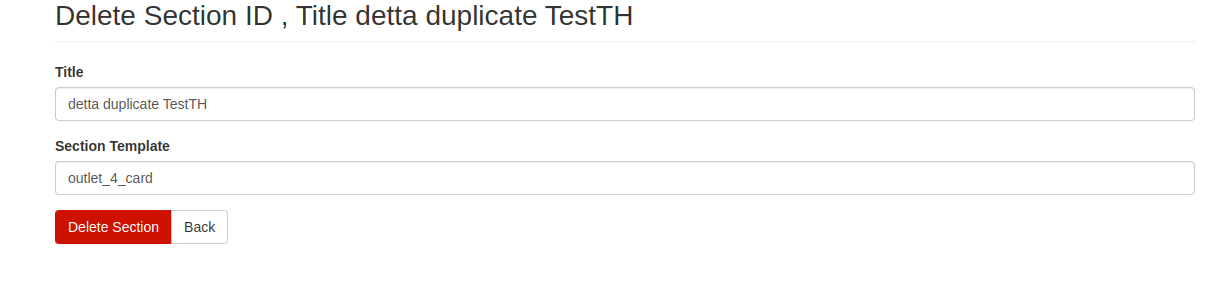
- The section will be successfully deleted