Superset v4 Alert and Report
Now we can send alert and report from superset to slack or email
How to set Superset Report
Via Dashboard menu
- Add the superset bot on the channel
- Open the superset https://superset-v2.hungryhub.com/
- Open menu Dashboard
- Pick the Dashboard that you want
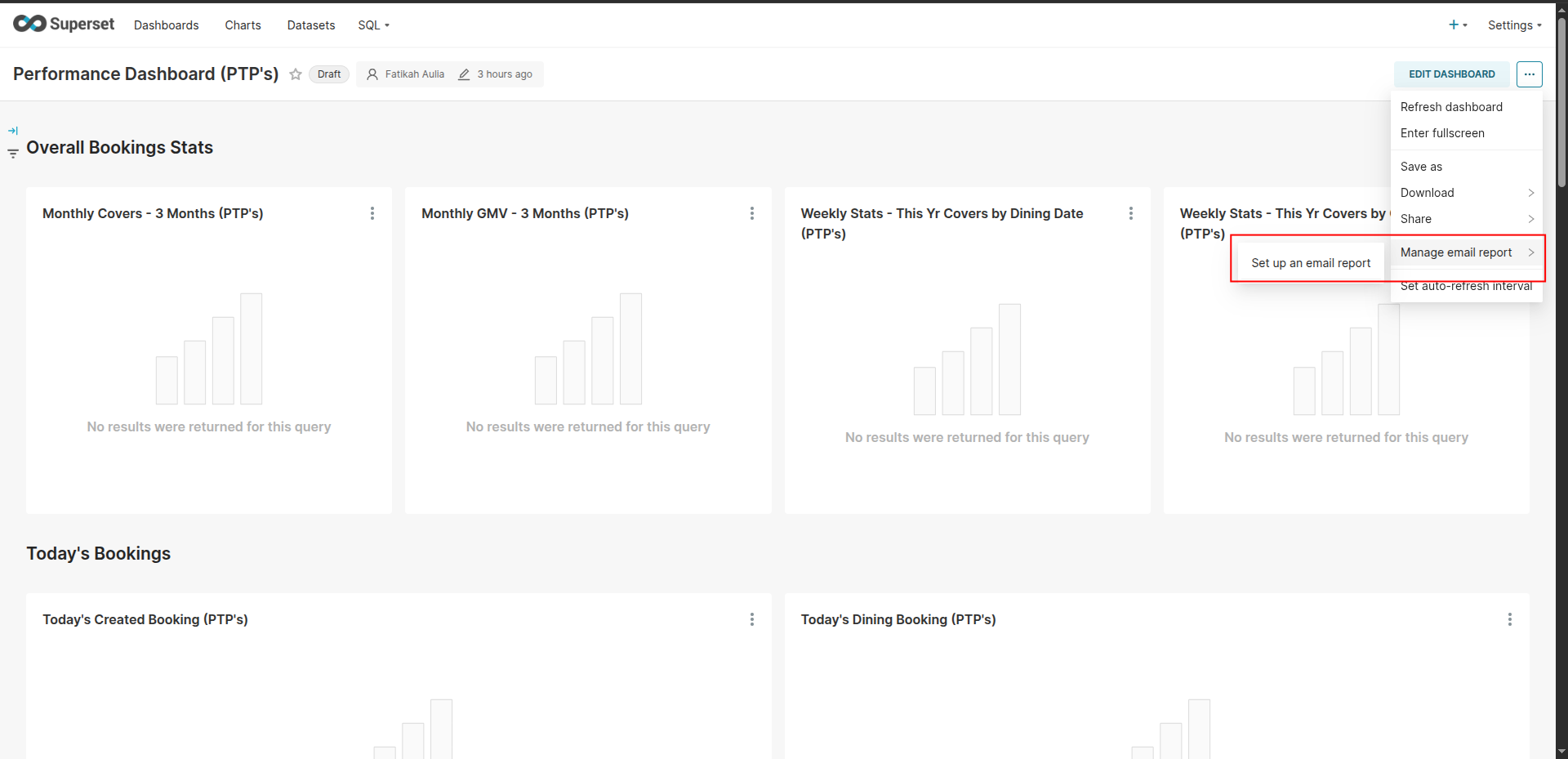
- Go to more icon button, pick set up an email report menu
- Set the report settings
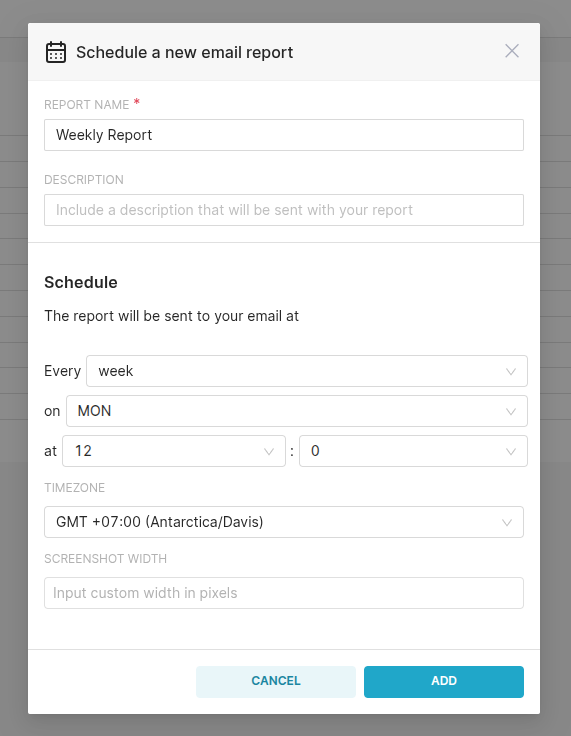
- Click “ADD” button
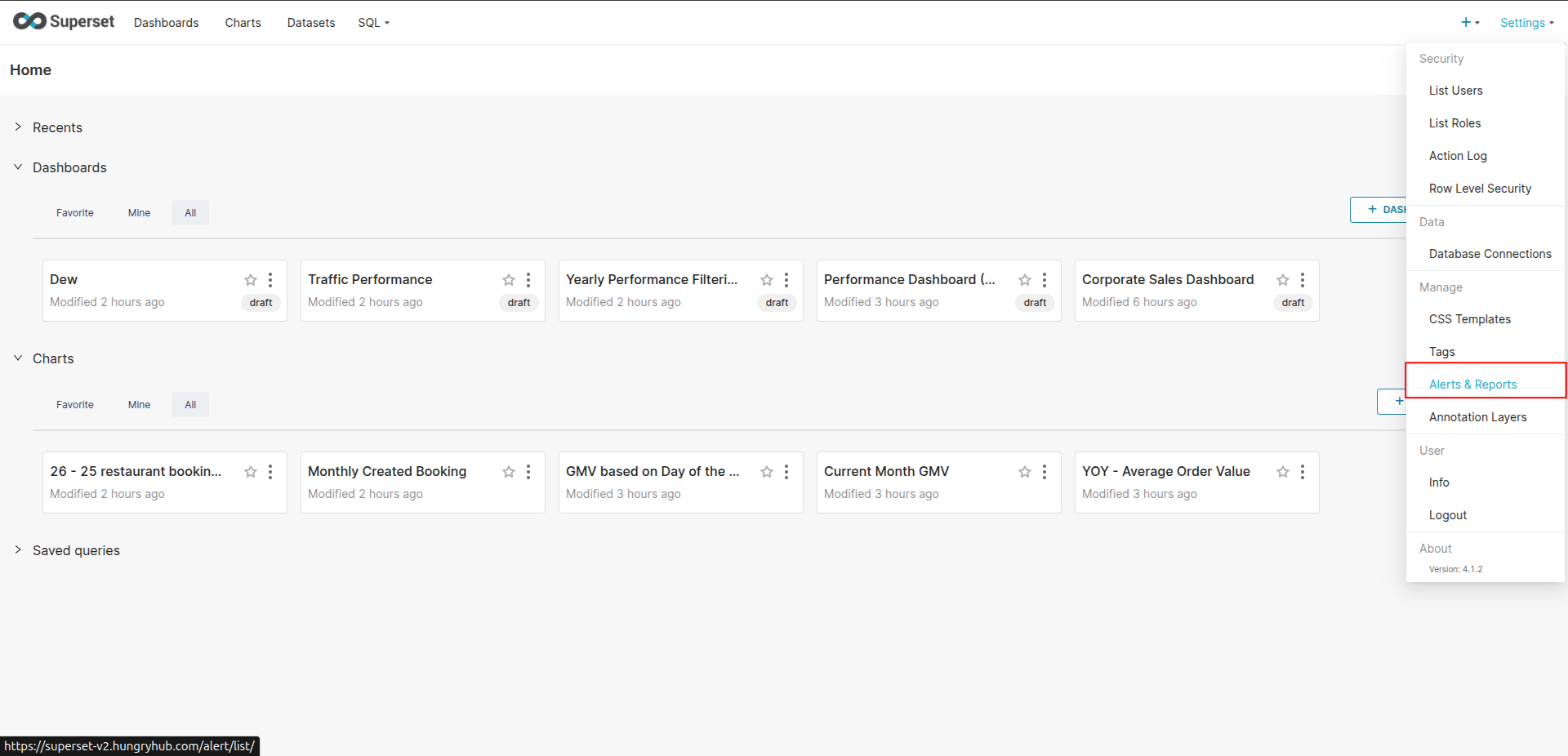
- Go to Setting menu → Alerts & Reports
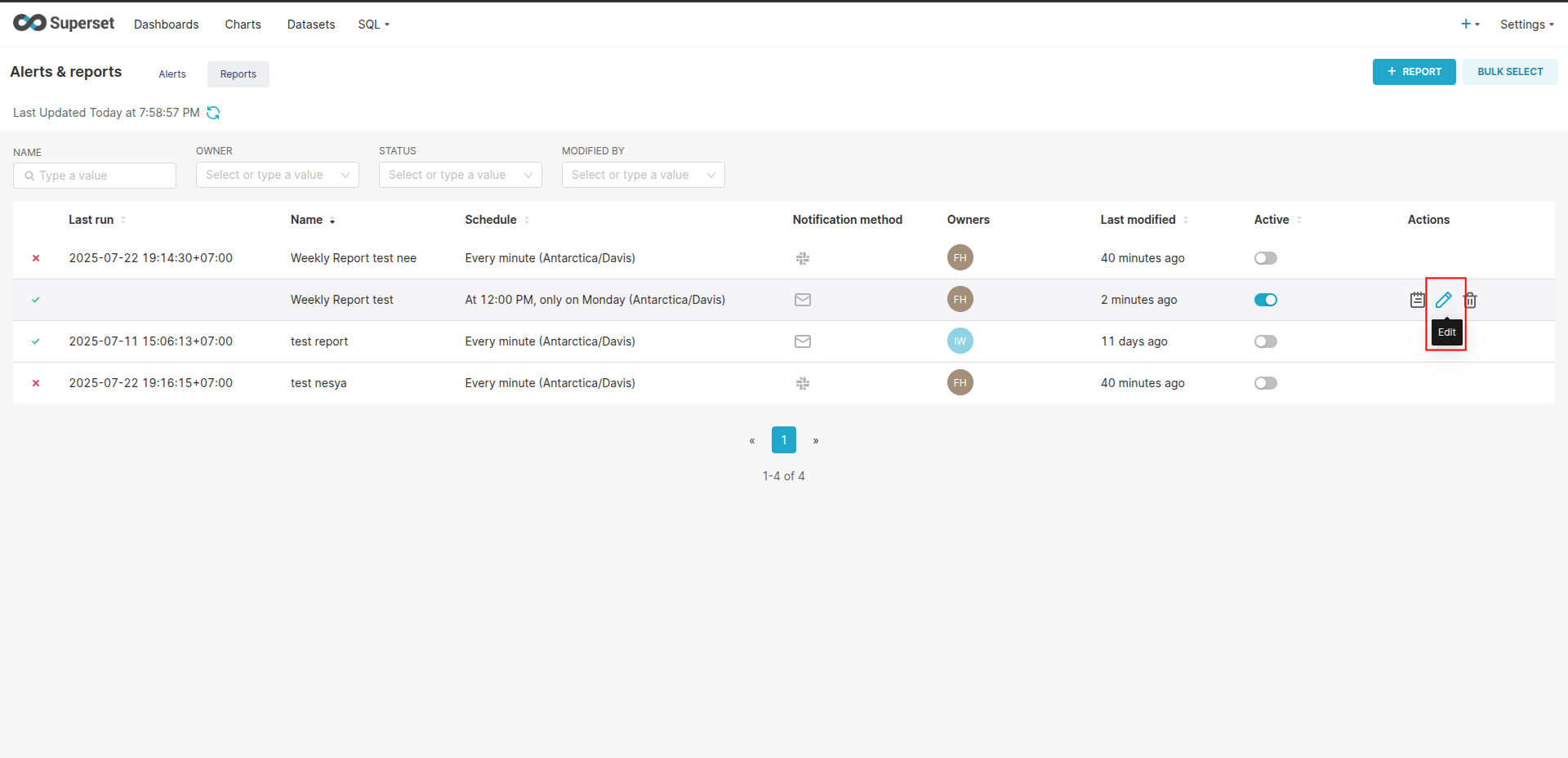
- Pick your new report setting → click the pencil icon to edit
- Go to the notification method
- Change the notification method from email to slack,
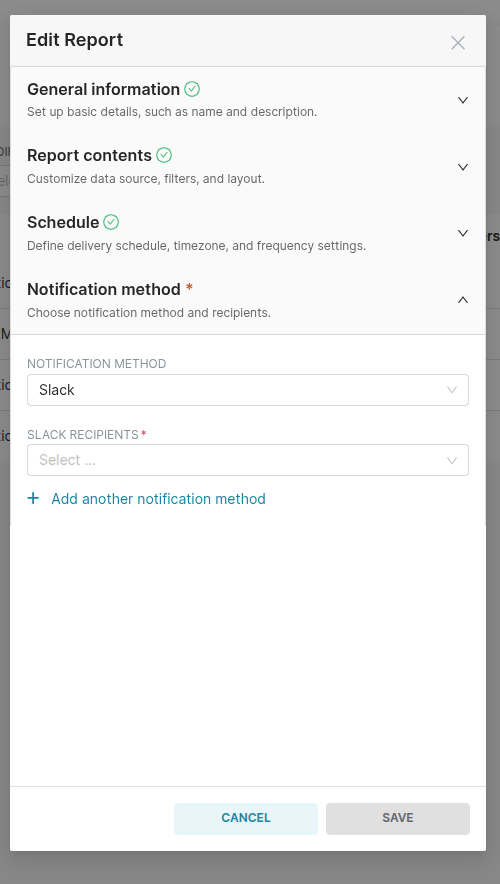
- Pick your channel name on slack recipients (if the superset bot is not installed it will not send the alert to that channel)
- Save the changes
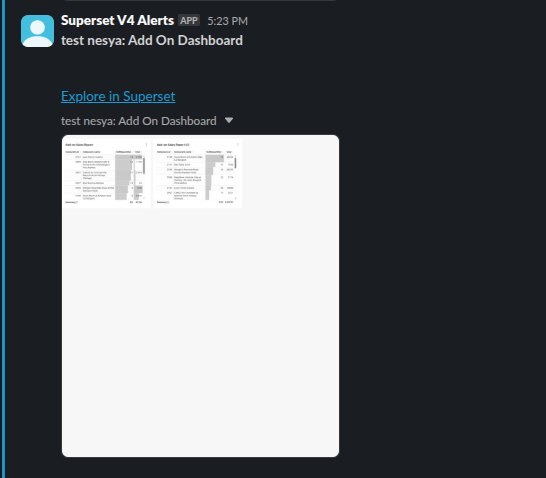
- It should send the report like this
Via Chart menu
- Add the superset bot on the channel
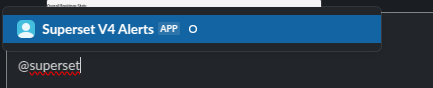
- Open the superset https://superset-v2.hungryhub.com/
- Open menu Chart
- Pick the Chart that you want
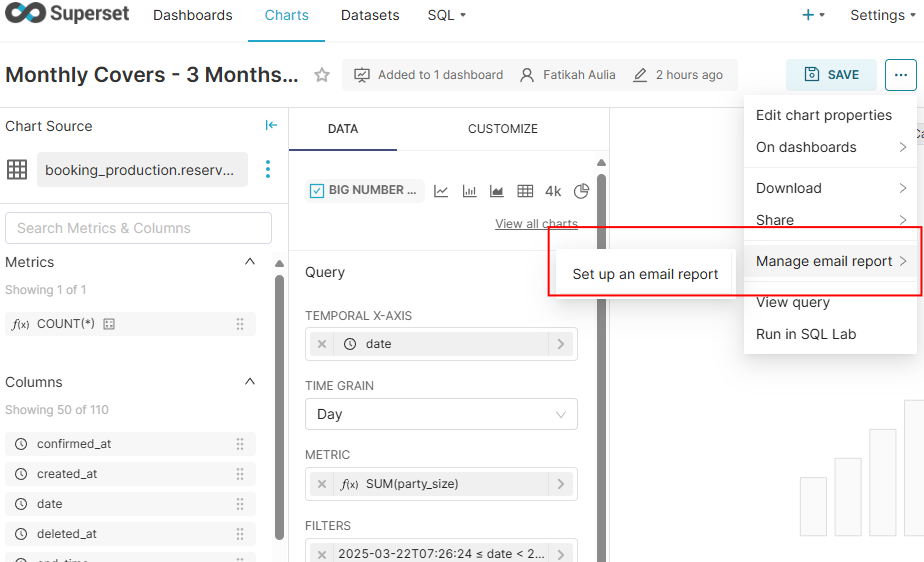
- Go to more icon button, pick set up an email report menu
- Set the report settings
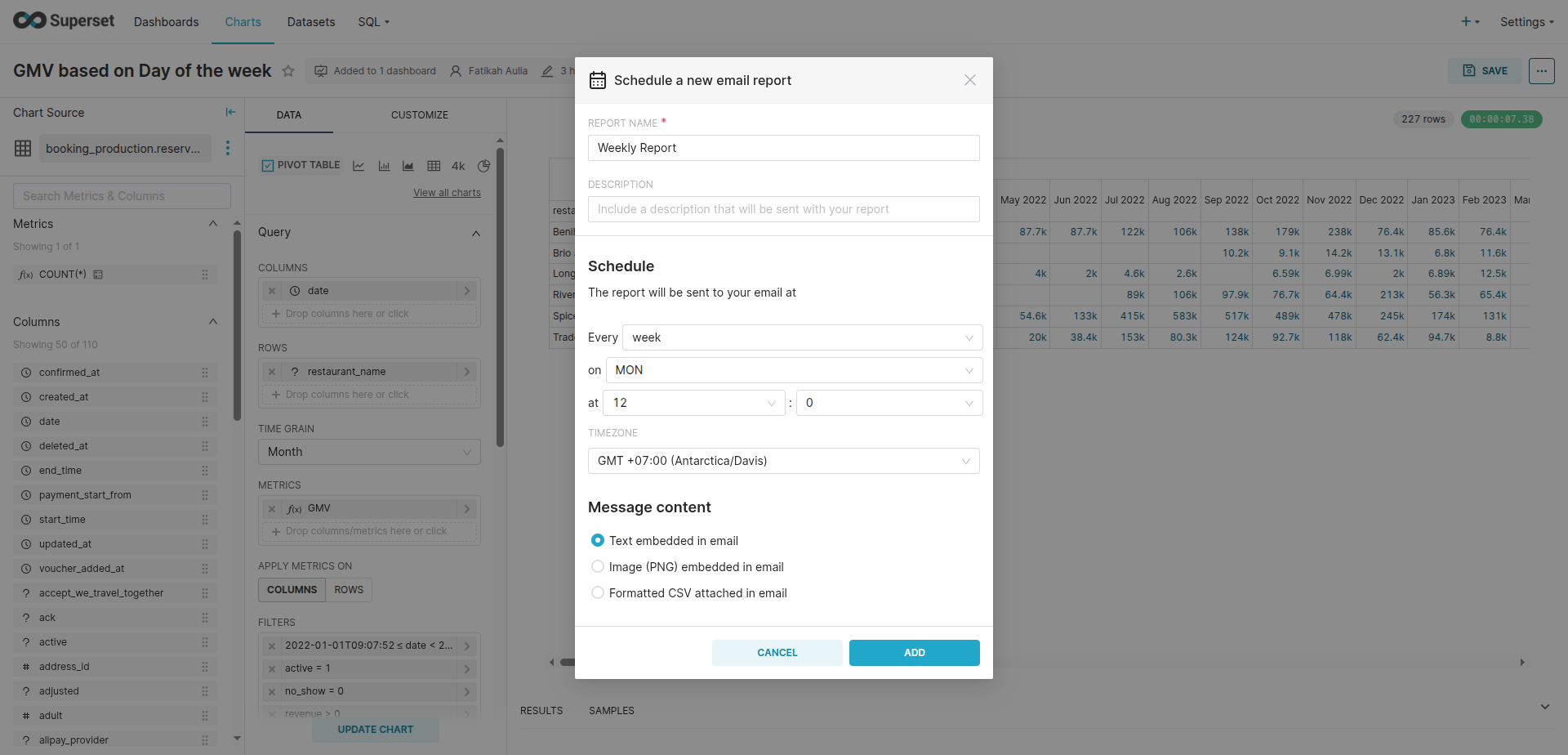
- Click the “ADD” button
- Go to Setting menu → Alerts & Reports
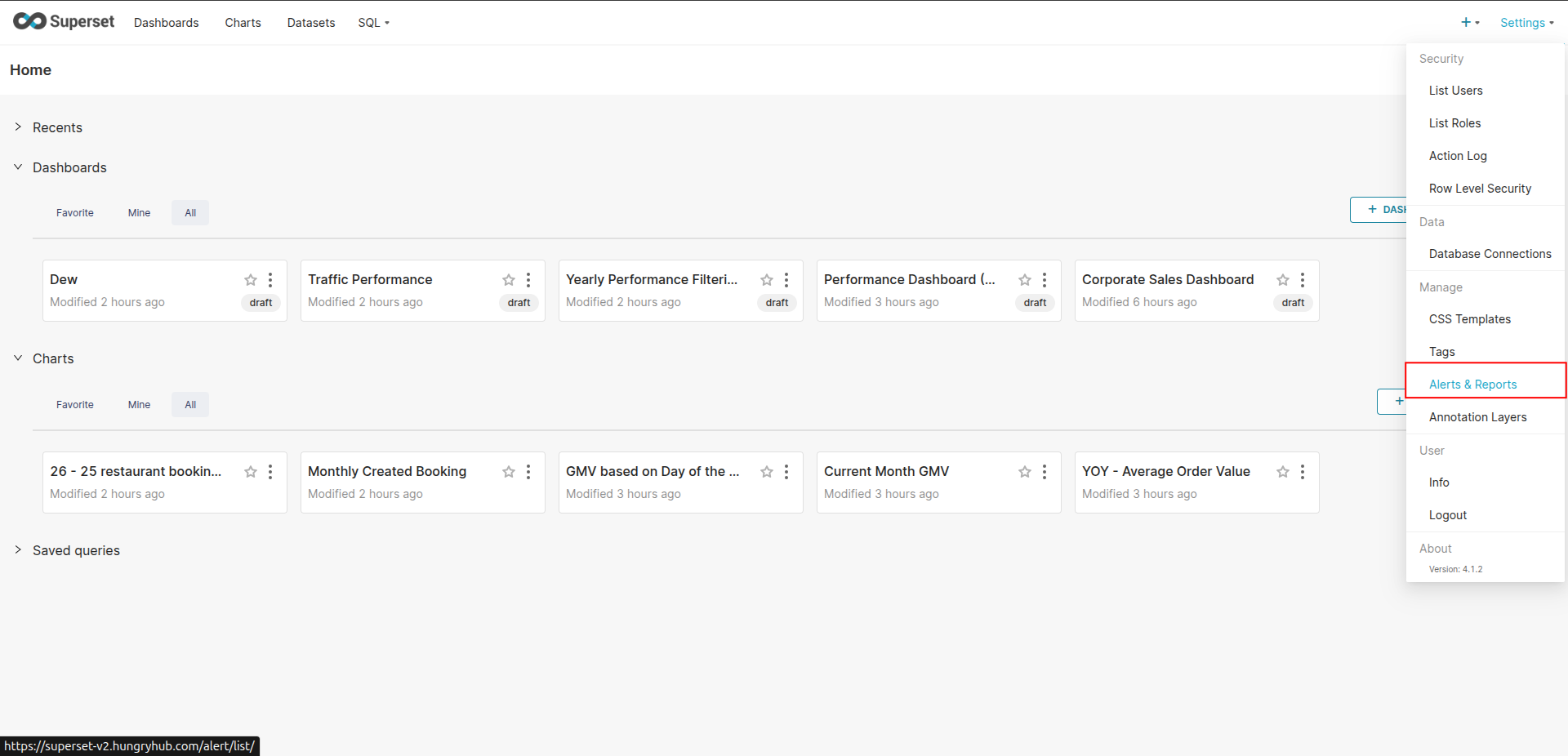
- Pick your new report setting → click the icon to edit
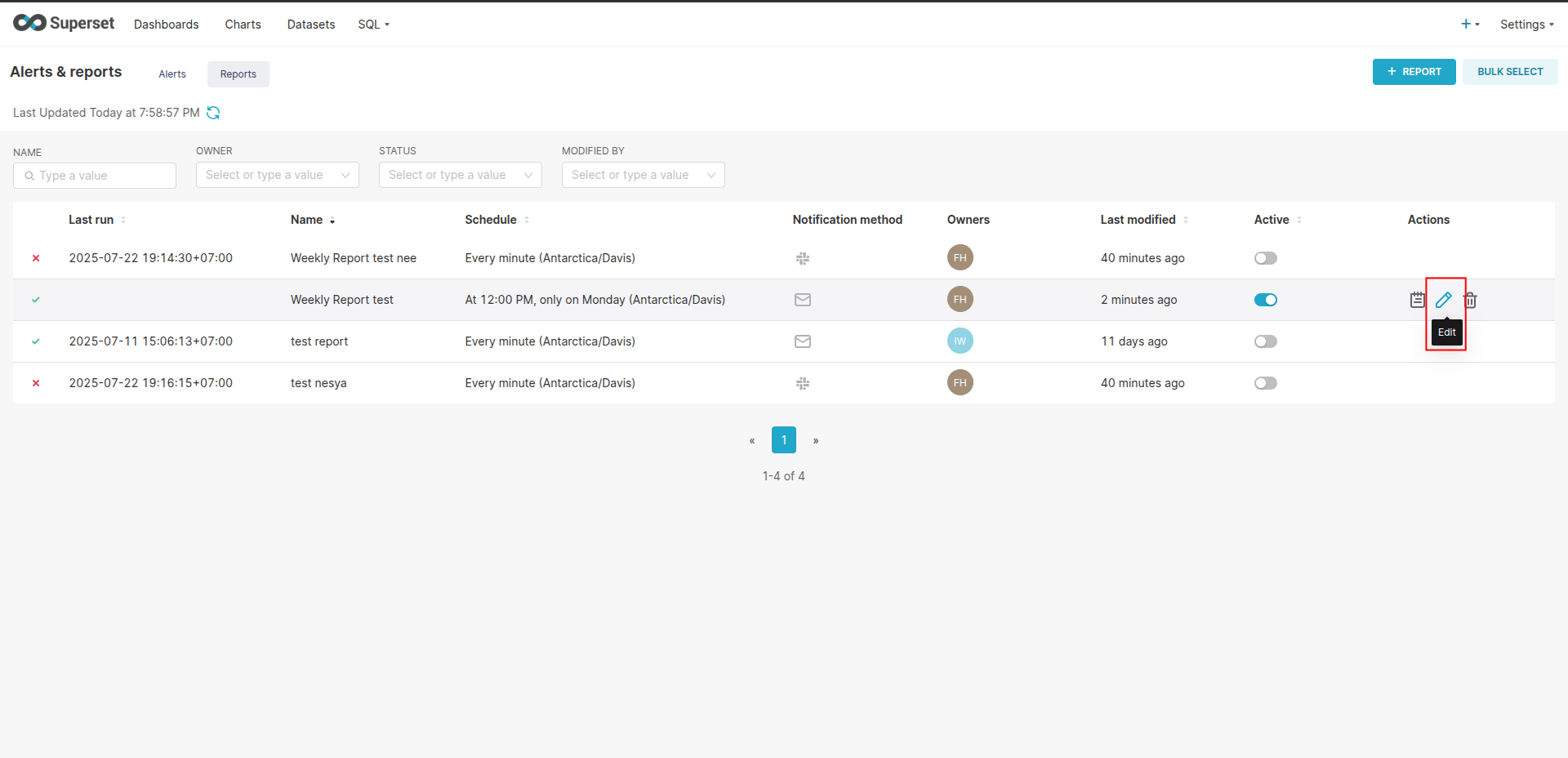
- Go to the notification method
- Change the notification method from email to slack,
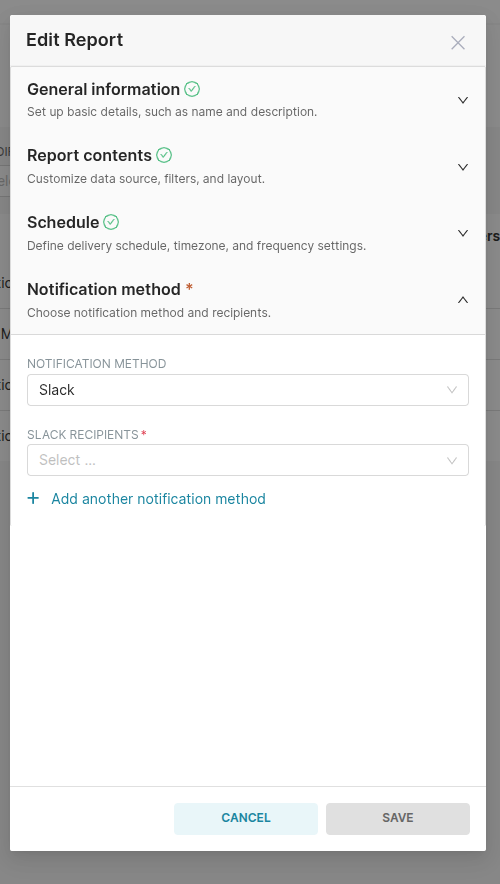
- Pick your channel name on slack recipients (if the superset bot is not installed it will not send the alert to that channel)
- Save the changes
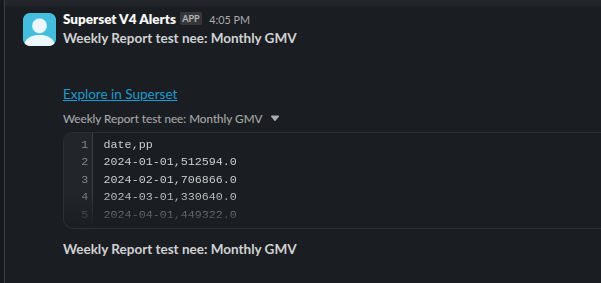
- It should send the report like this
Via Alerts & Reports menu
- Add the superset bot on the channel
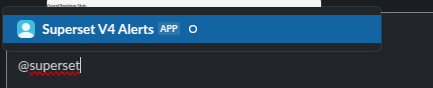
- Open the superset https://superset-v2.hungryhub.com/
- Open menu Settings → Alerts & Reports
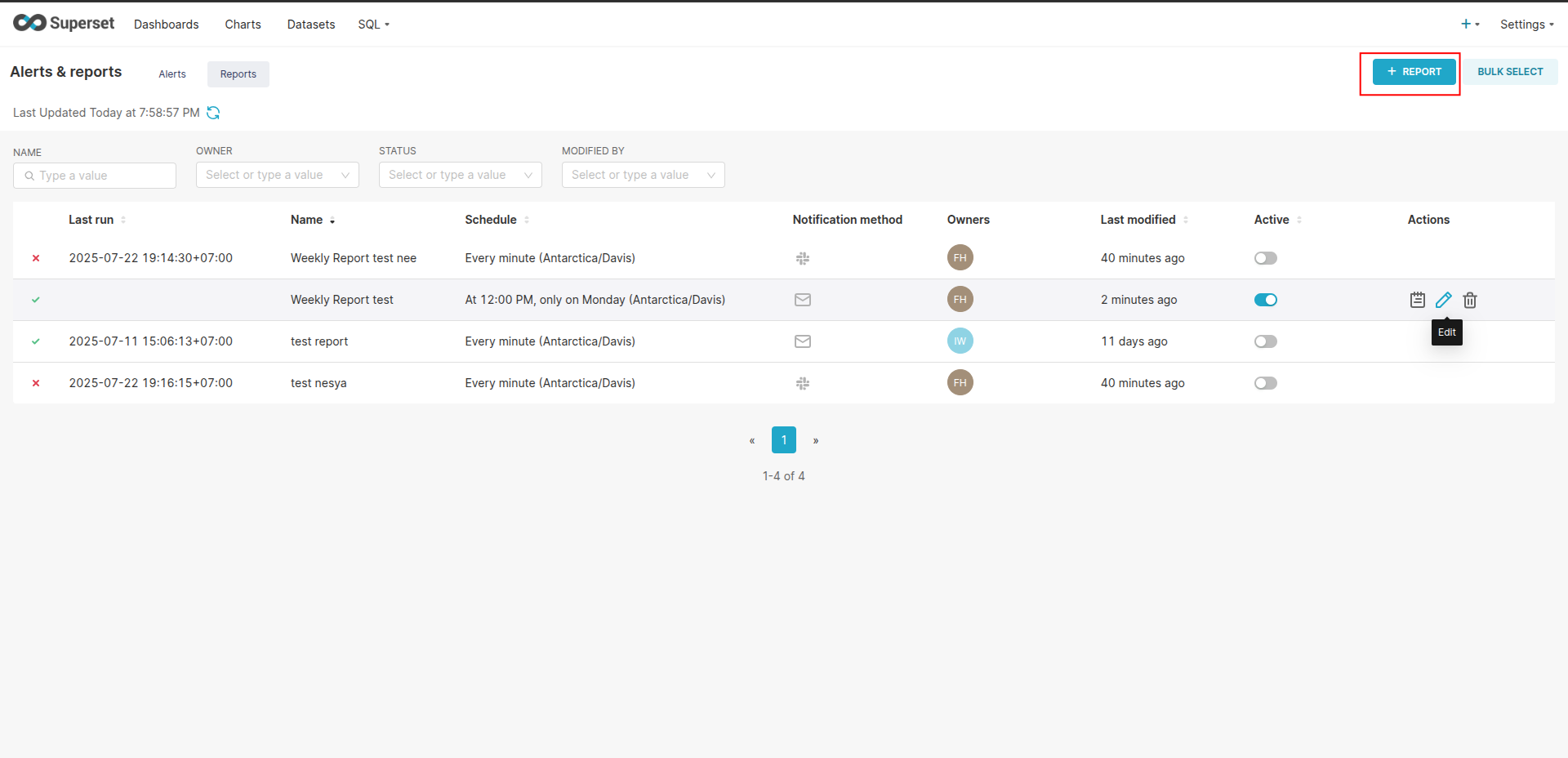
- Pick the report menu → click the +REPORT button
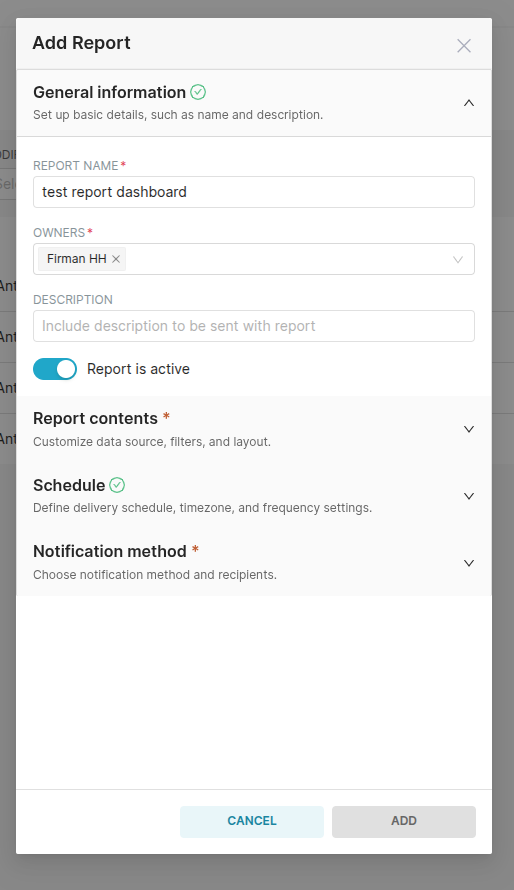
- Add the general information (report name and the owners)
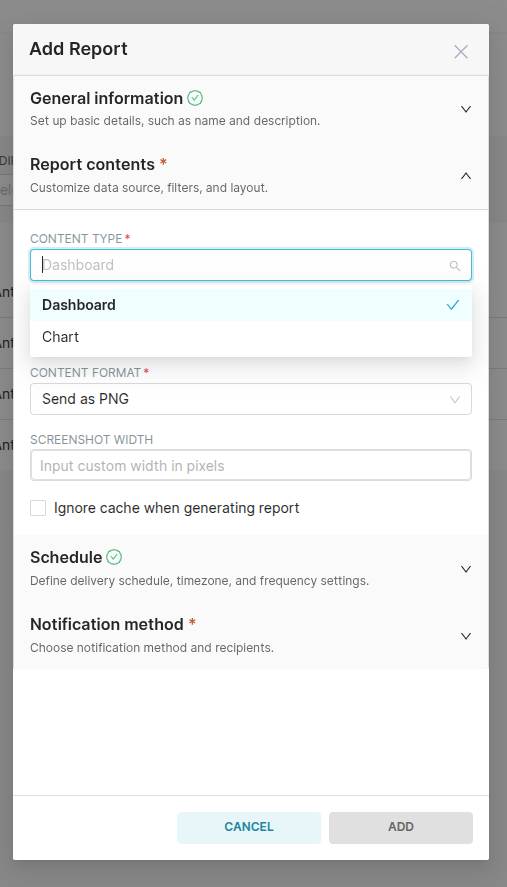
- Input the Report Contents
-
You can pick the content type based on the dashboard or the chart.
-
Select the dashboard or the chart
-
Pick the content format (PDF, CSV, PNG)
-
Input the Schedule
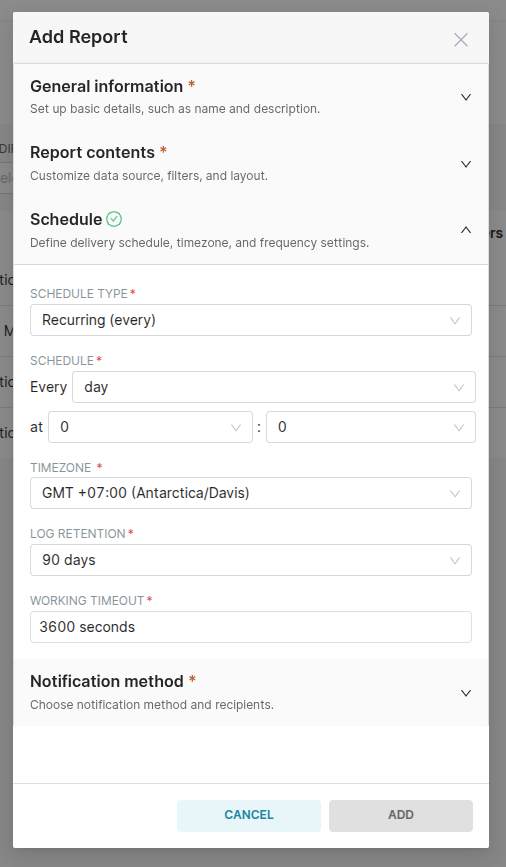
- Input the Notification method
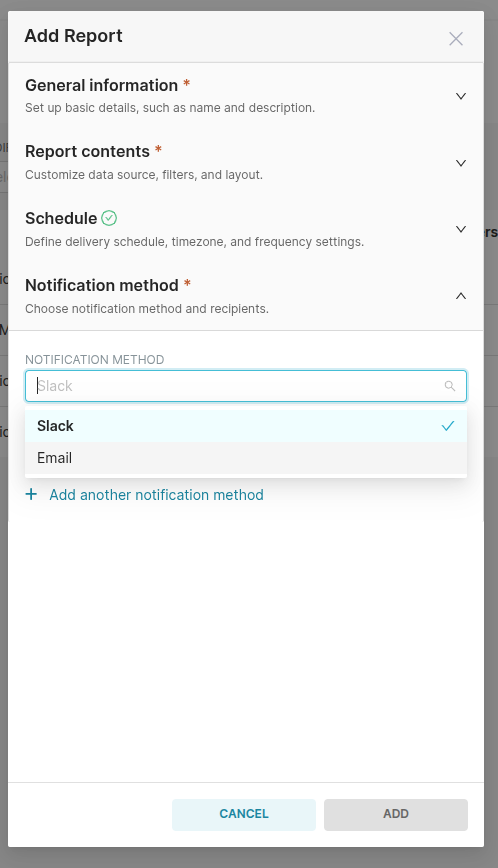
- Pick the notification method
- Add the email or slack recipients
- You can add both of the notification method by clicking the “+ Add another notification method”
- If you pick email on notification method, you should list all the email on email recipients
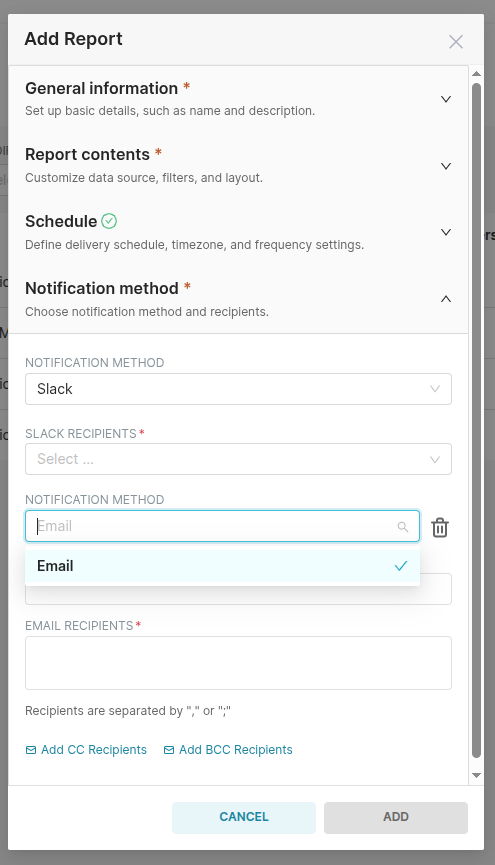
- Click ADD
How to set Superset Alert
Via Alerts & Reports menu
- Add the superset bot on the channel
- Open the superset https://superset-v2.hungryhub.com/
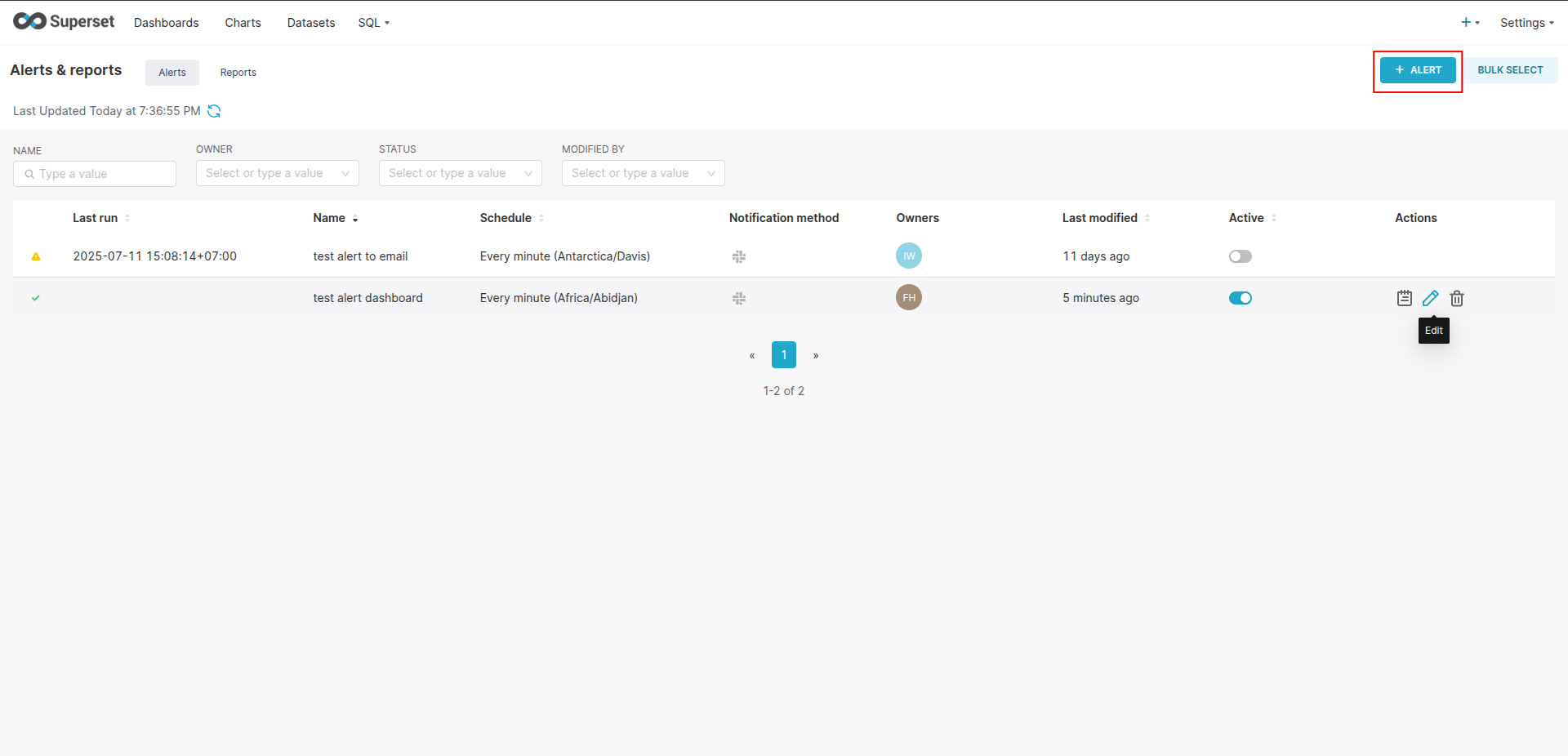
- Open menu Settings → Alerts & Reports
- Pick the alert menu → click the +ALERT button
- Add the general information (alert name and the owners)
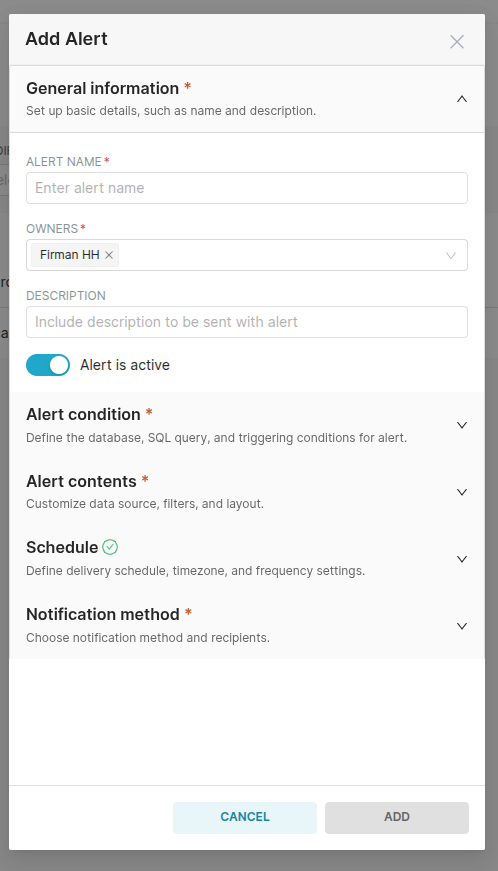
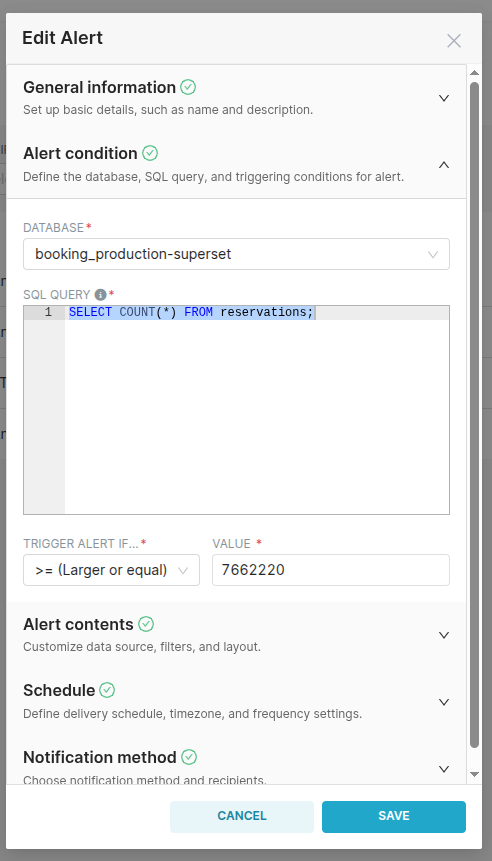
- Input the Alert Condition
Add query condition to trigger the alert (i used trigger when the reservation data count larger or equal to 7662220, it will send alert to the slack account)
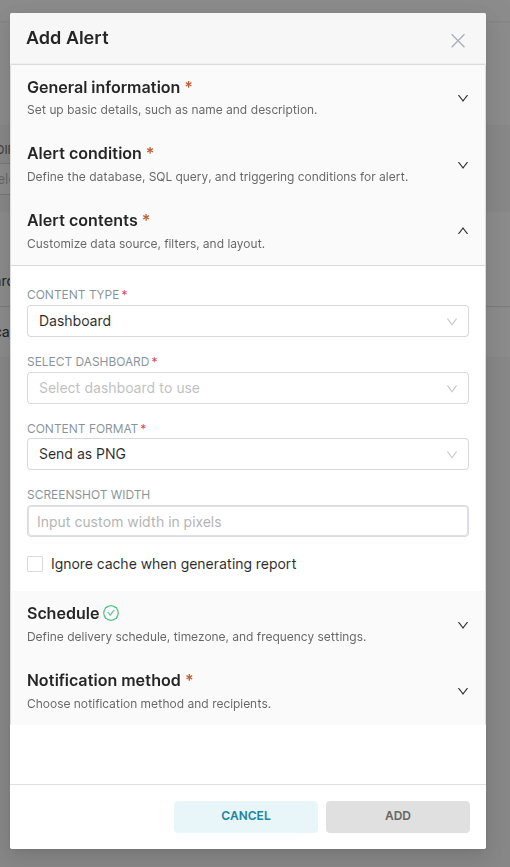
- Input the Alert Contents
-
You can pick the content type based on the dashboard or the chart.
-
Select the dashboard or the chart
-
Pick the content format (PDF, PNG)
-
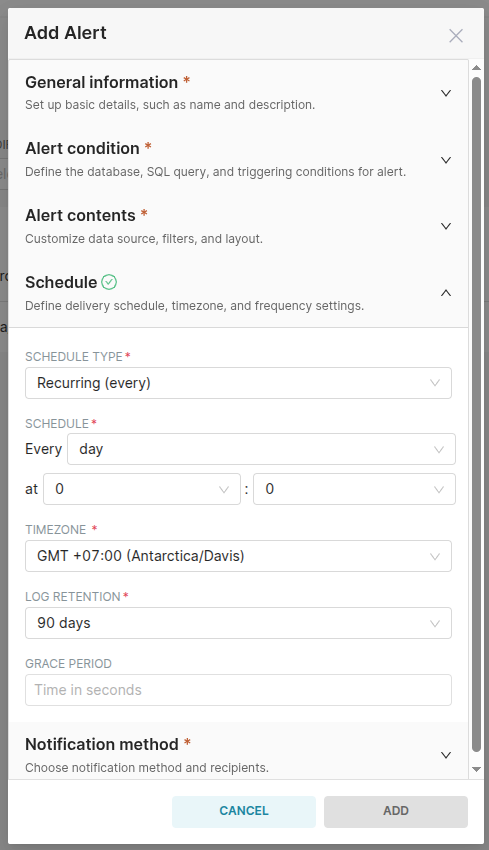
Input the Schedule
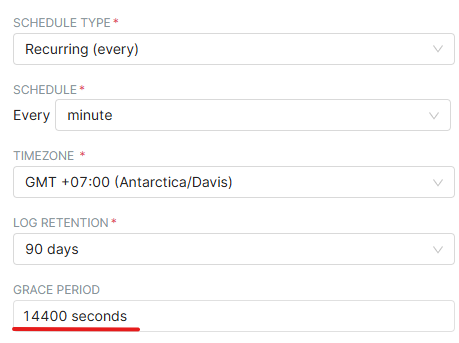
Grace period = is a time period to delay the same alert send more than once. If you let it blank it will automatically set the grace period to 14400 seconds or 240 minutes.
- Input the Notification method
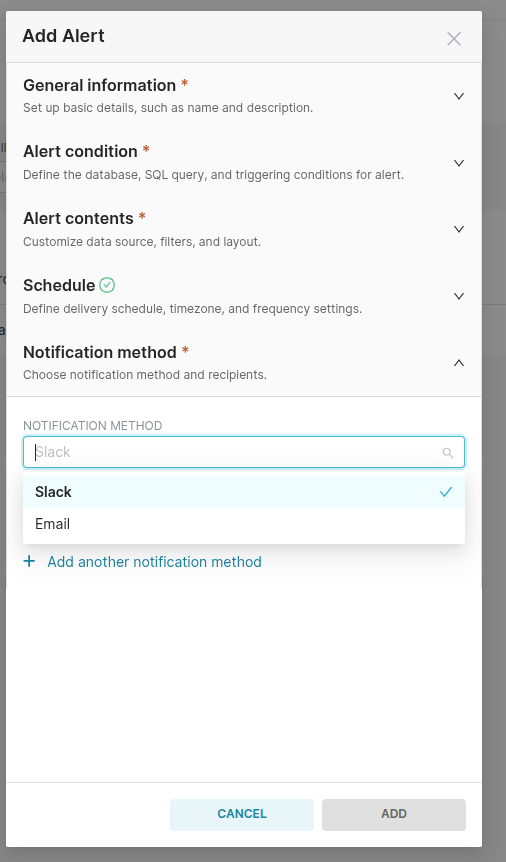
- Pick the notification method
- Add the email or slack recipients
- You can add both of the notification method by clicking the “+ Add another notification method”
- If you pick email on notification method, you should list all the email on email recipients
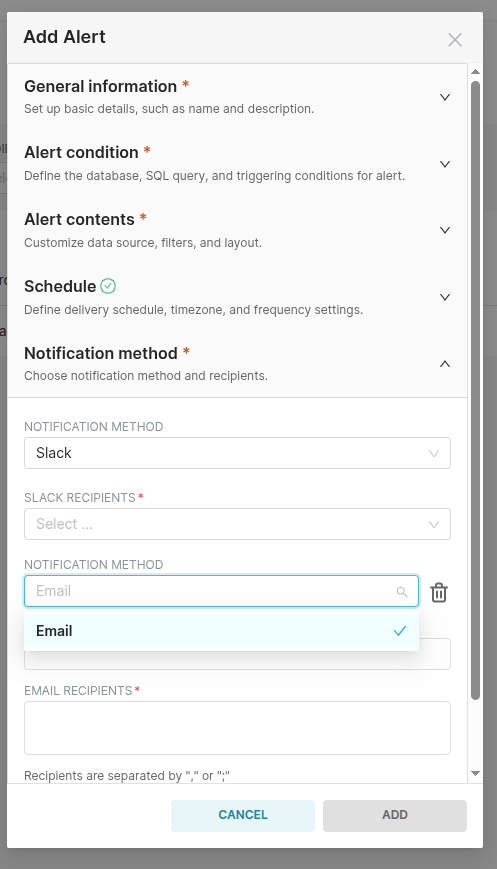
- Click ADD
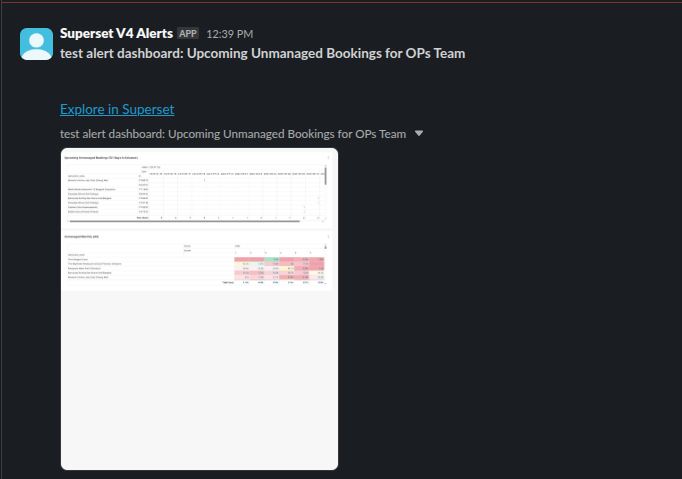
- It should send the alert like this
Superset Error message meaning
Alert fired during grace period

This is not an error. Rather, it is a grace period rule designed to prevent duplicate or frequent submissions when the same conditions still exist.
When the grace period is set to 14,400 seconds (240 minutes), an alert with the same value triggered during the 240-minute delay period will be considered an alert fired during the grace period. The alert will be sent again after the grace period ends.