Big Group
Description / Background
Reservations for large parties require restaurant confirmation to allow for preparation and seat availability checks. Big Group booking enables restaurants to accept booking requests for parties that exceed the standard largest table capacity while maintaining inventory control.
Objectives
- Enable users to request bookings for parties larger than the restaurant’s standard maximum capacity
- Provide restaurants with a manual confirmation process for large party bookings
- Ensure inventory control is maintained without impacting existing allotments.
- Streamline the big group request process with shortcut options
- Ensure clear communication between users and restaurants regarding big group booking status
- Payment method: Pay at Store only:
- No offers allowed
- No prepayment/deposit
- No on-hold payment
- No refund guarantee
- Requires manual restaurant confirmation
- Cannot be used with promotional offers
- Standard cancellation policies do not apply
Scope
- Platforms: Web and Mobile App
- Package Types: AYCE, PP, XP, DIY
- Integration: Partner Portal, Owner V2, Tablecheck, Sevenrooms
- Countries: Thailand, Singapore, Malaysia
How to find Big Group Feature
Flow 1: Manual Quantity Increase
- Navigate to a restaurant’s store page
- Select a package (AYCE, PP, XP, or DIY)
- Increase adult quantity beyond the largest table setting
- The system will show a “Big Group Request” alert and button
Flow 2: Shortcut access via Banner or Button
- Option A: Click the “Big Group Banner” located below the package section (above review section)
- Option B: Click the “More than X?” button on the checkout page
- System automatically adjusts quantity to largest table + 1 and triggers big group request flow
How to set Big Group
Restaurant Configuration
- Mark the restaurant to accept big group bookings in backend settings
- Set the “Largest Table” quantity in Package settings
- If set, this overrides restaurant-level settings
- If left blank, the standard booking flow will apply.
- Enable/disable “Accept group booking” checkbox in restaurant settings
User Flow
- Manual Flow: Add adult quantity until reaching the largest table + 1
- Shortcut Flow: Click “Big Group Banner” or “More than X” button
- Automatically adjusts quantity to largest table + 1
- Shows blue alert: “This is a request to check the available seats for Big Group”
Sequence Diagram / Flow
- Big Group Request Flow
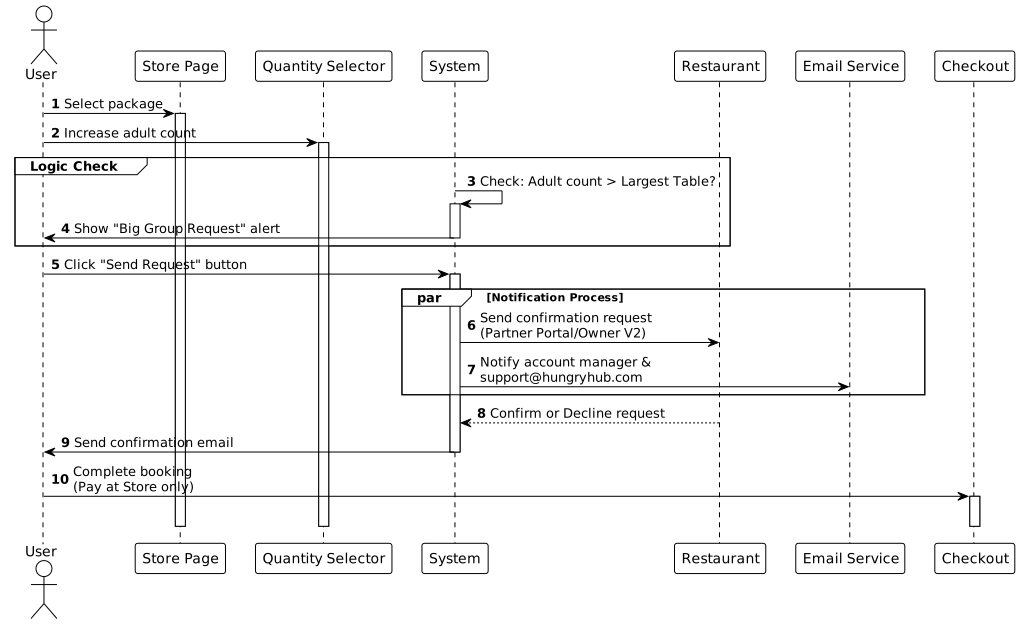
sequenceDiagram
    autonumber
    actor User
    participant Store as Store Page
    participant Qty as Quantity Selector
    participant System
    participant Rest as Restaurant
    participant Email as Email Service
    participant Checkout

    User->>Store: Select package
    User->>Qty: Increase adult count
    System->>System: Check: Adult count > Largest Table?
    System->>User: Show "Big Group Request" alert
    User->>System: Click "Send Request" button
    par Notification Process
        System->>Rest: Send confirmation request (Partner Portal/Owner V2)
        System->>Email: Notify account manager & support@hungryhub.com
    end
    Rest-->>System: Confirm or Decline request
    System->>User: Send confirmation email
    User->>Checkout: Complete booking (Pay at Store only)
- Shortcut Flow
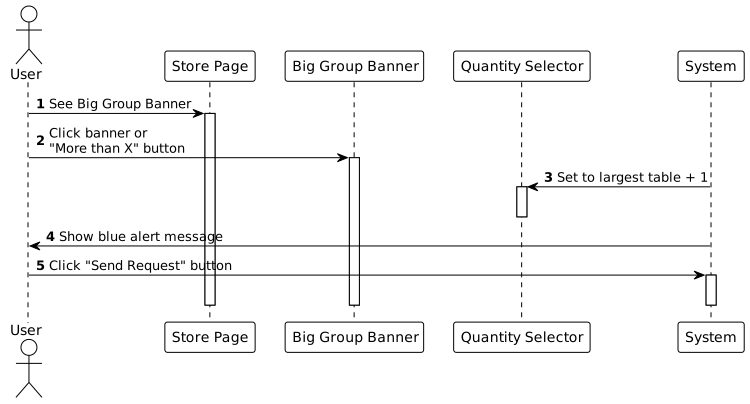
sequenceDiagram
    autonumber
    actor User
    participant Store as Store Page
    participant Banner as Big Group Banner
    participant Qty as Quantity Selector
    participant System

    User->>Store: See Big Group Banner
    User->>Banner: Click banner or "More than X" button
    System->>Qty: Set to largest table + 1
    System->>User: Show blue alert message
    User->>System: Click "Send Request" button
ERD
- No changes to existing ERD; uses current booking and restaurant settings tables
Backend Implementation
Big Group Logic
- Check if adult quantity exceeds largest table setting
- Trigger the big group request flow in place of a direct booking confirmation.
- Manual confirmation process - does not affect inventory/allotment
- Send notifications to restaurant and HungryHub team
Restaurant Settings
accept_big_group_bookingflag at restaurant levellargest_tablesetting at package level (overrides restaurant setting)- If
largest_tableis blank, no big group logic applies
Email Notifications
- Send notifications to the assigned account manager.
- Send to support@hungryhub.com
- Include booking details and party size
Hybrid Implementation
(Not specified in PRD)
Frontend Implementation
Store Page Components
Big Group Banner
- Location: Below package section, above review section
- Visibility: Desktop web and mobile app
- Click Action: Set quantity to largest table + 1
- Click Area: Entire banner
More Than X Button
- Label: “More than [largest_table]”
- Action: Set adult quantity to largest table + 1
- Alert: Show blue alert with big group message
Alerts and Messages
Big Group Request Alert (Blue)
“This is a request to check the available seats for Big Group”
Checkout Page Alert (Yellow)
“Please wait for our reply, we will get back to you as soon as possible.”
Quantity Limit Alert
When largest table is reached without big group enabled:
- Disable + button
- User cannot add more guests beyond largest table
Button Changes
- Replace “Confirm Booking” with “Send Request” button
- Show only when quantity exceeds largest table
Quantity Behavior
- Scenario 1: Click big group banner → Quantity adjusts to largest table + 1
- Scenario 2: Click “More than X” button → Quantity adjusts to largest table + 1
- Scenario 3: Already in big group quantity range → Quantity remains unchanged
- Reducing Quantity: If the user reduces the quantity below the largest table size, revert to normal booking flow
PRD & Task
- PRD Link:
- Main: https://app.clickup.com/9003122396/v/dc/8ca1fpw-7922/8ca1fpw-55376
- Shortcut: https://app.clickup.com/9003122396/v/dc/8ca1fpw-7922/8ca1fpw-56296
- Big Group in Vendor: https://app.clickup.com/9003122396/docs/8ca1fpw-7922/8ca1fpw-55396
Design
Figma Link: Big Group Booking Flow
Design Elements
- Big Group banner component
- “More than X” button design
- Blue alert message styling
- Yellow checkout alert styling
- Disabled state for quantity + button
API Blueprint
| Method | Path | URL | Description | Payload |
|---|---|---|---|---|
| POST | /booking/big-group-request | API endpoint for big group requests | Booking request with party size > largest table | { restaurant_id, package_id, adult_count, date, time, user_info } |
| GET | /restaurant/big-group-settings | Retrieve big group configuration | Restaurant big group settings | N/A |
| PATCH | /restaurant/big-group-settings | Update big group settings | Update configuration | { accept_big_group: boolean, largest_table: number } |
New Query
(No specific new queries mentioned - uses existing booking query structure)
DB Schema / Database Migration
- Add
accept_big_group_booking(boolean) to restaurant settings - Add
largest_table(integer) to package settings - Use existing booking status with “pending” for big group requests
- Add
is_big_group_request(boolean) flag to distinguish big group bookings
Improvement:
| Feature Name | Date | What Changed | Description |
|---|---|---|---|
| Big Group Shortcut | Dec 2024 | Added shortcut options | Added Big Group Banner and “More than X” button for easier access to big group booking flow |
| Big Group Improvement | 2 Dec 2025 | Enhanced user experience | Improved alert messages and quantity adjustment logic |