Voucher Order List
Glossary
- AYCE (All You Can Eat): A package type where guests pay a fixed price for unlimited food.
- PP (Pay Per Person): A package type where each guest pays individually.
- XP: An experience-based package type.
- Transaction ID: A unique identifier for each voucher purchase transaction.
- Voucher Number: A unique code assigned to each voucher after purchase.
Features
Voucher Order List Flow Data
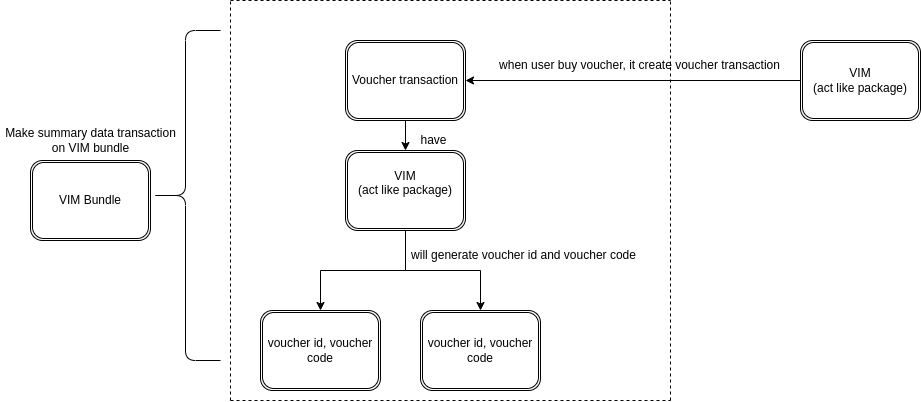
The diagram below illustrates the flow of a voucher transaction from purchase to redemption.
Filter Section
-
Transaction Search

To search for a voucher transaction ID, enter the ID in the search filter. The table will then display results based on the entered transaction ID.
-
Voucher Number Search

You can search the voucher by the voucher number, and it will redirect you to the voucher detail page.
-
Download
You can download the voucher order list based on the date from this button
Voucher Order List Table
 The voucher order list table displays information for each user transaction.
-
Transaction ID
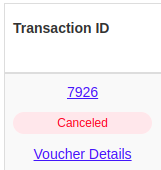
- Transaction ID ➝ Voucher Transaction ID, Click the number to view detailed information:
- Created at, Created by, channel, device
- Transaction status: Unpaid, paid, canceled
- Voucher Details ➝ It will redirect to voucher detail page:
- Note that if the transaction status is canceled, there will be no voucher number.
- It will show table of voucher number
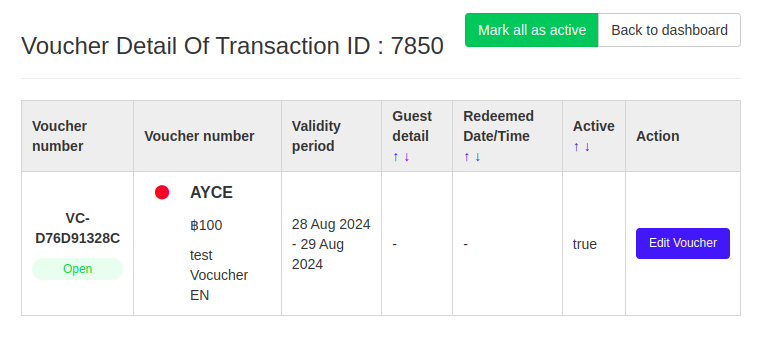
- If you click “Mark all as active” button, it will update all the voucher number to active.
- You can edit the voucher by clicking “Edit Voucher” button.
- Transaction ID ➝ Voucher Transaction ID, Click the number to view detailed information:
-
Created At
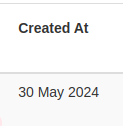
It will show the transaction created date
-
Created Time
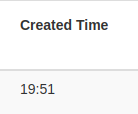
It will show the transaction created time
-
Partner Name
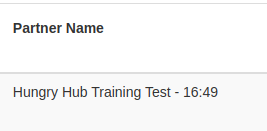
It will show the restaurant name, you can click the partner name and it will redirect you to restaurant page
-
Customer Name / Mobile No.
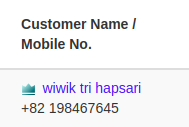
This field displays the user’s name and mobile number. If the user is a member, a loyalty level icon will be shown. You can click the user’s name to view detailed information about the user.
-
Voucher Details
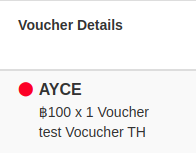
- Package color:


- Package Type : AYCE , PP or XP
- Package Name
- Package color:
-
Quantity
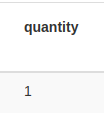
Quantity of the voucher number
-
Paid Amount
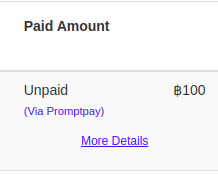
- Payment status : Unpaid, Paid
- Payment Provider: Promptpay, Credit card, true wallet, shopeepay
- More Details :
- Total ➝ total payment
- Due ➝ Total amount to be paid
- Method ➝ payment provider
-
Action
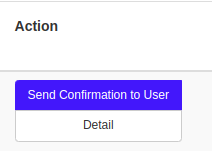
Send Confirmation to User ➝ send the confirmation message to user
Detail ➝ Voucher transaction audit
Voucher Transaction Audit
https://app.clickup.com/9003122396/docs/8ca1fpw-31876/8ca1fpw-39416
How to Download Voucher Orders
- Open Admin Dashboard ➝ Bookings ➝ Voucher Order List
- Click “Download” button

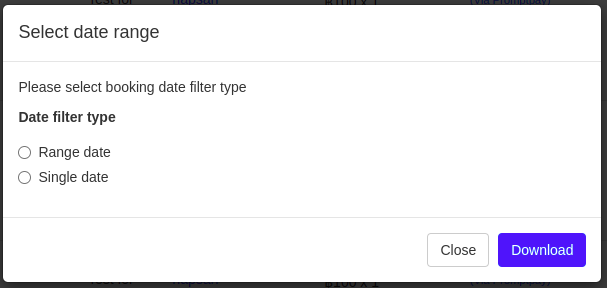
- Pick the date filter type
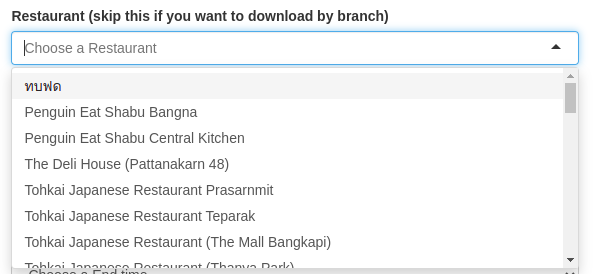
- Pick the restaurant, if you want to download for specific restaurant
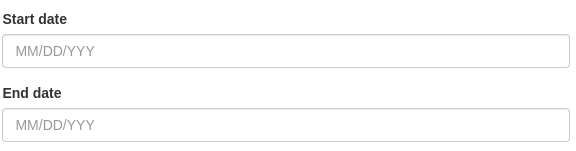
- If you pick Range Date, You should pick the start and end date
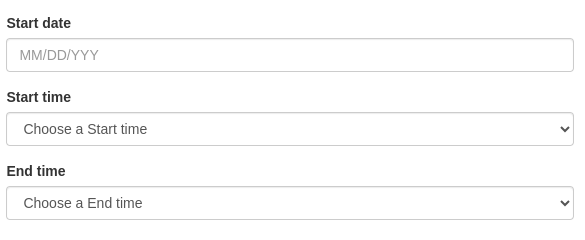
- If you pick Single Date, You should pick the start date, start time and end time
- Click “Download” button
- System will send you an email to download the report file
Here’s the report example: