Booking List
Glossary
-
user = all user that use Hungryhub app and website
-
user = customer
-
member = registered user
-
guest = unregistered user
-
ack = acknowledge, means that the booking transaction has been acknowledged
-
Booking Status :
- Active ➝ When the booking is not temporary booking, active true and no show is false
- Arrived ➝ When the booking is not temporary booking, active true and arrived is true, and admin or restaurant staff click "mark as arrived" button.
- Canceled ➝ When the booking is not temporary booking, active false. If the booking has been edited, the old booking status will be canceled, or if the temporary booking is not valid (in 10 minutes is not paid).
- Edited ➝ When the booking is not temporary booking, adjusted is true.
- No Show ➝ When the booking is not temporary booking, active true and no show is true, and admin or restaurant staff click "mark as no show" button, or edited to no show booking.
- Payment Expired ➝ When the booking is temporary booking, and didn't receive the payment from payment gateway. It will turn to payment expired status 10 minutes after user get QR code, or click pay.
- Pending Arrival ➝ When the booking is not temporary booking, active true and ack true. When the booking (both single booking or group booking) was successfully made using prepaid or pay at restaurant, the status will turn pending arrival.
- Pending Confirmation ➝ When user requests group booking, the booking status is pending payment.
- Rejected ➝ When the group booking was rejected by the restaurant.
- Waiting For Payment ➝ When the booking active is true and waiting for payment is true. The booking payment was made using CC or QR code, and in 10 minutes it will turn to payment failed if the user does not pay the booking.
- Temporary booking to lock the seats ➝ when the customer chooses a date and time until they process the payment (if it was prepaid) or click confirm booking (if it was pay on site).
-
Temporary Booking = is not listed on admin dashboard, it just temporary saving when user still on the checkout page, the
is_temporaryandfor_locking_systemvalue is true.
Features
Menu Navbar
-
Search BookingID

If you want to search by Booking ID, you can enter the Booking ID here and this will take you to the Booking List page with your Booking ID filtered. You can insert vendor booking id or reference_id to search the HungryHub booking.
-
Broadcast Message

You can send broadcast message to all user. Make sure to filter the booking correctly, if not it will send to all user.
-
Filter

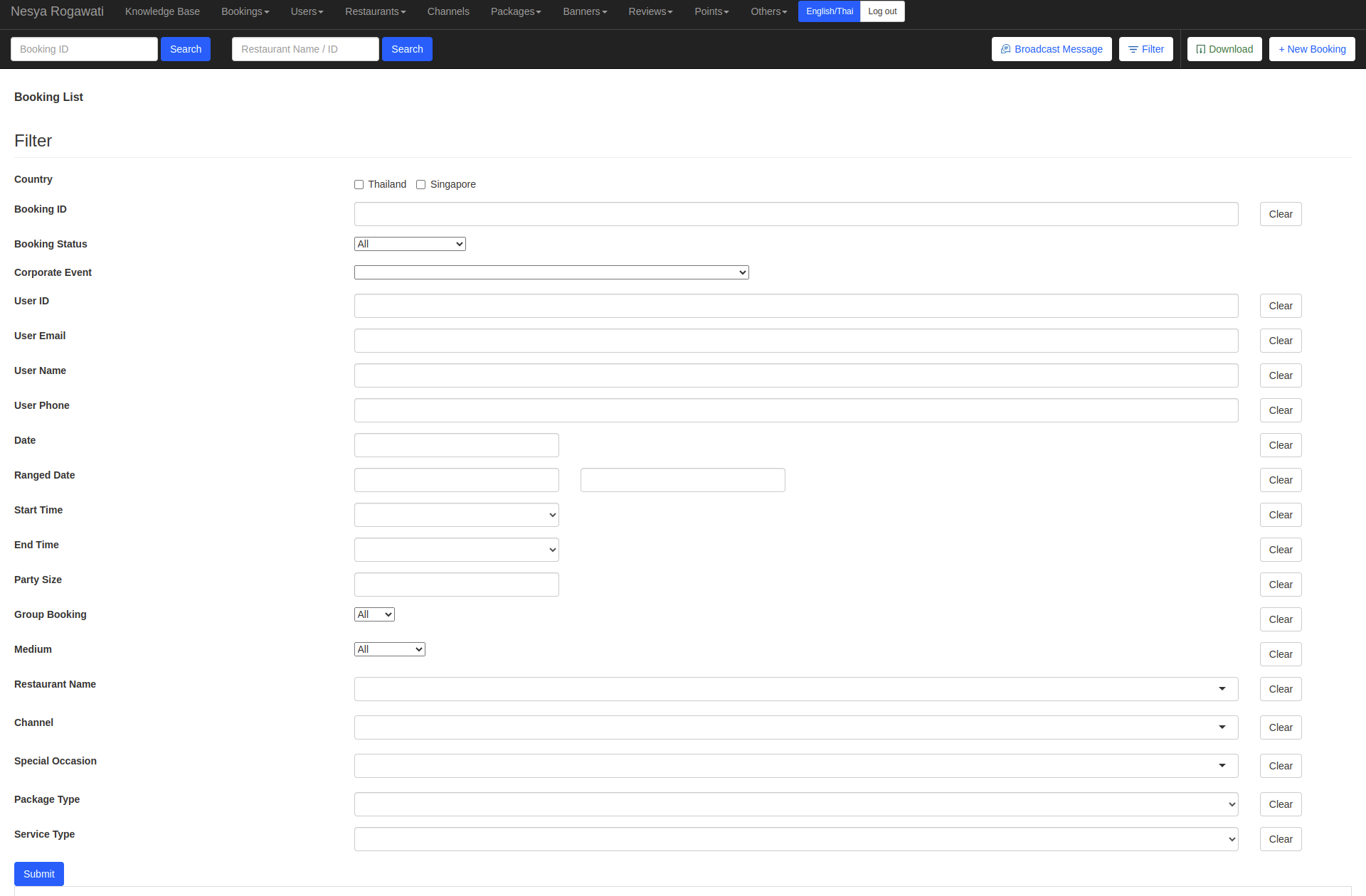
You can click "Filter" button to show the filter list.

You can show the specific Booking list by filtering it.
The available filter was:
- Filter by Country
- Filter by Booking ID ➝ you can insert Booking ID or vendor Booking ID
- Filter by Booking Status
- Filter by Corporate Event
- Filter by User ID
- Filter by User Email
- Filter by User Name
- Filter by User Phone
- Filter by Date
- Filter by Ranged Date
- Filter by Start Time (booking start time)
- Filter by End Time (booking end time)
- Filter by Party Size
- Filter by Group Booking
- Filter by Medium (From where is the booking made like from iOS mobile or website)
- Filter by Restaurant Name
- Filter by Channel
- Filter by Special Occasion (Special Occasion that user pick when they book
user can add occasion to their booking, to let the restaurant know.) - Filter by Package Type
- Filter by Service Type (For now we only have dine in, because we already remove the delivery)
-
Download

If you want to download Booking Report you can click the "Download" button.

For the latest booking, we don't sell delivery bookings, so you can only choose the dine-in and delivery option. And when you choose the date of the report, I recommend you choose the range date maximum of 15 days because the data will be too long if you choose more than 1 month. And it will make the system crash if its too long.
-
New Booking

If you want to create Booking from Admin Dashboard you can Click the "+ New Booking" button. It will redirect you to create booking form page.
Booking List Table
On booking list table it will show the information for each user booking.
-
Booking ID
In this column you will find the Booking ID information and Booking Status.
- If the booking status is Canceled, you can see the See Reason drop down button to see the reason for the cancellation.
- If the booking status is Canceled, from being edited you can find the Reservation History Button, it will redirect you to reservation history page, so you can see the history of the booking.
You can click the Booking ID to get the Booking details:
- Created At
- Created By
- Modified By
- Channel
- Device
- Special Request
- Private (https://app.clickup.com/9003122396/docs/8ca1fpw-31876/8ca1fpw-38676) ➝ you can click this if you want to see the detail data that saved in database, and if you want to check the partner notification detail
-
Date
In this column you will find the booking date.
-
Time
In this column you will find the booking time.
-
Restaurant Name
In this column you will find the name of the restaurant you have booked.
You can click on the restaurant name and it will take you to the restaurant page filtered by the booked restaurant name.
-
Customer Name / Mobile No.
In this column you will find the user name, phone number and loyalty level icon .
- If the booking came from partner it will show above the user name

- If the booking was created by member it will show the loyalty level icon, and you can click the user name to see the user detail.
- If the user have a no show booking it will show how many no show booking like this:

- If the booking came from partner it will show above the user name
-
Package Type
In this column you will find the package service type. (We only have dine in Dine-In, because we remove the delivery service)
-
Package Details
In this column you will find the package detail information:
- Package type (AYCE, PP, XP)
- Package price
- Package Name
- Menu (if there's any), You can click the menu drop-down button to see the booked menu
-
Party Size
In this column you will find the total party size, and the detail number of the adult and kids.
-
Paid Amount
In this column you will find the payment details :
- Payment Status ➝ Due, Paid xx%
- Payment provider ➝ Gift Card (if user paid 100% using voucher), Promptpay, Credit card, true wallet, shopee pay
- Paid Amount ➝ total of the paid amount
- More Details button, if you click the button it will show the payment summary:
- Restaurant name
- Total payment
- Delivery fee
- Discount
- Prepaid ➝ it will show how much user pay when booking
- Due ➝ it will show the remaining amount that needed to pay at restaurant
-
Action
In this column you will find 3 button:
- Edit ➝ It will redirect you to edit reservation page.
- Other :
- Mark as paid ➝ if the booking pad amount still 0, this button will appears.
- Mark as arrived ➝ if the booking status is not arrived, this button will appears.
- send confirmation to admin ➝ If you click this button, it will send the confirmation email to admin
- send confirmation to user ➝ If you click this button, it will send the confirmation email to user
- send confirmation to partner ➝ If you click this button, it will send the confirmation email to partner
- send custom sms ➝ If you click this button, it will send the sms to user
- send review link ➝ If you click this button, it will send the review link to user (if restaurant didn't have offer it will send review link to user email. if restaurant have offer it will send on both user sms and email)
- edit page for user ➝ If you click this button, it will redirect you to edit booking page for user
- edit page for owner ➝ If you click this button, it will redirect you to edit booking page for owner
- Cancel ➝ If the booking is not canceled and not in the past, this button will appear.