Search 2.0 Notes
Price Value on The Card
Previously before we released hybrid. We use value from price_summaries instead of price_and_pricing_type.
"price_summaries": [
					{
						"lowest_price": "฿500",
						"highest_price": "฿1,150",
						"package_type": "ayce",
						"pricing_type": "per_pack",
						"product_type": "package"
					},
					{
						"lowest_price": "฿1,200",
						"highest_price": "฿1,200",
						"package_type": "hah",
						"pricing_type": "per_pack",
						"product_type": "package"
					},
					{
						"lowest_price": "฿1,200",
						"highest_price": "฿1,200",
						"package_type": "pp",
						"pricing_type": "per_pack",
						"product_type": "ticket"
					},
					{
						"lowest_price": "฿500",
						"highest_price": "฿1,150",
						"package_type": "ayce",
						"pricing_type": "per_person",
						"product_type": "package"
					},
					{
						"lowest_price": "฿1,200",
						"highest_price": "฿1,200",
						"package_type": "hah",
						"pricing_type": "per_person",
						"product_type": "package"
					},
					{
						"lowest_price": "฿250",
						"highest_price": "฿250",
						"package_type": "pp",
						"pricing_type": "per_person",
						"product_type": "ticket"
					},
					{
						"lowest_price": "฿1,200",
						"highest_price": "฿1,200",
						"package_type": "hah",
						"pricing_type": "per_set",
						"product_type": "package"
					}
				],
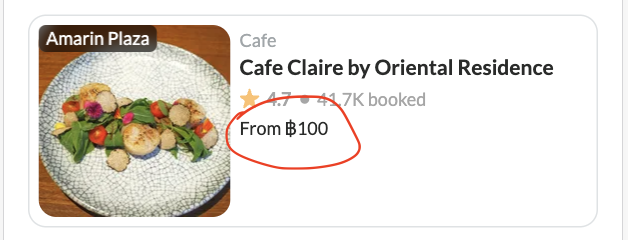
price_and_pricing_type is only shows the lowest price per person of the restaurant available package. But price_summaries is more than just that.
Logic that we use to handle price_summaries:
- pricing_type
- package_type
- lowest
- highest
Let's focus on pricing_type and package_type first. If the user applies this filter. We will show the lowest price based on pricing_type.
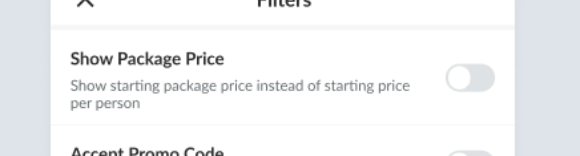 So, if we checked this filter we'll update the price_filter[price_type] only:
price_filter[price_type]: per_pack
can leave min and max empty, cause we only need to handle the UI not affected to backend.
So, if we checked this filter we'll update the price_filter[price_type] only:
price_filter[price_type]: per_pack
can leave min and max empty, cause we only need to handle the UI not affected to backend.
// packType based on applied filter package_type (if any)
// summaries from price_summaries data
// priceType based on applied filter default use per_person.

function getLowestPackType(packType, summaries, priceType) {
    const type = priceType.trim() !== '' ? priceType : 'per_person';

    // this handle xp and pp because they have different price per pack and person
    const summaryList = summaries.filter(summary =>
        (summary.packageType === 'pp' || summary.packageType === 'xp') &&
        summary.pricingType === type
    );

    const contains = packType ? summaryList.filter(summary =>
        packType.includes(summary.packageType)
    ) : summaryList;

    const lowest = contains.length > 0 ? contains.reduce((min, summary) =>
        parseInt(min.lowestPrice.replace(/\D+/g, ''), 10) < parseInt(summary.lowestPrice.replace(/\D+/g, ''), 10) ? min : summary
    ) : summaryList[0];

    return lowest;
}
So, if the filter user per_pack, we'll show price per_pack in card. In case the filter has selected package type we'll show the price of selected package.
Update Search 2.0 relate with convert tag to keyword (9 Jan 2024)
Private (https://app.clickup.com/t/86cu6zzd6) https://www.figma.com/proto/fSGnfu6A5l6JwyZe7H1QZy/Search-Suggestion-2024?type=design&node-id=8-4366&viewport=774%2C373%2C0.44&t=cd27S3EdevYdTPFh-0&scaling=min-zoom&starting-point-node-id=8%3A4482
Simplified Admin Setting Update:
We'll changes format tag into keywords data. Before:
"interesting": [
			{
				"id": "10",
				"type": "restaurant_tags",
				"attributes": {
					"cover": {
						"url": "/uploads/restaurant_tag/cover/10/pexels-the-castlebar-5893533.jpg"
					},
					"title": "International",
					"title_en": "Cuisine:International",
					"tag_type": "cuisine",
					"total_restaurants": 218
				}
			}
		]
After:
"interesting": [
			{
				"id": "10",
				"title": "International"
			}
		]
Adjust Event when click interesting sections
And when clicked will trigger this event: Web Event: onSearchKeyword
{
	"keyword": "International"
}
Remove Select City on Search Bar
From client side, when press the Keyword. The system will shows Search Page > Search Results with that keyword filled (Blue Line)
 We'll simplify the search bar and will use the selected city on the homepage as payload city_id every time goes to the search page.
Update 19 Feb 24
Since we have issue UI doesn't looks good. We'll make dynamic show hide search bar in native app. Web Event: onSetSearchBar
 {
    "visibility": true/false
}
If false, hide the search bar, if true show the search bar